You've got tens of thousands of photos in a Google Drive folder, the names are all IMG_4827.JPG, and you need to find the three shots of the magnolia tree from the Henderson wedding before 4pm. AI photo tagging is the category that exists to solve exactly that problem, and 2026 is the year it finally got good enough to use on a real library.
What "AI photo tagging" actually means in 2026
AI photo tagging is the bulk version of image keywording. A vision model looks at a photo, identifies what is in it, and writes that information back to a metadata store so the photo becomes searchable.
The category used to mean "we ran an object detector and got back 'person, table, food'". In 2026 it means structured tags, editorial alt text, focal-subject identification, and search that returns "the candid shot of the bride laughing during the toast" instead of "20,000 photos containing a person."
Two things make 2026 different from 2022. Vision models got dramatically better at scene understanding and proper-noun context. And the price per image dropped by roughly 80 percent, which makes tagging a 100,000-photo library a normal Tuesday operation instead of a budget meeting.
The category breaks into three kinds of tools, and the right one depends on whether you're tagging for a team or for yourself.
- Image-cataloging tools that connect to your storage, tag in bulk, and store results in a searchable index for a team. Tagrly is the example we know best. Enterprise photo platforms aimed at 100+ person teams sit in this row too.
- Lightroom plugins and desktop tools that tag photos already imported into a single person's editing app. Good for solo photographers who live in Lightroom; not built for teams.
- Single-image vision APIs that take a photo and return tags but don't catalog anything. Google Vision API, AWS Rekognition, and Anthropic's Claude vision API live here; they're infrastructure, not products.
The right category depends on whether you're tagging for a team or for yourself, and whether your photos already live in Lightroom or in Drive and Dropbox. We'll cover that decision later in this guide.
Why bulk matters: the 1,000-photo wall
Most photographers and marketing teams hit a wall somewhere between 1,000 and 5,000 photos. Below that, you can usually remember roughly where a photo is. Above it, the library becomes opaque, and "find me the magnolia tree shot" turns into a 45-minute scroll.
The math on manual keywording is brutal. A skilled keyworder, working in Lightroom or Adobe Bridge, produces 100 to 200 keyworded photos per hour at editorial depth.
At the midpoint of 150, a 10,000-photo library is roughly 67 hours of human time, and a 100,000-photo library is 667 hours. At a US freelance rate of $40 per hour, that is a $26,680 one-time cost, before any consistency review.
The AI side of the ledger is measured in hands-on time, and the hands-on time is close to zero. The scan runs unattended in the background: you connect the folder, start the scan, and walk away. What is already read is searchable while the rest is still going, so the team can start pulling photos before the scan completes. The real comparison is one unattended pass versus 67 or 667 hours of focused human typing.
The load-bearing question for this whole category is not raw speed, it is whether the tool can walk a real library without babysitting. If a tool's workflow requires a human to feed it batches by hand, it doesn't work on a real photo library. If a tool charges per image at a rate that makes 10,000 photos cost more than a junior designer's monthly salary, it doesn't work on a real photo library either.
Honest tools publish their pricing on the front page. Skip ones that don't.
Note. "Bulk" in this category doesn't mean "uploading a folder of 20 photos into a web form." It means an API or storage connector that walks the whole library, queues every image, handles rate limits, and writes results to a database. If the tool's onboarding is "drag photos here," it's not a bulk tool.
How AI photo tagging works under the hood
In plain English, the pipeline has three steps: ingest, a vision pass, and indexing. A tool that skips any one of them cannot search a real library.
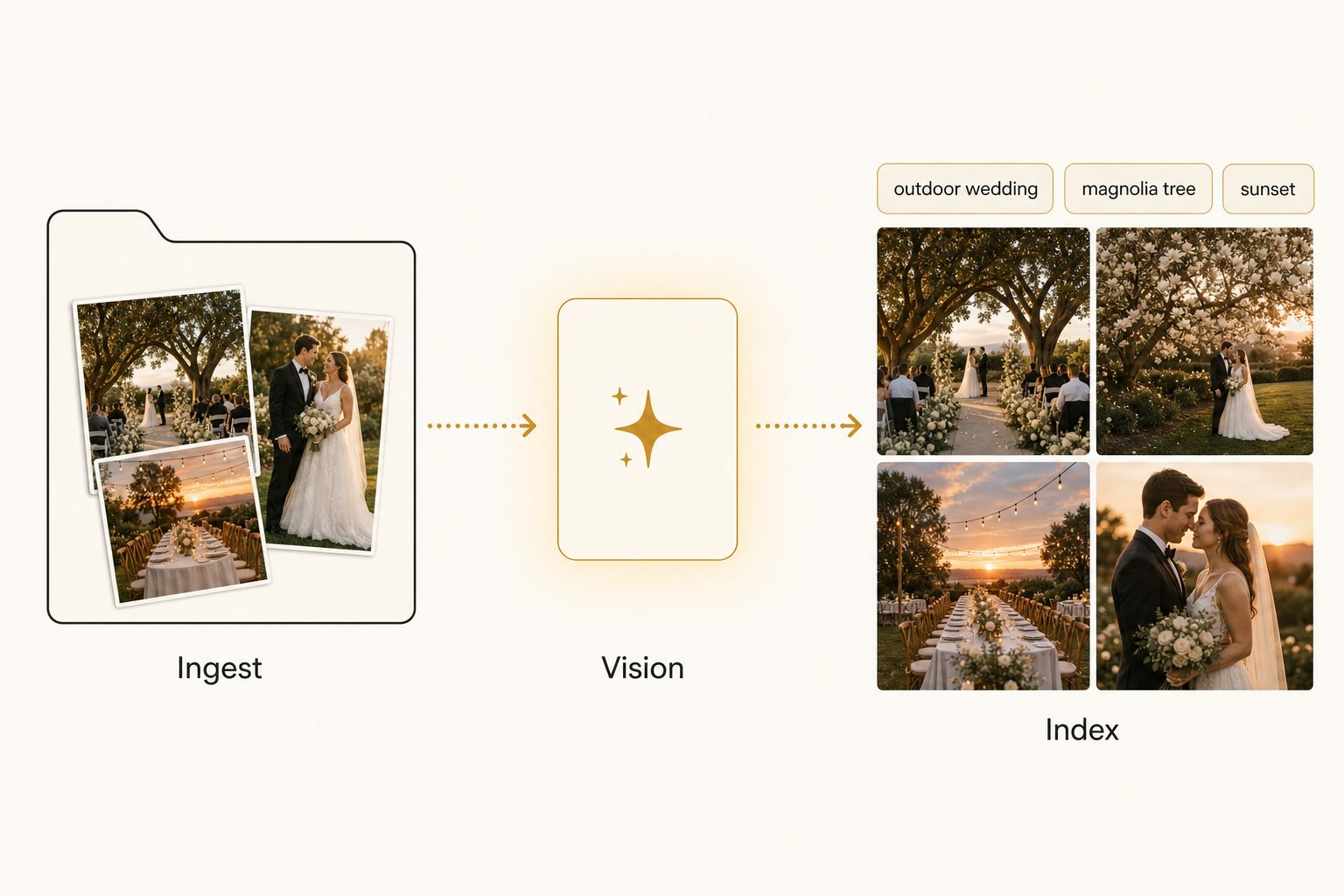
Ingest
The tool connects to your storage (Google Drive, Dropbox, a folder on your computer, or an S3 bucket) and walks the file tree. It records the file path, size, modified time, and a content hash for every image. The hash matters because it's how the tool avoids re-tagging the same photo twice if you re-run the scan.
Vision pass
Each photo is sent to a vision model. The model reads the pixels and returns a structured response: a focal-subject label, a list of tags, a sentence or two of alt text, and a confidence score for each.
Tagrly uses Anthropic's Claude vision under the hood; you can see Anthropic's vision documentation for what these models can actually do. Other tools use Google Vision API, AWS Rekognition, or open-source CLIP variants. The choice of model is the single biggest driver of output quality.
Index
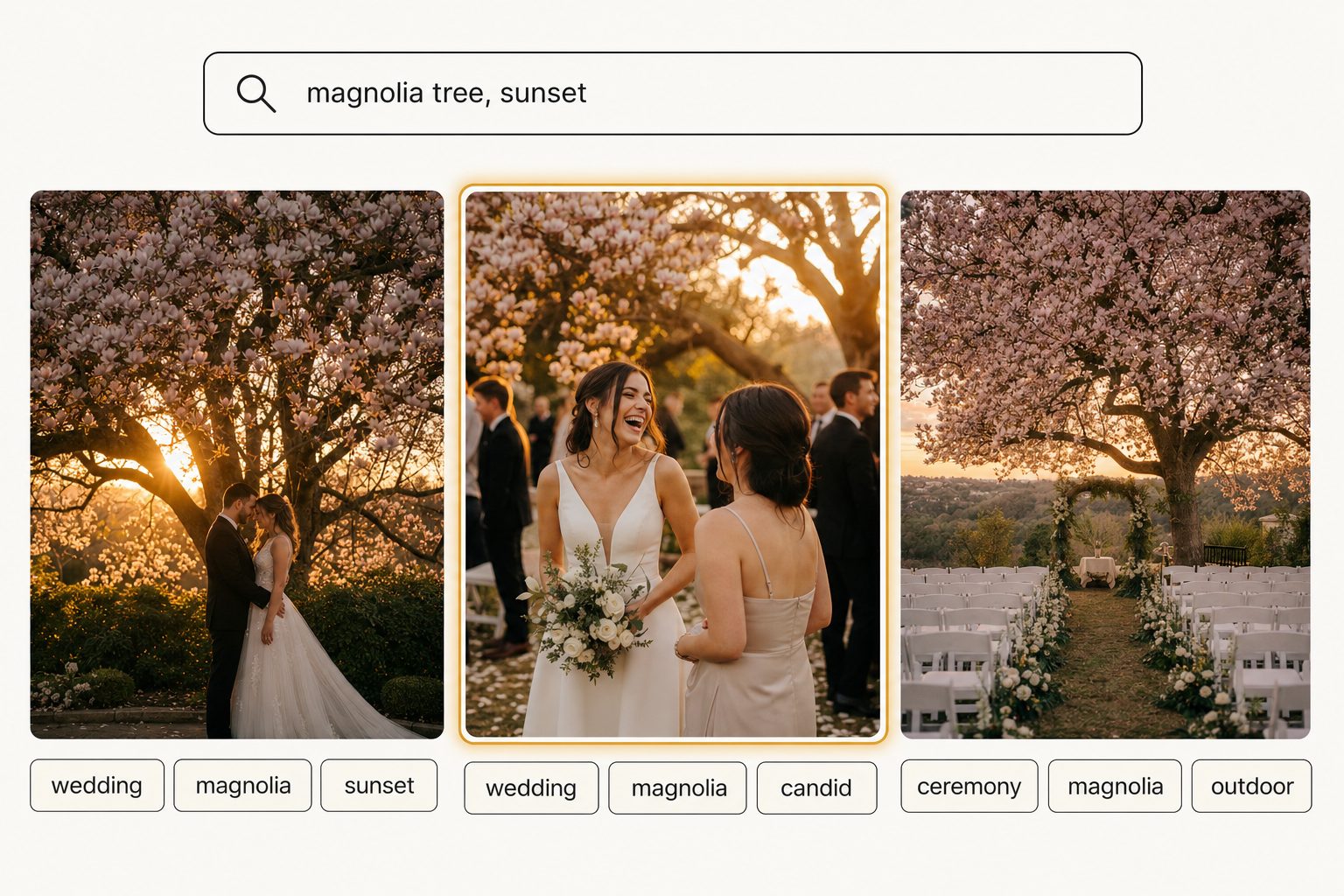
The structured response is written to a database with the file path, content hash, and a small derivative thumbnail on a CDN. From that point on the photo is searchable: type "magnolia tree, sunset, bride laughing" and the results come back in milliseconds.
The focal-subject tagging method
The framework Tagrly owns and recommends across the category is focal-subject tagging, and we break it down step by step in the focal-subject tagging method. Three steps, in order:
Tip. The focal-subject tagging method.
- Focal first. Identify the single dominant element of the scene. For a wedding shot it might be "bride under magnolia tree at sunset", not "tree" and not "person".
- Context second. Tag everything else as supporting context: "white folding chairs, family seated, golden hour, outdoor wedding."
- Rank focal above context. Search ranks focal-subject matches above context matches, so "magnolia tree" surfaces the right photo and "white folding chairs" doesn't drown the result with every wedding you ever shot.
Most tagging tools skip step 3 and treat every tag as equal. That's why their search returns 200 wedding photos when you wanted the magnolia one. Focal-subject ranking is the discipline of writing one dominant-subject label per photo, then ranking that field higher than the supporting context tags in the search index, so a query for "magnolia tree" surfaces photos of a magnolia tree before photos that merely contain one in the background.
Tip. When you evaluate a new tool, ask it to tag five of your own photos and look at whether the first tag is the focal subject or a generic noun like "person" or "indoor." The first tag tells you everything about the tool's worldview.
What "good" output looks like
Good output has two jobs to do at once: make the photo findable in internal search, and hand you a sentence fit for a public page. Most tools pick one job. Tagrly's analysis does both in a single pass, on every plan, so each photo comes out with both halves together.
The full reading, one photo
Example output for a wedding shot:
focal: bride and groom in their first embrace as a married couple
tags: outdoor wedding ceremony, sunset, flowering magnolia tree,
      formal attire, candid moment, family seated in background,
      golden hour light
alt:  A bride and groom embrace under a flowering magnolia tree at
      golden hour, surrounded by family seated on white folding chairs
      as the ceremony concludes.
The focal and tag lines are the search half: one strong focal label, then context tags ranked below it. This is the focal-subject method (above) at work, and it is what finds the photo later.
Alt text you can publish
The alt line is the editorial half: a full sentence, named subjects where the focal subject is clearly identifiable, prose suitable for publication. You can paste it into a blog post or a press release without editing. There is no separate tier or upcharge for it: every plan runs the same full analysis, and one credit reads one photo.
The way to judge any tagging tool, this one included, is to look at actual output on your own photos before paying anyone, not at marketing screenshots.
Tip. Want to see what AI tagging looks like on your own photos before reading any further? Tagrly's free tier reads the first 500 photos in any Drive or Dropbox folder, no credit card. Try it on a sample folder and judge the output against your own shots before you pay anyone.
Bulk-tagging Google Drive vs. Dropbox vs. local folders
The three storage sources aren't equivalent. The tradeoffs by source:
Google Drive
The most common source. Drive's API is well-documented (the Google Drive API reference is the canonical place to start) and rate limits are generous enough that a tagger can stream 5 to 10 photos per second without throttling. Tools that connect via Google's standard OAuth with the drive.readonly scope can walk your folders and tag everything in place without downloading anything.
Tagrly is one of several services in this category. You can read the full step-by-step in our Google Drive bulk-tagging guide.
Dropbox
Slightly faster per photo than Drive (Dropbox returns full-resolution faster), but the API has lower aggregate rate limits, so a 100,000-photo library takes about the same total wall-clock time. The auth flow is similar. Full walkthrough in bulk-tagging photos in Dropbox.
Local folders
Fastest per photo (no network round-trip), but only practical for libraries that fit on the machine running the tagger. Most teams skip this option because the photos live in Drive or Dropbox already and copying them locally is the slow step.
S3 or R2 buckets
Some enterprise tools support this; most cluster tools don't. Tagrly doesn't currently support direct bucket sources for end users; the only bucket in the picture is Tagrly's own R2 cache, which holds derivatives, not originals.
The big honest takeaway: it doesn't really matter which of Drive or Dropbox you use. The bottleneck is the vision model, not the storage. Pick the one your library is already in; AI photo search reads across both the same way.
Editorial-grade alt text vs. generic tags
Most tagging tools stop at "tags." A few generate alt text, but the quality varies wildly. There is a real framework gap here that Tagrly owns, editorial-grade alt text, and it is worth defining precisely.
Generic alt text reads like a tag list strung together with commas. "Bride, groom, tree, sunset, family." Search engines tolerate it; screen readers do not. The Web Content Accessibility Guidelines from the W3C ask for descriptive sentences that convey the information a sighted reader gets from the image.
Editorial-grade alt text is what passes that bar:
| Generic alt | Editorial-grade alt |
|---|---|
| "wedding, bride, groom" | "A bride and groom embrace under a flowering magnolia tree at golden hour, surrounded by family seated on white folding chairs." |
| "food, plate, restaurant" | "A roast chicken on a hand-painted ceramic plate, garnished with pomegranate and parsley, photographed from above on a marble table." |
| "couch, living room, dog" | "A golden retriever asleep on a navy linen couch, framed by a brass floor lamp and an oversized fiddle-leaf fig." |
The right-hand column is what you can paste into your blog without rewriting. The left-hand column is what most tools give you. If your tagger cannot produce the right-hand column, you will end up rewriting every alt text by hand, which defeats the purpose. We cover this gap in detail in our guide to auto-generating alt text for thousands of images.
Warning. Some vendors advertise "AI-generated alt text" but actually produce concatenated tag lists. Always ask for a sample of 10 alt-text outputs against your photos before you sign up. Twenty minutes of sample review saves a month of cleanup.
How to choose a bulk tagging tool
The decision criteria, in order of how often they matter:
1. Does it scan a real library, or only single images?
If the tool's onboarding is dragging photos into a web form, it's not in the bulk category. Single-image AI services are useful for one-off product photos but not for a multi-season wedding archive. Image-catalog tools like Tagrly, plus the enterprise photo platforms, do real bulk.
2. Does it work where your photos already live?
Lightroom plugins are great if your team already lives in Lightroom, useless if your library is in Drive or Dropbox. Tagrly connects to Drive and Dropbox directly. Enterprise photo platforms expect you to upload to their own storage, which means a slow one-time migration and ongoing two-way sync friction.
3. Does the output match where the tags will end up?
If you're tagging for internal search, almost any tool's structured output works. If you're tagging for public-facing alt text, you need editorial-grade output (the focal-subject method above), and most tools don't produce it.
4. How does it price?
Per-image tagging adds up fast; per-image with a monthly cap usually means the cap is the real price. Subscription tools with included tagging quotas are easier to plan against. The honest comparison post is how Tagrly's pricing compares head-to-head with the alternatives.
5. Can a team share the result?
This is the silent killer for desktop tools. They're excellent for one person, but their catalogs don't share well across a team. If two people need to search the same library, you need a tool with shared workspaces.
The honest competitive picture, as of 2026:
| Tool category | Best for | Where it falls short |
|---|---|---|
| Cloud image catalog (Tagrly) | Small to mid teams sharing a photo library on Drive or Dropbox | Not an editing tool, no RAW conversion |
| Enterprise photo platform | 100+ person teams with procurement budgets | Expensive, slow migration, overkill under 25 seats |
| Lightroom plugin | Solo photographers who live in Lightroom | Single-machine, no team layer, tags trapped in the local catalog |
| Single-image AI service | One-off product photography | No bulk scanning, no shared catalog |
| Desktop photo organizer | Family and prosumer photo collections | Not built for teams; weaker AI tagging |
For a head-to-head with named alternatives, see our comparison post, or the full field sorted by situation in our shortlist of the best AI photo tagging software. If you're mid-evaluation right now: pick a cloud image catalog like Tagrly if your photos are in Drive or Dropbox and you have a team. Pick a Lightroom plugin if you're solo and live in Lightroom. Pick an enterprise photo platform if you have a procurement department.
What to do next
If you took one thing away from this guide, it is that the 1,000-photo wall is real and there is no good reason to keep climbing it manually in 2026. The tools are fast enough, accurate enough, and cheap enough that the only remaining question is which one fits your library and team.
The shortest path to figuring that out: pick the option from the table above that fits your situation and try it on a real folder of your photos. Tagrly's free tier lets you tag the first 500 photos in any Drive or Dropbox folder at no cost, no credit card. See it work on your library, then judge the tags and alt text against your own shots. Every plan runs the same full analysis at a flat one credit per photo (details on the pricing page), so the free first 500 photos show exactly the output quality you would get at scale.
For the deeper dive on specific scenarios, see the Google Drive bulk-tagging guide, the Dropbox bulk-tagging guide, or the auto-generating alt text guide.
The category is finally good enough. Stop scrolling.
Frequently asked questions
How fast is AI photo tagging on a large library?
The scan runs unattended in the background, end to end, including ingest, tag generation, and writing results to the searchable database. What is already read is searchable while the rest is still going. Practical takeaway: you start a 100,000-photo library scanning and walk away, and what has already been read is searchable while the rest is still going. Manual keywording at the same depth, by a human typing keywords into Lightroom or Bridge, takes 5 to 8 hours per 1,000 photos.
Does AI photo tagging work without downloading the photos?
Yes, the better tools stream photos directly from your storage. Tagrly reads photos from Google Drive or Dropbox using the source provider's API, sends each one to a vision model, writes the resulting tags and alt text to a database, and stores a small derivative on a CDN for fast preview. Your originals stay exactly where they are. Nothing is copied to your machine and nothing is moved between folders. This matters for two reasons: it preserves your existing folder structure, and it means the tool can handle libraries that would not fit on your hard drive. A 100,000-photo Drive library is roughly 800 GB on average; streaming makes that a non-issue.
What's the difference between AI photo tagging and manual keywording?
Manual keywording is a person looking at a photo and typing keywords into a metadata field, usually IPTC in Lightroom or Bridge. It is slow, inconsistent, and expensive. A skilled keyworder produces 100 to 200 photos per hour at editorial depth, and two keyworders rarely choose the same words for the same photo. AI photo tagging replaces the human step with a vision model that looks at the photo, identifies the focal subject and surrounding context, and emits structured tags plus a sentence of alt text. The good systems are 30 to 60 times faster than a human, and they are internally consistent, so search across the library actually works. The tradeoff: AI does not know your client names or your private vocabulary, so the best workflow is AI for the base layer and human edits for the 5 percent of photos that need it.
Can AI generate alt text I'd actually use on a website?
Yes, if the tool writes sentences rather than tag lists. Tagrly's analysis produces both for every photo: short structured tags like 'outdoor wedding, sunset, bride and groom, magnolia tree' that drive internal search, and editorial-grade alt text written as one or two complete sentences describing the focal subject and the scene. For example: 'A bride and groom embrace under a flowering magnolia tree at golden hour, surrounded by family seated on white folding chairs.' That sentence is fit to publish on a blog post or in a press release. Every plan gets the same full analysis, and one credit reads one photo, so there is no separate tier to buy for the public-facing photos.
How is Tagrly different from a Lightroom plugin or a single-image AI tagging service?
Single-image services take one upload at a time, return keywords, and stop. They do not scan a folder, do not store the results in a searchable catalog, and do not work on libraries you cannot upload by hand. Lightroom plugins run on your local machine against photos already imported into Lightroom, which is great if you live in Lightroom and bad if your team does not. Tagrly is the team layer that neither category offers: it connects to your Google Drive or Dropbox, tags everything in bulk without downloading, stores the result in a shared searchable catalog, and lets multiple people on a team find and share photos without each person installing software. The honest tradeoff: if you are a solo photographer who only uses Lightroom, a Lightroom plugin is fine. If you are a marketing team, an agency, or any group sharing a photo library, Tagrly is built for you.
What happens to my photos and tags if I cancel?
Your photos never leave your storage in the first place, so cancelling Tagrly does not touch them. Your tags and metadata stay exportable for 30 days after cancellation as a CSV or JSON file, so you can take everything with you. After 30 days the Tagrly-side database row for your workspace is deleted. Nothing about your Google Drive or Dropbox is altered at any point. This is deliberate: we want the decision to leave to be as easy as the decision to try. Pricing details and an export walkthrough live on our pricing page and in your workspace settings once you have an account.
Try Tagrly on your own photo library
Connect your Google Drive or Dropbox folder and Tagrly will tag every photo in bulk. Search by what is actually in the image, share specific shots with clients, and never lose a photo again.
- Free for your first 500 photos
- Read-only access, revoke anytime
- No credit card