
You've got thousands of photos in a Google Drive folder, the filenames are all IMG_4827.JPG, and the client needs the three magnolia tree shots from the Henderson wedding before 4pm. Drive's search can't help, because Drive doesn't know what's in your photos.
Bulk tag a Drive folder with AI: the whole setup
Bulk-tagging a Drive folder with AI takes four steps and no downloads. This is the flow Tagrly is built for, and other Drive-connected tools follow the same shape.
- Create a free account. Sign in with Google. No credit card; the first 500 photos are tagged free, which is enough to judge the output quality on your own library before paying anything.
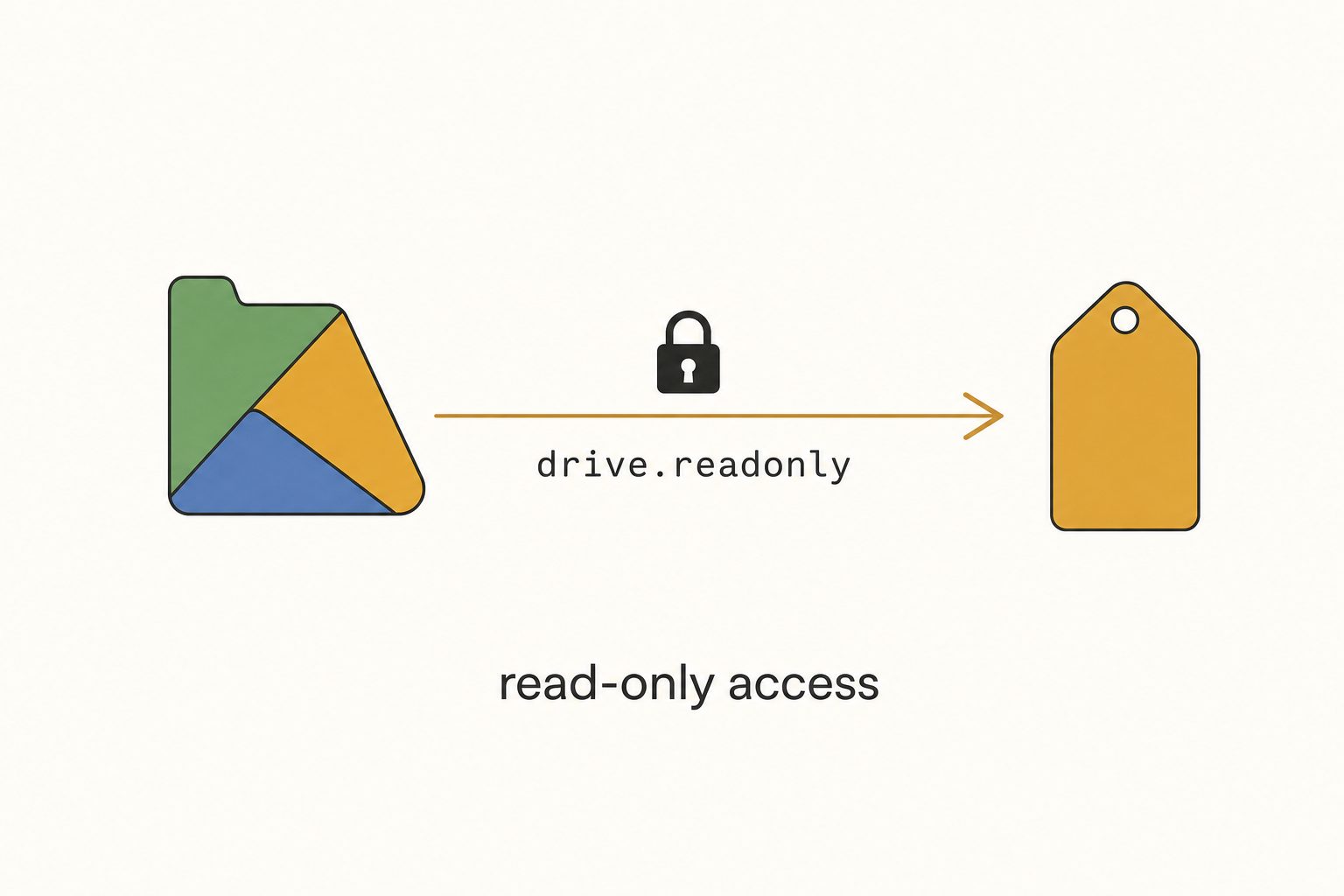
- Connect Google Drive, read-only. Approve Google's OAuth prompt for the
drive.readonlyscope. That scope can read the folders you select and nothing else. It cannot rename, move, delete, or edit anything in Drive, and you can revoke it any time from your Google Account permissions page. - Pick a folder and start the scan. Any folder works, including Shared Drives. The scan runs unattended in the background. Photos are searchable while the scan is still going.
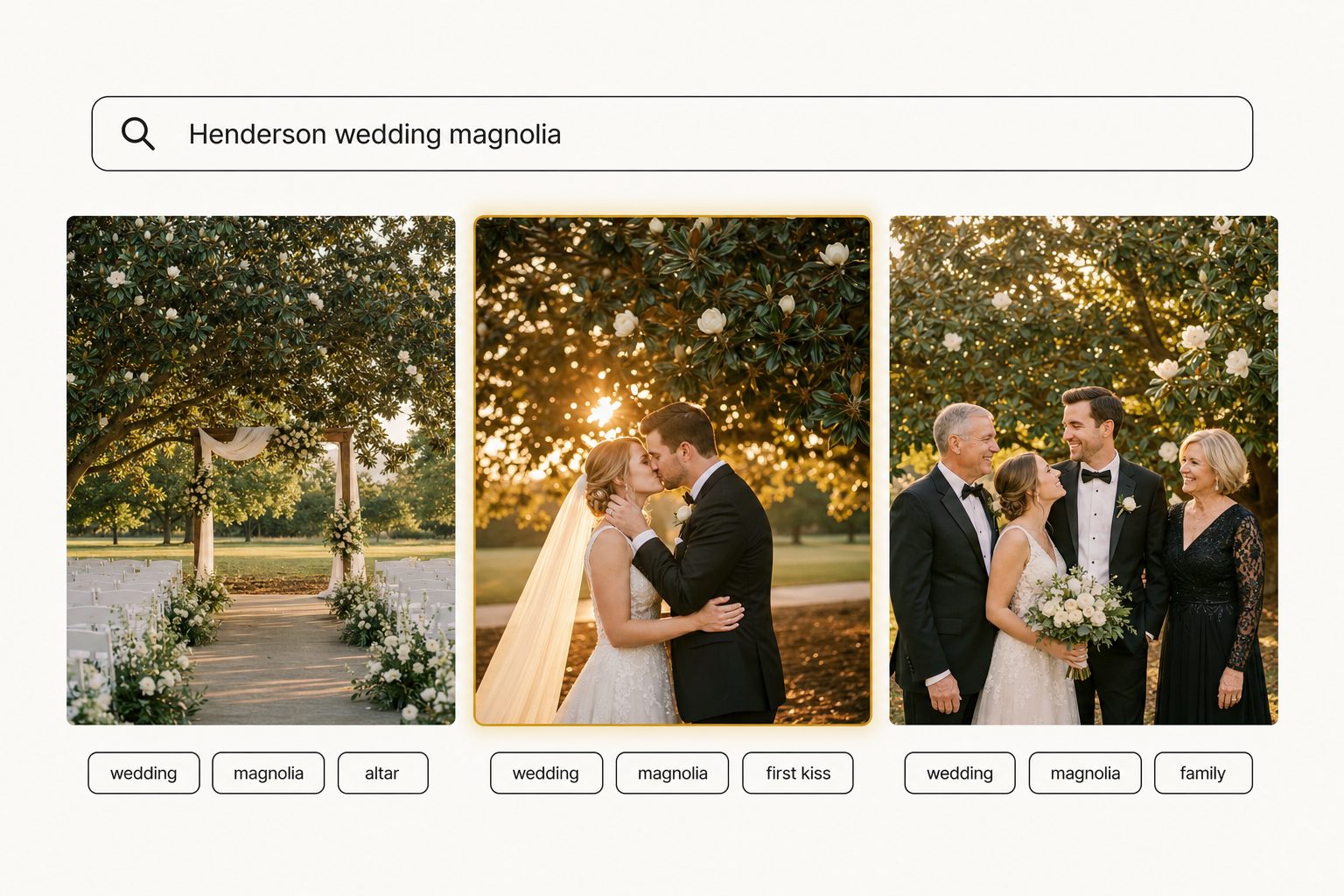
- Search in plain English. Every photo now carries a focal subject, tags, and a sentence of alt text. Type "Henderson wedding magnolia" and the three magnolia shots come back ranked first, not buried in 200 tree photos.
That's the whole workflow: nothing downloads, your folder structure doesn't change, and the tags live in a searchable index the whole team can use. If you want to see the search experience on your own shoots before deciding anything, the first 500 photos are tagged free, no credit card.
Past the first 500 photos it's a paid subscription; pricing is here. The rest of this post is for everyone who wants the free routes, the Lightroom route, or the honest comparison before committing.
Why downloading photos to tag them is the wrong workflow
Downloading a Drive folder to keyword it in Lightroom breaks down before you finish the first scan, for three reasons. Leave the photos in Drive and tag them in place instead.
- Size. A 10,000-photo shoot runs about 80 GB; a marketing team's three-year library is often 500 GB to 1 TB. That does not fit on most laptops, and the download alone takes hours.
- Source of truth. Once one copy lives on a laptop and another in Drive, nobody knows which is current. Two people keywording the same shoot on two laptops produce two sets of tags that never sync back.
- Speed. A skilled keyworder tags 100 to 200 photos per hour. At the midpoint, a 10,000-photo library is 67 hours of human time, roughly $2,680 at a $40 freelance rate.
The workable options all leave the photos in Drive: tag them in place with Drive's own description field, or point a tool at the folder that reads from Drive and writes tags to a separate searchable index.
Option 1: Manual keywording inside Google Drive (free, slow)
Manual keywording inside Drive is the only fully-free path, and it is the slowest. Every file in Drive has a description field: open a photo, click the (i) icon, scroll to "File details," and type keywords into the text box. Drive's built-in search will match anything typed there. No downloads, no third-party tools, no subscription.
The cost is time: 30 to 60 seconds per photo means a 1,000-photo folder is about 8 hours of focused work, and a 10,000-photo folder is closer to 80.
Know what Drive's search will and won't do before you invest those hours. Drive matches keywords against the description field, the filename, and any text its OCR detected inside the image (mostly screenshots). It does not do visual search, content recognition, or relevance ranking: if 200 photos have "tree" in their descriptions, a search for "tree" returns all 200 in no useful order.
Tip. If you go this route, batch by event. Open one folder at a time, type the same 5 to 10 keywords into every photo in it, then move on. Trying to be more granular than that on a free workflow burns out fast.
Option 2: Download + Lightroom or Adobe Bridge (paid, machine-bound)
Lightroom and Adobe Bridge tag photos well, but only after you sync a local copy, which binds the whole workflow to one machine. Adobe Bridge is free with any Creative Cloud account (no paid plan needed) and walks a local folder to apply IPTC keywords in bulk. Lightroom Classic (about $10/mo on Adobe's Photography plan as of writing, August 2026; check Adobe's plan page for the current figure, since the 20 GB plan is no longer sold to new subscribers) does the same and adds Adobe Sensei AI keyword suggestions.
The workflow: install Drive for Desktop, sync the folder to a local disk, import into Bridge or Lightroom, keyword, and let Drive for Desktop sync the XMP sidecars back up.
Pros: the tags travel with the files as IPTC keywords, readable by any IPTC-aware tool, and Sensei is decent at generic objects ("person, tree, building").
Cons:
- Library size. The library has to fit on your laptop.
- Sync time. The sync round-trip takes hours.
- Generic tags. The AI tags are generic (you get "tree," not "flowering magnolia at golden hour").
- Locked tags. The tags live in a local catalog or sidecars, so a teammate who wants to search needs your catalog file.
Best fit: solo photographers who already live in Lightroom with libraries small enough for one machine. It does not scale to teams.
Option 3: AI bulk-tagging services that connect to Drive (fast, mostly paid)
This category exists because options 1 and 2 don't scale. These services authenticate over OAuth with the read-only scope, walk your Drive folders, run every photo through a vision model in place, and write tags plus alt text to a searchable database. The originals never leave Drive, and you search your Drive photos from the service's own interface.
The landscape as of 2026:
| Tool | Connects to Drive directly? | Free tier | Paid pricing | Best for |
|---|---|---|---|---|
| Tagrly | Yes (read-only OAuth) | First 500 photos, no card | Subscription | Small to mid teams sharing a Drive library |
| Other Drive-connected catalogs | Yes | Varies | Per-user/mo or per-photo | Teams wanting Drive as the photo-library backend |
| Single-image AI services | No (one upload at a time) | Limited free credits | Per-image credits | One-off product photos, not bulk-from-Drive |
| Lightroom plugins | No (Lightroom-only) | No | One-time license | Solo Lightroom users |
| Enterprise asset platforms | No (separate storage) | No | Enterprise contract | 100+ person enterprise teams |
Only the first two rows actually solve "tag photos in Drive without downloading them." The rest require uploading photos one at a time, syncing a local copy first, or migrating your whole library onto the vendor's storage.
Tip. The cleanest way to evaluate any of these is to point each tool at the same 50 to 100-photo Drive folder and compare the output side by side. Twenty minutes of that tells you more than any marketing page, ours included.
Does a tagging service keep a copy of my Drive photos?
No copy of your full-resolution library sits in third-party storage. A well-built service reads each photo, tags it, and keeps only the tags plus a small preview thumbnail. Three steps run for every photo, and this is what actually happens to the pixels along the way.
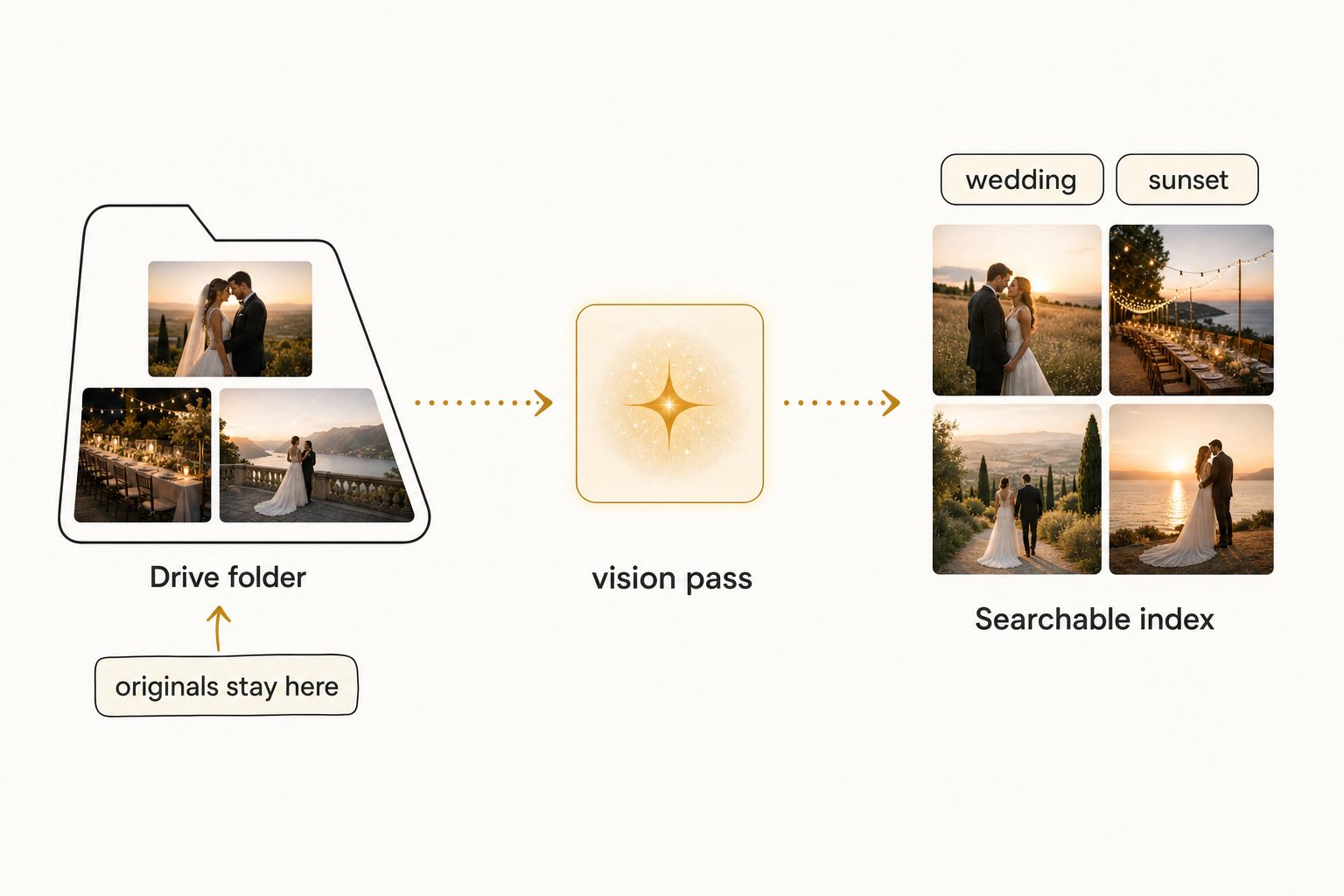
Read from Drive over the API. The service fetches each photo's bytes through Google's API under the drive.readonly scope (Google's scopes reference lists exactly what it permits), holds them in memory just long enough for the vision pass, and discards them. If you ever change your mind, you can remove the connection from your Google Account at any time.
Vision pass with focal-subject tagging. Each photo goes to a vision model that returns a focal-subject label, context tags, and a sentence of alt text. The focal-subject method (one dominant-subject label ranked above the supporting tags) is what makes search surface the right photo instead of every photo that vaguely matches. Model choice is the biggest driver of output quality; Tagrly uses Anthropic's Claude vision, others use Google Vision or in-house models.
Write to the searchable index. The structured result lands in a database alongside the Drive file ID and a content hash, plus a small low-resolution preview thumbnail for the service's UI. The original in Drive is untouched, and there is no parallel full-resolution copy of your library sitting in third-party storage.
What you'll actually spend
For a 10,000-photo library the real cost is time, not dollars: the free routes cost dozens of hours and the paid AI services cost a small subscription and almost none. Here is how the five paths compare.
| Approach | Up-front cost | Time cost | Best for |
|---|---|---|---|
| Manual in Drive description field | $0 | 80 hours of focused work | Solo, low-volume, never-grows |
| Download + Lightroom Classic | About $10/mo (see Adobe) + sync overhead | 30 to 50 hours of supervised work | Solo Lightroom users with small libraries |
| AI service, free tier | $0 for first 500 photos (Tagrly) | Minutes of setup | Trying it out |
| AI service, paid tier | $10 to $30/mo for most | Minutes of setup + an unattended scan | Anyone with more than 500 photos |
| Enterprise asset platforms | $1,000+/mo + migration project | Weeks to migrate | 100+ person enterprise |
The gap that matters is between option 1 (free, enormous time cost) and option 3 paid (small subscription, near-zero time cost). For most teams above 500 photos, the subscription pays for its first month in time saved on the first scan. If you are staring at thousands of photos and just want the route to pick, how to tag thousands of photos walks the three options by situation.
How to search Drive photos by what's in them
Good tagging is worth the setup because of the search it unlocks. With manual keywords or generic AI tags, searching "magnolia" returns every photo containing a tree. With focal-subject tagging, it returns the three shots where the magnolia is the dominant element, ranked by relevance.
Type what you remember ("Henderson wedding magnolia," "rooftop watch party," "kitchen brass fixtures") and the top results are the right photos. In Tagrly's own testing on a 5,000-photo set, focal-subject tagging surfaced the correct top match in roughly 9 of 10 searches. That is the difference between a Drive folder you can't search and one you can.
How to decide between the three options
- Pick manual Drive descriptions if you have under 200 photos that don't grow, no budget, and a tolerance for typing.
- Pick Lightroom Classic + Adobe Sensei if you already live in Lightroom, your library fits on one machine, and you're solo or share a catalog with one other person.
- Pick an AI service if you have more than 500 photos, want focal-subject ranked search, need a team to share the result, or treat Drive as the source of truth and don't want a local sync layer. The fastest way to check whether it's worth it: tag your first 500 photos free and search your own shoots.
For the wider category beyond Drive, see the complete guide to AI photo tagging. For the same flow against Dropbox, see bulk-tagging photos in Dropbox. For the alt-text-specific deep dive, see auto-generating alt text for thousands of images.
Frequently asked questions
Is there a way to bulk tag Google Drive photos for free?
Yes, but the free options are slow. The cheapest is to type keywords into each photo's Description field in Drive's right-side panel; Drive's built-in search will then match those keywords. Adobe Bridge is also free (part of Creative Cloud account, no paid plan required) and can tag photos in bulk via IPTC keywords, but it works on a locally-synced copy of your Drive folder. For an AI-assisted free path, Tagrly's free tier tags the first 500 photos in any Drive folder at no cost, no credit card; after that it's a paid subscription. So 'free' depends on how many photos you have and how much manual work you can stomach.
What is the fastest way to bulk tag a 10,000-photo Drive folder?
An AI bulk-tagging service that connects directly to Drive over OAuth. Connect once, point at the folder, and the service streams every photo through a vision model in place (no download) and writes the tags back to a searchable index. The scan runs unattended in the background. Manual keywording at the same depth is roughly 5 to 8 hours per 1,000 photos. The math gets dramatic above 10,000 photos: a 10,000-photo Drive folder is 50 to 80 hours by hand versus one unattended pass by AI.
Can I use a Lightroom plugin to tag photos in Google Drive?
Indirectly. Lightroom keyword plugins tag photos already imported into Lightroom Classic's local catalog. You'd first sync your Drive folder to a local disk (using Drive for Desktop), import the synced folder into Lightroom, then run the plugin. That works fine for libraries that fit on one machine, but it doesn't scale to teams or to libraries larger than your laptop. Plugins also write tags back to the local Lightroom catalog only; sharing those tags with a teammate means sharing the catalog file.
What Drive permissions does an AI tagging service need?
Only `drive.readonly`. A well-built tagging service requests Google's read-only scope, which lets it read file metadata and content for the folders you select and nothing else. It cannot rename your files, move them, delete them, change sharing settings, or modify any content in Drive. You can review the exact OAuth scope on Google's official scopes reference page and revoke access at any time from your Google Account permissions page.
Does bulk tagging change my Drive folder structure?
No, properly-built tools leave Drive untouched. Tags, alt text, focal subjects, and file IDs all live in the tagging service's own database. Your Drive folders, filenames, sharing permissions, and the IPTC metadata inside each original file are exactly as you left them. If you want the tags written back to the photos as IPTC keywords (so Lightroom can read them), most services offer a sidecar XMP export on demand, but it's opt-in.
Will Shared Drives (Team Drives) work with these tools?
Yes. Modern AI tagging services treat Shared Drives the same as personal Drive folders. During the OAuth flow you can pick any folder you have at least Viewer permission on, including a Shared Drive root. Per-folder permissions inside Drive are respected: if a team member can't see a folder in Drive, they shouldn't see photos from that folder in the tagging service either. Most marketing teams point a tagging service at a single top-level Shared Drive folder so the whole team shares one search surface.
Try Tagrly on your own photo library
Connect your Google Drive or Dropbox folder and Tagrly will tag every photo in bulk. Search by what is actually in the image, share specific shots with clients, and never lose a photo again.
- Free for your first 500 photos
- Read-only access, revoke anytime
- No credit card