
You have 14,000 photos in a Dropbox folder, the filenames are all DSC_0481.jpg, and the marketing director needs the four rooftop sunset shots from the launch event by Thursday. Downloading the whole folder to keyword in Lightroom is the obvious move. It is also the slow move, and it breaks the Dropbox-as-source-of-truth setup the team already uses.
Why downloading Dropbox photos to tag them is the wrong workflow
Downloading a Dropbox folder to keyword it in Lightroom falls apart before you finish, for three reasons that get worse with library size. Leave the photos in Dropbox and tag them in place instead.
- Size. The library is usually too big to fit on a laptop. A typical three-year Dropbox archive is 500 GB to 1 TB, and a marketing team's brand library is often 200 to 400 GB. Most laptops do not have that free space, and the initial sync alone can take a full day on residential broadband.
- Source of truth. The local copy quietly breaks the source of truth. Once a synced copy lives on one laptop and the canonical copy lives in Dropbox, the team loses track of which is current. Two people keywording on two laptops produce two different sets of tags that never sync back to anywhere the team can search.
- Speed. Manual keywording is brutally slow. A skilled keyworder at editorial depth runs 100 to 200 photos per hour. At the midpoint, a 10,000-photo library is roughly 67 hours of human time, or about $2,680 at a $40 freelance rate, before any consistency review.
The better workflow is to leave the photos in Dropbox and either tag them in place with Dropbox's own description field (free, slow) or point a tool at the folder that reads from Dropbox and writes tags to a separate searchable index (fast, mostly paid).
Option 1: Manual keywording inside Dropbox (free, slow)
Manual keywording inside Dropbox is the only fully free path, and it is the slowest. Every file in Dropbox has a description field: click any photo in the Dropbox web app, open the right-side info panel, type keywords into the editable Description box, and save. Dropbox search will then match anything typed there alongside the filename.
The cost is time: 30 to 60 seconds per photo at 3 to 5 keywords each. A 1,000-photo folder is roughly 8 hours of focused work, and a 10,000-photo folder is closer to 80.
Know what Dropbox search will and will not do before you invest those hours. It matches your keywords against the description field, the filename, and text inside indexed PDFs and documents. It does not do visual content recognition or focal-subject ranking: type "sunset" with 400 sunset-tagged photos and Dropbox returns all 400 in no useful order. For exactly what Dropbox's built-in search finds and misses, see Dropbox photo search.
Tip. If you go this route, batch the work by shoot. Open one shoot folder at a time, type the same 5 to 10 keywords into every photo, then move on. Trying to be more granular than that on a manual workflow burns out fast, and inconsistent tagging is worse than no tagging.
Option 2: Sync to local disk + Lightroom Classic or Adobe Bridge (paid, machine-bound)
Lightroom and Adobe Bridge tag photos well, but only after you sync a local copy, which binds the whole workflow to one machine. Adobe Bridge is free with any Creative Cloud account (no paid plan needed, just the free account) and applies IPTC keywords in bulk. Lightroom Classic (about $10/mo on Adobe's Photography plan as of writing, August 2026; check Adobe's plan page for the current figure, since the 20 GB plan is no longer sold to new subscribers) adds Adobe Sensei AI keyword suggestions.
The workflow: install the Dropbox desktop client, set the target folder to local-only sync (not online-only), wait for the initial download, import into Bridge or Lightroom, keyword every photo, then let Dropbox sync the resulting XMP sidecar files back up.
Pros: Sensei adds keyword suggestions for generic objects (people, trees, buildings, etc.) and keywords travel with each file as IPTC metadata, so any IPTC-aware viewer can read them later.
Cons:
- Library size. Your library has to fit on the laptop.
- Sync time. The sync round trip costs hours.
- Generic suggestions. Sensei's suggestions are generic. You get "tree," not "flowering magnolia tree at golden hour."
- Locked keywords. Keywords live in the Lightroom catalog or XMP sidecars, neither of which gives a team a shared searchable surface; two searchers need two catalogs.
This option fits solo photographers who already live in Lightroom and have small enough libraries to keep on one machine. It does not scale to teams.
Option 3: AI bulk tagging services that connect to Dropbox (fast, mostly paid)
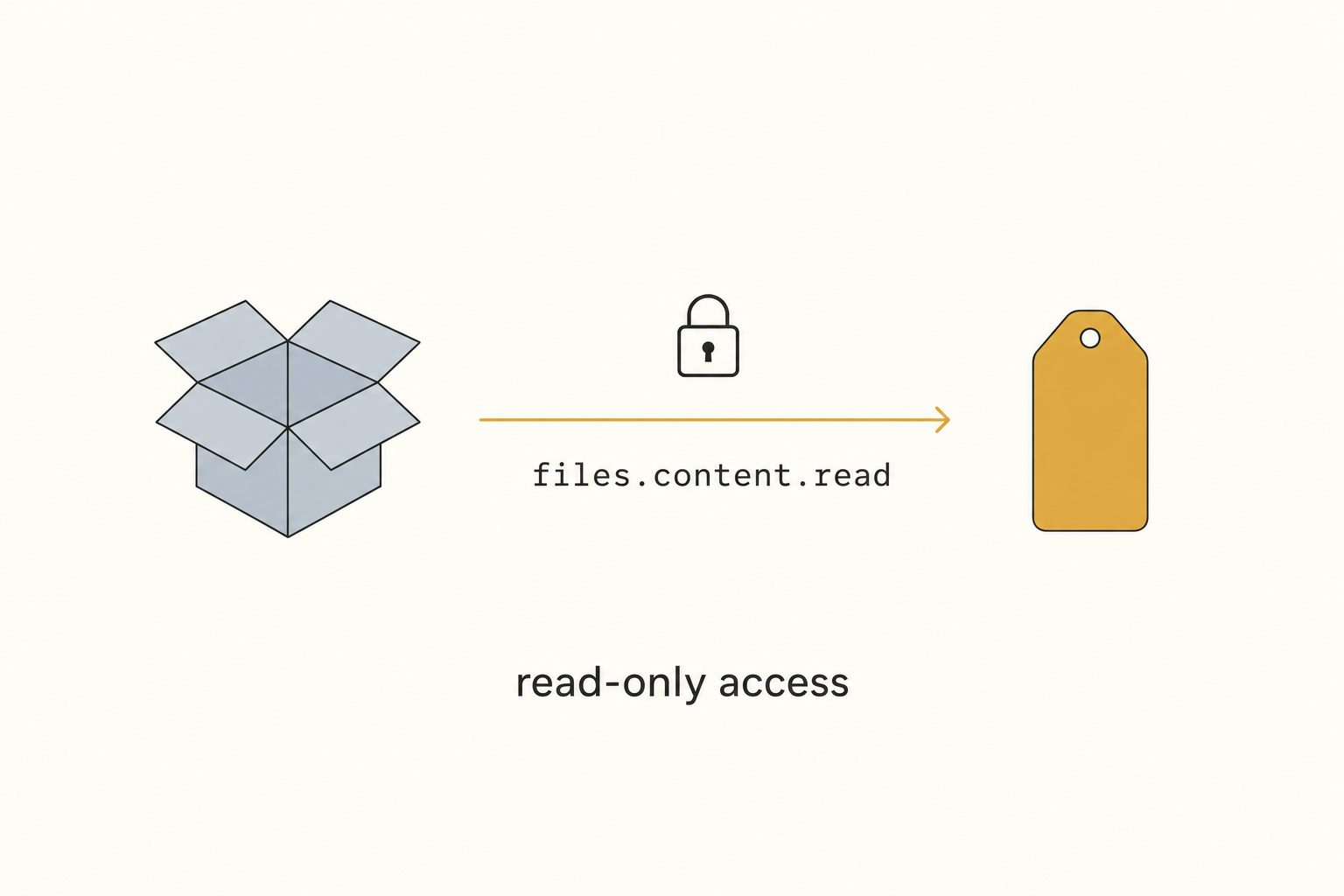
This is the category that exists specifically because options 1 and 2 do not scale. A small handful of AI tagging services authenticate to your Dropbox account over OAuth, request a read-only scope, walk the folders you select, send each photo through a vision model in place, and write the resulting tags and alt text to a searchable database. Your originals never leave Dropbox, and you search your Dropbox photos from the service's own interface.
The tools in this category, with how each one handles Dropbox:
| Tool | Connects to Dropbox directly? | Free tier | Pricing model | Best for |
|---|---|---|---|---|
| Cloud image catalog (Tagrly) | Yes (read-only OAuth) | First 500 photos, no card | Monthly subscription | Small to mid teams sharing a Dropbox library |
| Other Dropbox-connected catalogs | Yes | Varies | Per-user per month | Teams that want Dropbox as the photo library backend |
| Single-image AI service | No (single image upload) | Limited free credits | Per-image credits | One-off product photos, not bulk-from-Dropbox |
| Lightroom plugin | No (Lightroom-only) | No | One-time license | Solo Lightroom users |
| Desktop photo organizer | No (local desktop only) | No | One-time license | Solo photographers |
| Enterprise asset platforms | No (separate vendor storage) | No | Enterprise contract | 100+ person enterprise teams |
Pricing and free-tier details change; check each vendor's current pricing page before committing.
Only the first two categories actually solve "tag photos in Dropbox without downloading them." The others either require uploading photos one at a time, syncing a local copy first, or migrating photos off Dropbox entirely onto the vendor's storage.
The cleanest way to evaluate is to point each tool at the same 50-to-100-photo Dropbox folder and compare the output side by side. Most have a free trial or free tier specifically for this, and twenty minutes of side-by-side review tells you more than any vendor's marketing page.
What it actually scans, and what it does not touch
A Dropbox-connected tagging service can only read; it cannot change anything inside your Dropbox. When it requests OAuth, it asks for read-only scopes (files.metadata.read and files.content.read), which let it read file metadata and download file content for the folders you pick and nothing else. It cannot rename, move, delete, or edit any file, and you can disconnect it from your Dropbox connected apps at any time.
Tags and alt text are written to the service's own database, not back to your files. If you later want IPTC keywords written into the photo files themselves, most services offer that as an opt-in export.
In practice the scan runs unattended in the background, producing focal-subject labels, alt-text strings, and a searchable index, and what is already read is searchable while the rest is still going. The same library by hand, at editorial depth, is dozens of hours of focused typing.
What you will actually spend
For a 10,000-photo Dropbox library the real cost is time, not dollars: the free routes cost dozens of hours and the paid AI services cost a small subscription and almost none. Here is how the paths compare.
| Approach | Up-front cost | Time cost | Best for |
|---|---|---|---|
| Manual in Dropbox description field | $0 | 80 hours of focused work | Solo, low volume, never grows |
| Sync + Lightroom Classic | About $10/mo (see Adobe) plus sync overhead | 30 to 50 hours of supervised work | Solo Lightroom users with small libraries |
| AI service, free tier | $0 for first 500 photos (Tagrly) | Minutes of setup | Trying it before you commit |
| AI service, paid tier | $10 to $30 per month for most | Minutes of setup plus an unattended scan | Anyone with more than 500 photos |
| Enterprise asset platforms | $1,000-plus per month plus migration | Weeks to migrate, then minutes per day | 100-plus person enterprise teams |
The gap is between option 1 (free, enormous time cost) and option 3 paid (small subscription, near-zero time cost). For most teams above 500 photos, the AI service pays back its first month of subscription in time saved on the very first scan.
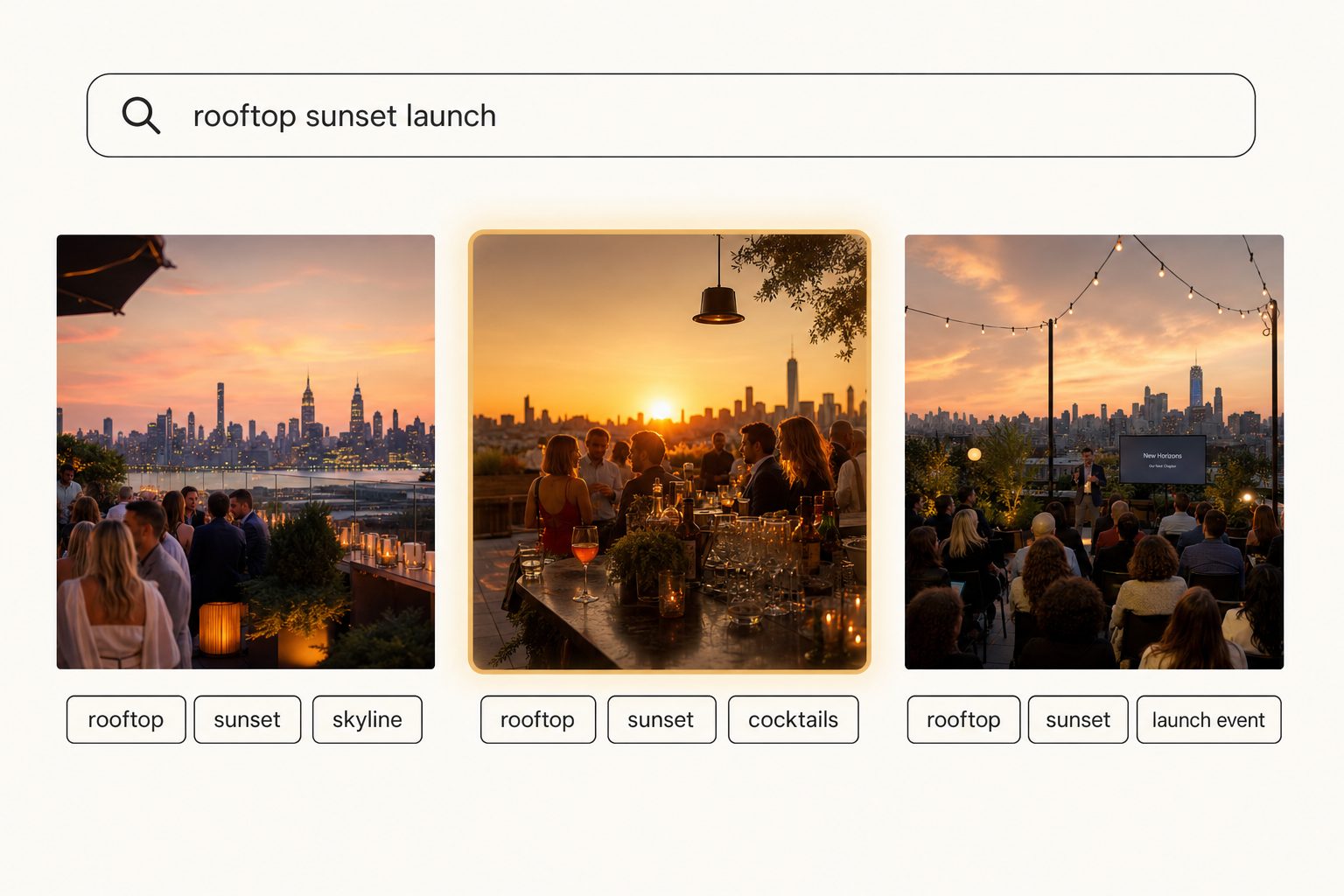
A note on the search quality that comes out the other end: with manual keywording or generic object-detection output, searching for "rooftop" returns every photo with sky in it. With focal-subject AI tagging, "rooftop" returns the photos where the rooftop scene is the dominant element, ranked by relevance. In Tagrly's own testing on a 5,000-photo set, focal-subject tagging surfaced the correct top match in roughly 9 of 10 searches. The difference between a Dropbox folder you cannot search and a Dropbox folder you can is whether tagging happened at all and how good the ranking is.
Try it free on your own Dropbox
If you want to see what AI bulk tagging looks like on your own Dropbox without committing anything, tag your first 500 Dropbox photos free, no credit card. Point it at a folder of 50 to 100 photos and you will see the full output (focal subject, tags, alt text, searchable index); the scan runs unattended in the background.
After the first 500 photos it becomes a paid subscription, but by then you will have a real sense of the output quality on your own library; pricing is here. The same workflow runs against a Dropbox Business team folder, so a whole team searches one surface.
How to decide between the three options
- Pick manual Dropbox descriptions if you have fewer than 200 photos that do not grow, no budget for tooling, and a tolerance for typing the same keywords over and over.
- Pick Lightroom Classic with Adobe Sensei if you already live in Lightroom, your library fits on a single machine, and you are solo or share a catalog with one other person.
- Pick an AI service that connects to Dropbox if you have more than 500 photos, want focal-subject ranked search, need a team to share the result, or work in Dropbox as the source of truth and do not want to add a local sync layer underneath. The quickest way to find out if it is worth it: test it on a sample folder of your own photos.
For the wider category and how AI photo tagging fits across more than just Dropbox, see the complete guide to AI photo tagging. For the same flow against Google Drive, see our Google Drive bulk tagging guide. And for the alt text specific deep dive, see auto-generating alt text for thousands of images.
Frequently asked questions
Can I bulk tag photos in Dropbox without downloading them?
Yes. AI tagging services that connect to Dropbox over the official API stream each photo from your folder, send it to a vision model, and write the resulting tags to a separate searchable database. Your original photos stay in Dropbox the entire time. Nothing is copied to your hard drive and your folder structure is untouched. The service requests a read-only scope, so it cannot rename, move, or delete anything inside Dropbox. Tagrly is built this way; the free tier tags the first 500 photos in any Dropbox folder, no credit card.
Is bulk tagging Dropbox photos faster than Google Drive?
Not in any way that matters. Dropbox returns full-resolution image bytes a little quicker than Drive on individual requests, but Dropbox enforces lower aggregate rate limits than Drive does, so a sustained scan of a large library lands in roughly the same place either way: the scan runs unattended in the background. For smaller libraries, the difference is essentially zero. Pick the storage your team already uses; do not switch storage providers for tagging speed.
What Dropbox permissions does an AI tagging service need?
Read-only access to the folders you authorize. A properly built Dropbox tagging integration requests the `files.metadata.read` and `files.content.read` scopes through Dropbox's standard OAuth flow. Those scopes let the service read file metadata and download file content for the folders you select. They do not allow the service to upload, rename, move, delete, or modify any file in your Dropbox. You can revoke access at any time from your Dropbox account's connected apps page. The official scope list lives in Dropbox's developer documentation.
Will bulk tagging work on Dropbox Business team folders?
Yes. Modern AI tagging services treat team folders and shared folders the same as personal Dropbox folders. During the OAuth flow you pick the folders you want scanned, including team-folder roots and shared subfolders. Per-folder permissions inside Dropbox are respected: if a member cannot see a folder in Dropbox, they should not see photos from that folder in the tagging service either. Most marketing and creative teams point a tagging service at one top-level team folder so everyone shares a single search surface across the whole library.
Does bulk tagging change anything inside my Dropbox?
No. Tags, alt text, focal subjects, and file IDs live in the tagging service's own database, not in Dropbox. Your Dropbox folder names, file names, sharing settings, and the original photo files themselves are exactly as you left them. The tagging service only reads. If you later want the tags written back into the photos as IPTC keywords or XMP sidecars so Lightroom can read them, most services offer an export on demand, but it is opt-in and never automatic.
Can I use a Lightroom plugin to tag Dropbox photos?
Only indirectly. Lightroom keyword plugins run against photos already imported into Lightroom Classic's local catalog. To tag a Dropbox library that way, you first sync your Dropbox folder to a local disk with Dropbox's desktop client, import the synced folder into Lightroom, then run the plugin. That works if your library fits on one machine and you live in Lightroom. It does not scale to teams or to libraries larger than your laptop drive, and the tags stay locked inside the Lightroom catalog or XMP sidecars on the single machine that ran the plugin.
Try Tagrly on your own photo library
Connect your Google Drive or Dropbox folder and Tagrly will tag every photo in bulk. Search by what is actually in the image, share specific shots with clients, and never lose a photo again.
- Free for your first 500 photos
- Read-only access, revoke anytime
- No credit card