
You are one OAuth screen away from pointing an AI tagging tool at eight years of client shoots, and a fair question stops your cursor over the connect button: where exactly do these photos go? The answer is knowable, and it is different for every tool shape.
What happens to your photos when an AI tool tags them
Under a read-only connection your originals stay in your folders, unchanged; what varies from tool to tool is how much of your library also lives on the tool's servers. Every cloud tagging tool shows each photo, or a smaller copy of it, to a vision model and writes the words that come back to a searchable index. The step-by-step mechanics are in our plain-English guide to how AI photo tagging works, and the category survey is in the complete guide to AI photo tagging.
Tools come in four shapes, and the shape decides what they keep:
| Shape | What the tool keeps | Access it asks for |
|---|---|---|
| Reads in place, keeps the words | Tags, alt text and a preview | Read-only |
| Reads in place, keeps a hosted copy | A copy of each photo, a preview, tags and alt text | Read-only |
| Upload or migrate | Whatever you send it | None; you hand over the files |
| Writes back into your files | Descriptions or keywords saved inside your own files | Write access |
A hosted copy is what share links, image links and website embeds run on, which is why tools that offer them keep one. Tagrly is the second shape for Google Drive and Dropbox: a read-only connection, a hosted copy of each photo (for most JPEGs, the original file itself), plus the tags and alt text. Photos you upload to Tagrly from your computer follow the third shape, since it stores a copy of what you send.
The diagram shows the lightest shape, the first row of the table: a read-only connection, originals left in your folder, and only tags and a preview on the tool's side.
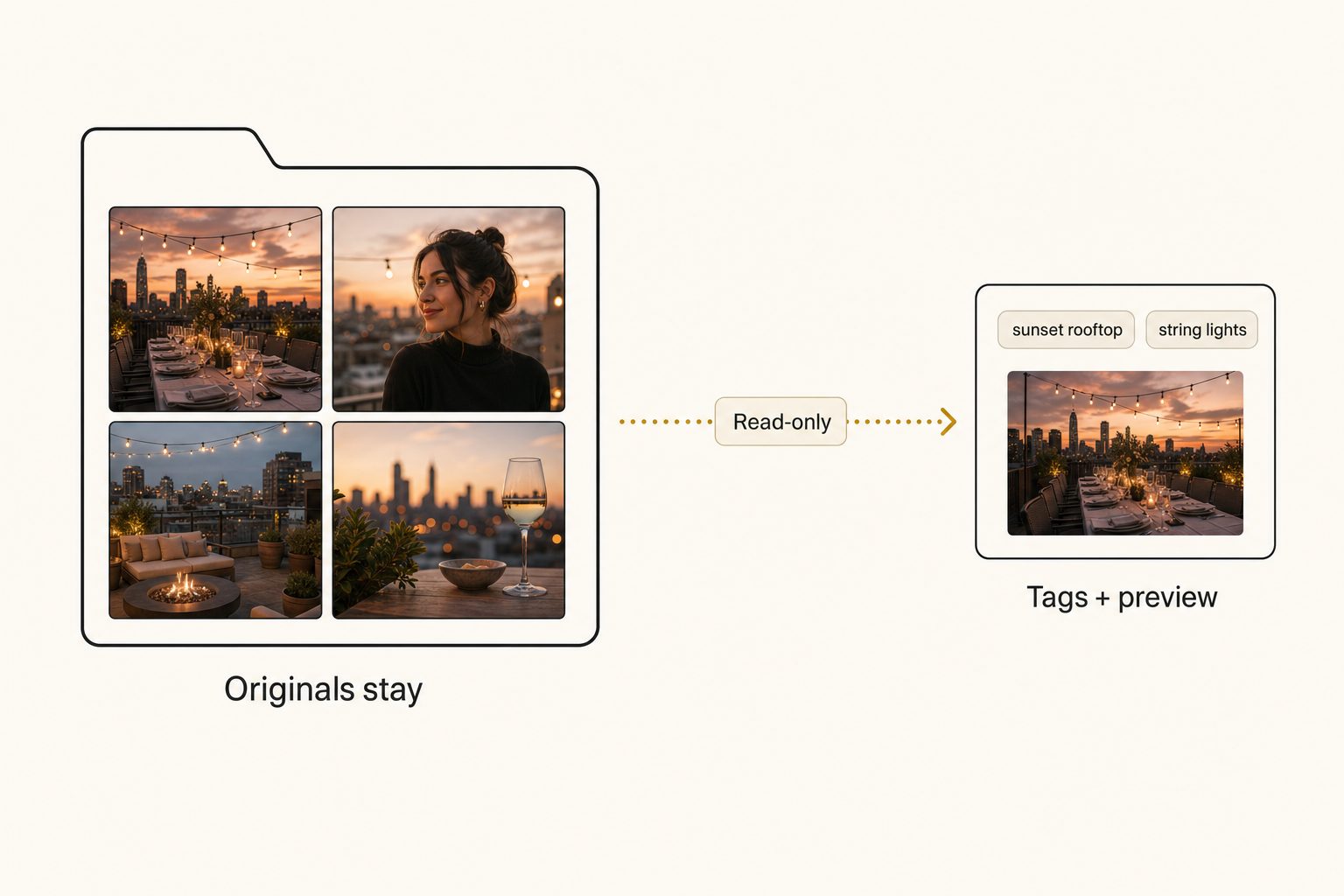
Checks 2 and 4 below are how you find out which shape a tool is and who can open what it keeps.
The five checks to run before you connect anything
You can audit any AI tagging tool with five checks, and every one is answerable from its consent screen, its documentation or its terms page.
- Read-only access. The consent screen tells you what you are granting, and Google's Drive permission guide describes each level: read-only access is "View and download all your Drive files," while full access is "View and manage all your Drive files." Wording about viewing or downloading means read-only; wording about managing, editing or deleting means write access. A tool that only builds a search index needs read-only, so grant write access only when it powers a feature you asked for, such as writing descriptions back into your files.
- What it keeps. Find the sentence that says what the tool stores after the scan: tags only, a preview, or a copy of every photo. A copy is fine when you know about it and checks 4 and 5 pass. Tagrly's privacy policy, for one, lists what it keeps step by step.
- The training clause. Search the terms for "train," "improve our services" and "machine learning," and expect a plain statement that your photos are not training data. Check the model underneath too: Tagrly reads photos with Anthropic's Claude, and Anthropic's commercial terms state that "Anthropic may not train models on Customer Content from Services." Tagrly's own policy says it does not train AI models on your photos or on the metadata derived from them.
- Who can open what it keeps. Ask whether stored copies and previews sit behind a login or open to anyone holding a link, and whether you can switch share links off. The stakes follow check 2: a leak at a tool that keeps full copies exposes full-quality photos, not just words.
- The exit. Confirm you can cut access yourself, that deletion has a stated timeline, and that you know how your tags get back out: a file export, metadata embedded in the files, or an API (Tagrly's API returns each photo's tags and alt text). Google lists every app linked to your account on its linked-apps page, where you can remove any of them. In Dropbox, click your avatar, open Settings, then Apps, and choose Disconnect.
Tip. Revoking access stops a tool's future reads, but it does not by itself delete what the tool already stored. When you leave a tool, revoke the connection and send a written deletion request, then keep the reply.
Local tagging vs. cloud tagging: the real tradeoff
If your priority is that photos never cross the internet at all, a local tool is the answer, and no checklist changes that. Desktop tools like Excire Foto and the open-source digiKam run their models on your own machine, and self-hosted PhotoPrism keeps the whole system on hardware you control. For embargoed campaigns, unreleased products, or contracts that forbid third-party processors, local is the correct choice.
The cost of that privacy is practical:
- One machine. The index lives on one machine, so there is no shared catalog for a team to search.
- Your hardware. Your machine runs the model, and on-device models generally trail the large hosted vision models on descriptive quality.
- Your backups. You become the backup plan for the catalog itself.
Descriptive quality decides whether search finds the right photo. In Tagrly's own testing on a 5,000-photo set, focal-subject tagging surfaced the correct top match in roughly 9 of 10 searches, against roughly 4 of 10 for the same library under a generic object detector. That ranking is what Tagrly's AI photo search runs on, and the hand-scored breakdown is in how accurate AI photo tagging really is.
A connected catalog makes the opposite trade. It reads your library through a read-only connection, shows each photo or a smaller copy to a hosted vision model, and keeps previews or full copies on its servers; in exchange the whole team gets one searchable library with stronger output. Neither trade is wrong, as long as you make it on purpose.
Client photos, contracts, and the metadata you forget about
Client photos raise the bar in three specific ways, because the photos are not yours alone:
- Your contract may already answer the question. Wedding, corporate, and agency agreements often include third-party processor language, and a tagging service qualifies. Two minutes with your own contract beats an awkward conversation later.
- Metadata travels with the pixels. Client photos carry EXIF data such as timestamps and camera serial numbers, and photos from phones or GPS-enabled cameras also carry GPS coordinates, so a shoot at a client's home can record where they live. Ask any tool whether it keeps location data, and whether previews, copies and share links are private by default or reachable by anyone with the link.
- Scale is not the risky part. A 50-photo test and a 50,000-photo scan run through the same connection and the same storage rules. The risk is set by the five checks before the first scan, not by the size of the job.
Note. Free consumer AI photo apps, the face filters and portrait generators, are a different category with different incentives. Read their terms with extra care, and keep client work out of them.
So is AI photo tagging safe for your library?
AI photo tagging is safe for your library when the setup fits whose photos they are, so the useful answer is a decision rule rather than a yes:
- Pick a local tool (Excire Foto, digiKam, self-hosted PhotoPrism) if your contracts or your own rules say photos never transit third-party servers. Accept the one-machine ceiling knowingly.
- Pick a connected catalog (Tagrly is one) if your library lives in Drive or Dropbox, a team needs to search it, and the tool's answers to the five checks fit your contracts.
- Pick neither for one-off uploads of sensitive photos to free web tools. The convenience is not worth the retention terms you did not read.
The lowest-stakes way to judge a connected tool is to test it on photos that do not matter. Tagrly reads your first 500 photos free, no credit card, so you can point it at a scratch folder of non-client photos, read the consent screen, and see what the catalog keeps before any client photo is involved. Start with a sample folder and score what you see against the five checks.
Frequently asked questions
Does AI photo tagging upload copies of my photos?
It depends on the tool, so find the sentence in its documentation that says what it stores. Some tools keep only tags, alt text and a small preview. Others keep a hosted copy of every photo, which is what share links, image links and website embeds run on. Tagrly is the second kind: it connects to Google Drive or Dropbox read-only and keeps a hosted copy of each photo (for most JPEGs, the original file itself), plus a smaller preview, the tags and the alt text. The vision model receives the smaller preview, not the full file. Your files in Drive or Dropbox are never changed, moved or deleted. Photos you upload directly work differently by definition: Tagrly stores a copy of what you send, as any upload-based tool does. Upload platforms and single-image web tools hold whatever you give them, under whatever retention terms their fine print sets.
Can an AI tagging tool use my photos to train its models?
Some can, and the permission is usually buried in the terms of service rather than announced. Look for phrases like 'to improve our services,' 'to train our models,' or 'machine learning development,' and check whether there is an opt-out. The model provider underneath has its own terms too. Anthropic's commercial terms, for example, state that 'Anthropic may not train models on Customer Content from Services,' where customer content covers both what goes in and what comes out. That is the standard you want from whichever model sits under the tool you pick. Tagrly's privacy policy says it does not train AI models on your photos or on the metadata derived from them. If you cannot find a sentence like that in ten minutes of looking, treat the answer as yes and move on to a tool that says it outright.
What is read-only access and how do I verify a tool has it?
Read-only access means the tool can look at your files but cannot change, move or delete them, enforced by the storage provider rather than by the tool's good intentions. Google Drive implements it as the drive.readonly permission, which Google describes as 'View and download all your Drive files'; full access is 'View and manage all your Drive files.' Dropbox has an equivalent set of read permissions. The rule of thumb: wording about viewing or downloading is read-only, and wording about managing, editing or deleting is write access. Write access is not automatically a red flag, since some tools write descriptions back into your files, but a tool that only builds a search index has no need for it. Tagrly asks for read-only access on both. You can remove any connection later from your Google Account's linked apps, or in Dropbox under Settings, then Apps, then Disconnect.
Is local AI tagging safer than a cloud catalog?
For raw data privacy, yes. A local tool like Excire Foto or digiKam runs the model on your own machine, so the photos never cross the internet at all, and a self-hosted option like PhotoPrism keeps everything on a server you control. That is the maximum-privacy setup, and for work that contractually cannot transit third-party servers it is the only correct answer. The tradeoffs are practical: the index lives on one machine, your hardware does the work, on-device models generally trail the large hosted vision models on descriptive quality, and there is no shared catalog a team can search. Cloud catalogs send each photo, or a smaller copy of it, to a hosted model and keep previews or full copies on their own servers. In exchange you get team search and stronger models. Which trade is right depends on whose photos they are and who needs to find them.
Is it safe to run AI tagging on client photos?
It can be, but the bar is higher because the photos are not yours alone. First, check your own contracts: many wedding, corporate and agency agreements have language about third-party processors or subprocessors, and a tagging service is one. Second, run the five checks in this guide, with extra weight on the training clause and on what the tool keeps, since a leak at a tool that keeps full copies exposes full-quality client photos, not just words. Third, remember the metadata: client photos carry EXIF data such as timestamps and, from phones or GPS-enabled cameras, location coordinates. Ask whether the tool keeps that data and whether previews, copies and share links are private by default. The point is to confirm what the tool keeps and who can open it before the first scan, not after.
Try Tagrly on your own photo library
Connect your Google Drive or Dropbox folder and Tagrly will tag every photo in bulk. Search by what is actually in the image, share specific shots with clients, and never lose a photo again.
- Free for your first 500 photos
- Read-only access, revoke anytime
- No credit card