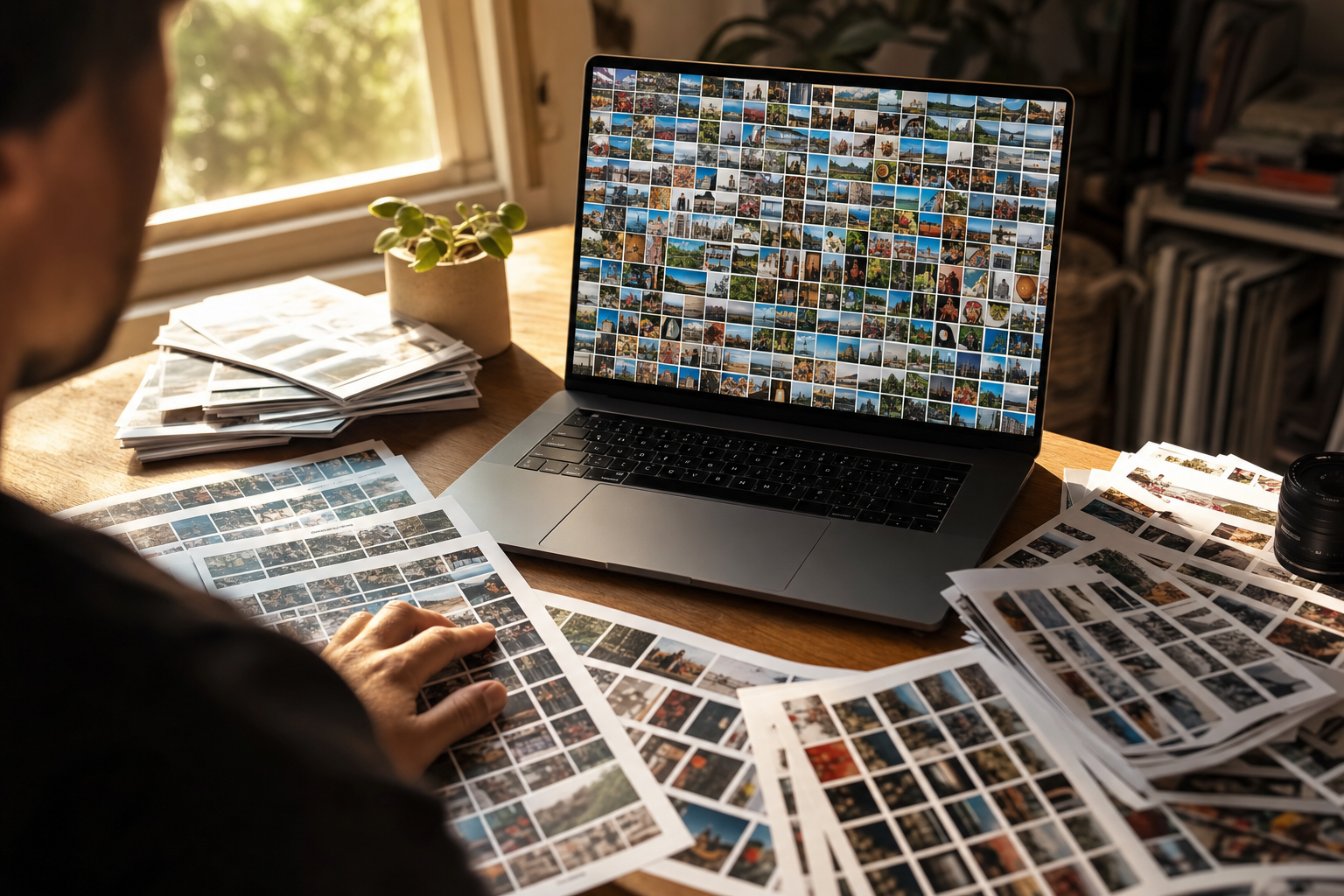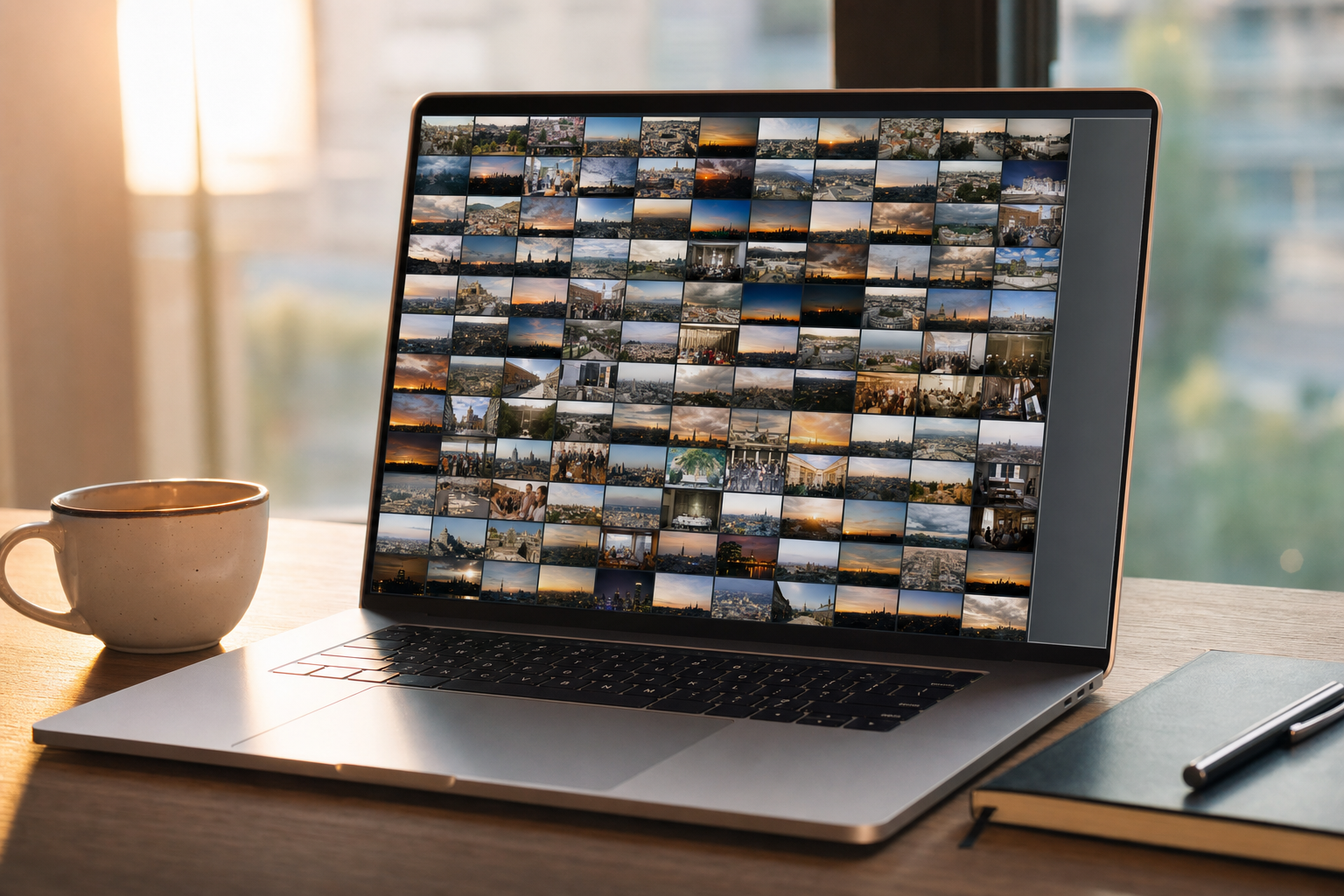
Your shared folder has 22,000 photos in it. Roughly half are HEIC straight off the team's iPhones, a few thousand are WebP that someone exported for the website, there is a folder of camera RAW from the last shoot, and the rest are ordinary JPEG.
You try one tagging tool and it silently skips every HEIC. You try another and it demands you convert everything to JPEG first. Tagging mixed photo formats at scale is where most tools quietly fall over.
Why HEIC, WebP, and RAW break most tagging tools
The formats themselves are the problem, and each one breaks tools in a different way.
HEIC is the default camera format on iPhones since 2017, and it is everywhere a team uses phones. It is a container built on HEVC (H.265) compression, which is patent-encumbered. Plenty of software never licensed an HEVC decoder, so it skips or errors on HEIC files instead of reading them. Apple's own HEIF and HEVC support notes spell out how narrow native support still is. Web browsers other than Safari cannot even render HEIC, which is why so many tools punt on it.
RAW is not one format. It is hundreds of camera-specific variants: Canon CR3, Nikon NEF, Sony ARW, Fujifilm RAF, Adobe DNG, and more. Each needs its own decoder, so a tool that claims "RAW support" often means a handful of popular cameras and a shrug at the rest.
WebP and AVIF are the web-native formats. A marketing team exports them for fast-loading pages, Google's WebP documentation puts the files at 25 to 34 percent smaller than comparable JPEGs, then a year later cannot tell which hero-final-2.webp is which. Older taggers built only for JPEG ignore them.
Note. "Supports HEIC" can mean two very different things. Some tools can read HEIC to generate tags. Others can only write tags into a HEIC file, which is the harder problem and the one most fail at. For a searchable catalog you only need the first.
The two ways to tag a file, and why one survives format chaos
Decode-on-ingest tagging survives mixed formats and metadata writing does not, and that split explains why format support varies so wildly between tools.
The metadata writer embeds keywords directly into the image file's EXIF or IPTC fields. To do that it has to read and write every format you give it. That is fine for JPEG, a decades-old standard. It falls apart on HEIC and RAW, where writing metadata safely is genuinely hard and many tools refuse to try. This is the world of desktop keyword apps and EXIF injectors, and it is why iPhone HEIC libraries cause so much grief.
The decode-on-ingest approach reads each file, decodes it to raw pixels in memory, sends those pixels to a vision model, and writes the tags to a separate searchable database. The original file is never touched. Once a file is decoded to pixels, the model neither knows nor cares whether it started as HEIC, WebP, AVIF, RAW, or JPEG. Format support becomes a decoding problem solved once, server-side, instead of a writing problem re-solved for every format.
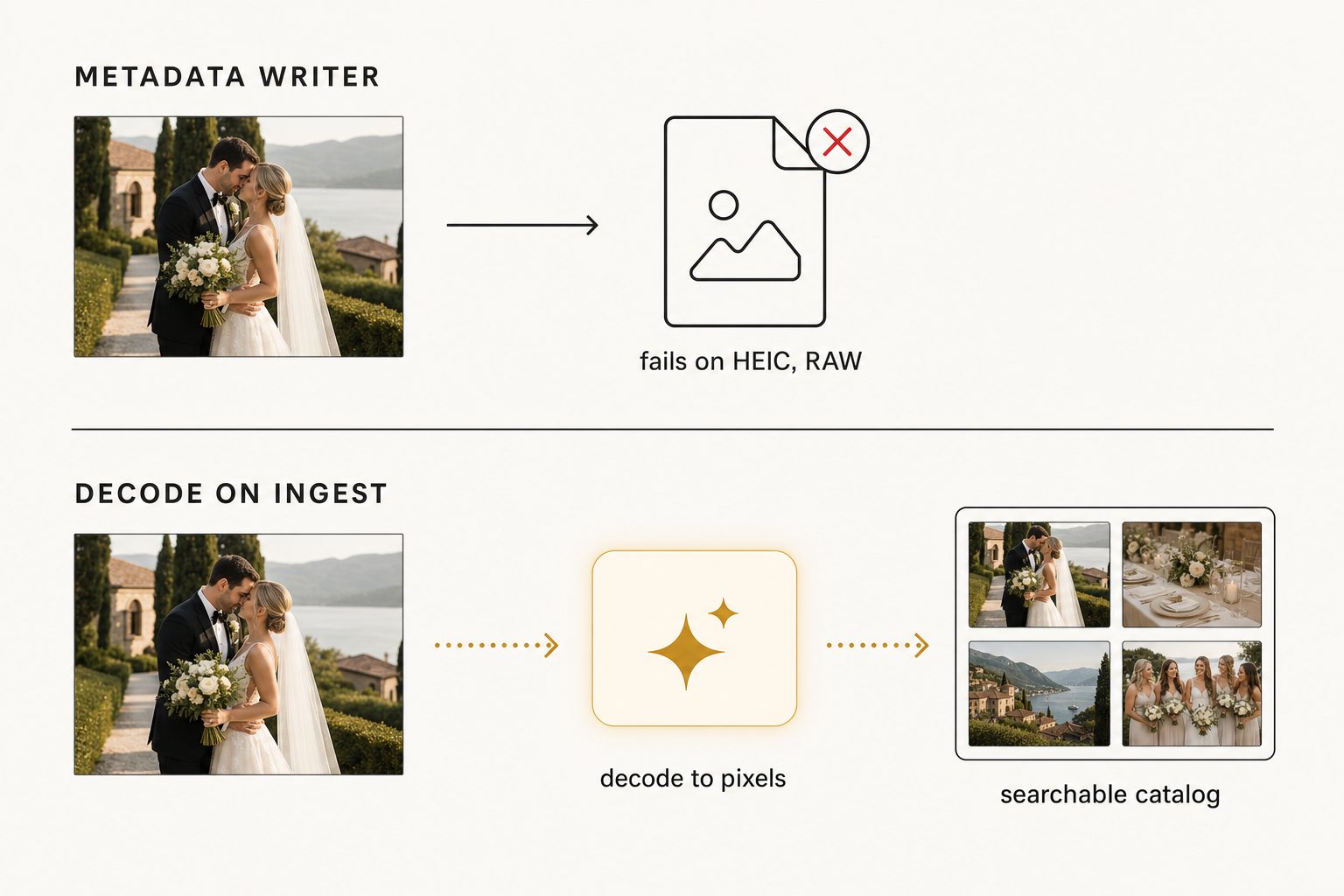
Tagrly is built the decode-on-ingest way. It reads HEIC, HEIF, WebP, JPEG, PNG and TIFF straight from Google Drive or Dropbox, decodes each one, and tags it in place. Camera RAW is the one family it does not decode directly, so if you shoot RAW, point Tagrly at the JPEGs you already export or at the RAW+JPEG pairs most cameras write, and the JPEG carries the tags for the shot.
Your originals keep their exact bytes and stay where they are, which is the same in-place model covered in the Google Drive bulk-tagging guide and its Dropbox sibling. Foto Owl and a few other cloud catalogs work on a similar in-place principle, so Tagrly is one option in this category rather than the only one.
The free and cheap ways to handle mixed formats
Three free-or-cheap routes handle mixed formats before you need a paid tool, and each carries a real cost of its own.
Convert everything to JPEG first (free, but costly)
The brute-force free option is to batch-convert your HEIC and RAW to JPEG, then tag the JPEGs with whatever tool you already have. macOS Preview, the free ExifTool command-line utility, and dozens of online converters do this.
It works, but it doubles your storage, breaks the link between tags and your true originals, and throws away RAW's editing latitude. Fine for a small one-off batch. For a 20,000-photo library that keeps growing, the conversion step becomes a permanent tax.
Lightroom or Bridge for RAW (cheap, single-machine)
If your library is RAW and you already pay for Adobe, Lightroom Classic reads almost every RAW variant and lets you keyword. The catch applies to every desktop tool: it runs on one machine, the tags live in a local catalog, and a team cannot share the result. This is a solo-photographer answer, not a team answer.
Single-format AI taggers (cheap, but format-limited)
Some inexpensive AI keyword services handle JPEG and a couple of other formats well but quietly skip HEIC or only export keywords you then have to inject yourself. Several popular cloud taggers have no native HEIC writing, so iPhone photos need an extra ExifTool round trip. If most of your library is phone photos, check format support on the vendor's own page before you commit, because this is exactly where the cheap tools cut corners.
Tip. Whatever tool you are evaluating, hand it five HEIC files and three RAW files from your actual cameras and watch what happens. If it skips them, errors, or asks you to convert first, you have your answer in two minutes instead of two weeks.
What good tagging output looks like, regardless of format
Good tagging output reads identically no matter what the file started as. A focal-subject tag for an iPhone HEIC and a focal-subject tag for a camera RAW of the same scene should read the same, because the model sees the same pixels.
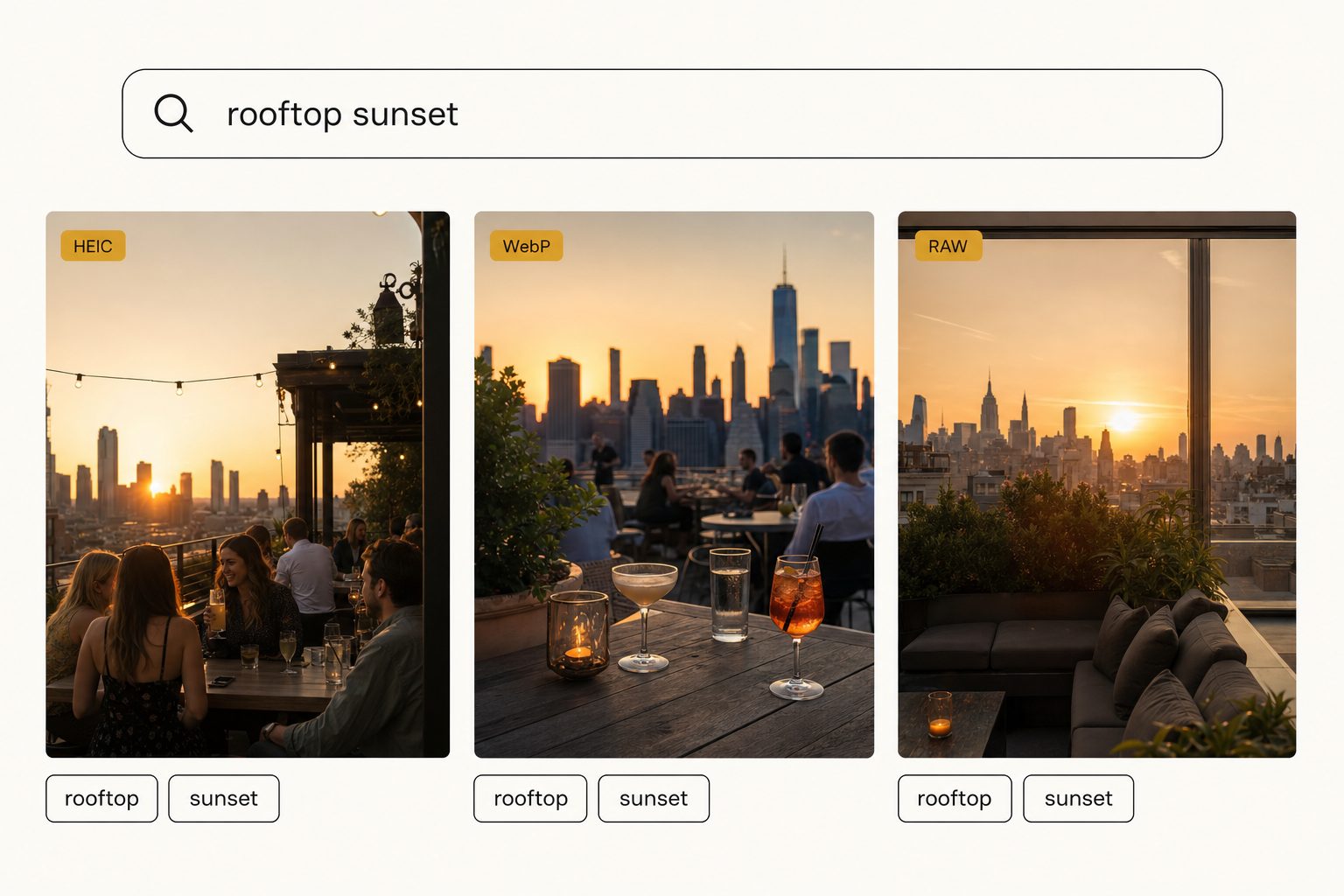
This is where the focal-subject tagging method from the complete guide to bulk AI photo tagging does its work. The model identifies the single dominant subject of the photo first, then the supporting context, and ranks the focal subject above the context in search. A query for "rooftop sunset" surfaces the HEIC phone shot, the WebP web export, and the RAW from the shoot side by side, ranked by how central that subject is, not by which format each happens to be.
Every photo gets short structured tags for internal search, like "rooftop, sunset, skyline, cocktails," and editorial-grade alt text, a full sentence you can paste straight onto a site, from the same reading. The format is irrelevant to both outputs.
In Tagrly's own testing on a 5,000-photo set, focal-subject tagging surfaced the correct top match in roughly 9 of 10 searches. What a file started as plays no part in that result, because AI photo search ranks what the model read in the pixels, never anything about the file itself.
Tip. If you want to see decode-on-ingest tagging on your own mixed-format folder, test it on a sample folder. Tagrly's free tier tags the first 500 photos in any Drive or Dropbox folder, no credit card, so you can drop in a folder of mixed HEIC, WebP and JPEG and see it come back as one searchable library.
Does a mixed-format library cost more to tag?
No. With per-photo billing you pay the same for a HEIC as for a JPEG, and a mixed folder runs as one job, not one job per format. The only money format ever costs you is the conversion tax, the storage-doubling batch-convert step that decode-on-ingest removes.
The scan itself runs unattended in the background, and what is already read is searchable while the rest is still going, so there is nothing to pre-sort and no format queue to manage. What actually determines tagging speed is covered in how fast AI photo tagging is on a 100,000-photo library. The only money format costs you is the conversion tax you avoid by not converting at all.
How to pick a tool for mixed-format libraries
Match the tool to where your photos live and who needs to find them.
- Pick a decode-on-ingest cloud catalog (Tagrly, Foto Owl) if your photos are in Google Drive or Dropbox, your library mixes HEIC, WebP and JPEG, and a team needs to search it. You tag in place with no conversion and no per-format jobs. If your working files are RAW, tag the JPEG exports your camera or editor already writes.
- Pick Lightroom Classic or ON1 if you are a solo photographer, your library is mostly RAW, and you live in a desktop editor already. They read RAW well; they just do not share across a team or read HEIC keyword-writing cleanly.
- Pick a desktop EXIF or IPTC writer if you specifically need the keywords embedded inside the files themselves and your formats are JPEG-heavy. Confirm HEIC and RAW writing before you buy, because that is where these tools most often fail.
- Pick free conversion plus a basic tagger if this is a small one-off batch and you do not mind converting. For a growing library, the conversion tax makes this the wrong long-term answer.
Format support separates tools that work on real 2026 libraries from tools that only work on a tidy folder of JPEGs. iPhone HEIC, web WebP, and camera RAW are the normal contents of a working library now. A decode-on-ingest tool treats them as one searchable thing; a metadata writer treats every format as a fresh problem. For most teams with mixed formats in cloud storage, decode-on-ingest is the answer, and the fastest way to confirm it fits is to point it at a real folder of your own photos and see the HEIC and WebP come back tagged without a fight.
Frequently asked questions
Can I bulk tag HEIC photos without converting them to JPEG first?
It depends on the tool. Most desktop keyword apps and many older AI taggers cannot read HEIC at all, so they make you batch-convert every iPhone photo to JPEG before tagging, which doubles your storage and breaks the link to your originals. Tools that decode HEIC on the fly skip that step entirely. They read the HEIC file, decode it in memory, send the picture to a vision model, and write tags to a separate searchable catalog. Your HEIC originals never change and never get duplicated. Tagrly works this way: it reads HEIC straight from Google Drive or Dropbox and tags it in place, so a folder of mixed iPhone HEIC and camera JPEG photos tags as one library with no conversion step.
Why do so many photo tagging tools fail on HEIC and RAW files?
Two reasons. First, HEIC uses HEVC (H.265) compression, which is patent-encumbered, so a lot of software never bundled a decoder for it and simply skips or errors on those files. Second, RAW is not one format but hundreds of camera-specific variants (Canon CR3, Nikon NEF, Sony ARW, Adobe DNG, and more), each needing its own decoder, so tools that support 'RAW' often only support a handful of cameras. A tool that decodes formats server-side, on ingest, sidesteps both problems because the decoding happens once in the cloud instead of relying on whatever codecs your machine has installed.
Does tagging change my original HEIC, WebP, or RAW files?
With a catalog-style tool, no. The tags, alt text, and focal subjects live in the tool's own searchable database, not inside your image files. Your HEIC, WebP, and RAW originals keep their exact bytes, filenames, and folder positions. This is different from EXIF or IPTC writers, which embed keywords directly into the file's metadata and therefore have to be able to write each format (and many cannot write HEIC or RAW safely). If you later want the tags pushed into the files as IPTC keywords or XMP sidecars so Lightroom can read them, most catalog tools offer that as an opt-in export rather than doing it automatically.
Can AI tag WebP and AVIF images, or only camera photos?
Modern vision models read WebP and AVIF the same way they read JPEG, because the tool decodes the file to raw pixels before sending it to the model. WebP and AVIF are common in web and e-commerce libraries, where a marketing team exports them for fast page loads and then loses track of which file is which. A tagger that decodes WebP and AVIF on ingest treats them as first-class images, generates the same focal-subject tags and alt text it would for a JPEG, and makes the whole mixed-format web library searchable. The image format is irrelevant to the model once it is decoded to pixels.
How do I tag a folder with mixed HEIC, JPEG, WebP, and RAW files?
Point a catalog-style AI tagger at the folder and let it walk every file. The decode-on-ingest approach means each file is decoded to pixels regardless of its format, so HEIC from a phone, JPEG from a camera and WebP exported for the web all get the same vision pass and the same tags. Camera RAW is the exception: most catalogs, Tagrly included, do not decode RAW bytes directly, so tag the JPEG exports you already produce alongside it. You do not sort by format first and you do not convert anything; the whole folder comes back as one searchable catalog rather than one job per format.
Try Tagrly on your own photo library
Connect your Google Drive or Dropbox folder and Tagrly will tag every photo in bulk. Search by what is actually in the image, share specific shots with clients, and never lose a photo again.
- Free for your first 500 photos
- Read-only access, revoke anytime
- No credit card