
You have 12,000 photos in a shared Google Drive, the filenames are all IMG_2204.JPG, and the marketing lead needs the three shots of the rooftop sunset cocktails from last summer's launch by end of day. You type "rooftop sunset" into Drive's search box and get a folder of spreadsheets.
What Google Drive search can and can't find
Drive's search is better than most people expect, and worse than they need. It does three useful things, then stops.
- Text in images. It reads text inside images. Drive runs OCR (optical character recognition) on your photos, so a word printed on a sign, a menu, or a slide can surface the shot it appears in.
- Broad categories. It matches a few broad object categories, so a search for "birthday" can return photos of cakes.
- Filter chips. The search box has filter chips, covered in the Google Drive search help, that narrow by file type, people, and date. Click the Photos and Images chip and you are looking at just your pictures.
What Drive cannot do is find a photo by the scene it shows. It never wrote down that one image is "a candid shot of two people laughing on a rooftop at sunset," so it has nothing to match that phrase against. The object labels are shallow categories, not descriptions, and there is no ranking, so even when a match exists it arrives buried in a flat list.
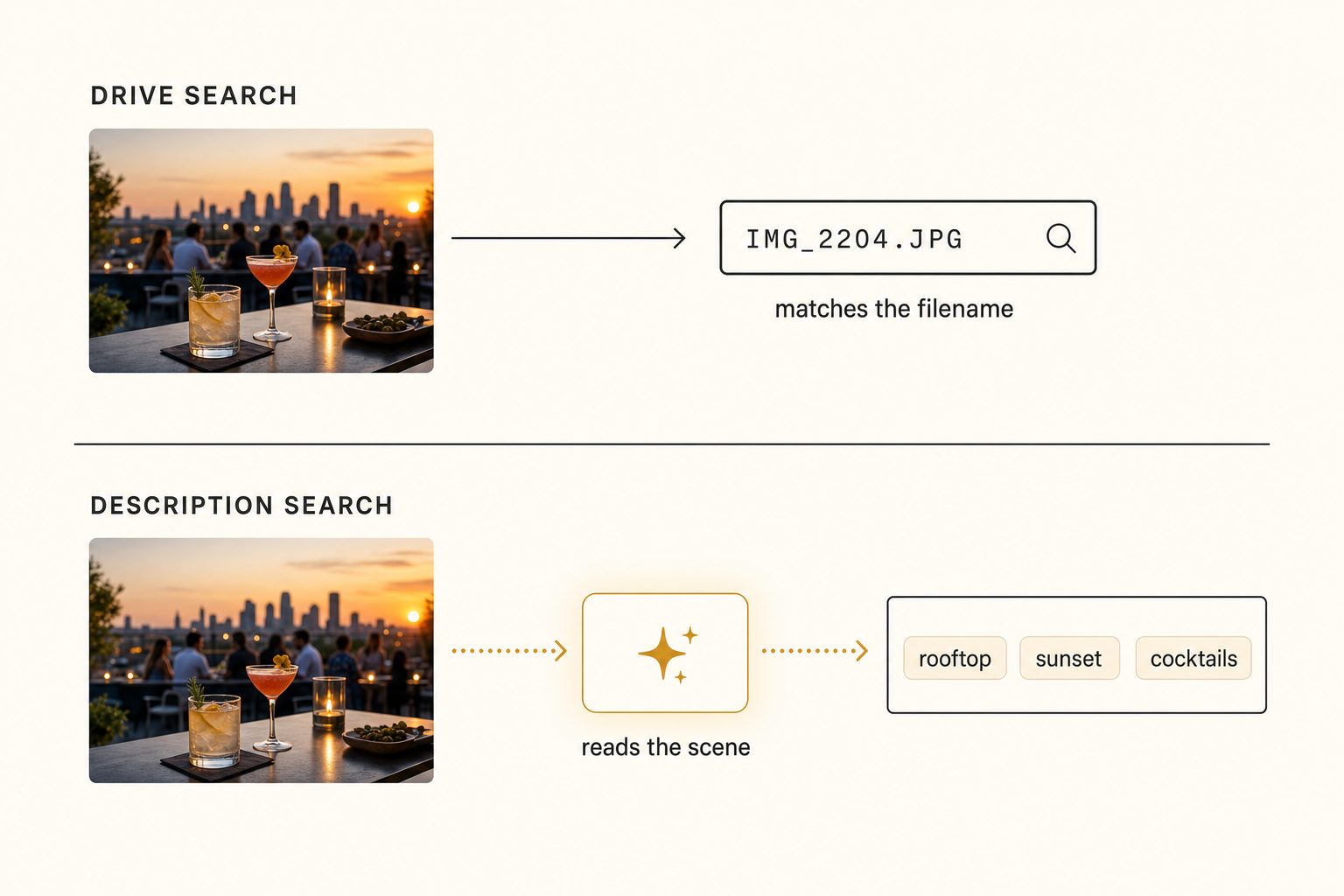
That is the core gap. Drive searches the file. Searching by description means searching what the photo shows, which requires a description to exist in the first place.
The free and DIY ways to search by description
You do not have to pay for anything to get partway there. Three free approaches, in rough order of how well they hold up.
Use Google Photos if the pictures are personal. Google Photos indexes scenes, objects, and faces far more deeply than Drive does, and its content search is genuinely good. The catch is that it is a consumer product tied to a personal account, so it is a poor fit for a shared work library that lives in Drive or a shared drive.
Rename files with real descriptions as you import them. If every file comes in as rooftop-sunset-cocktails-launch-2025.jpg instead of IMG_2204.JPG, Drive's plain filename search suddenly works. This is the single most useful free habit there is, and it costs nothing but discipline.
Lean on the filter chips for a first pass. The Photos and Images, date, and people chips will get you to the right week or the right event quickly, which is often enough to then scroll.
Note. Renaming works well under about 1,000 photos. Past that you hit what we call the 1,000-photo wall, described in the complete guide to bulk image tagging: the library gets too big to remember and too big to rename by hand. That is the point where most teams start looking at a tool.
How AI description search actually works
An AI photo catalog closes the gap by writing the description Drive never had. It does that in three steps: connect, read, and index.
- Connect. It connects to your Drive with read-only access (the
drive.readonlyscope, so the tool can read your files but never change or delete them). - Read. It streams each photo to a vision model, which reads the pixels and returns a focal-subject label, a list of tags, and a sentence of alt text.
- Index. Then it writes all of that to a searchable index with a small preview thumbnail.
Your originals stay exactly where they are, a point worth understanding before you connect anything, and one we cover step by step in the Google Drive bulk-tagging guide.
The quality of the search depends almost entirely on the vision model. A weak one returns "person, table, outdoor" and your search is back to broad categories. A strong one understands the scene, which is why Claude vision for image catalogs produces results other models miss.
Tagrly uses Claude vision under the hood; you can see what these models actually read in a photo in Anthropic's vision documentation.
Tagrly is one option here, and it is not the only tool that connects directly to Drive. Foto Owl and Pics.io do too. The thing to compare is the output quality, not the connection.
What good description search looks like
A good result does two things a flat list cannot: it understands plain English, and it ranks the best match first.

Type "two people laughing on a rooftop at sunset" and the matching photos come back in milliseconds, with the closest one first. That ranking comes from the focal-subject tagging method: the tool records the single dominant element of each scene, then ranks focal-subject matches above background context, so a query for "rooftop" surfaces photos that are about a rooftop rather than every photo with a building in the distance. In Tagrly's own testing on a 5,000-photo set, focal-subject tagging surfaced the correct top match in roughly 9 of 10 searches, the hit rate that makes AI photo search worth running over a folder. The full method is in our focal-subject tagging playbook.
A full scan runs unattended in the background, and once it has run, a description search returns the matching shots in milliseconds. The slow part is the one-time scan, which you start and walk away from. After that, finding a photo by description is faster than remembering which folder you put it in.
Tip. Want to see this on your own pictures? Tagrly's free tier tags the first 500 photos in any Drive folder at no cost, no credit card. Connect a real folder and search the results before you commit to anything.
Which approach should you pick?
Your library's size and who needs the photos pick the approach for you.
- Pick Google Photos if the pictures are personal and already live there. Its content search is free and strong, and you do not need anything else.
- Pick rename-as-you-go if your shared library is under about 1,000 photos and your team has the discipline to name files properly. It is free and it makes Drive's own search work.
- Pick Drive's filter chips as a first pass no matter what. They are already there, they cost nothing, and date plus people plus file-type narrowing solves a surprising number of "where is that photo" problems.
- Pick an AI photo catalog (Tagrly is one example) if you have thousands of photos in Drive, a team that all needs to find and share them, and no realistic way to rename everything by hand. This is the case the other three options cannot cover.
The takeaway
Google Drive searches the file, not the picture. That is fine until your library outgrows your memory, and then the only way to find a photo by description is to make sure a description exists. Free habits like renaming and the Photos and Images filter get small libraries a long way.
For a few thousand shared photos, an AI catalog that reads each image and ranks the closest match is the option that scales, and seeing it work on your own photos is the fastest way to know before you commit. For the bigger picture on organizing and searching a large library, see our guide to finding any photo in your library.
Frequently asked questions
Can Google Drive search photos by what's in them?
Partly. Google Drive reads text inside images with OCR, so a search for a word printed on a sign or a menu can surface the photo of it. It also recognizes a handful of broad object categories, so searching 'birthday' may return photos of cakes. What it cannot do is find a photo by the scene it depicts. A query like 'candid shot of the team laughing at the rooftop launch' returns nothing useful, because Drive never wrote a description of that scene anywhere it can search. To find a photo by description, you need a tool that reads each image and stores a sentence and tags describing what it shows.
How do I find a photo in Google Drive when I don't remember the filename?
Open the search box, click the Photos and Images filter chip, then narrow with the date, people, and file-type chips. That gets you to the right week or the right shared folder fast. It will not get you to a specific shot by what the photo shows, because those filters work on file attributes, not image content. For content-based search you either rename files with real descriptions as you go, or run an AI photo catalog over the folder that writes a searchable description for every image.
Does Google Drive recognize objects in photos?
Yes, but at a shallow level. Drive can match broad categories, so 'birthday' may surface cakes and 'beach' may surface sand-and-water shots. It does not identify the focal subject of a scene, write a sentence describing it, or rank one photo above another by how well it matches your query. That gap is the difference between 'photos that probably contain a cake somewhere' and 'the three shots of the cake being cut at the head table,' which is what you actually wanted.
What is the best free way to search Drive photos by description?
If your photos are personal and already in Google Photos, its content search is the strongest free option, because it indexes scenes and faces. For a shared work library in Google Drive, the free path is renaming files with real descriptions as you import them, plus the Photos and Images filter chips for quick narrowing. Renaming works well under about 1,000 photos and becomes unrealistic above that. Past that point a paid AI catalog is usually cheaper than the hours spent renaming.
How does AI photo search by description work?
An AI photo catalog connects to your Google Drive with read-only access, streams each photo to a vision model, and gets back a short description plus structured tags. It writes those into a searchable index alongside a small preview. From then on you type a description in plain English and the matching photos come back in milliseconds, ranked so the closest match is first. Your original files never move and never leave Drive. The quality of the results depends almost entirely on how good the vision model is at understanding the scene.
Try Tagrly on your own photo library
Connect your Google Drive or Dropbox folder and Tagrly will tag every photo in bulk. Search by what is actually in the image, share specific shots with clients, and never lose a photo again.
- Free for your first 500 photos
- Read-only access, revoke anytime
- No credit card