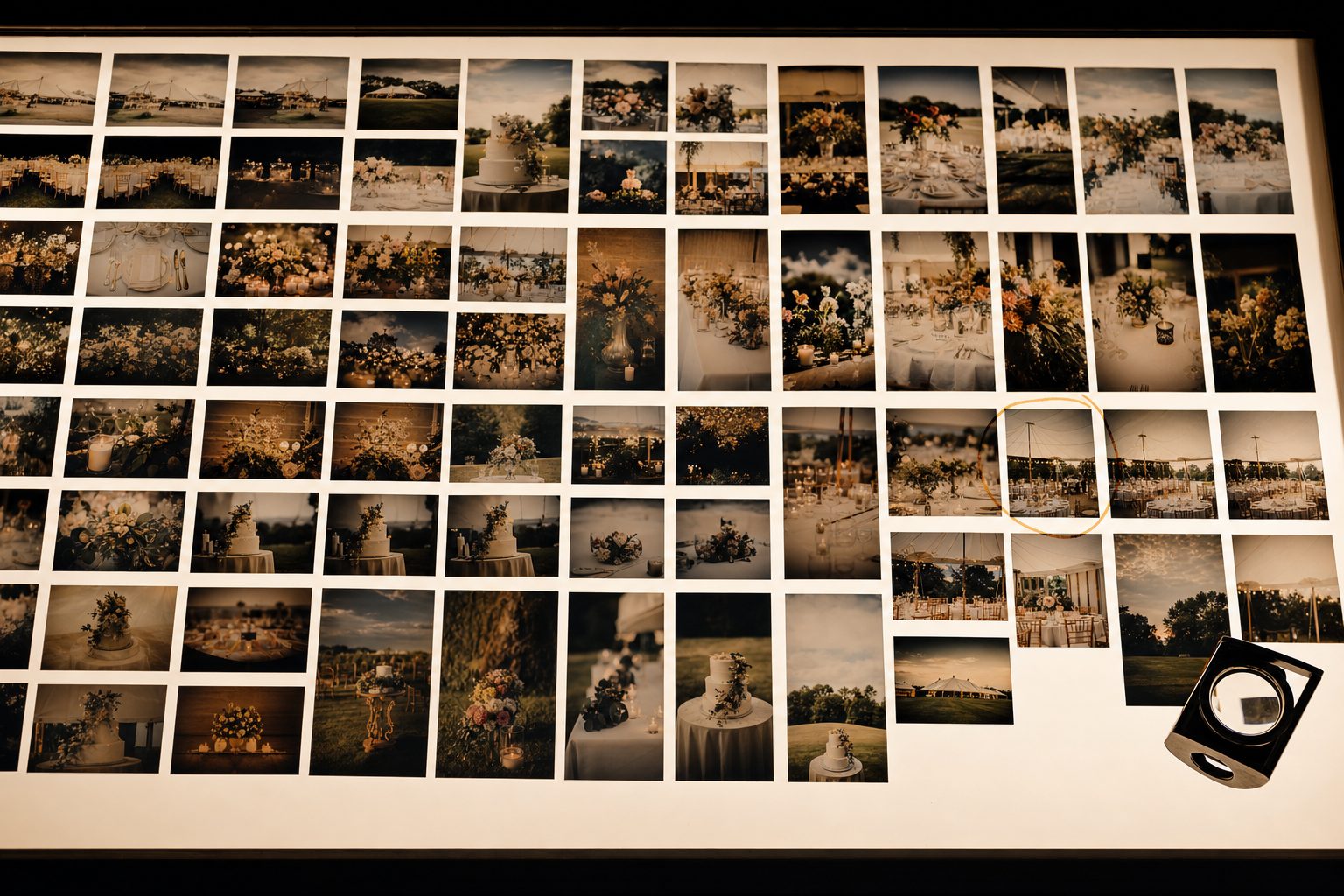
Your Camera Uploads folder holds 12,000 photos named 2019-08-04 19.22.31.jpg, a client wants the champagne-toast shots from a gala two seasons back, and the Dropbox search box just handed you a catering invoice. The photos are in there. The search cannot see them.
What Dropbox photo search actually matches
Dropbox search is stronger than most people give it credit for, and the official search guide lists more capability than the search box lets on. On a photo, it can match four things.
The filename and extension. A file named gala-champagne-toast.jpg is findable by typing part of the name. A timestamp name is findable only by its date. Since Camera Uploads names everything by timestamp, most phone photos start out unsearchable by subject.
Tags you added by hand. Dropbox lets you attach tags to files and search them with a # prefix, like #gala2024. Tags work on every plan, but only for files someone took the time to tag.
Text printed inside the image. On paid plans, Dropbox runs OCR (optical character recognition, software that reads printed text in an image), so a word on a slide, a sign, or a menu can surface the photo it appears in. Great for screenshots and whiteboards. Useless for a sunset.
Broad content categories. This is Dropbox image search: on paid plans, searching "logo" or "floor plan" returns matching images even when the word appears nowhere in the filename. It reads the pixels, but at category level, not scene level.
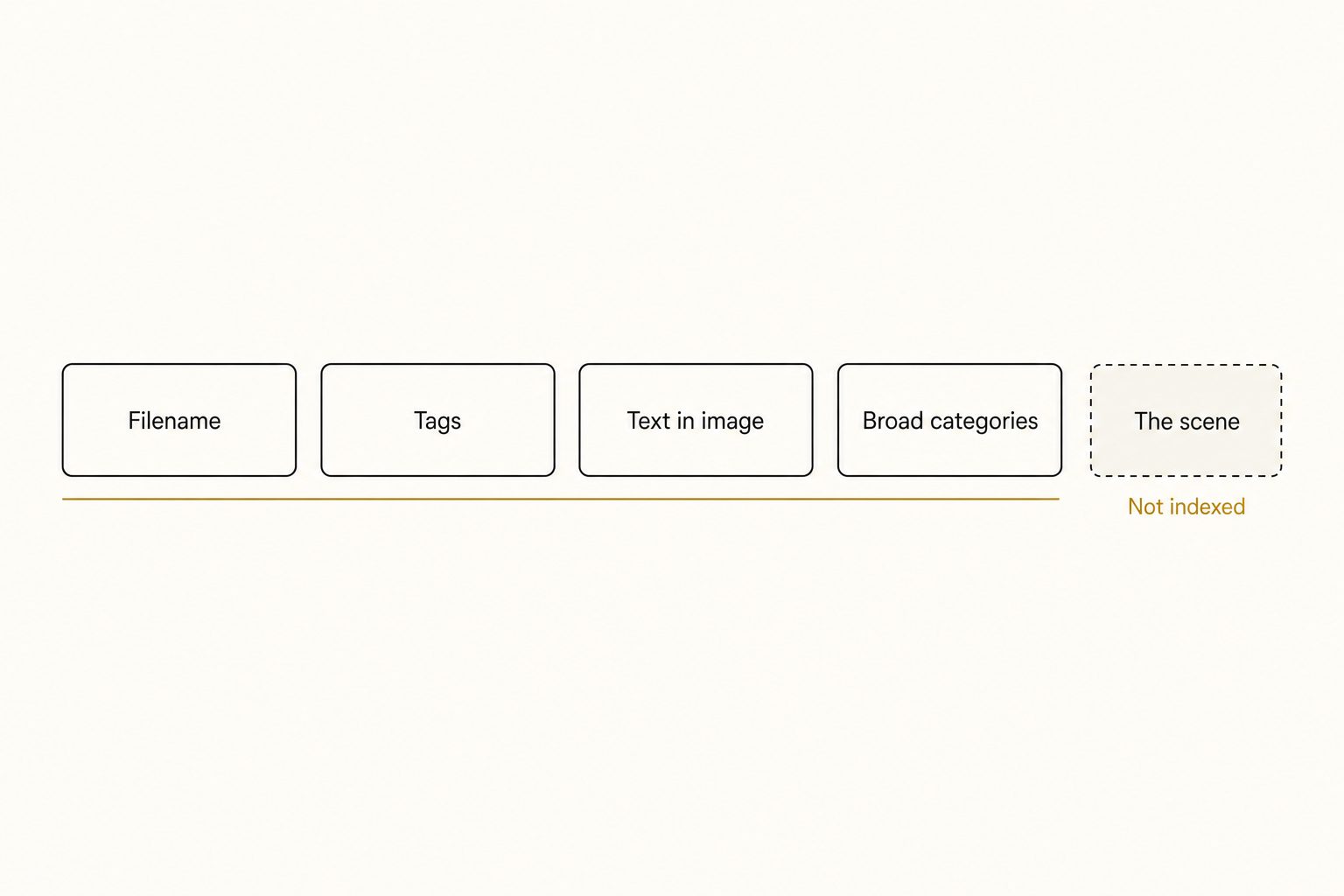
Notice what is missing from the list. Dropbox never records that one image shows "a champagne toast under string lights on a rooftop." No description of the scene exists anywhere, so no search can match it.
The four catches in the fine print
Each capability above carries a condition, and the conditions are scattered across separate help pages. Gathered in one place:
- Image content search is paid-plans-only. It is included on Plus, Family, Professional, Standard, and the Business tiers. Dropbox Basic, the free plan, gets filename, extension, and tag matching, and nothing that reads the image.
- It only reads four file types. Image search covers .jpg, .jpeg, .png, and .gif. HEIC files, the default from an iPhone, and RAW files from a camera are invisible to it, a gap we cover across formats in our guide to tagging HEIC, WebP, and RAW at scale.
- It recognizes categories, not scenes. Dropbox's own engineering write-up of how image search works describes matching queries against learned visual concepts. "Beach" works. "The candid of the founders laughing at the beach cleanup" does not, because no model output that specific is stored for your files.
- Plus accounts only index newer uploads. On the Plus plan, image search covers files uploaded after September 6, 2023. An archive that predates that sits outside content search entirely until the files are touched again.
Note. None of these are bugs, and there is no setting that lifts them. They are the designed shape of the feature: a general file-storage search with a useful image layer, not a photo library search.
Getting more out of the built-in search
Before adding any tool, squeeze the search you already have. Three habits cover most small libraries.
Use the operators. Quotation marks force an exact phrase, before: and after: narrow by date, and type: limits results to images. A query like after:2024-06-01 type:image toast beats scrolling every time.
Filter by image date taken. The filters on dropbox.com include one that reads the shooting date from the photo's own metadata, which survives even when the upload happened months later. Combined with the dimensions filter, it separates real camera photos from screenshots fast.
Tag the shots you reuse. A #hero or #approved tag on your best 50 photos makes them findable on any plan. The tag system, along with folder structure and Camera Uploads habits, is covered in our guide to organizing Dropbox photos.
Tip. If your library is split between clouds, remember that Dropbox search stops at Dropbox's edge. The split-library problem has its own playbook in searching across Google Drive and Dropbox at once.
Where searching photos in Dropbox hits the wall
The built-in search holds up while a library is small enough that filenames, dates, and a handful of tags can describe it. That stops somewhere between 1,000 and 5,000 photos, the point we call the 1,000-photo wall.
Below it, you remember roughly where things are and date narrowing does the rest. Above it, the questions outgrow the index: you stop looking for "the June folder" and start looking for "that shot of the couple under the string lights," and neither a timestamp filename nor a category match can answer.
The manual fix does not scale. Renaming or tagging a photo well takes tens of seconds, so a 10,000-photo backlog is weeks of typing, and the result still only holds the two or three words someone chose to type.
How to search Dropbox photos by what they show
An AI photo catalog closes the gap by writing the description Dropbox never had. It connects to your Dropbox with read-only access, streams each photo to a vision model, and writes back a focal-subject label, a set of tags, and a sentence describing the scene, all stored in a searchable index. Your originals never move. The connection mechanics are the same ones behind bulk-tagging photos in Dropbox.
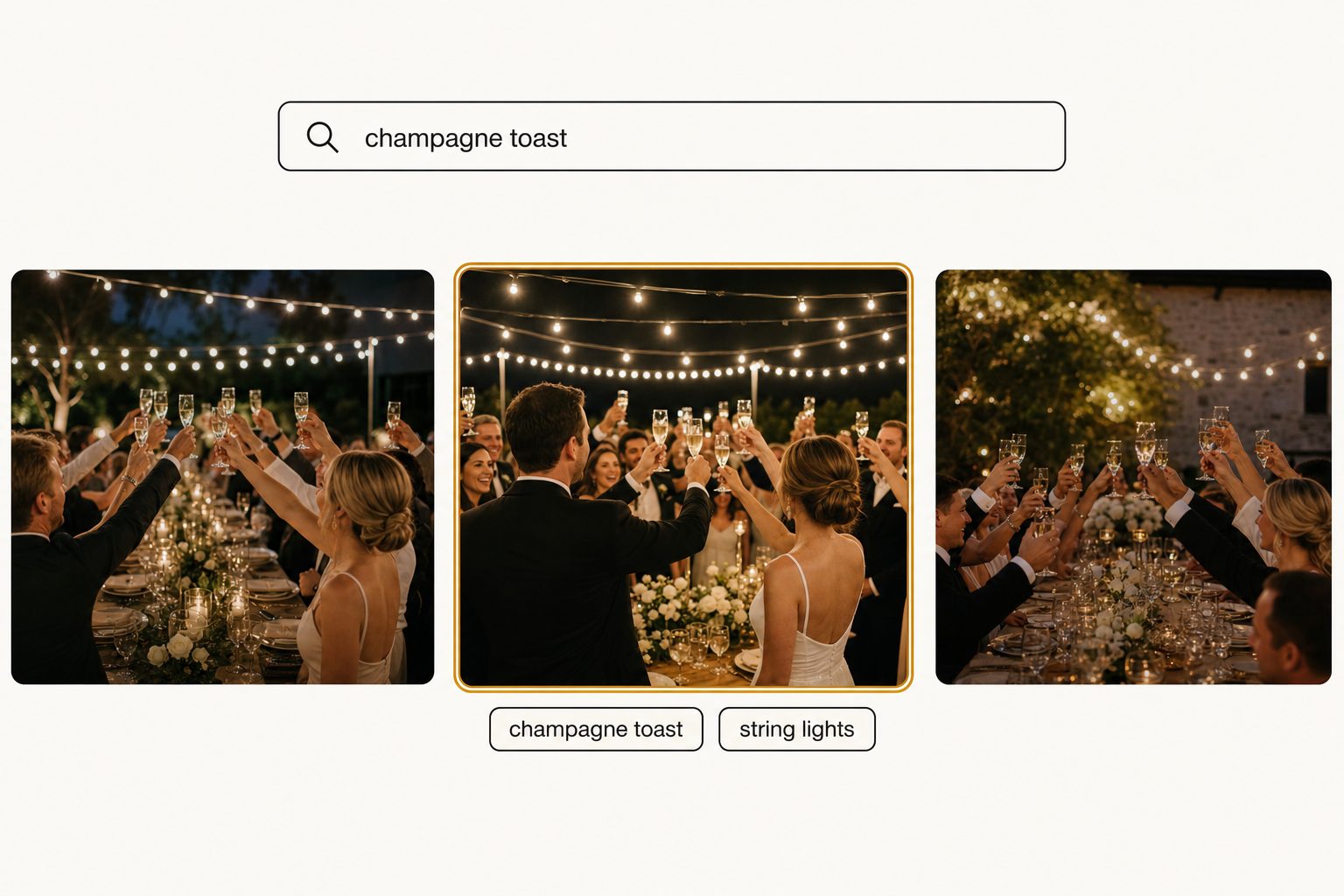
Ranking is what separates a good catalog from a longer list. The focal-subject method records the single dominant element of each scene and ranks it above background context, so "champagne toast" returns photos that are about the toast, not every frame with a glass somewhere in it. The full method is in our focal-subject tagging playbook.
Tagrly is one option in this category, and not the only tool that connects to Dropbox; Pics.io does too. For scale, A full indexing pass runs unattended in the background. After that, a description search returns ranked matches in seconds, HEIC and RAW included.
Tip. Tagrly's free tier reads the first 500 photos in any Dropbox folder, no credit card. Run it on a real folder and search the results before deciding anything.
Which fix fits your library
- Pick the built-in search plus operators if you are on a paid plan and under about 1,000 photos. Date filters and
type:imagecover most everyday lookups at that size. - Pick hand tagging if a small set of hero shots gets reused constantly. Fifty tagged photos is an afternoon, and tags work on every plan including Basic.
- Pick Dropbox image search alone if your subjects are genuinely category-shaped: logos, floor plans, whiteboards, product-on-white. That is the ground it was built for.
- Pick an AI photo catalog (Tagrly is one example) if the library is in the thousands, a team needs to find specific shots, and the photos include HEIC files that Dropbox's image search cannot read.
Dropbox photo search reads the file and a category, not the picture. That is enough until the library outgrows what filenames and broad concepts can describe, and past that point the honest fix is making a real description of every photo exist somewhere searchable. The fastest way to judge whether that is worth it is to try a content search on your own folder. For the full method behind large-library retrieval, see our pillar guide to finding any photo in your library.
Frequently asked questions
Can Dropbox search photos by what's in them?
Partly, on paid plans. Dropbox image search recognizes broad content categories, so a query like 'logo,' 'floor plan,' or 'beach' can surface matching images even when the word is not in the filename. It works on .jpg, .jpeg, .png, and .gif files, and it is included on Plus, Family, Professional, Standard, and the Business tiers. What it cannot do is read a scene: it never records that one photo shows a champagne toast under string lights, so specific searches like that return nothing. For category-level subjects it genuinely helps. For finding one particular shot in a large library, you need a description of each photo to exist somewhere searchable, which Dropbox does not create.
Does Dropbox image search work on the free plan?
No. Content-based image search is not included in Dropbox Basic. On the free plan, search matches filenames, extensions, and any tags you have added by hand, and the type filter can narrow results to images. That means a free-plan library of Camera Uploads files named with timestamps is effectively unsearchable by subject: nothing in the name says what the photo shows, and Dropbox is not reading the pixels for you. If upgrading is not on the table, the free fixes are renaming files with real words at intake and tagging the shots you reuse most.
Why can't I find my photos in Dropbox?
Usually one of three reasons. First, filenames: Camera Uploads names files by timestamp, like 2019-08-04 19.22.31.jpg, so a text search has nothing meaningful to match. Second, file types: Dropbox image search only reads .jpg, .jpeg, .png, and .gif, so HEIC photos from a phone and RAW files from a camera are invisible to content search. Third, the category ceiling: even on paid plans, Dropbox recognizes broad concepts rather than scenes, so anything more specific than 'beach' or 'logo' misses. There is also a quieter catch: on the Plus plan, only files uploaded after September 6, 2023 are indexed for image search at all.
How do I search photos in Dropbox by date?
Three ways. The search filters on dropbox.com include an 'image date taken' filter that reads the date from the photo's own metadata, which is more reliable than the upload date. The before: and after: operators narrow any search by modification date, for example after:2024-06-01. And if your photos arrived through Camera Uploads, the timestamp filenames sort chronologically on their own, so browsing the folder by name walks the library in shooting order. Date narrowing plus a scroll is often the fastest built-in path to a photo when you remember roughly when it was taken but nothing about the filename.
How do I search my Dropbox photos by description?
A description has to exist before you can search for one, and Dropbox does not write descriptions of your photos. An AI photo catalog fills that gap: it connects to your Dropbox with read-only access, reads each image, and writes tags plus a sentence describing the scene into a searchable index. From then on you type a plain-English description, like 'champagne toast under string lights,' and the matching photos come back ranked with the closest match first. Your original files never move and nothing in your Dropbox is altered. Tagrly is one option in this category; its free tier reads the first 500 photos in any folder so you can test the search before paying anything.
Try Tagrly on your own photo library
Connect your Google Drive or Dropbox folder and Tagrly will tag every photo in bulk. Search by what is actually in the image, share specific shots with clients, and never lose a photo again.
- Free for your first 500 photos
- Read-only access, revoke anytime
- No credit card