
The selects came back this morning as a voice memo: "we love the one where the chef is laughing, the two terrace shots, and that close-up of the plates, you know the one." Somewhere in the 600-photo gallery you delivered, four photos are hiding, and it is now your job to guess which ones.
What client favorites and notes actually replace
Favorites and notes move the selects round out of your inbox and onto the photos themselves. That is the whole feature, and it fixes a specific, repetitive failure.
Without them, client feedback arrives in three broken formats:
- The filename list. "We want DSC_0481, DSC_0512, and DSC_0567." Fragile, and it dies the moment anyone renames or re-exports a file.
- The screenshot roll. Cropped phone screenshots of your own photos, texted back to you, at one-tenth resolution.
- The description. "The one where everyone is laughing." Now you are the search engine.
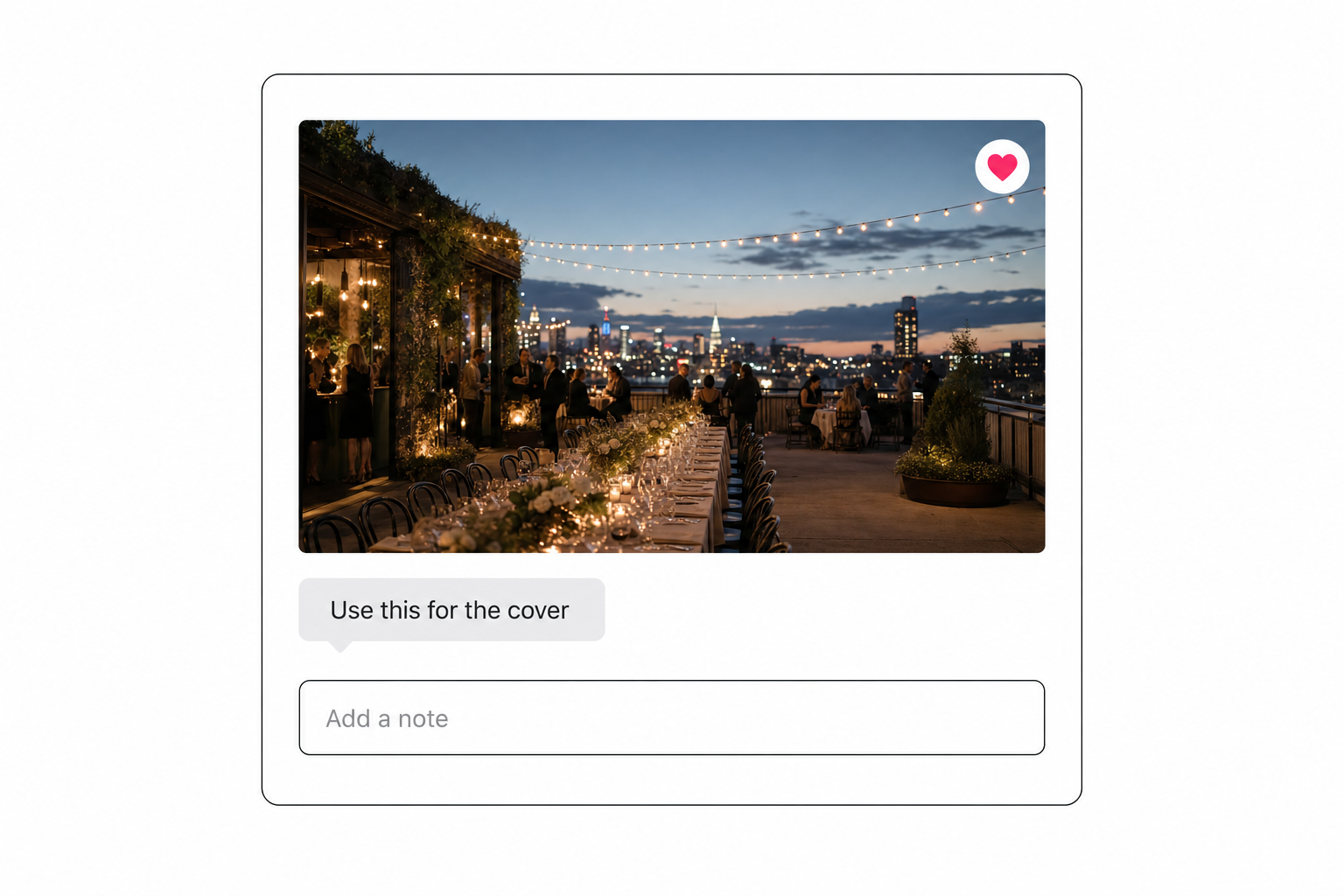
A favorites button replaces all three with a heart on the photo. A note replaces the follow-up email with a sentence attached exactly where it belongs: "use this for the cover", "crop out the exit sign", "the founder prefers the other angle."
The reason this is a buying decision rather than a settings toggle: which link you send determines whether feedback can live on the photo at all. So the real question is which of the three gallery routes fits how your clients work.
The free ways to collect client favorites
The free tools you already use can carry some of this weight, and it is worth knowing exactly where they stop.
Google Photos shared albums are the strongest free option. When the album owner enables it, viewers can like photos and leave comments, and Google's sharing documentation covers the controls; note that turning comments off also disables likes, as of writing in August 2026. Two catches: viewers must be signed in to a Google account to react, and the feedback accumulates in the album's activity feed. There is no view that shows only the liked photos, so extracting the shortlist means scrolling the feed and matching reactions to images by hand.
Google Drive and Dropbox have no favorites concept, but both support comments on individual files. Dropbox's commenting feature lets anyone with access to a file leave a comment on it, including on a specific region of an image. Useful for feedback on one hero shot; hopeless for a selects round, because each comment lives on its own file and nothing collects the marked photos in one place.
The honest verdict: for a dozen finals and one cooperative client with a Google account, a Photos album with comments turned on costs nothing and works. Past that, the feedback scatters. If your deliveries are small curated sets anyway, sharing specific photos with clients covers the free routes in more depth.
Proofing galleries built the favorites workflow
For shoot-by-shoot photography, proofing tools own this feature, and they earned it. Pixieset, Pic-Time, ShootProof, and CloudSpot all let a client heart photos into a favorites list, typically saved under the client's email address, and most offer per-photo notes so the client can attach editing requests to each favorite. Exact mechanics and plan limits vary by vendor and change often, so check their current pages.
The workflow is genuinely good: the client hearts their album picks, adds "soften the background" on two of them, and you export the favorites list as filenames straight into your editing tool. If you deliver weddings or family sessions and the gallery is the product, buy one of these and stop reading.
The model has two built-in limits. Favorites are usually siloed per visitor email, so three stakeholders on the client side produce three separate lists you get to merge. And the gallery itself is a hand-built set of one shoot's finals, which works because a shoot gallery is small.
When the "gallery" is really an archive, two years of campaigns or a venue's whole event history, the client's first problem is not marking the photo. It is finding it.
Favorites and notes on a searchable catalog gallery
The archive case needs the shortlist attached to a library, not to a shoot. That takes two layers.
First, an AI tagging pass reads every photo in your Google Drive or Dropbox and records what it shows: one focal subject, supporting context tags, and a line of alt text. The method lives in our complete guide to AI photo tagging, and vision models like Claude vision are what made it practical at library scale. Second, the client gallery becomes a boundary drawn over that catalog, shared as its own link with a search box scoped to what is inside; the setup is covered in building a searchable client gallery.
Favorites and notes then sit on top of the search, with one design difference from the proofing model: they are share-wide. In Tagrly, when anyone on the link hearts a photo, everyone on that link sees it under the Favorites view. One link, one shortlist, which is exactly what a client-side team of three needs.
Notes work the same way: a single line per comment, capped at 280 characters, visible to everyone on the share, no threads. The client searches "terrace at dusk", hearts two results, types "use the wider one", and the decision is recorded on the photo.
On your side, the gallery filters to favorites or to noted photos in one click, and a daily email digest summarizes new favorites and notes; your own browsing inside the share is filtered out of it, so the digest only fires on real client activity. Clients need no account, an optional email gate records who reacted, and a password fits on the door too; that layer has its own guide. The tagging pass behind all this runs unattended in the background.

Tip. You can test the whole loop on your own photos before a client ever sees it. Tagrly's free tier tags the first 500 photos in any Drive or Dropbox folder, no credit card, so share a sample gallery from it, heart a few photos yourself, and check the shortlist and digest land the way you expect.
Which favorites-and-notes gallery fits you
Honest guidance, because each of these routes wins somewhere:
- A dozen finals, one client, no budget. A Google Photos shared album with comments turned on. Free, and likes plus comments cover a small selects round.
- Feedback on one or two hero images. Drive or Dropbox file comments, which can pin a note to an exact region of the photo.
- Shoot-by-shoot delivery with retouching rounds or print sales. A proofing gallery like Pixieset or Pic-Time. Favorites-to-filename export into your editor is their home turf.
- A client-side team choosing from an archive. A catalog gallery with share-wide favorites, notes, and a search box. Tagrly is one option; Pics.io also connects to Drive and covers similar ground.
A photo gallery with client favorites and notes is really a decision about where the shortlist lives: in an activity feed, under one visitor's email, or on a shared library the whole client team can search. For one shoot, the proofing tools have this solved. For an archive, the shortlist has to be findable before it can be hearted, and that is a catalog problem.
The quickest way to judge the catalog route is to tag 100 of your own photos free and run one favorites round on a shared gallery. The wider discipline of making a big library findable in the first place lives in our pillar guide to finding any photo in your library.
Frequently asked questions
Can clients mark favorites in a free Google Photos or Google Drive gallery?
Partially. A Google Photos shared album supports likes and comments when the album owner turns them on, and turning comments off also disables likes, as of writing in August 2026. The catch is that viewers must be signed in to a Google account to react, and the feedback lands in the album's activity feed rather than in a shortlist you can filter or export. Google Drive has no favorites concept at all; the closest tool is per-file comments, which scatter the feedback across individual files. Dropbox file comments behave the same way. For a dozen photos and one cooperative client, these free routes work. For a real selects round they turn into archaeology.
Do clients need an account to leave favorites and notes?
It depends on the tool, and it is worth checking before you send the link. Google Photos and Drive require viewers to sign in with a Google account before they can like or comment. Proofing galleries typically ask the client to enter an email address, which is how the favorites list gets saved and recovered later. Catalog-style galleries can go lighter: in Tagrly, anyone the share link admits can heart photos and leave notes without creating an account, and an optional email gate records who said what when you need attribution. Less friction at the door usually means more feedback actually gets left.
How do I get the client's favorites list out of the gallery and into my workflow?
In proofing galleries the standard move is exporting the favorites list as filenames, which you paste into Lightroom or your file browser to pull the selects. In a catalog gallery the shortlist stays live instead: you filter the shared gallery to favorites, review the noted photos in place, and act from there, with a daily email digest summarizing new favorites and notes as they arrive. Whichever tool you pick, run one round-trip test before the client starts: heart three photos yourself, then confirm you can retrieve exactly those three on your side. A favorites feature you cannot get data out of is a decoration.
Can several people on the client's side share one favorites list?
This is where tools genuinely differ. Proofing galleries usually save favorites per visitor, keyed to each person's email address, so the marketing manager and the founder end up with separate lists you have to merge. Features vary by vendor, so check current pages. Catalog galleries can treat the share itself as the unit: in Tagrly, favorites are share-wide by design, so when one person on the link hearts a photo, everyone else on the same link sees it in the Favorites view. One link produces one shortlist, which is what you want when a client-side team of three is choosing photos together.
What is the difference between gallery notes and a full proofing workflow?
A gallery note is a short comment attached to one photo: use this for the cover, crop tighter, not this one. In Tagrly a note is a single line capped at 280 characters, visible to everyone on the share, with no threads and no replies, which keeps the surface small and the intent editorial. A proofing workflow is a bigger machine: revision rounds, version history, watermarked previews, print orders and payment. If your engagement includes structured retouching rounds or selling prints, buy a proofing gallery; that is what they are built for. If you need decisions and context on photos a client picks from a library, notes cover it.
Try Tagrly on your own photo library
Connect your Google Drive or Dropbox folder and Tagrly will tag every photo in bulk. Search by what is actually in the image, share specific shots with clients, and never lose a photo again.
- Free for your first 500 photos
- Read-only access, revoke anytime
- No credit card