
Type "dog on the beach" into your phone and the right photo appears, even though you never labeled a single shot. Type the same words into Google Drive and you get nothing, because the two search boxes are reading completely different things.
What "search photos by what's in them" actually means
Searching photos by what's in them means the search engine matches your words against the visual content of each photo, not against the file's name. That single difference decides whether a search box can find anything in a camera-named library.
The two kinds of search look identical on screen. Behind the box, they read different data:
| Filename search | Content search | |
|---|---|---|
| What it reads | The file's name, folder, and typed metadata | The picture itself: subjects, setting, colors |
Works on IMG_4827.JPG |
No, the name says nothing | Yes, the name never mattered |
| Setup required | You rename or keyword every file by hand | None once the library is indexed |
| Where you find it | Drive, Dropbox, Finder, File Explorer | Google Photos, Apple Photos, photo catalogs |
Filename search fails photos for a structural reason: cameras name files with a counter, so the name holds no information about the image. Content search sidesteps the name entirely, which is why it keeps working at 10,000 photos and beyond.
Where you can already search photos by content for free
If the photo is on your phone, you already have content search and should use it before paying anyone. Two apps do the indexing automatically:
- Google Photos. Indexes the content of every synced photo, so a plain-language search like "beach" or "birthday cake" returns matches with zero setup, on Android, iPhone, and the web.
- Apple Photos. Runs scene and object recognition on-device, and its search matches subjects, places, and even text visible inside photos across iPhone and Mac.
- Where both stop. They only see photos synced into their own libraries. Work photos in a shared Drive folder, a client archive in Dropbox, or a library on an external drive are invisible to them.
That boundary is the whole story of this topic. Personal camera rolls got content search years ago; the libraries teams actually work in mostly still don't have it. If your problem is one specific lost photo rather than search in general, start with our guide to finding a photo you can't remember the name of.
How content search works: read, record, match
Every content search, from your phone to a 100,000-photo team catalog, runs the same three-step trick: read each photo once, write down what it shows, and match your words against that written record.
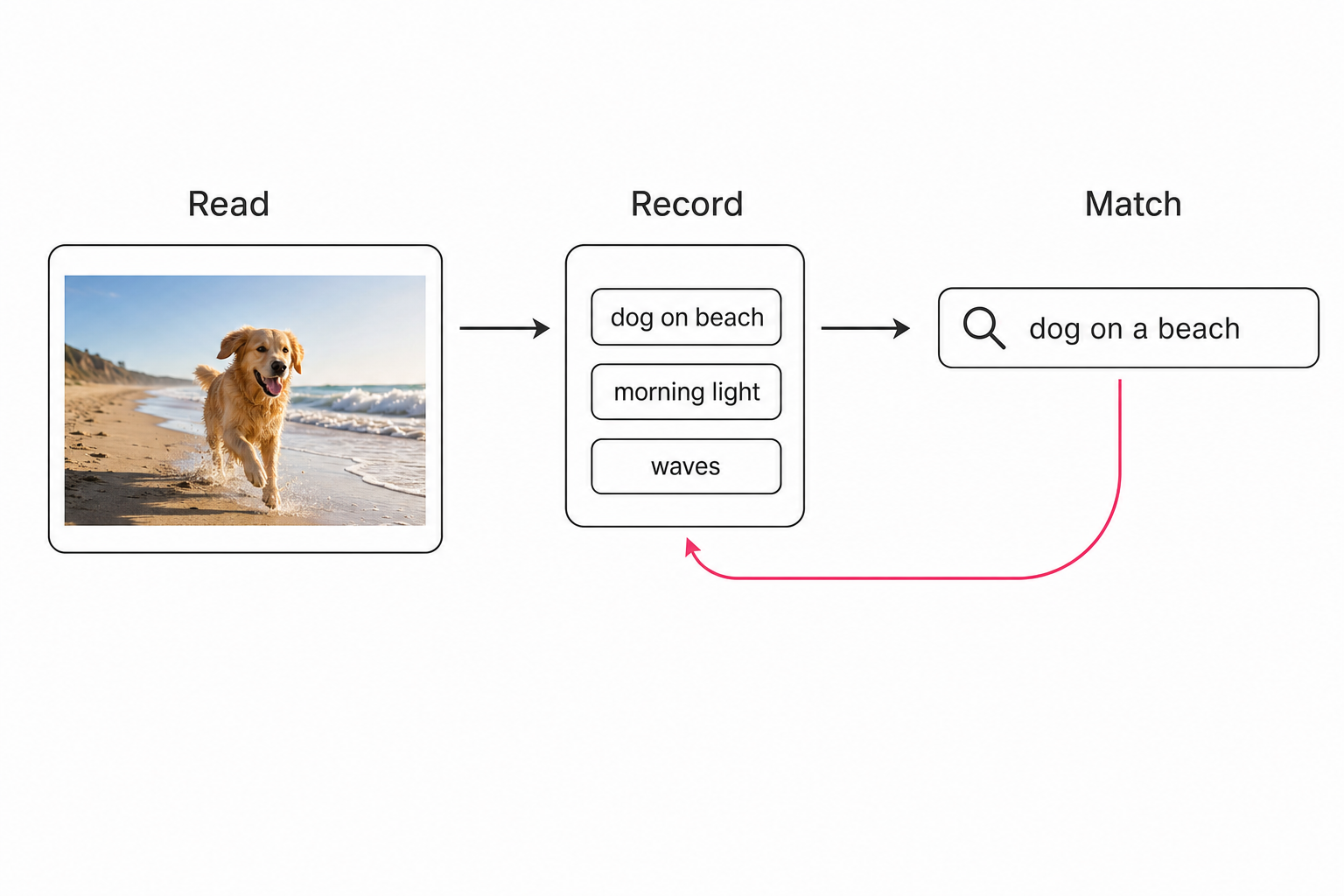
- Read. A vision model looks at the actual pixels and identifies what the photo shows: the main subject, the setting, the light, the objects around it.
- Record. The tool writes that reading down as a structured record. The good ones record one dominant focal subject first, then the supporting context, a discipline we call focal-subject tagging. Weak ones record "person, building, sky" and their search never gets better than that.
- Match. When you type "dog on a beach," the engine compares your words against the records, ranks focal-subject matches above background matches, and returns results in milliseconds.
The reading is the expensive step, and it happens once per photo, ahead of time. That is why the search feels instant: by the time you type, the looking is already done. The full economics of that one-time reading pass are in our complete guide to AI photo tagging.
Note. Recall quality is decided at the record step, not the search step. A search engine can only match what was written down, so a tool that records rich focal subjects will find "the candid toast shot" while a tool that recorded "person, table" cannot, no matter how good its search box is.
Why Drive search misses photos, and Dropbox only gets partway
Google Drive indexes text, not pictures. It was built to store and sync files, and its search reflects that: filenames, folder names, dates, owners, file types, and words inside documents via OCR. Google Drive's own search options confirm the pattern: every filter operates on text the system can already read. A camera-named photo carries no useful text, so a Drive search for "sunset" returns only files with sunset typed into the filename, which is almost none of them.
Dropbox has moved a step past this. On eligible paid plans its search can match broad visual categories, so "beach" or "logo" can surface photos with no matching filename. Two limits keep it from being the search this post is about: it matches categories rather than the specific scene ("beach", not "the champagne toast on the beach at sunset"), and it only searches Dropbox. The gap between a category label and a written description is the whole difference between finding beach photos and finding the one you mean.
The Drive-specific version of this problem, and the workarounds inside Drive itself, get a full walkthrough in how to search photos by description in Google Drive. This post stays platform-neutral because the fix is the same everywhere: the search layer has to be added on top of the storage.
How to add content search to a photo library that doesn't have it
The fix is a catalog layer that connects to your storage read-only, reads every photo once, and gives everyone a description-search box on top of the folders you already have. Nothing moves; the layer sits beside the storage rather than replacing it.
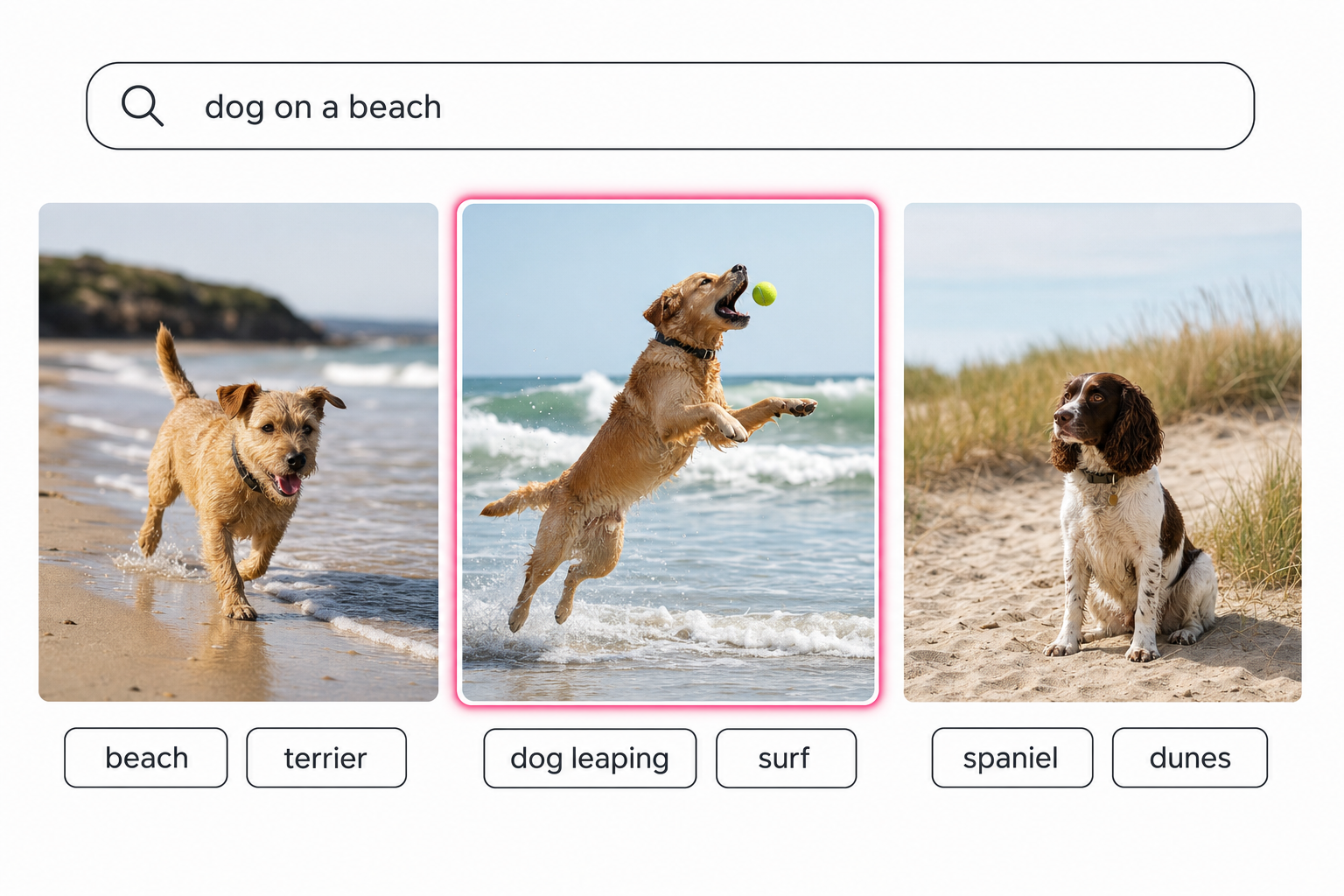
Several tools do this. Tagrly is the one we build: its AI photo search connects to Google Drive or Dropbox with read-only access, runs the read-and-record pass unattended in the background, and makes what is already read searchable while the rest is still going. In our own testing on a 5,000-photo set, a plain-language description of a specific shot returned the correct photo in the top three results 9 times out of 10. Other catalogs connect to Drive as well, and desktop tools like Excire Foto run a similar pass on local folders for solo use.
Tip. You can test content search on your own photos for free. Tagrly's free tier reads the first 500 photos in any Drive or Dropbox folder, no credit card. Point it at a sample folder, then search for a shot you can picture but never labeled, and judge the results yourself.
Which content search fits your photos
Match the tool to where your photos live, not the other way around:
- Camera roll on your phone. Use Google Photos or Apple Photos. They are free, automatic, and already installed.
- Personal library on one computer. Pick a desktop organizer with AI search, such as Excire Foto or digiKam, if you work solo and offline.
- Team library in Drive or Dropbox. Pick a connected catalog like Tagrly, because the search has to work for people who didn't take the photos and don't know the folders.
- Enterprise library with a procurement process. Pick an enterprise photo platform; you are paying for permissions and workflow, with content search included.
What to do next
Search that reads what's in your photos is no longer exotic: your phone has done it for years, and the same capability is now available for the Drive and Dropbox libraries teams actually work in. The mechanism is always read, record, match, and the quality of the record decides everything. Pick the row above that matches where your photos live, test it on a real folder before paying anyone, and if you want the full field manual for large libraries, the pillar guide to finding any photo in your library covers every strategy in one place.
Frequently asked questions
What does it mean to search photos by what's in them?
It means the search matches your words against the visual content of each photo, the subjects, the setting, the colors, instead of against the filename or folder name. A filename search for 'dog on a beach' finds nothing in a library of camera-named files like IMG_4827.JPG, because the name carries no information about the picture. A content search finds the shot because something has already looked at the image and recorded that it shows a dog on a beach. The search box looks identical in both cases; the difference is what was indexed behind it.
How does content-based photo search work?
In three steps: read, record, match. First, a vision model reads each photo once and identifies what it shows. Second, the tool writes that down as a structured record, usually a main subject, supporting tags, and a descriptive sentence. Third, when you type a query, the search matches your words against those records instead of against filenames, and returns the photos whose recorded content fits. The reading happens once, ahead of time, which is why the search itself feels instant even across a very large library.
Can Google Drive or Dropbox search photos by what's in them?
Not in any dependable way. Drive and Dropbox were built to store and sync files, so their search reads filenames, folder names, dates, owners, and text inside documents through OCR. Neither reads the visual content of a photo, so searching 'sunset' returns only files with the word sunset already typed into the name. In a camera-named library that is close to zero. To search a Drive or Dropbox photo library by content, you add a catalog layer that connects to the storage, reads each image once, and indexes what it finds.
Is searching photos by content free?
On your phone, yes. Google Photos and Apple Photos both index the content of your camera roll automatically at no cost, so a plain word like 'cake' or 'mountain' already works there. The free options stop at the edge of those apps: photos that live in Google Drive, Dropbox, a shared team folder, or an external drive are outside their index. For those libraries the free move is sorting by date and scrolling; a paid catalog layer is what adds true content search. Tagrly's free tier reads the first 500 photos in any Drive or Dropbox folder with no credit card, so you can test content search on your own library before paying.
Do I have to tag photos myself for content search to work?
No, and that is the point. Manual tagging is the old way of making photos findable, and at editorial depth it runs 5 to 8 hours per 1,000 photos of human time. Content search replaces that step: an AI pass reads each photo and writes the tags for you, so the library becomes searchable without anyone typing keywords. Manual edits still have a place for the handful of photos where you need private vocabulary, client names, or corrections, but they sit on top of the automatic base layer instead of replacing it.
Try Tagrly on your own photo library
Connect your Google Drive or Dropbox folder and Tagrly will tag every photo in bulk. Search by what is actually in the image, share specific shots with clients, and never lose a photo again.
- Free for your first 500 photos
- Read-only access, revoke anytime
- No credit card