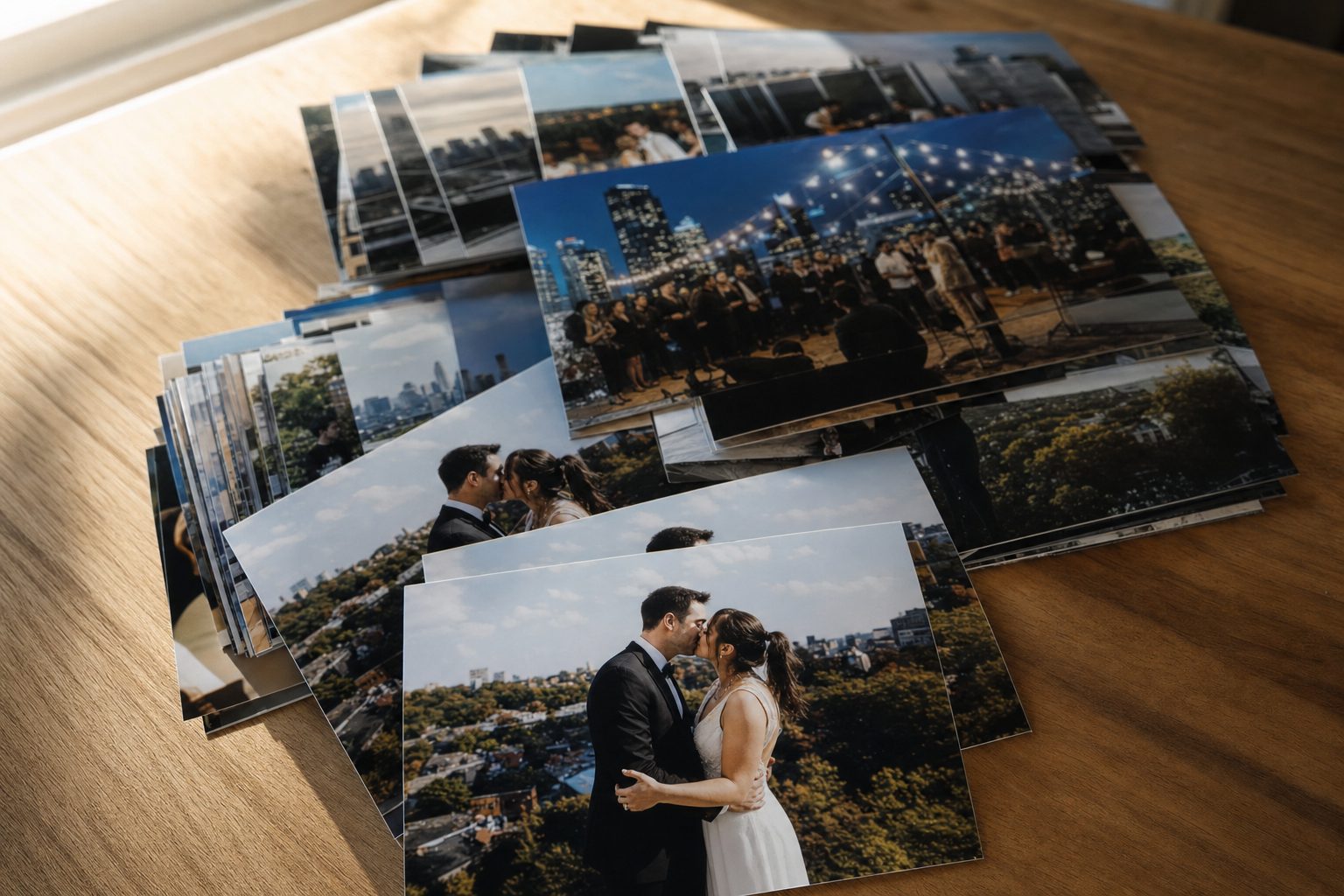
You have 20,000 photos in a shared Drive folder, and you are almost sure half of them are copies: the same shoot exported twice, a folder someone dragged in "just to be safe," and four near-identical frames from every burst. Nobody wants to delete the wrong one, so the whole pile just keeps growing.
Exact duplicates vs. near-duplicates: the distinction that decides your tool
Sort the problem into two kinds before you pick a tool. They need different methods, and most cheap tools only handle the first.
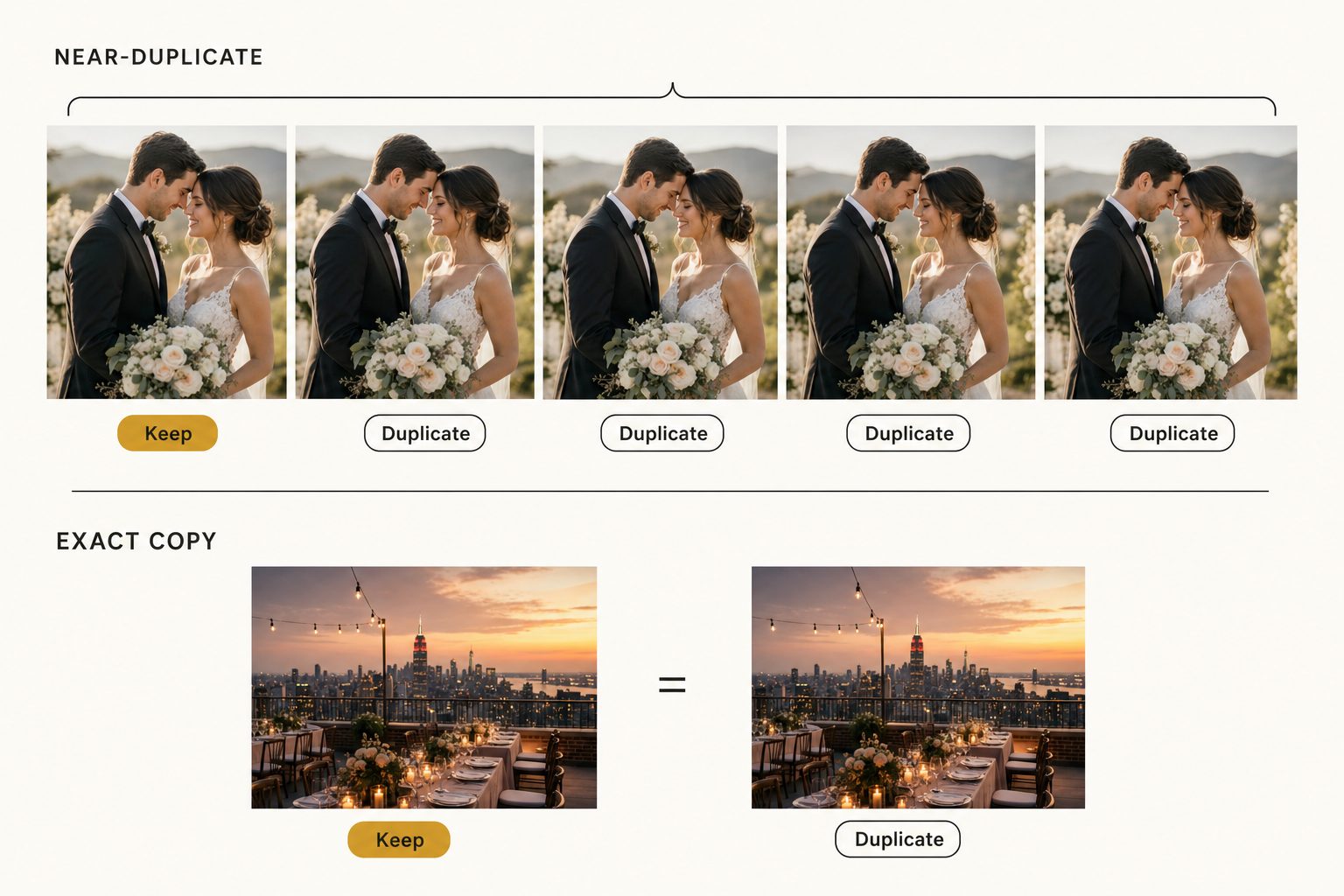
An exact duplicate is the same file twice, byte for byte: beach.jpg and beach (1).jpg, or one export saved into two folders. Any tool catches these by comparing a file hash, a short fingerprint of the bytes.
A near-duplicate looks the same to a person but differs as a file: a shot re-exported at a new size, a JPEG and its small web copy, or three frames from a burst. Catching these needs perceptual hashing, which compares what the picture looks like, so it flags a 4000-pixel original and its 800-pixel copy as the same photo.
Note. A burst of five nearly identical frames is the trap. They are near-duplicates, but one is the keeper and no tool reliably guesses which. Treat bursts as a review job, never an auto-delete job.
The free way to find duplicate photos in Google Drive and Dropbox
You can clear most of the obvious mess without paying for anything.
Sort by filename and file size first
Open the folder in grid view and switch the sort to Name, and the copies line up next to each other: IMG_4827.JPG sits beside IMG_4827 (1).JPG. Then sort by file size and scan for runs of matching byte counts, since two files at exactly 4,182,233 bytes are almost always the same image.
This catches exact copies fast, but it misses near-duplicates, because a resized copy has a different name and size. Google Drive and Dropbox both block re-uploading the same file to the same folder twice, yet both keep copies that live in different folders, which is where most cloud duplicates come from.
Use Google Photos or your built-in cloud features
If your photos also flow into Google Photos, it merges exact duplicates on upload, and its storage management tools help you clear large photos and videos. Apple Photos has a built-in Duplicates album that merges look-alikes on a Mac or iPhone. Both are free and fine for a personal camera roll, but neither helps with the shared work folder this guide is really about.
Warning. Before you delete a single photo, back up the folder. The fastest way to turn a tidy-up into a disaster is a keep rule that quietly kept the wrong copy. Most dedup tools move files to the trash or a review folder rather than deleting outright, but a backup is your real undo.
The cheap tools that actually compare image content
Once the library is past a few thousand photos, the manual sort runs out of road and you want a tool that compares the pictures, not just the filenames. The best options here are free.
- dupeGuru is free and open-source, runs on Windows, Mac, and Linux, and has a picture mode that compares image content, so it catches resized and re-exported near-duplicates, not just exact copies. It groups matches and lets you set a keep rule. See the dupeGuru site for its picture-mode details.
- Czkawka is the other strong free pick, open-source, cross-platform, and fast on very large folders. It does exact-hash and perceptual matching with a clean review screen.
- PhotoSweeper is a paid Mac app (a one-time purchase, not a subscription; check its current price) with a polished side-by-side review. Worth it if you review duplicates often.
- Lightroom does not dedupe on its own, but plugins like Teekesselchen flag duplicates inside your Lightroom catalog.
- Gemini (the Mac dedup app, not the AI model) and similar consumer cleaners are cheap and aimed at a personal drive more than a shared team library.
To run any of these on cloud photos, install Google Drive for Desktop and the Dropbox app so each library shows up as an ordinary folder, then point the tool at it. It is the same trick that lets you search across Google Drive and Dropbox at once with your computer's built-in search.
Tip. Set the keep rule to "keep the highest resolution" or "keep the file in the original shoot folder," not "keep the first one found." The first-found rule will happily keep an 800-pixel web copy and bin your full-resolution original.
Where the manual cleanup runs out of road
A folder-scanning dedup tool answers one question well: which files are copies of each other. It does not answer the one that comes right after, which is "where is the one rooftop sunset shot I actually want."
This is the 1,000-photo wall again. Even a perfectly deduplicated library is opaque above a few thousand photos, because the files are still named DSC_0481.JPG and nothing describes what each shows. Deduplication makes the pile smaller; it does not make it findable.
There is also the team problem: dupeGuru and Czkawka run on one machine with no shared view, so the "which copy do we keep" decision lives in one head instead of somewhere the team can see it.
How an AI photo catalog surfaces duplicates (and what it won't do)
An AI photo catalog comes at it from the other side. Instead of scanning files on one laptop, it connects to your Google Drive or Dropbox, reads every image, and builds one searchable library the whole team can reach, the setup described in setting up a shared photo library for a small team.
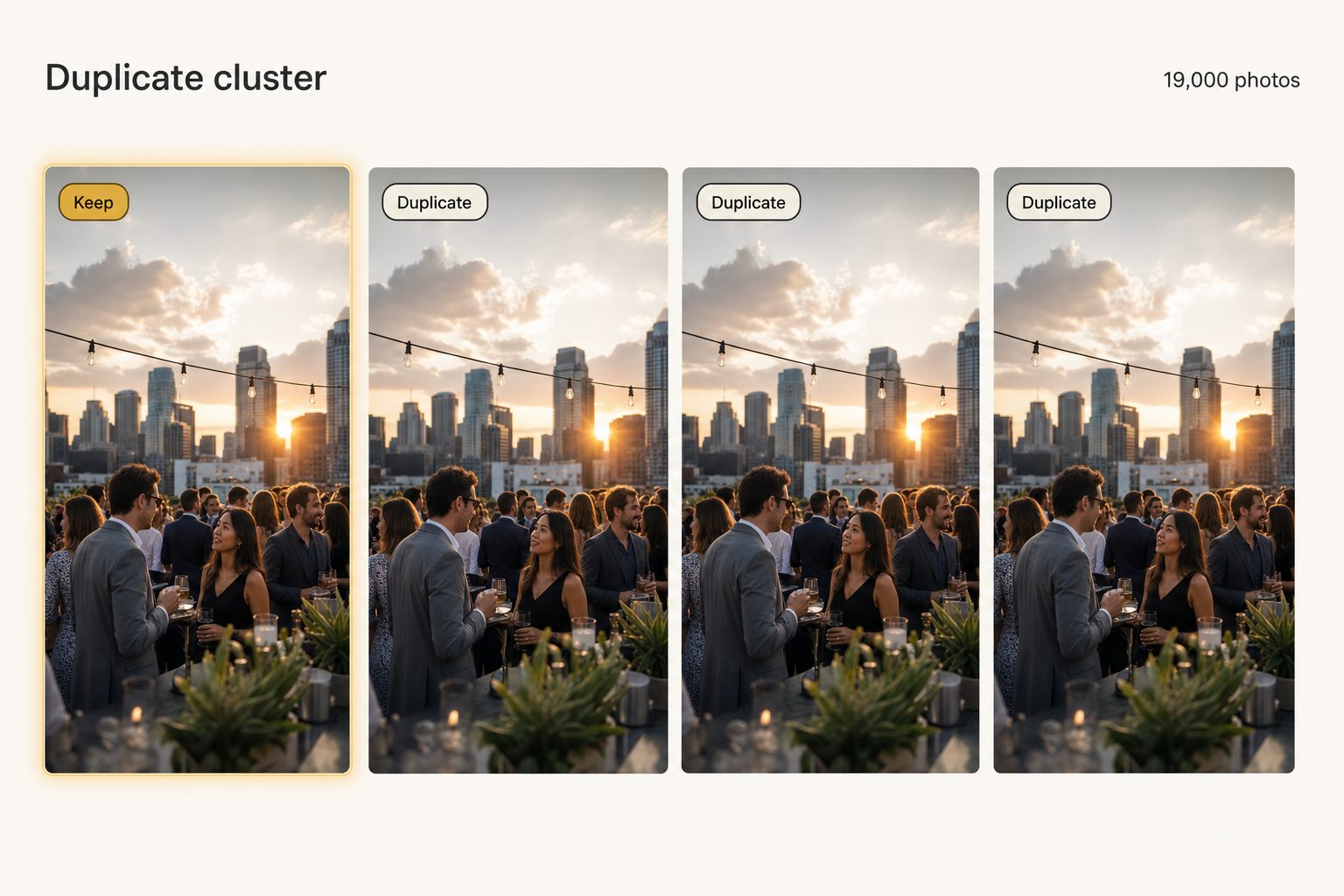
Because it has already read and fingerprinted every image to make it searchable, it can group likely duplicates and near-duplicates into clusters inside that shared library. That same per-image reading powers AI photo search across the catalog: in Tagrly's own testing on a 5,000-photo set, focal-subject tagging surfaced the correct top match in roughly 9 of 10 searches. You see the burst of five frames together and decide which to keep with the team looking at the same screen.
A read-only catalog has one hard limit worth stating plainly. It connects with the drive.readonly scope on Google's side and a read-only files scope on Dropbox's side, so it can read your photos but never change, move, or delete the originals.
It will not auto-delete duplicates, and you should not trust any cloud tool that claims it can quietly do that. Its job is to surface the clusters; the deletion happens back in Drive, or with a separate dedup tool that has write access. Surfacing and deleting are two different jobs, and a read-only catalog only does the first.
A full first scan runs unattended in the background, the same pass that fingerprints every image and makes the duplicate clusters visible.
Tagrly works this way, and it is one option among several. If you want to see how a catalog reads a real folder first, Tagrly's free tier tags the first 500 photos in any Drive or Dropbox folder at no cost, no credit card. Connect a real folder and look at the clustering before you commit to anything. The same read also helps you separate stock photos from your originals.
Which deduplication approach should you pick?
Your library's size and whether a team shares it pick the tool for you.
- Pick the free filename-and-size sort if you have a few hundred photos and just want to clear the obvious
(1)copies. It is built into Drive and Dropbox. - Pick dupeGuru or Czkawka if you are one person with a few thousand to tens of thousands of photos and need to catch near-duplicates by image content. Free, thorough, and the right answer for most solo cleanups.
- Pick PhotoSweeper or a Lightroom plugin if you are on a Mac or live in Lightroom and review duplicates often enough that a nicer side-by-side screen is worth a small one-time cost.
- Pick Google Photos or Apple Photos if the library is a personal camera roll, not a shared work folder. Both merge exact duplicates for free.
- Pick an AI photo catalog (Tagrly is one example) if you have a large, team-shared library in Drive or Dropbox and want dedup and the find-it-later problem solved in one searchable place. Just know it surfaces duplicates for a human to remove rather than deleting source files itself.
The takeaway
Deduplicating a photo library is two problems wearing one name. Exact copies are easy: a free sort by filename and size, or a quick run of dupeGuru, handles them. Near-duplicates and bursts are the careful part, and they want a tool that compares image content plus a human keep decision, never a blind auto-delete.
Whatever you choose, back up first and keep the highest-resolution copy. If the library is large, shared, and you also need to find a specific shot afterward, a catalog that reads every image earns its place, as long as you remember its read-only role is to surface duplicates, not delete them. The quickest way to see that is to point a catalog at one of your folders. For the bigger picture, see our guide to finding any photo in your library.
Frequently asked questions
How do I find duplicate photos in Google Drive?
Google Drive does not have a duplicate finder built in, so you work around it. The free first pass is to open the folder in grid view, switch the sort to Name and then to file size, and scan for runs of identical-looking thumbnails and matching byte counts, which catch exact copies like 'photo.jpg' and 'photo (1).jpg'. Drive does block uploading the exact same file to the same folder twice, but it happily keeps copies across different folders and any near-duplicate burst frames. For thousands of photos, install Google Drive for Desktop so the library shows up as an ordinary folder, then run a desktop dedupe tool like dupeGuru or Czkawka against it. Those tools compare actual image content, so they catch a resized or re-exported copy that has a different filename and size.
What is the difference between exact and near-duplicate photos?
An exact duplicate is the same file byte for byte, usually a literal copy: 'beach.jpg' and 'beach (1).jpg', or the same export saved into two folders. Any tool can catch these by comparing a file hash. A near-duplicate is two images that look the same to a person but differ as files: a JPEG and its resized web version, the same shot re-exported at a new quality, or three nearly identical frames from a camera's burst mode. Catching near-duplicates needs perceptual hashing, which compares what the picture looks like rather than its exact bytes, so it can flag a 4000-pixel original and its 800-pixel copy as the same photo. Free tools like dupeGuru and Czkawka do both; most built-in cloud features only catch exact copies.
Can I deduplicate photos for free?
Yes, for most libraries. Sorting by filename and file size inside Google Drive or Dropbox catches the obvious exact copies at no cost. For a thorough pass, the free open-source tools dupeGuru and Czkawka scan a folder, compare both exact hashes and perceptual similarity, group the duplicates, and let you review and delete with a keep rule (keep the largest, keep the oldest). Google Photos also merges exact duplicates on upload for free. The paid tier is for convenience and scale: PhotoSweeper on Mac and Lightroom plugins add nicer review screens, and AI photo catalogs surface duplicate clusters inside a searchable library so a team can decide together. Start free; pay only if the free tools cannot keep up with your volume.
Is it safe to delete duplicate photos automatically?
Be careful with anything labelled automatic. Exact byte-for-byte duplicates are safe to auto-remove because the copies are identical. Near-duplicates are not, because a burst of similar frames usually contains one keeper you do not want a tool to guess at, and a high-resolution original and its small web copy are duplicates you may want to keep both of. The safe workflow is: let the tool group the duplicates, set a keep rule (keep the highest resolution or the original folder), review the groups it found, and only then delete. Always run a backup first. Most dedup tools default to moving files to a review folder or the trash rather than deleting outright, which gives you an undo.
Does an AI photo catalog delete duplicates from my Drive or Dropbox?
No, and you should be wary of any cloud tool that claims it does. A read-only photo catalog connects to Google Drive with the drive.readonly scope and to Dropbox with a read-only files scope, so it can see and read your photos but can never change, move, or delete the originals. Its role in deduplication is to surface the problem, not to act on it: it reads every image, groups likely duplicates and near-duplicates into clusters, and shows them inside a searchable library so a human decides which copy to keep. The actual deletion happens back in Drive or Dropbox by hand, or with a separate dedup tool that has write access. Surfacing and deciding are two different jobs, and a read-only catalog only does the first.
Try Tagrly on your own photo library
Connect your Google Drive or Dropbox folder and Tagrly will tag every photo in bulk. Search by what is actually in the image, share specific shots with clients, and never lose a photo again.
- Free for your first 500 photos
- Read-only access, revoke anytime
- No credit card