
You have 8,000 photos in a shared Google Drive. Half are your own shoots, and the other half are stock images someone downloaded for a slide deck two years ago. Now you are building a brand campaign and need to know, fast, which photos you actually own and which ones came from a stock site with a license attached.
Why telling stock from original photos matters
Mixing stock and original photos in one library creates three real risks, and they all surface at the worst time, right before something ships. This is not pedantry, it is what goes wrong when you cannot tell the two apart.
- Licensing. A stock photo comes with usage terms, and some are editorial-only, some expire, and some bill per placement. Treat one as your own on a paid ad and you can get a takedown notice or an invoice. Pixsy's guide to verifying an image's source and copyright owner walks through how owners trace this.
- Authenticity. Audiences and clients can usually feel when a photo is generic stock, and original photography tends to land better for brand and editorial work.
- Deliverables. If a client paid for an original shoot, a stock filler that slipped into the set is a problem you want to catch before you send it, not after.
What Google Drive can and can't tell you
Google Drive cannot label a photo stock or original, filter your library by that distinction, or surface the difference in search. Its job is to store and find files, and it is good at that: it indexes the filename, type, owner, and date, and it can show some EXIF fields in the details pane if you open one photo at a time.
Drive searches the file, not where the picture came from, the same blind spot we cover in searching photos by what they show. So the work falls to you: inspect suspect files, separate them by hand, or point a tool at the folder that can read provenance at scale.
The free ways to tell a stock photo from an original
You do not need to pay for anything to sort a handful of photos. Three signals do most of the work, in rough order of how reliable they are.
Check the metadata first
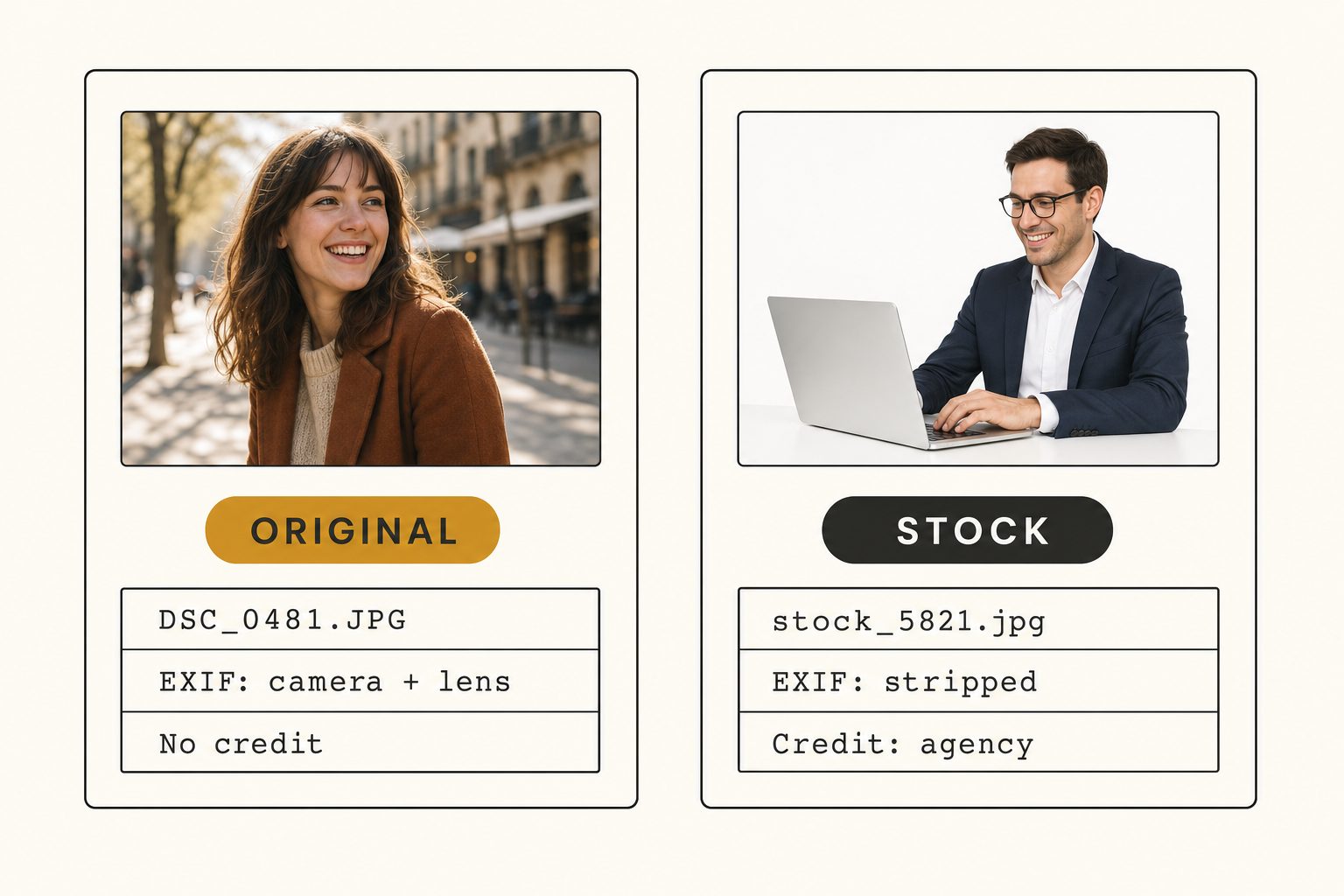
Original camera files carry EXIF data: camera make and model, lens, focal length, shutter speed, ISO, capture date, and sometimes GPS coordinates. Open the file's details or info pane, or load it into any EXIF viewer, and a real shoot announces itself.
Stock downloads usually have that EXIF stripped. Licensed stock goes a step further and often embeds an IPTC credit, copyright, or source line naming the agency or contributor, something like "stock.adobe.com" or a photographer's name. If the credit field names an agency, it is almost certainly stock.
Warning. Metadata is a strong hint, not legal proof. An original can lose its EXIF when it is exported or screenshotted, and any field can be edited or faked. Use metadata to sort quickly, then confirm anything that carries legal weight with a reverse image search and the actual license.
Look at the filename
Stock downloads keep tell-tale names: shutterstock_1234567.jpg, AdobeStock_98765.jpeg, gettyimages-..., istockphoto-..., pexels-photo-1234.jpeg. Your camera writes IMG_4827.JPG, DSC_0481.JPG, or _MG_3382.CR2. A glance at the filename is the cheapest first pass you can run.
Run a reverse image search
If a photo appears on stock sites or shows up all over the web, it is stock. Drag it into Google's reverse image search or into TinEye, whose guide on spotting a stock photo explains the approach. The catch is that it runs one image at a time, so it is perfect for confirming a single suspect shot and hopeless for sorting thousands.
How an AI photo catalog sorts stock from original at scale
The free methods break down at the 1,000-photo wall, the point where a library gets too big to inspect or remember by hand. Reverse-searching 8,000 photos one at a time is not a plan, it is a week you do not have.
An AI photo catalog closes that gap. It connects to your Drive with read-only access (the drive.readonly scope, so it can read your files but never change them, a setup we detail in the Google Drive bulk-tagging guide), streams each photo to a vision model, and writes tags plus a description for every image. Two of those outputs are built for the stock-versus-original problem.
It reads the metadata Drive ignores and puts it in one searchable place, so you can filter the whole library at once: the shots missing camera EXIF, the ones carrying an agency credit, the files named like a stock download. And its scene tags separate the generic frame, "smiling person at a laptop, white background," from your real candid shoots, using the focal-subject method that ranks each photo's dominant element first, the same engine behind Claude vision for image catalogs. In Tagrly's own testing on a 5,000-photo set, focal-subject tagging surfaced the correct top match in roughly 9 of 10 searches, so AI photo search sorts the generic frames from your real shoots quickly. Group the suspects into a collection and review them, instead of opening thousands of files.

The AI pass has a hard limit. It flags what looks like stock and what carries stock metadata, but it cannot read a license. The legal answer always comes from the license and the metadata, not from how a photo looks, so treat the AI pass as a fast sorter that hands you a short pile to verify.
A full scan runs unattended in the background, and what is already read is searchable while the rest is still going. After that, narrowing the library to the frames missing camera metadata, or the ones that read as stock, is one filter instead of an afternoon of opening files.
Tip. Want to see what the tags and metadata look like on your own mixed folder? Tagrly's free tier tags the first 500 photos in any Drive or Dropbox folder at no cost, no credit card. Connect a real folder and sort the results before you commit to anything.
Which approach should you pick?
Your photo count and what is at stake pick the approach for you.
- Pick the metadata check if you have a few suspect images and want the closest thing to a definitive free answer. The EXIF and credit fields are the ground truth.
- Pick a reverse image search when you need to confirm one specific photo is stock and trace where it came from. It is precise and slow, which is fine for one image.
- Pick filename and folder discipline if you are starting fresh. Keep a
stock/folder separate fromoriginals/and the problem never forms. Prevention costs nothing. - Pick an AI photo catalog (Tagrly is one example, and not the only tool that connects directly to Drive) if you have thousands of mixed photos and need to sort, search, and flag the whole library at once.
The takeaway
Google Drive will never tell you which photos you own, because provenance lives in the metadata, the filename, and the wider web, not in the file listing. A little discipline keeps stock and originals in separate folders before the question ever comes up.
For a handful of images, the free routine of checking metadata and running a reverse search is the right call. For thousands of mixed shots, an AI catalog that reads each image and its metadata turns a guessing game into a filter. The fastest way to know which you need is to run it on a real folder of your own photos. For the bigger picture, see our guide to finding any photo in your library and the complete guide to bulk image tagging.
Frequently asked questions
How can you tell a stock photo from an original?
Start with the file's metadata. Original camera files carry EXIF data, the camera make and model, lens, focal length, shutter speed, ISO, capture date, and sometimes GPS. Stock downloads usually have that stripped, and licensed stock often embeds an IPTC credit or copyright line naming an agency or contributor. The filename is the next clue, since stock keeps names like shutterstock_1234567.jpg while a camera writes IMG_4827.JPG. To confirm a suspect image, run a reverse image search: if it shows up on stock sites or all over the web, it is stock. Metadata and filename give you a fast sort, and the reverse search settles the close calls.
Can Google Drive tell stock photos from my own photos?
No. Google Drive indexes file attributes like name, type, owner, and date, and it can show some EXIF fields in the details pane, but it does not label a photo stock or original, cannot filter your library by that, and its search cannot separate the two. Drive searches the file, not where the photo came from. You either inspect each suspect file by hand, keep stock and originals in separate folders from the start, or run a tool over the library that reads each image and its metadata and lets you filter by provenance across thousands of photos at once.
Is EXIF metadata proof that a photo is original?
It is a strong hint, not legal proof. An original photo can lose its EXIF when it is exported, screenshotted, or run through a social platform that strips metadata, so a missing camera field does not automatically mean a photo is stock. In the other direction, any metadata field can be edited or faked by someone determined to do it. Treat metadata as a fast first sort that tells you which photos to trust and which to check. For anything that carries legal or licensing weight, confirm with a reverse image search and the actual license or invoice for the image.
What's the fastest way to find stock photos in a large Drive library?
Reverse-searching thousands of photos one at a time is not realistic, so above roughly a thousand images the practical answer is an AI photo catalog. It connects to your Drive with read-only access, reads each image and its metadata, and writes searchable tags and a description for every photo. You can then filter the whole library at once: surface the shots missing camera EXIF, the ones carrying an agency credit, or the generic-looking frames that read as stock, and group them into a collection to review. The AI flags candidates fast, then you confirm the few that matter.
Why does it matter whether a photo is stock or original?
Three reasons. Licensing: a stock photo comes with usage terms that can limit where and how long you use it, and treating it as your own can mean a takedown or a bill. Authenticity: audiences and clients can usually spot generic stock, and original photography tends to land better for brand work. Ownership of deliverables: if a client paid for original shots, a stock filler slipped into the set is a problem you want to catch before delivery, not after. Knowing which photos you actually own protects you on all three.
Try Tagrly on your own photo library
Connect your Google Drive or Dropbox folder and Tagrly will tag every photo in bulk. Search by what is actually in the image, share specific shots with clients, and never lose a photo again.
- Free for your first 500 photos
- Read-only access, revoke anytime
- No credit card