
The marketing lead needs the two rooftop launch shots from last spring. They are in a OneDrive folder with 12,000 other pictures named IMG_20250419_182233.jpg, and not one carries a word you can search on. OneDrive does have a way to tag photos, but it has quietly changed twice in two years, and the version you land on may not match the guide you found.
Why "tag photos in OneDrive" got confusing
OneDrive photo tagging is a moving target, and that is the first thing every generic guide skips. The feature has been reshaped across update cycles, so advice written two years ago often describes a screen you no longer have. The clearest sign is Microsoft's own support forum, where 2024 and 2025 threads ask, in almost these words, "are you still able to tag your photos via OneDrive," and report being unable to add a new tag or search the ones already there.
So the honest starting point is knowing that OneDrive gives you two kinds of tags, that one is reliable and one is not, and that neither travels with your photos.
How to tag photos in OneDrive right now
Tagging in OneDrive happens on the website, not the desktop app, and it comes in two flavors: the tags you type and the tags OneDrive generates.
Add a tag by hand
- Go to OneDrive on the web and open Photos from the left menu.
- Select a photo, then open its details pane with the information icon.
- Find the tags field, type a word such as
rooftop launch, and press Enter. - To remove a tag, select the X next to it.
Microsoft's support page frames this as "type a new tag or select the X next to a tag to remove it." The honest caveat: the field's placement has shifted between updates and some accounts report it missing, and there is no multi-select "tag these 200 photos" action, so every manual tag is one photo of work.
Let OneDrive tag automatically
The more dependable half is automatic. OneDrive "automatically creates tags for things it recognizes," so a beach photo picks up a beach tag with nothing typed. It also reads date and location and lets you browse the gallery by time and place, and you can search by "where it was taken, what is in the photo, and whether it is a video, screenshot, document, and more."
Automatic recognition can be wrong, and a bad auto-tag deletes like a manual one. But as a way to find a photo you never labeled, it is the part of OneDrive tagging that earns its keep.
Note. The desktop OneDrive app is a sync client, not a photo manager. Tagging, the gallery, albums, and content search all live on the OneDrive website. If you cannot find the tags field, you are probably in the desktop app or a file-list view.
Where OneDrive photo tags stop working
Here is the catch every quick guide skips: OneDrive tags are not written into your photos, and even OneDrive's own search has gotten shaky about reading them.
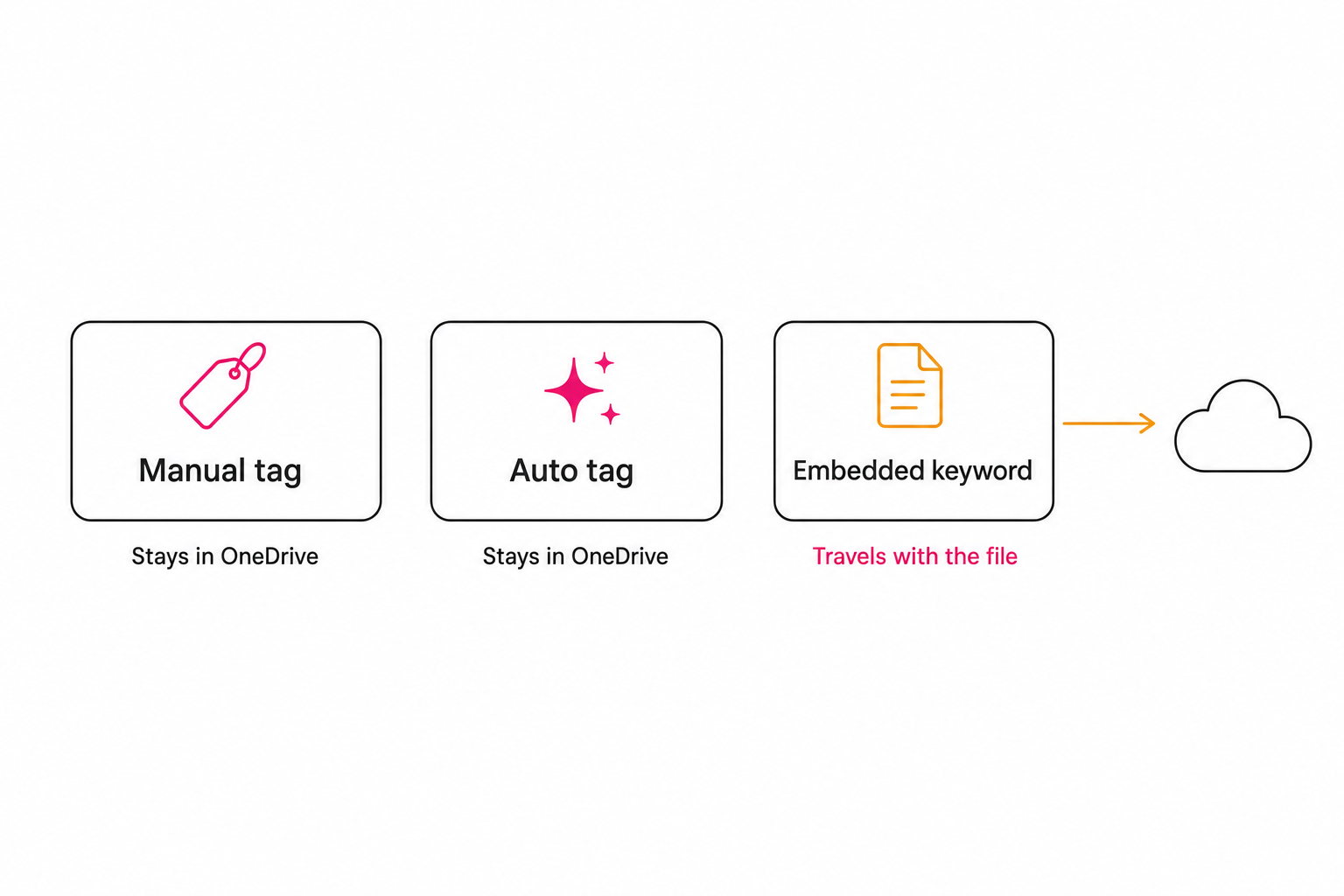
Both kinds of tag, the ones you type and the ones OneDrive generates, live in OneDrive's own service, not inside the photo file. Download the photo, email it, or copy it into a Google Drive or Dropbox folder, and the tags stay behind, because the words were never in the file.
The words that do travel live in the photo's embedded IPTC and XMP fields, the layers we unpack in what photo metadata actually is. OneDrive is a poor fit for that layer: photographers have reported that it does not index keywords their desktop tools embedded, and that its auto-tagging can overwrite the rest of a file's metadata rather than preserve it.
Then there is the retreat that surprises people most. OneDrive search is designed to match tags, yet across 2024 and 2025 users reported on Microsoft's own Q&A forum that typing a tag returned nothing and that the search no longer matched the tags field at all, a change Microsoft never announced.
So you can add tags OneDrive then declines to search. Automatic recognition keeps working; hand-typed tags may quietly fail.
The quieter limit is arithmetic. Hand-tagging runs 100 to 200 photos per hour, fine below the 1,000-photo wall but hopeless above it, especially when the tags may not be searchable.
Warning. Do not build a filing system on OneDrive manual tags alone. Between the shifting tag field and the reports of tag search silently breaking, a folder of hand-typed keywords can stop being findable without warning. Treat automatic recognition as the load-bearing feature and manual tags as a bonus.
How to tag OneDrive photos at scale
Once a library runs past the wall, the question becomes which system will still find a photo in two years. Three tiers, honestly.
Free and built-in. OneDrive's gallery, automatic recognition, albums, and date and location browsing cover a personal library at no cost. For most collections under about 1,000 photos this is the right answer, leaning on the automatic half rather than typing tags by hand.
Cheap desktop keyworders. If the words need to live in the files, a desktop metadata tool writes real IPTC keywords into each photo so they survive leaving OneDrive. The free command-line tool ExifTool does bulk writes across formats including RAW, and paid apps add a friendlier interface; both are covered in our guide to automatic photo keywords. The tagging still stays manual, and OneDrive may not read what you embed.
A connected AI catalog. OneDrive does not accept a read-only connection from third-party catalog tools the way Google Drive and Dropbox do, so the move is to mirror the active set into a Drive or Dropbox folder, then point a catalog service at it. It reads each photo and writes a focal-subject label, a set of tags, and a one-sentence description into a searchable index the whole team shares, the same mirror-then-index handoff we recommend for an external drive no cloud search can reach.

A full indexing pass runs unattended in the background. After it, search stops depending on what anyone remembered to type or on whether a tag field decided to work that week. "Rooftop launch" finds the shot even though nobody tagged it, and it finds it for everyone with access. Because these photos often arrive as HEIC, confirm a tool handles HEIC and RAW at scale before you mirror anything.
Tip. Tagrly's free tier reads the first 500 photos in any Drive or Dropbox folder, no credit card. Mirror a OneDrive folder into Drive and point Tagrly at it, then search for a shot you never tagged.
Which approach fits your library
- Use OneDrive's own tools if your library is under about 1,000 photos and you lean on automatic recognition rather than hand-typed tags. Free and good enough at that size.
- Use a desktop keyworder if a set of photos needs keywords written into the files so they survive leaving OneDrive, and you accept that OneDrive may not read them back.
- Use Microsoft's own AI where it reaches if your photos already live in a business SharePoint tenant with tagging enabled; our post on whether Copilot can organize your photos covers where that helps and where it stops.
- Use a connected AI catalog (Tagrly is one example) if the library runs to thousands, more than one person needs to find things, and you can mirror the working set into Drive or Dropbox so a catalog can read it.
Tagging photos in OneDrive comes down to a manual tag field that keeps moving, automatic recognition that quietly does the real work, and a tag search that has grown unreliable. It all stops at the same two fences: the labels stay inside OneDrive, and hand-typing does not scale.
Past the wall, the fix is letting software describe every photo once, in a place anyone can search. The quickest test is to mirror 100 of your own photos into a Drive folder and run a content search over them for a shot you never labeled.
Frequently asked questions
How do I tag photos in OneDrive?
Use the OneDrive website, not the desktop app. Open Photos, select a photo, open the details pane with the information icon, and type a word into the tags field. OneDrive also adds its own automatic tags for things it recognizes, and you can edit or delete those. Two things to know before you rely on it: the tag field has moved around and been pared back over the last two update cycles, so what you see depends on your account and the month, and every tag you add is typed into one photo at a time. There is no built-in way to tag a whole folder at once, so budget real time for anything past a few hundred photos.
Does OneDrive search read photo tags?
Less reliably than it used to. OneDrive search is built to match descriptions, tags, dates, and places, and for years typing a tag returned the tagged photos. Over 2024 and 2025 several users reported that tag search stopped returning results and that the search API no longer matched on the tags field, and Microsoft did not announce the change. Automatic content search still works: type dog, beach, or receipt and OneDrive finds matches from its own recognition. The practical takeaway is to treat OneDrive's automatic recognition as the dependable half and manual tag search as the half that may or may not work on any given day.
Do OneDrive photo tags stay with the file if I move it?
Usually not. The tags you add in OneDrive and the tags OneDrive generates live in OneDrive's own service, not written into the photo file, so they do not travel when you download the photo, email it, or copy it to Google Drive or Dropbox. Drive and Dropbox search will not read them either. The only labels that travel with a file are the ones written into its embedded IPTC or XMP metadata, and OneDrive has been reported to skip or overwrite embedded keywords rather than preserve them. If you need words that survive leaving OneDrive, write them into the file with a metadata editor first.
Can OneDrive tag photos automatically?
Yes, at the category level. OneDrive runs image recognition and creates tags for things it recognizes, so a photo of a beach picks up a beach tag on its own and searching that word returns it. It also reads location and date and lets you browse by place and by time in the gallery. Where it stops is specificity and control: it recognizes broad categories rather than the exact scene, it can be wrong and needs correcting by hand, and none of what it learns exports as tags you can hand to a teammate or read from another storage service. For generated tags across a whole library that a team can search, the usual path is mirroring the working set into Google Drive or Dropbox and pointing a connected catalog at that folder.
What is the best way to organize thousands of photos in OneDrive?
Below about 1,000 photos, OneDrive's gallery, automatic recognition, albums, and date and location browsing cover most needs at no extra cost. Past that, hand-tagging stops keeping up and the tag-search uncertainty makes manual tags a shaky foundation to build on. The scale answer is to mirror the working archive into a Google Drive or Dropbox folder and run a connected catalog service that reads each photo and writes a focal-subject label, a set of tags, and a one-sentence description into a searchable index the whole team shares. That pass runs unattended in the background, against 5 to 8 hours per 1,000 photos for a person typing keywords.
Try Tagrly on your own photo library
Connect your Google Drive or Dropbox folder and Tagrly will tag every photo in bulk. Search by what is actually in the image, share specific shots with clients, and never lose a photo again.
- Free for your first 500 photos
- Read-only access, revoke anytime
- No credit card