
You have thousands of photos in one folder, the filenames are all DSC_0481.jpg, and someone needs the four rooftop sunset shots from the launch event by Thursday. Tagging the pile by hand is a multi-week project nobody finishes, which is why the folder is a mess to begin with.
The fastest way to tag thousands of photos is to stop typing
The fastest way to tag thousands of photos is to hand the reading to software and keep the judgment for yourself. A person keywording at editorial depth manages only 100 to 200 photos per hour, so a 10,000-photo library is 50 to 100 hours of typing. That is the wall every method below gets around.
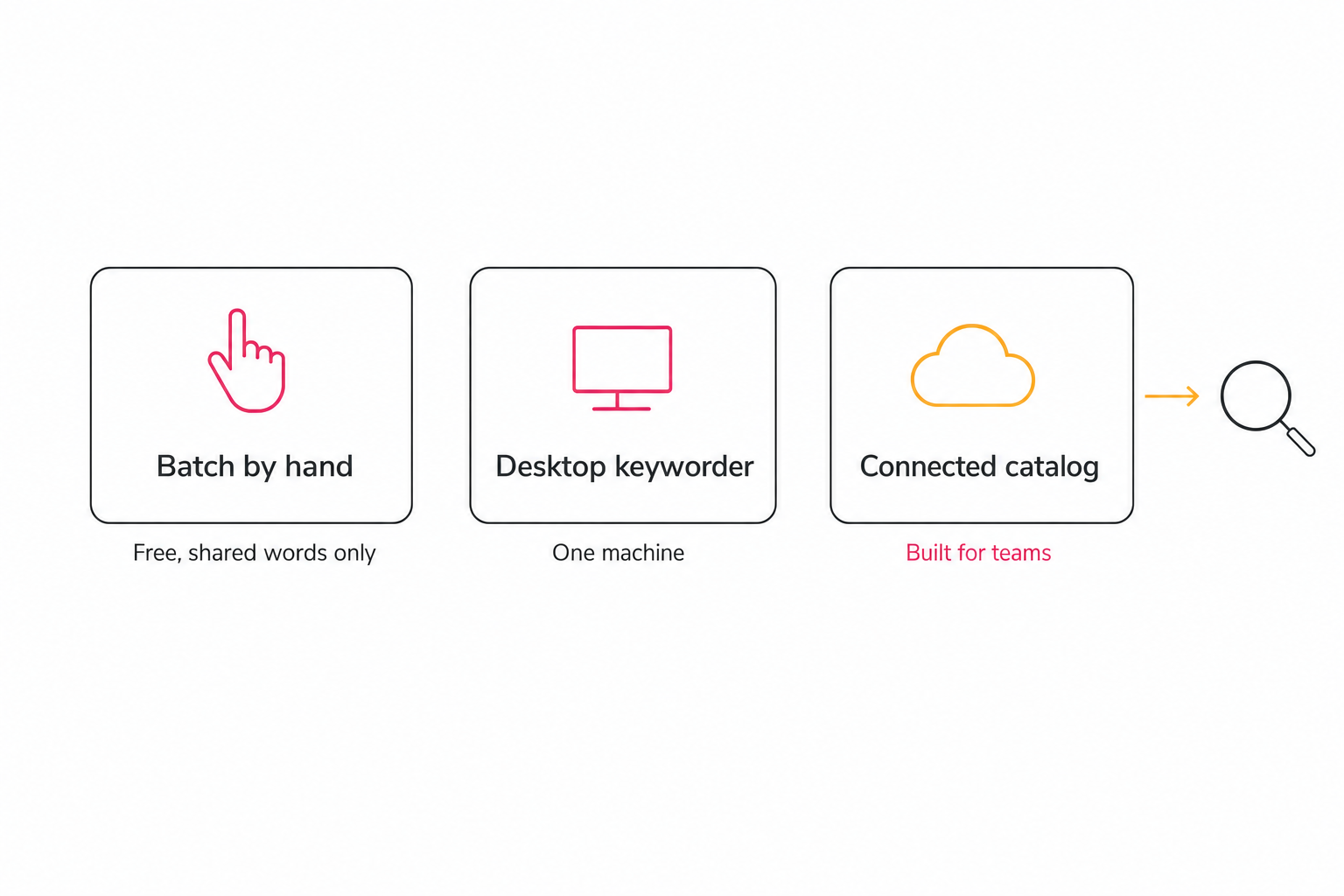
Three real routes get past it, and they differ by where your photos live and who needs to search them: batch keywording by hand (free, best for small shared-keyword jobs), desktop keyworders (AI on one machine, embedded in the files, ideal for a solo photographer), and connected AI catalogs (a vision model reads Drive or Dropbox into shared search, built for teams). Each is below, with cost and a pick, laddering up from the complete guide to AI photo tagging in bulk.
Route 1: batch keywording by hand (free, small jobs only)
Batch keywording is free and fast for the keywords a group of photos shares, and useless for the detail that makes them findable. Select many photos, apply the common words once, move on. The tools most people already have:
- Lightroom Classic Keyword Painter. Select a batch, activate the spray-can tool, type a keyword, and paint it onto every selected photo at once. Adobe's keywording documentation covers the panel and painter.
- Apply-during-import. Lightroom and Adobe Bridge attach general keywords to a whole import in one step, so an event's shared words are set before you open a photo.
- Apple Photos and Windows. Both let you multi-select and type into a shared keyword or tag field, enough for broad categories.
The limit is exact. Batch selection handles what an event shares, the venue, the date, the shoot type, and nothing else. It cannot tell which frame is the sunset toast and which is the cake, because that detail differs per photo.
Note. Batch keywording and AI tagging are not rivals. Batch handles the shared layer in seconds; AI handles the per-photo layer no batch tool can reach. The routes below automate that slower half.
Route 2: desktop keyworders and Lightroom plugins (paid, one machine)
Desktop keyworders are the fastest route for a solo photographer whose library lives on one computer, and a dead end for a team. Tools like ON1 Photo Keyword AI and Excire Foto run a vision model locally and write keywords into each file's IPTC or XMP metadata (pricing varies by version, check their current pages).
The strengths are real:
- Embedded keywords. The words travel inside the file, so Lightroom, Bridge, and stock-agency uploaders read them with no export step.
- No cloud round-trip. Everything happens on your disk, which some photographers prefer.
- Genuine AI. Modern desktop tools identify subjects and scenes well.
The catch is the machine. The keywords sit in one catalog on one computer, the photos have to fit on that computer, and a teammate who wants to search needs your catalog file. For where keywords live, in the file versus a searchable index, see automatic photo keywords.
Route 3: connected AI catalogs (fast, no download, built for teams)
Connected catalogs are built for exactly this problem: thousands of photos in cloud storage that more than one person needs to find. They read directly from Google Drive or Dropbox over a read-only connection, run each through a vision model, and write the tags to a shared searchable index. Nothing downloads and no originals move.
The workflow is short:
- Connect the source, read-only. Approve the OAuth prompt. A well-built tool asks for the read-only scope only, so it reads the folders you pick and cannot rename, move, delete, or edit.
- Point it at a folder and walk away. The scan runs unattended in the background. What is already read is searchable while the rest is still going.
- Search in plain English. Every photo gets a focal subject, context tags, and a sentence of alt text, so "rooftop sunset launch event" returns the right four shots ranked first.
Tagrly is one example here; it uses Google's drive.readonly scope and never gets write access. The step-by-step is in the Google Drive bulk-tagging guide.
Tip. To see what AI tagging looks like on your own photos, Tagrly's free tier tags the first 500 photos in any Drive or Dropbox folder, no credit card. Test it on a sample folder and read the output before deciding anything.
Put the focal subject first, or the tags won't help
The reason most tagged libraries still don't search well is not too few tags, it is generic ones. A library where every photo reads "person, event, indoor" is as unsearchable as an untagged one.
The fix is focal-subject tagging: the first tag names the single dominant element ("bride under magnolia tree at sunset"), context tags come after ("white folding chairs, golden hour"), and search ranks the focal tag above the rest. That is why a query for "magnolia tree" surfaces photos of the tree, not every wedding that had one in the background.
This is where AI tagging quality divides, and it is measurable on your own photos. Modern vision models get the focal subject and scene right on the clear majority of shots; the last 5 percent, private names and off-frame context, is a quick human pass. The numbers are in how accurate AI tagging is.
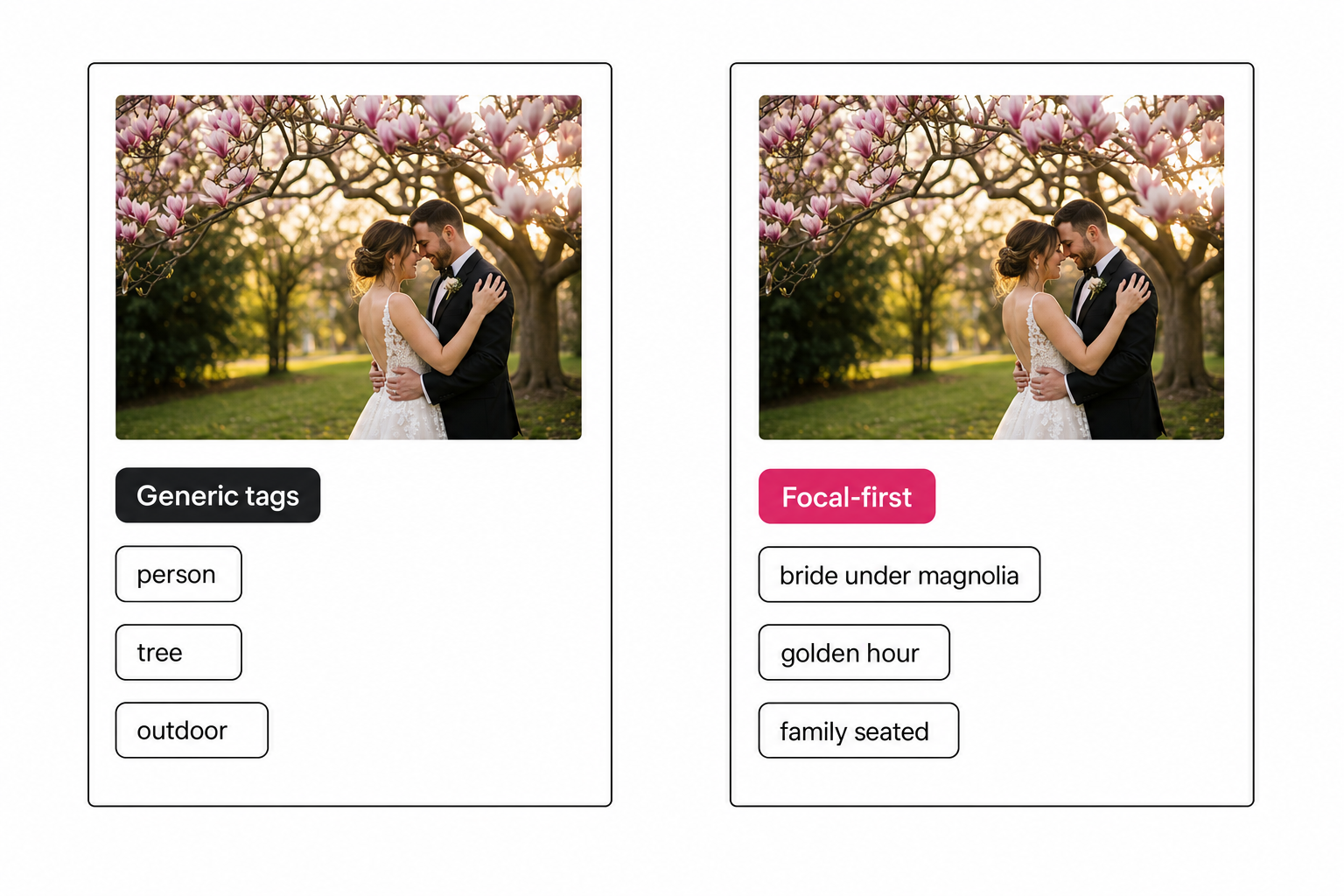
The five-photo test works on any tool in any route: run five of your own photos through it and look at the first tag. If it names the focal subject, the tool understands your photos. If it says "person" or "indoor," keep shopping. More tags is not better either: one expert manages a 100,000-photo library with about 20 recurring keywords, because a small consistent vocabulary is what search rewards.
What each route costs and which one to pick
The right route matches your library and your team, and cost is the deciding input. It splits into money and hours. For a 10,000-photo library:
| Route | Up-front cost | Time cost | Best for |
|---|---|---|---|
| Batch keywording by hand | $0 | 50 to 100 hours typing | Under 1,000 photos, shared keywords |
| Desktop keyworder (ON1, Excire) | One-time license | Local run plus review | Solo, one machine, stock uploads |
| Connected catalog, free tier | $0 first 500 photos | Minutes of setup | Trying it on your photos |
| Connected catalog, paid | Subscription | Setup plus an unattended scan | Teams, libraries over 1,000 |
| Enterprise photo platform | $1,000+/mo plus migration | Weeks to migrate | 100+ person teams |
The sharp break is between free-and-slow and paid-and-fast. Above roughly 500 photos, a small subscription pays for its first month in the time saved on the first scan alone. For timing not tags, see how fast AI photo tagging really is; for the free tier, free AI photo tagging. Every Tagrly plan runs the same full reading at one credit per photo (pricing here).
Match the route to your situation, not to the loudest marketing page:
- Pick batch keywording by hand if you have under 1,000 photos that don't grow, no budget, and only need shared keywords like the event and date.
- Pick a desktop keyworder if you're solo, your library fits on one machine, and you need keywords embedded in the files for stock or Lightroom.
- Pick a connected AI catalog if your photos live in Google Drive or Dropbox and a team needs to search them from a browser. AI photo search reads across both the same way.
- Pick an enterprise photo platform if you have a hundred-plus people and a procurement department.
Whichever fits, the sequence to tag thousands of photos is the same: decide where the tags live, run the five-photo test on your own shots, then let the tool do the typing. The math stopped being close a while ago, one unattended pass against 50 to 100 hours of your time. If your photos are already in Drive or Dropbox, the first 500 photos are free to tag, so checking costs nothing but ten minutes.
Frequently asked questions
What is the fastest way to tag thousands of photos?
Point an AI tool at the folder and let it read every photo, instead of typing keywords yourself. The two fast shapes are a desktop keyworder that batch-suggests keywords for photos already on your machine, and a connected catalog that reads photos straight from Google Drive or Dropbox and tags them in place. Both are 30 to 60 times faster than a person at editorial depth, because a skilled keyworder tags only 100 to 200 photos per hour. The connected-catalog route needs no download and no local sync: the scan runs unattended in the background, and photos are searchable while the rest are still going. The manual route, typing keywords into each photo, is the slow baseline every tool is measured against, at roughly 5 to 8 hours per 1,000 photos.
How do I add keywords to thousands of photos at once?
Select many photos, apply shared keywords once, then let software fill in the specifics. In Lightroom Classic you select a batch and use the Keyword Painter to spray one keyword onto every selected photo, or apply general keywords during import. Apple Photos and Adobe Bridge have similar multi-select keyword fields. That batch step handles the keywords a whole event shares (venue, date, shoot type). For the per-photo detail, what each individual frame actually shows, batch selection cannot help, and that is where AI tagging earns its place: a vision model writes a specific keyword list for every photo without you touching each one.
Is there a free way to tag thousands of photos?
Yes, but the free paths trade money for hours or for depth. Fully free routes are manual keywording in Google Drive's description field, Apple Photos or Windows keywords, and free desktop tools like digiKam with basic auto-tagging. Google Photos and Drive also run shallow category detection at no cost, but it finds 'beach' and 'dog', not 'sand linen blazer on-model', and you cannot export its labels. AI catalogs usually include a free tier as the trial path: Tagrly, for example, tags the first 500 photos in any Drive or Dropbox folder free with no credit card. Free is fine under about 1,000 photos; past that you hit the point where a library is too big to navigate by memory.
How many keywords should each photo have?
Fewer good keywords beat many generic ones. A common expert approach manages a 100,000-photo library with only about 20 recurring keywords, because a small consistent vocabulary is what makes search work. If you submit to stock agencies, most cap keywords around 50 per image and some rank by order, so put the focal subject first. The failure mode is not too few keywords, it is generic ones: a library where every photo reads 'person, event, indoor' is as unsearchable as one with no keywords at all. The fix is focal-subject tagging, one dominant-subject label per photo ranked above the supporting context tags.
Can AI tag my photos accurately enough to trust?
As a base layer, yes; as a final answer for the last 5 percent, review it. Modern vision models reliably identify subjects, settings, style, and mood, which covers most of what you would type by hand. What they cannot know is your private vocabulary: client names, model names, campaign codes, or a location that is not visible in the frame. The workflow that works is AI for the base layer, then a quick human pass to add proper nouns and fix the rare miss. Judge any tool by running five of your own photos through it and looking at the first tag: if it names the focal subject, the tool understands your photos; if it says 'person' or 'indoor', keep shopping.
Do I need to download my photos to tag them?
No, and downloading is usually the slow, error-prone step. Desktop keyworders and Lightroom plugins require the photos on the machine running them, so a Drive or Dropbox library has to be synced down first, which takes hours and needs disk space a big library may not have. Connected catalogs work the other way: they read photos directly from Google Drive or Dropbox through a read-only connection, run each through a vision model in place, and write tags to a searchable index. Your originals never move and your folder structure is untouched. If your photos already live in cloud storage, the no-download route removes the largest chunk of the work before tagging even starts.
Try Tagrly on your own photo library
Connect your Google Drive or Dropbox folder and Tagrly will tag every photo in bulk. Search by what is actually in the image, share specific shots with clients, and never lose a photo again.
- Free for your first 500 photos
- Read-only access, revoke anytime
- No credit card