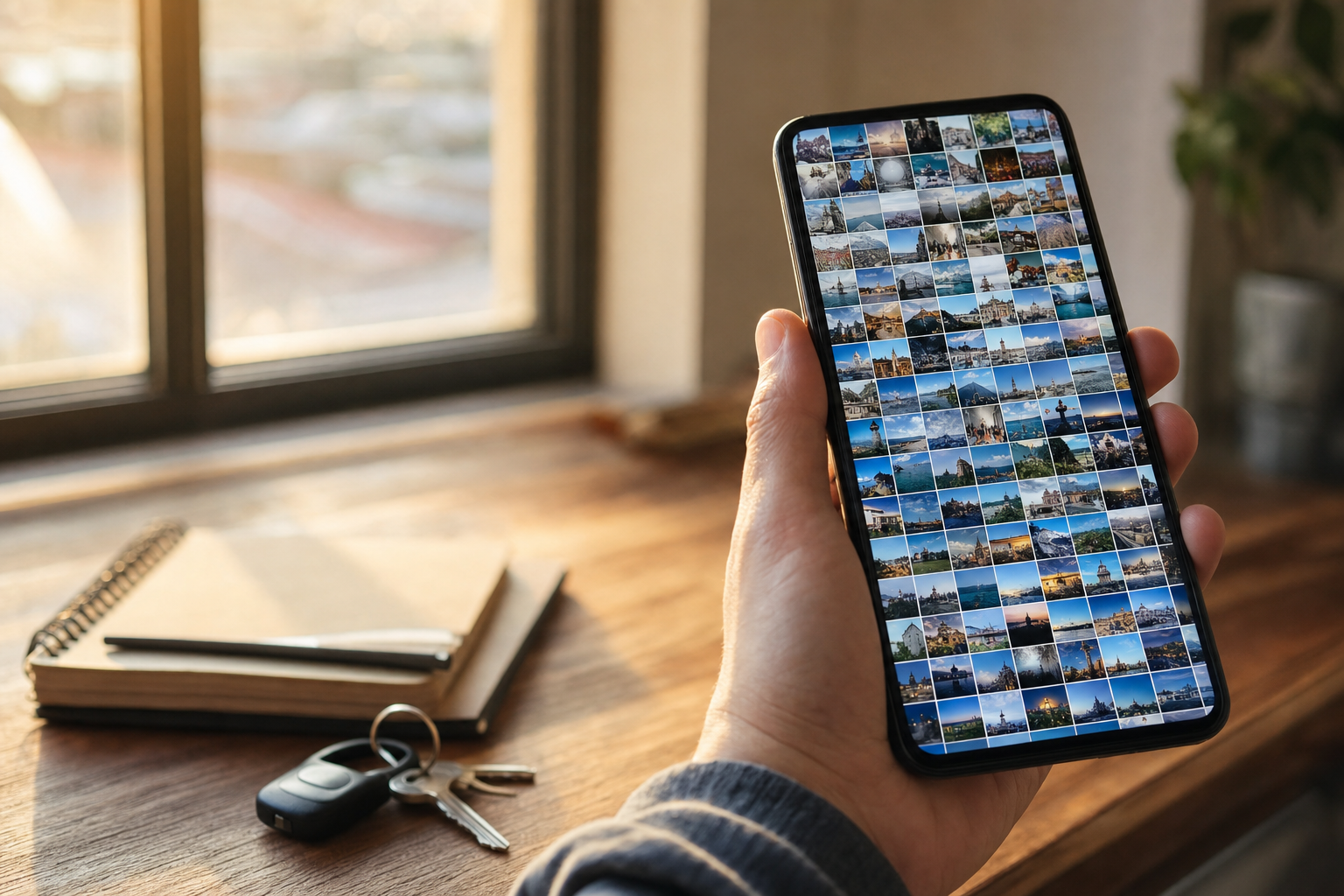
The videographer wants the three sunset shots from a rooftop shoot last spring. They are on your Android phone, buried in 9,000 pictures named PXL_20250412_231809.jpg, and not one of them carries a word you can search on. Android does have tagging tools, but which ones you get depends on whose phone you bought, and every one of them has a catch.
Why "tag photos on Android" has no single answer
Android is not one photo app, it is several, and the tagging tools you get depend on your phone. That is the first thing every generic how-to guide skips.
A Samsung Galaxy ships with the Samsung Gallery app, which has a real, if hidden, tag field. A Pixel and most other phones ship with Google Photos as the default, and Google Photos has no tag field at all. So the practical toolkit is one or two apps with very different ideas of what a tag is.
That split matters because advice written for one phone quietly fails on the other. Steps that say "tap Add tag" describe Samsung Gallery and do nothing on a Pixel. This guide covers both, and names which is which.
How to tag photos in Samsung Gallery
Samsung Gallery is the one mainstream Android app with a genuine keyword-style tag field, so if you own a Galaxy phone, this is your most tag-like option.
Tag one photo
- Open the Gallery app and open the photo you want to tag.
- Swipe up on the photo, or tap the details button, to open its info panel.
- Tap Add tag, type a keyword or short phrase such as
rooftop shoot, sunset, and save. - The tag is now searchable: type it into Gallery's search and the photo comes back.
Samsung documents the field on its support page for adding tags to photos and videos. The tags are searchable inside Gallery and, for Samsung Cloud users, sync to other Galaxy devices on the same account.
The limitation is the familiar one: there is no batch tagging. Every tag is typed into one photo at a time, which is fine for the ten keepers from a shoot and hopeless for a full camera roll.
Note. Samsung Gallery tags live in the Gallery app's own database, not inside the photo file. They stay searchable on your Galaxy phone and rarely anywhere else, which is the same fence every app-side label runs into.
How to organize photos in Google Photos
Google Photos is the default on Pixel and available on every Android phone, and it takes a different approach: instead of a tag field, it recognizes what is in your photos for you.
Before you type anything, search your own library. "Dog," "beach," or "concert" already returns matches, the search box reads text visible inside photos, and the People and Pets view lets you name individual faces, your own dog included, so you can then search by that name.
For a single photo you care about, you can add a description. Open the photo, open its info panel by swiping up, and type into the description field; that text becomes searchable in Google Photos. Albums handle grouping: select a batch, add it to an album named for the event, and a whole shoot is grouped in half a minute.
What Google Photos does not give you is a proper keyword field you can apply in bulk, and it will not write anything into the file. Google's own Photos search help shows this is recognition and grouping, not a keyword metadata system.
What Android photo tags do, and where they stop working
Here is the catch every quick guide skips: almost nothing you do in these apps is written into the photo file itself.
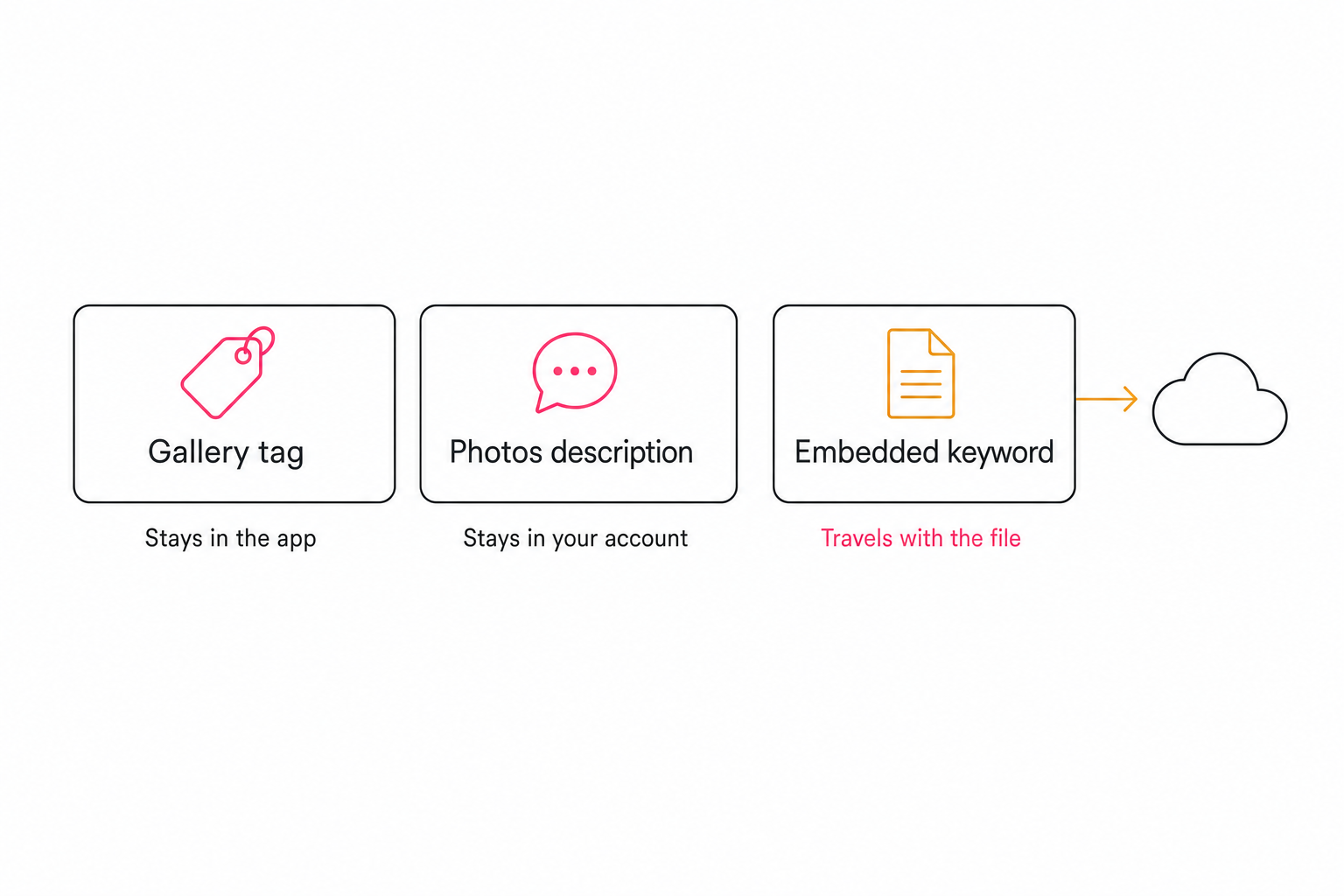
A Samsung Gallery tag lives in the Gallery database. A Google Photos description lives in your Google account. Album membership lives inside whichever app made the album. All three follow the app, not the picture.
Message the photo to a client, post it, or let a cloud app upload it, and the label stays behind. Google Drive and Dropbox search will never read it.
The words that do travel live in the photo's embedded EXIF and IPTC fields, the layers we unpack in what photo metadata actually is. Writing to those on Android takes a dedicated metadata editor app, and it is still one photo at a time.
The quieter limit is arithmetic. Hand-tagging runs 100 to 200 photos per hour on a good day, slower on a phone keyboard. That works below the 1,000-photo wall, the point where a library goes opaque faster than any person can type, and fails above it.
Warning. Switching phone brands is where app-side labels vanish. Move from a Galaxy to a Pixel and your Samsung Gallery tags do not come along, because they were never in the files. Anything you want to keep permanently has to be embedded in the photo or stored in a system that is not tied to one phone.
How to tag Android photos at scale
Once a library runs past the wall, the question stops being which button to tap and becomes which system will still find a photo in two years. Three tiers, honestly:
Free and built-in. Google Photos search, named People and Pets, and albums at intake cover a personal library at zero cost, and Samsung Gallery adds real tags on Galaxy phones. This is the right answer for most camera rolls under about 1,000 photos.
Cheap apps. Play Store metadata editors and tag apps (several exist; pricing varies, check each listing) can write keywords into a file's embedded metadata so the words survive export. Still manual, still one photo at a time.
A connected AI catalog. The scale path starts by getting photos off the phone automatically. Google Drive or the Dropbox app can back up every new shot to a cloud folder. From there, a catalog service reads each photo with read-only access and writes a focal-subject label, a set of tags, and a one-sentence description into a searchable index the whole team shares. Android phones increasingly shoot HEIC and Ultra HDR, so it is worth confirming a tool handles HEIC and modern formats at scale before connecting anything.
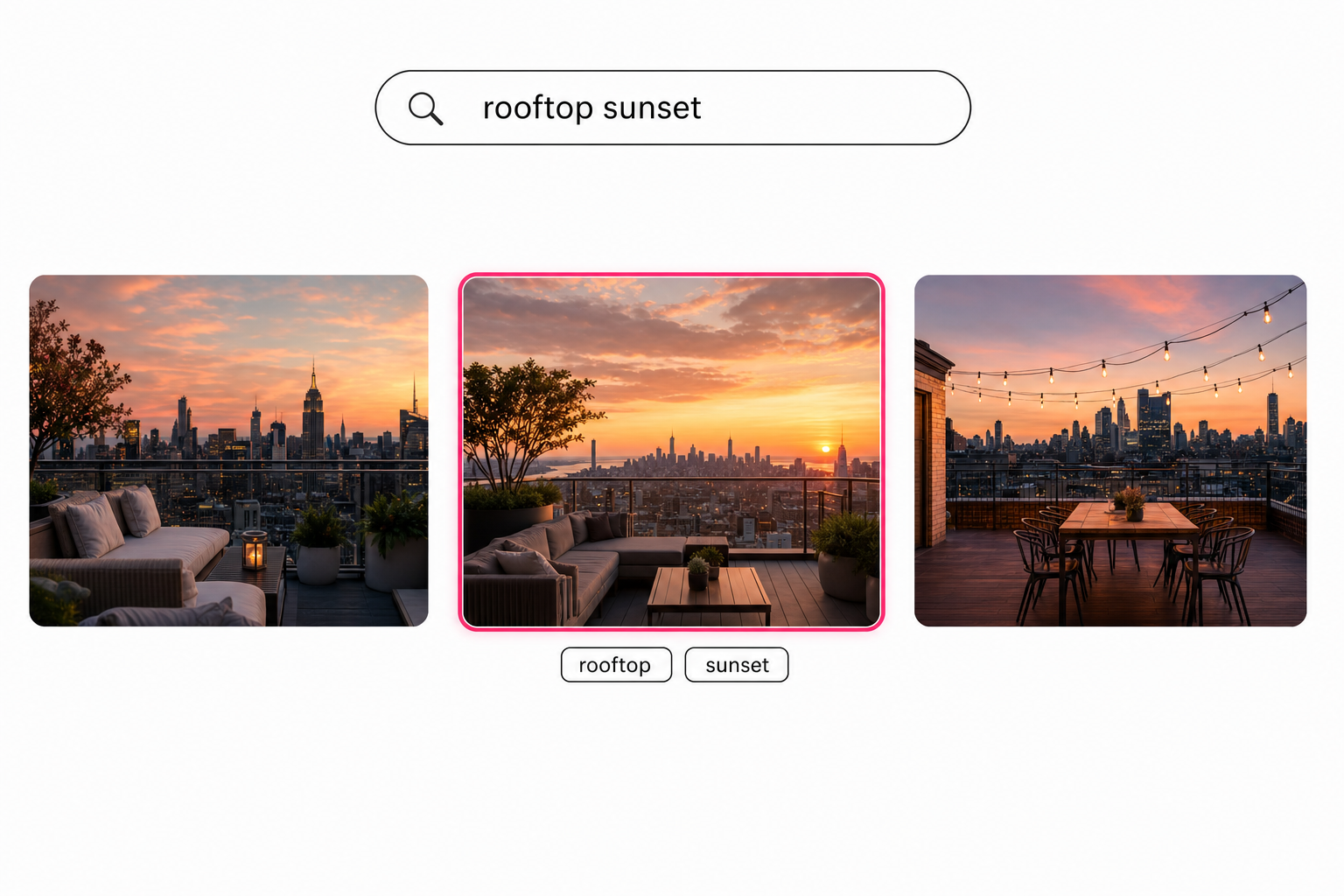
A full indexing pass runs unattended in the background. After that pass, search stops depending on what anyone remembered to type. "Rooftop sunset" finds the shot even though nobody tagged it, and it finds it for everyone with access, not just the person who took it.
Tagrly is one option in this category, and it works the same whether the photos started on a Galaxy, a Pixel, or any other Android phone.
Tip. Tagrly's free tier reads the first 500 photos in any Drive or Dropbox folder, no credit card. Point it at your camera backup folder and search for something you know you never tagged.
Which approach fits your library
- Pick Samsung Gallery tags if you have a Galaxy phone, stay on Samsung, and only need a few hundred keepers tagged. Free, real tags, searchable in Gallery.
- Pick Google Photos if you want automatic recognition and named People and Pets without typing, and you are fine with labels that stay in your Google account.
- Pick a metadata editor app if a handful of photos need keywords written into the files themselves before they leave the phone.
- Pick a connected AI catalog (Tagrly is one example) if the library runs to thousands, cloud backup already mirrors it to Drive or Dropbox, and more than one person needs to find things.
Tagging photos on Android comes down to Samsung's hidden tag field, Google Photos recognition, and albums, and all of them stop at the same two fences: the labels stay inside the app, and everything you type costs typing. Past the wall, the fix is not faster thumbs or a better gallery app, it is letting software describe every photo once, in a place anyone can search. The quickest test is to run a content search over 100 of your own photos and look for a shot you never tagged.
Frequently asked questions
How do I tag photos on Android?
It depends on your phone. On a Samsung Galaxy, open the Gallery app, open a photo, open its details, tap Add tag, and type a keyword such as beach session; the tag becomes searchable inside Gallery. On a Pixel or most other Android phones there is no built-in tag field at all, so the closest options are Google Photos, which groups faces and pets and recognizes scenes on its own, plus albums for grouping. In both cases you are labeling one photo at a time by hand, so budget real time for anything past a few hundred photos, and expect that most of these labels stay inside the app rather than travelling with the file.
Does Google Photos let you tag photos?
Not with a free-text keyword field. Google Photos leans on automatic recognition instead: search dog, beach, or receipt and it finds matches with nothing typed, and the People and Pets view lets you name individual faces so you can search by person. You can also add a description to a single photo through its info panel, and that description is searchable. What Google Photos does not offer is a proper keyword or tag field applied in bulk, and none of what it knows exports as tags you can hand to a teammate or read from Google Drive or Dropbox.
Do Android photo tags stay with the file when I share it?
Usually not. A Samsung Gallery tag, a Google Photos description, and album membership all live in an app database on your phone, not inside the photo file, so they follow the app rather than the picture. Send the photo by message, post it, or let it upload to a cloud folder, and the label typically stays behind. Google Drive and Dropbox search will not find those labels either. Words only travel with a file when they are written into the photo's embedded IPTC metadata, which on Android takes a dedicated metadata editor app or a desktop tool.
Can Android tag photos automatically?
Partly, through Google Photos. It runs image recognition, so broad searches like sunset, food, or concert return matches without any typing, and it can learn individual people and pets by face. Newer Pixel phones add on-device help such as grouping and cleanup suggestions. It stops at categories, though: it cannot tell the approved frame from the near-identical outtake, its knowledge never leaves your Google account, and there is no way to export what it learned as tags a team can search. For generated tags across a whole library, the usual path is syncing the phone's photos to Google Drive or Dropbox and pointing a connected AI catalog at that folder.
What is the best way to organize thousands of photos on Android?
Below about 1,000 photos, albums plus Google Photos search and named People and Pets cover most needs for free. Past that, hand-tagging stops keeping up, because a library goes opaque faster than anyone can type. The scale answer is to let your phone auto-sync photos to a cloud folder, then run a connected catalog service that reads each photo and writes a focal-subject label, a set of tags, and a one-sentence description into a searchable index the whole team shares. Tagrly is one example; its free tier reads the first 500 photos in any Drive or Dropbox folder so you can test the idea on your own camera uploads.
Try Tagrly on your own photo library
Connect your Google Drive or Dropbox folder and Tagrly will tag every photo in bulk. Search by what is actually in the image, share specific shots with clients, and never lose a photo again.
- Free for your first 500 photos
- Read-only access, revoke anytime
- No credit card