
You have a few thousand photos in Google Drive, the filenames are all IMG_2204.JPG, and the folder tree is three years of New folder, final_v2, and IMG copies. Someone needs the rooftop sunset toast shots from the launch by Thursday, and you know they are in there somewhere.
Most guides just tell you to make more folders. The harder, more useful half is knowing where folders stop working and what to do then. We will build the free system first, since that is where most libraries live, then draw that line honestly.
Build a folder structure that stays shallow
The single most useful thing you can do in Drive is pick a folder structure and never deviate from it. Shape matters less than consistency, but a good default is 2026 / product-launch / selects: top level by year, next level by project or shoot, and a selects subfolder for the approved shots so nobody digs through 400 raw frames to find the 8 that matter.
Three levels is plenty. Deeply nested trees feel organized and are miserable to click through.
The rule that beats every clever scheme: everyone files things the same way, every time. A structure only one person follows breaks the first busy week, the failure mode we cover in the pillar guide to finding any photo in your library.
Tip. Resist organizing by topic at the top level (
weddings,food,interiors). Topics overlap, so a photo can belong to two of them, which forces a filing decision you will get wrong later. Time then project is unambiguous: a shoot happened on one date for one project.
Name files and star the ones you reuse
A folder tells you which project a photo belongs to. The filename is what Drive's search box can actually match. A file called IMG_2204.JPG is invisible to search; a file called 2026-06_launch_rooftop-toast_01.jpg is findable the moment you type "rooftop" or "launch."
A naming convention that works: date first (2026-06) so files sort chronologically, then the project (launch), then what it shows (rooftop-toast) in a couple of real words, then a sequence number (01). Rename in batches as photos come in, not months later when you have forgotten what the shoot was. This one habit does more for Drive findability than any folder tree, because it is the only free move that writes real words into the file itself.
Two lightweight Drive tools stack on top and cost nothing. Star the shots you reach for constantly (right-click, Add to Starred) so the hero image and the headshot everyone asks for live in one fast-lane view. And add a description in a file's details panel: Drive searches that text, so a photo described as "rooftop sunset toast, launch event" becomes findable even when the filename is terse. Descriptions are only realistic for the handful of photos you reuse, but for those they earn their keep.
Put team photos in a shared drive, not My Drive
If more than one person touches the library, this is the most important decision on the page. A folder in someone's My Drive belongs to that person, so when they leave, the photos can leave with them, and access stays a tangle of one-off share links.
A shared drive in Google Workspace is owned by the team. Files stay put through turnover, and you set membership once at the drive level instead of sharing folder by folder. Use Viewer access for people who only find and download, and Contributor for the few who organize and upload.
Inside it, you still use the same year and project structure and naming convention; the shared drive is just the container that makes the library the team's rather than an individual's. We go deeper in setting up a shared photo library for a small team.
Warning. If your photos currently live on one person's laptop or personal My Drive, that is your single point of failure. A resignation or a spilled coffee takes the whole archive. Moving everything into a team-owned shared drive is the step teams most often skip and most often regret skipping.
Where organizing photos in Google Drive stops working
Once the library is named and filed, Drive's search operators let you narrow fast.
type:image. Limits results to photos and cuts out the PDFs and slide decks.owner:me. Finds shots a specific person uploaded.- Date operators.
before:2026-07-01andafter:2026-01-01bracket a date range, sotype:image after:2026-05-01 launchgets you launch photos from the last two months in one query.
The filter chips (Photos and Images, date, people) do the same with clicks if you prefer.
Here is the honest limit, though, and every guide that skips it is selling you folders you do not need. Folders and filenames only find photos you already named by hand; they never describe what is in a photo. Drive's built-in image search is shallow too: it matches filenames, reads text printed inside images with OCR, and recognizes a few broad object categories, but it does not read the scene a photo depicts.
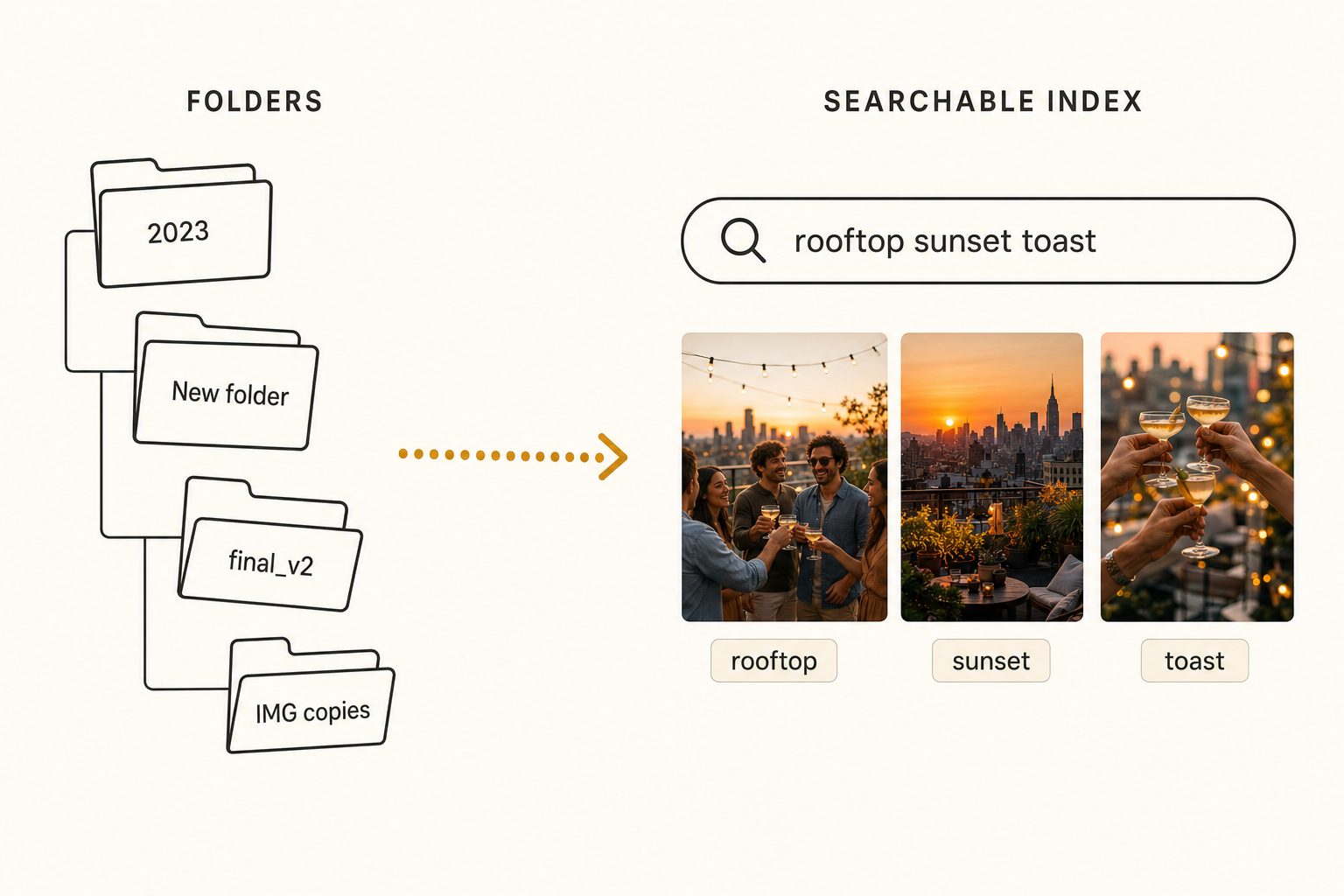
The whole system collapses at the 1,000-photo wall, the point somewhere between 1,000 and 5,000 photos where the library outgrows your memory. We named it in the complete guide to bulk image tagging, and it is the root of every "I know the photo exists, I just cannot find it" moment. We broke down why Drive's own search comes up empty in why Google Drive photo search misses 90% of your photos.
Past it, no amount of foldering saves you: you cannot type "rooftop sunset toast" and have Drive match it against IMG_2204.JPG, because nowhere does it record what the file shows.
Add an AI catalog when folders stop scaling
The layer that fixes this reads every photo once and writes down what each one shows. An AI image catalog connects to your Drive with read-only access (the drive.readonly scope, so it can see and tag your photos but never move, edit, or delete them), streams each image to a vision model, and stores tags and a sentence of alt text in a searchable index. Your folders stay exactly as they are; the catalog sits on top for search.
This is the paid tier, because reading thousands of photos with a vision model is real compute.
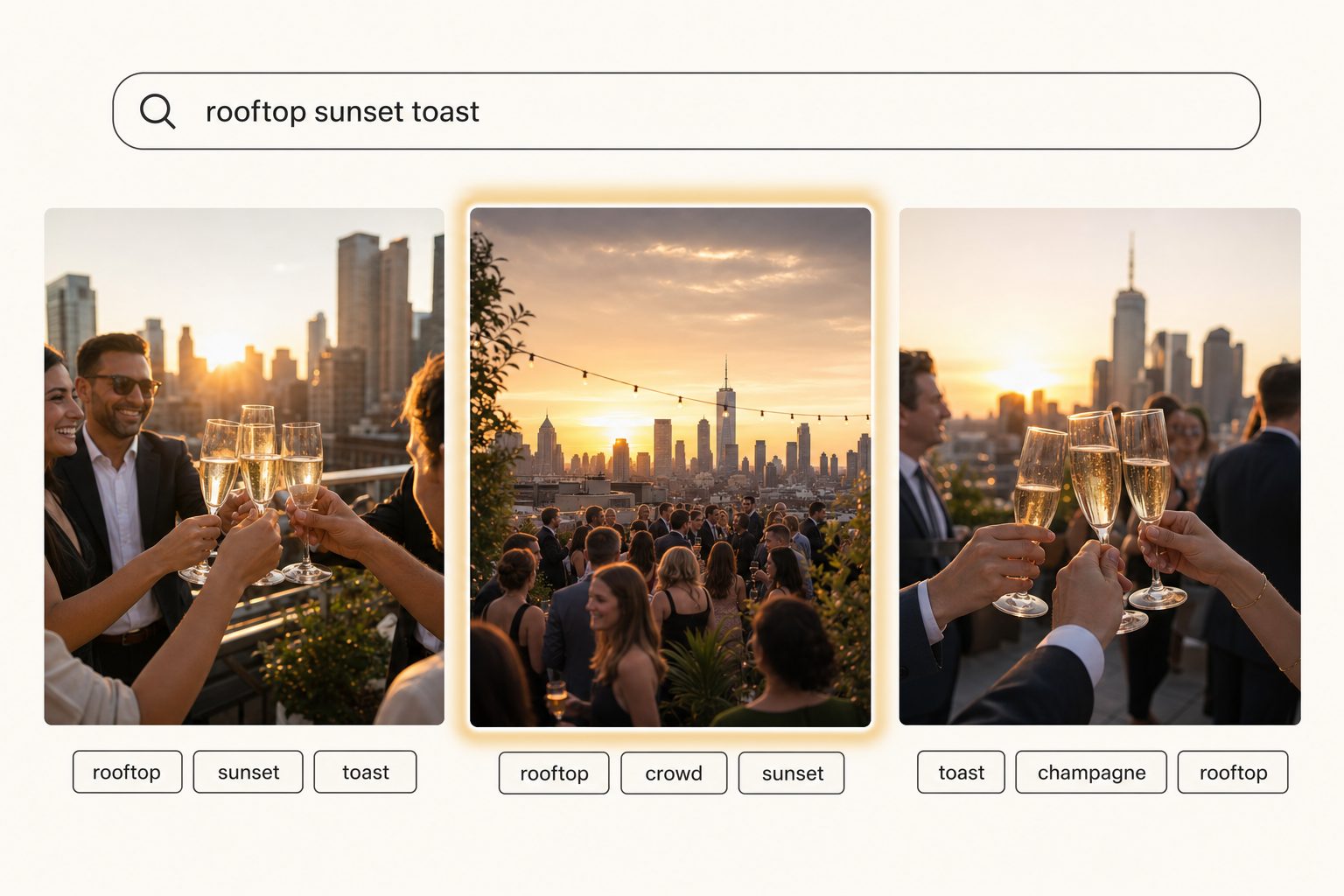
The everyday result: you type what you remember, "rooftop sunset toast," and the matching shots come back ranked, closest first. That ranking comes from the focal-subject tagging method, which records the one dominant element of each scene and ranks it above background clutter, so "rooftop" surfaces photos that are about a rooftop, not every shot with a building in the distance. The step-by-step is in how to search photos by description in Google Drive.
This is a category, not one product. Several tools connect directly to Drive read-only and index in place; Tagrly is one of them. A full first scan runs unattended in the background, and after that a description search returns matches in milliseconds.
Tip. You do not have to migrate anything to try this. Tagrly's free tier reads the first 500 photos in any Drive folder at no cost, no credit card. Run it on a real folder and search the results, or open a workspace when you are ready for the whole library.
Which approach fits your library
There is no single right answer, only the right one for your photo count and team.
- Pick folders and naming if your library is under about 1,000 photos and mostly one person's. It is free, it works, and you should not pay for a tool yet.
- Pick a shared drive plus naming if a small team shares the library but it is still under the wall. Team ownership matters more than any tool at this size.
- Pick a desktop keyworder (Excire, Mylio, Lightroom) if you are a solo photographer who lives in an editing app and your photos are not really in Drive for a team to search.
- Pick a connected AI catalog if you have a few thousand photos in Drive, a team that all needs to find them, and no realistic way to rename everything by hand. This is the case the free layer cannot cover, and Tagrly is one option in this tier.
Organize the free way first. Shallow folders, real filenames, a shared drive, and Drive's search operators carry a Google Drive photo library a long way, and for many people that is the whole answer. When you cross the 1,000-photo wall and folders stop finding what you need, keep them for storage and add a layer that reads your photos. The fastest way to know if you have crossed that line is to try it on a folder of your own photos.
Frequently asked questions
What is the best folder structure for photos in Google Drive?
Keep it shallow and predictable. A top level by year, then a level by project, client, or shoot, then a selects subfolder for the approved shots. So 2026 > product-launch > selects. Three levels is enough for almost any library, and shallow trees are faster to click through than deeply nested ones. The rule that matters more than the exact shape is that everyone who touches the library files things the same way every time. A structure only one person follows breaks the first busy week. If you run a work library, build it inside a shared drive so the folders belong to the team, not to one person's account.
How do I organize photos in Google Drive so I can find them later?
Do the free layer first. Give every photo a real filename instead of IMG_2204.JPG, put files in a shallow year and project folder tree, star the shots you reach for most, and add a short description to the important ones. Then learn Drive's search operators (type:image, owner:, before:, after:) to narrow fast. That setup carries a library up to roughly 1,000 photos. Past that, folders and filenames stop scaling, because they only find photos you already named by hand and they never describe what a photo actually shows. At that point you add a search layer that reads each image and makes the whole library findable by content.
Can Google Drive automatically organize my photos?
Not really. Google Drive does not sort your photos into folders, name them, or tag them by what they show. It stores whatever you put wherever you put it. It will apply broad filter chips (the Photos and Images chip, date, file type) and read text printed inside images with OCR, but it does not read the scene a photo depicts. Google Photos does far more automatic organizing (scenes, faces, places), but it is a consumer product tied to a personal account, which makes it a poor foundation for a work library that lives in Drive. To get automatic organization in Drive itself, you connect a tool that reads each image and writes a searchable description.
Should I use folders or a shared drive for team photos?
Use a shared drive. A folder in someone's My Drive belongs to that person, so when they leave the company the photos can leave with them. A shared drive in Google Workspace is owned by the team, so files stay put through turnover, and you set membership once at the drive level instead of sharing folders one link at a time. Inside the shared drive you still use the same year and project folder structure and naming convention. The shared drive is the container that makes the library the team's rather than an individual's.
When should I stop relying on Google Drive folders for photos?
Around 1,000 to 5,000 photos, the point we call the 1,000-photo wall. Below it you can remember roughly where a shot lives and folders plus naming genuinely work. Above it, the library goes opaque, filenames like DSC_0481.jpg tell you nothing, and folders force you to guess at upload time every way you might search later. Keep the folders for storage, but add a layer that reads every photo and lets you search by what it shows. You do not throw the folders away, you stop asking them to do a job they were never built for.
Try Tagrly on your own photo library
Connect your Google Drive or Dropbox folder and Tagrly will tag every photo in bulk. Search by what is actually in the image, share specific shots with clients, and never lose a photo again.
- Free for your first 500 photos
- Read-only access, revoke anytime
- No credit card