
You have 14,000 photos in a shared Google Drive, the marketing lead needs the three shots of the rooftop sunset cocktails from last summer's launch, and you type "rooftop sunset" into the search box. Drive hands back two PDFs and a slide deck with "sunset" in a heading. The photos are right there when you scroll. The search just cannot see them.
What Google Drive photo search actually matches
Google Drive photo search matches three things on a photo: the filename, printed text inside the image, and a few broad object categories. Once you see the list, the gap is obvious.
- Filename. A file called
rooftop-sunset-cocktails.jpgis findable; a file calledIMG_2204.JPGis not. Cameras and phones name almost everything with a number, so most of a real library starts out unsearchable on this axis. - Printed text (OCR). Drive runs OCR (optical character recognition) on your photos, so a word on a sign, a slide, or a menu can surface the shot it appears in. The Google Drive search help covers the filter chips that go with this. Useful for screenshots and documents, useless for a sunset, which carries no text.
- A few broad object categories. Search "birthday" and you may get cakes; search "beach" and you may get sand. These are shallow buckets, not descriptions, and the list is short. Drive indexes file content as plain searchable text, not as a scene model, which the Drive API search docs lay out.
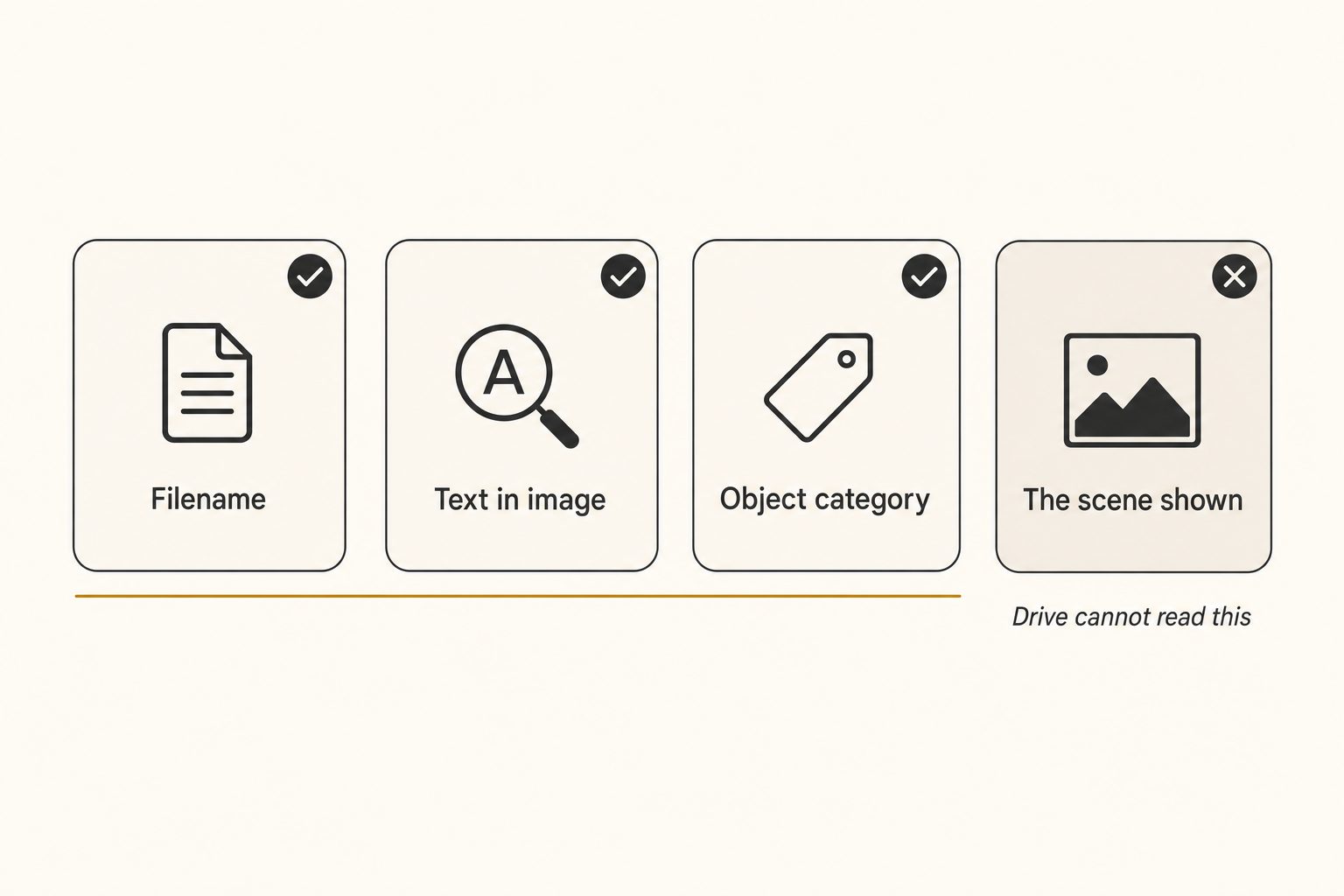
Notice what is missing. Drive never records that one image is "a candid shot of two people laughing on a rooftop at sunset." It never wrote that sentence anywhere, so it has nothing to match your query against. That single absence is why most photo searches in Drive come back empty.
Why "90%" is not an exaggeration
The 90% figure is a rough but fair estimate for a typical work library, and it follows directly from the three things above.
Start with filenames. On a real shared Drive of phone and camera photos, the overwhelming majority arrive as numbered files. In libraries nobody has hand-curated, the share that keeps a default IMG_ or DSC_ style name runs well above 80%. Those photos are unsearchable by name on day one.
Now layer on OCR. Only photos with legible printed text benefit, which in a wedding, event, food, or product library is a small slice. A plate of food, a couple at an altar, a hotel pool at dusk: none carry text Drive can read.
Then the object categories. They catch a thin layer of obvious subjects and rank nothing, so even a hit arrives buried in a flat list. Add it up and the searchable surface of an untagged library is small. The picture is visible to your eye and invisible to the search box, which is exactly the gap you keep hitting.
Note. This is the 1,000-photo wall in a Drive-shaped costume. Below about 1,000 photos you can remember roughly where things are. Above it, the library outgrows your memory, and Drive's search cannot pick up the slack because it never indexed what the photos show. We define that wall in the complete guide to bulk image tagging.
The free ways to claw some of it back
You do not have to pay for anything to make a small or personal library findable. Three free moves, in rough order of how well they hold up.
Rename files with real descriptions as you import them. If every file lands as rooftop-sunset-cocktails-launch.jpg instead of IMG_2204.JPG, Drive's plain filename search suddenly works. This is the single most valuable free habit there is, and it costs nothing but discipline. It is also the only free fix that scales with a team, because the description lives in the file itself.
Use Google Photos for personal pictures. Google Photos indexes scenes, objects, and faces far more deeply than Drive does, and its content search is genuinely good. The catch is that it is a consumer product tied to a personal account, so it is a poor fit for a shared work library in Drive or a shared drive.
Lean on the filter chips for a first pass. Click the Photos and Images chip, then narrow by date and people. The chips work on file attributes, not on what a photo shows, but they will get you to the right week or the right event fast, which is often enough to then scroll.
Warning. There is no Drive setting that turns on content-aware photo search. People dig through preferences looking for it; it does not exist. The chips above are the whole toolkit Drive gives you, and none of them read the scene.
How AI photo search fills the gap
An AI photo catalog closes the gap by writing the description Drive never had. It does that in three steps: connect, read, and index.
- Connect. It connects to your Drive with read-only access (the
drive.readonlyscope, so the tool can read your files but never change or delete them). - Read. It streams each photo to a vision model, which returns a focal-subject label, a list of tags, and a sentence of alt text.
- Index. Then it writes all of that into a searchable index with a small preview thumbnail.
Your originals never move, a point worth understanding before you connect anything, which we walk through in the Google Drive bulk-tagging guide.
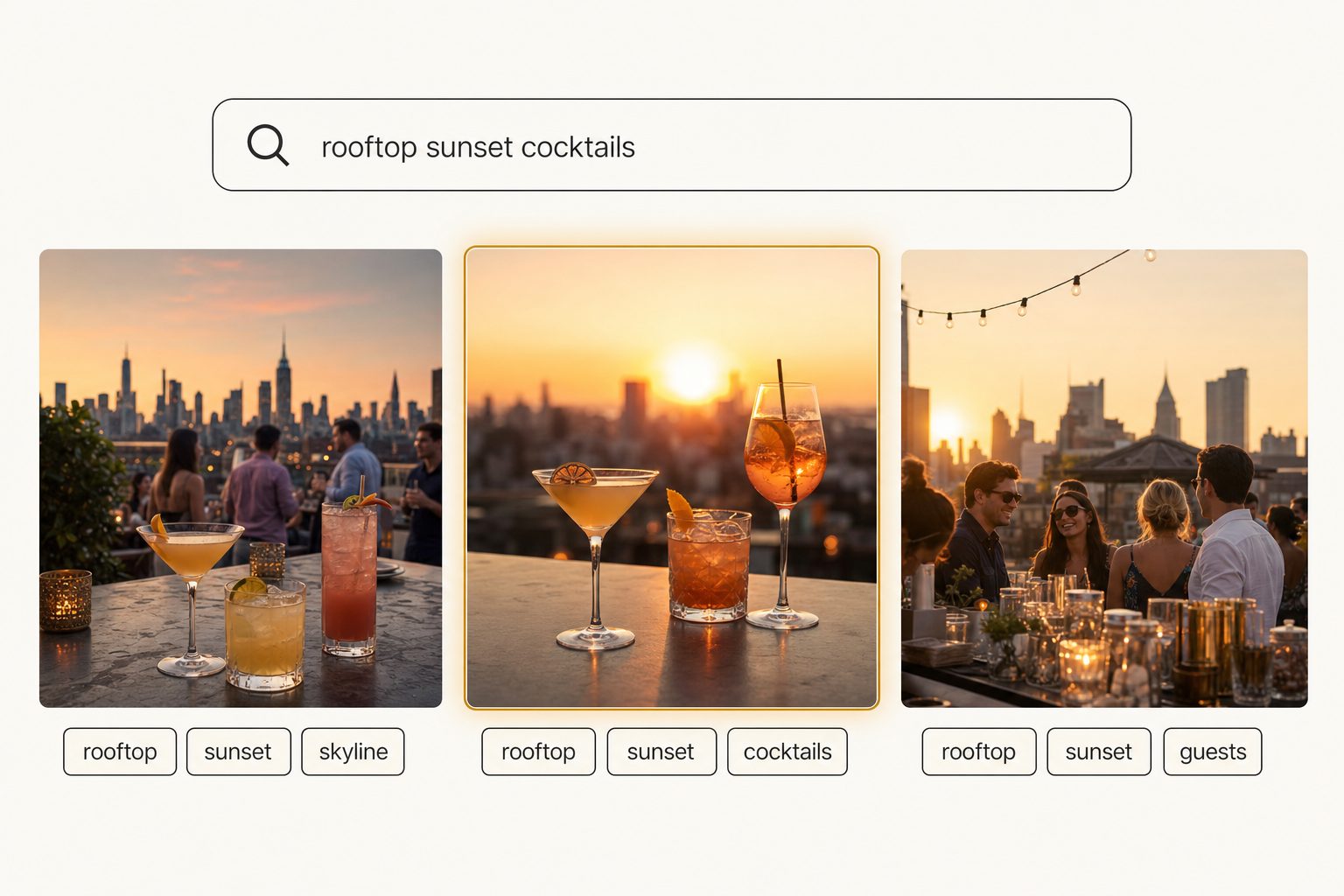
The quality of the search depends almost entirely on the vision model. A weak one returns "person, table, outdoor" and you are back to broad categories. A strong one understands the scene and can describe it in a sentence, which is why Claude vision for image catalogs surfaces results other models miss.
The ranking comes from the focal-subject tagging method: the tool records the single dominant element of each scene, then ranks focal-subject matches above background context, so "rooftop" returns photos that are about a rooftop, not every shot with a building in the distance. In Tagrly's own testing on a 5,000-photo set, focal-subject tagging surfaced the correct top match in roughly 9 of 10 searches, the difference between real Google Drive photo search and a flat filename lookup. The full method lives in our focal-subject tagging playbook, and the same approach powers searching photos by description in Google Drive.
Tagrly is one option here, and not the only tool that connects directly to Drive; Foto Owl and Pics.io do too. A full scan runs unattended in the background, and what is already read is searchable while the rest is still going. A description search returns the matching shots in milliseconds, faster than remembering which folder you filed them in.
Tip. Want to see the difference on your own pictures? Tagrly's free tier reads the first 500 photos in any Drive folder at no cost, no credit card. Point it at a sample folder and search the results before you commit to anything.
Which fix should you pick?
Your library's size and who needs the photos pick the fix for you.
- Pick rename-as-you-go if your shared library is under about 1,000 photos and your team will actually name files properly. It is free and it makes Drive's own search work.
- Pick Google Photos if the pictures are personal and already live there. Its content search is free and strong, and you need nothing else.
- Pick the filter chips as a first pass no matter what. They cost nothing and date-plus-people narrowing solves a surprising number of "where is that shot" problems.
- Pick an AI photo catalog (Tagrly is one example) if you have thousands of photos in Drive, a team that all needs to find them, and no realistic way to rename everything by hand. This is the case the other three cannot cover.
The takeaway
Google Drive photo search reads the file, not the picture. That works until your library outgrows your memory, and then the only way to find a photo by its scene is to make sure a description for that scene exists somewhere searchable.
Renaming and the filter chips carry small libraries a long way. For a few thousand shared photos, a catalog that reads each image and ranks the closest match is the option that scales, and seeing it work on your own folder is the surest way to judge it. For the wider picture on organizing and searching a large library, see our guide to finding any photo in your library.
Frequently asked questions
Why can't Google Drive find my photos?
Google Drive search matches three things on a photo: the filename, any text printed inside the image (read by OCR), and a small set of broad object categories. It does not read the scene a photo shows and never writes a description it can search later. So if your files are named IMG_2204.JPG, there is no printed text in them, and the subject is not one of Drive's broad categories, there is nothing for the search box to match. The photo is in your Drive, fully visible when you scroll, but invisible to search. That is the gap most people hit: the picture exists, the search just has nothing to match it against.
Does Google Drive search the content of photos?
Only at a shallow level. Drive runs OCR on images, so a word printed on a sign, a slide, or a menu can surface the photo it appears in. It also matches a handful of broad object categories, so 'birthday' may return cakes and 'beach' may return sand-and-water shots. What it cannot do is identify the focal subject of a scene, write a sentence describing it, or rank one photo above another by how well it matches your query. The practical result is that real photo searches like 'the candid shot of the team laughing on the rooftop' return nothing, because Drive never recorded that any image shows that scene.
Is there a setting to make Google Drive search photos better?
No. There is no hidden toggle that makes Drive read the content of your photos. The filter chips in the search box (Photos and Images, date, people, file type) are the only built-in controls, and they narrow by file attributes, not by what a photo shows. If you want search that finds a photo by its scene, you either build that searchability yourself by renaming files with real descriptions, or you run a tool that reads each image and stores a description Drive can never write on its own. The feature people keep looking for in Drive settings does not exist.
How do I search Google Drive photos by what's in them?
You need a description to exist before you can search for one, and Drive does not create one. The free path is to rename files with real words as you import them, so plain filename search starts working, which holds up to roughly 1,000 photos. Above that, an AI photo catalog connects to your Drive with read-only access, reads each image, and writes a sentence and tags describing the scene into a searchable index. From then on you type a plain-English description and the matching photos come back ranked, closest first. The original files never move and never leave Drive.
Is Google Photos better than Google Drive for finding photos?
For personal photos, yes. Google Photos indexes scenes, objects, and faces far more deeply than Drive does, so its content search is genuinely strong and free. The catch is that it is a consumer product tied to a personal account, which makes it a poor fit for a shared work library that lives in Google Drive or a shared drive. For a team library in Drive, the realistic options are renaming files by hand for small collections, or an AI photo catalog that reads every image and builds one searchable index the whole team can use.
Try Tagrly on your own photo library
Connect your Google Drive or Dropbox folder and Tagrly will tag every photo in bulk. Search by what is actually in the image, share specific shots with clients, and never lose a photo again.
- Free for your first 500 photos
- Read-only access, revoke anytime
- No credit card