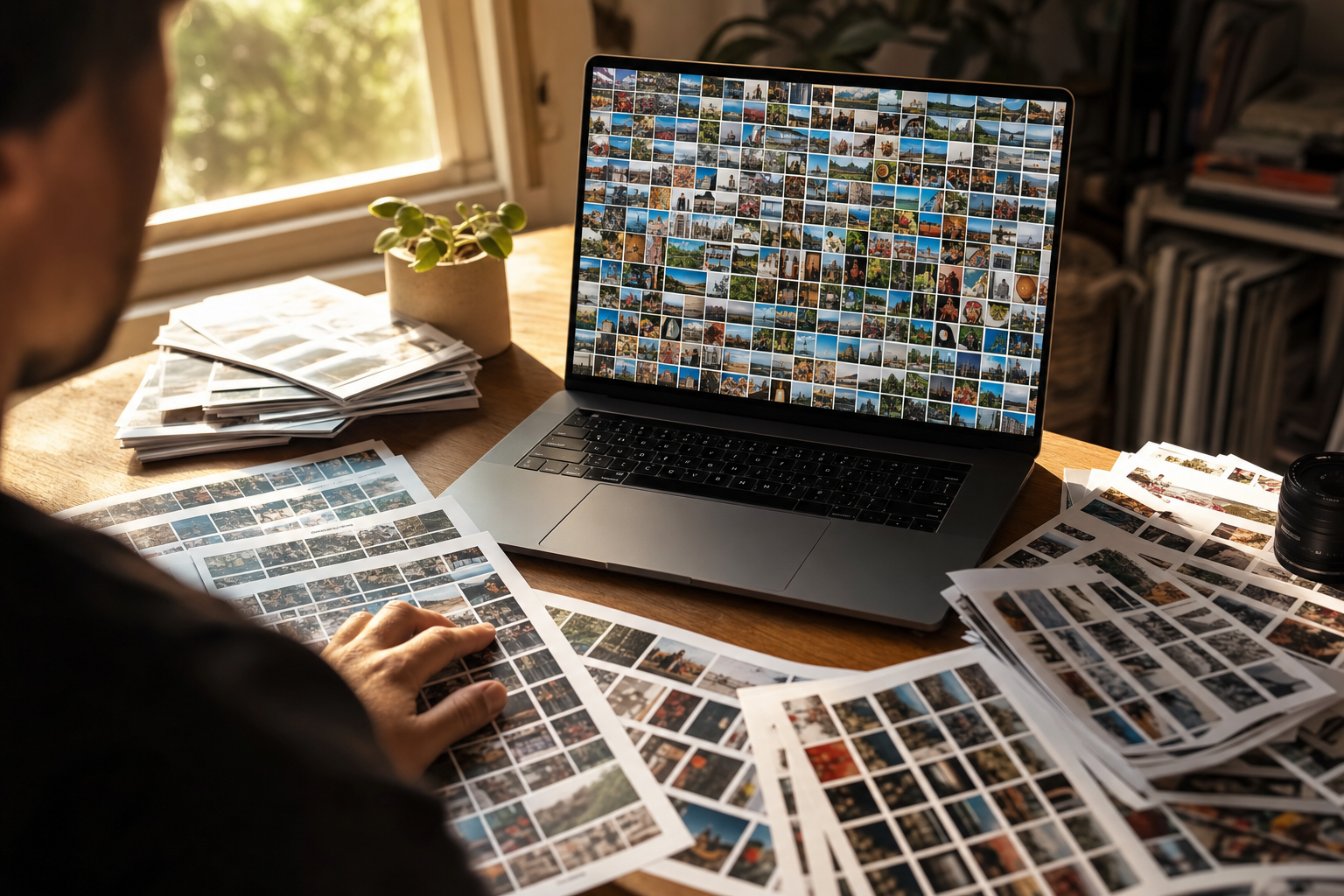
Your Pictures folder holds 6,000 photos, every one of them named IMG_2841.JPG, and the only way to find the rooftop sunset shots from last summer's launch event is to open folders and squint. Windows has a built-in fix for this, photo tags, and it genuinely works, right up to a ceiling nobody mentions in the step-by-step guides.
How to tag photos in Windows 11, step by step
The steps below are for Windows 11; Windows 10 works the same way with slightly different menus.
Tag a single photo
- Open File Explorer and find the photo.
- Right-click it and choose Properties.
- Open the Details tab.
- Click the empty space next to Tags and type keywords separated by semicolons:
rooftop; sunset; launch party. - Click Apply, then OK.
Windows writes those words into the photo file itself, in the same embedded metadata fields we unpack in what photo metadata actually is. That design choice matters later, so hold onto it.
Tag a batch of photos at once
Select every photo from one shoot (click the first, Shift-click the last), right-click the selection, and open Properties, then Details. Whatever you type into Tags is written to every selected file in one pass.
A faster variant for ongoing work: turn on the details pane (View, then Show, then Details pane). Select files and the pane shows an editable Tags field on the right, no Properties dialog needed.
The habit that makes this sustainable is tagging at intake. When a shoot lands on the PC, select the whole batch and stamp the event-level tags (launch party; 2026; rooftop) in one write, then add one or two subject tags to just the keepers.
Find tagged photos again
Type tag: plus the keyword into the File Explorer search box, for example tag:sunset. You can also right-click any column header in the Details view, add a Tags column, and sort or group by it.
One dependency hides under this: search is only as good as the Windows Search index. If a folder is not in an indexed location, tag searches crawl or miss files entirely, and Microsoft's search indexing FAQ covers how to add one. Folders on external drives are usually not indexed by default, a gap that pairs with the filing system in our guide to organizing photos on an external hard drive.
Which photos Windows can tag (the format catch)
Here is the catch the tutorials skip: the Tags field only exists for file formats Windows can write metadata into, mainly JPEG and TIFF. Select a PNG screenshot, a GIF, or a BMP and the Tags row simply never appears. The same is true for HEIC photos, the iPhone default, and for camera RAW files.
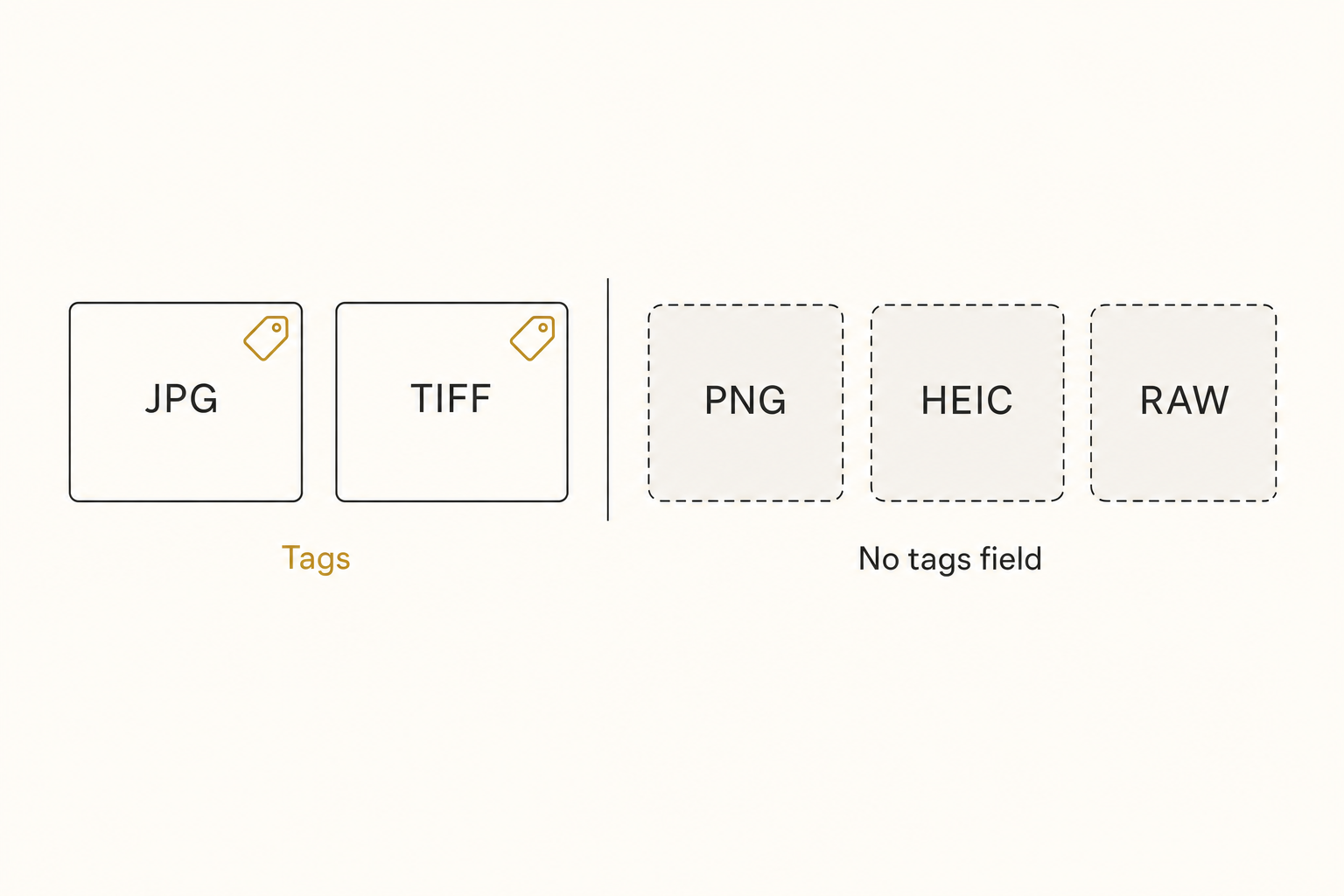
In practice that means an iPhone camera roll synced to a PC, or a photographer's RAW archive, is largely untaggable in File Explorer. There is no setting that changes this. The tag lives inside the file, and Windows will not write into formats that lack a home for it.
Storing tags inside the file has a real upside: tags travel. Copy a tagged JPEG to another drive or another Windows PC and the tags arrive with it, because they are part of the file, not a note in some Windows database. Windows exposes this field as the System.Keywords property, the same keywords slot other photo software reads.
Warning. Writing a tag modifies the file. The modified date changes, so backup and sync tools see every freshly tagged photo as changed and re-copy or re-upload it. Tagging 4,000 "unchanged" photos the night before a backup run is a surprise you only enjoy once.
The quieter limit: almost nothing outside Windows reads these tags. Upload your tagged photos to Google Drive or Dropbox and their search boxes will not match a single one of your keywords. The tags are real, but they are only searchable where File Explorer, or another metadata-aware desktop app, is doing the searching.
Where tagging photos in Windows hits the wall
The system above works, and for a small library it is all you need. The problem is arithmetic. Tagging one photo well takes tens of seconds; at a realistic pace of 100 to 200 photos per hour, a 6,000-photo backlog is a week of evenings, and the untagged pile grows with every shoot.
That is the 1,000-photo wall: below roughly a thousand photos you can remember where things are and a handful of tags fills the gaps, and above it the library goes opaque faster than any human types.
The second failure mode is that a tag only holds what someone typed. You tagged sunset; eight months later you search golden hour and get nothing. Multiply that across years, or across three coworkers with three vocabularies, and the tag layer quietly rots.
Three ways to tag photos at scale
Free and built-in. File Explorer at intake, as above, covers a small JPEG library on one PC at zero cost. For bulk writes across formats, the free command-line tool ExifTool can stamp keywords into hundreds of files at once, including RAW, if you are comfortable in a terminal. Some newer Copilot+ PCs also add a natural-language photo search that reads image content on the device; useful if you have one, but as of writing most PCs do not.
Cheap desktop tools. Windows-native taggers like Tag That Photo and the free, open-source digiKam speed up manual tagging and add face recognition, and Excire Foto generates AI keywords locally. All of them keep the work on one machine, which is their strength (nothing leaves your PC) and their limit (nobody else can search it).
Pricing varies; check their current pages. If keywords written into the files themselves are the goal, the desktop keyworder path is covered in our guide to automatic photo keywords.
A connected AI catalog. For a library that lives in, or can mirror to, Google Drive or Dropbox, a catalog service reads each photo with read-only access and writes a focal-subject label, a set of tags, and a one-sentence description into a searchable index. Nothing is typed and the files are never modified. A full indexing pass runs unattended in the background.
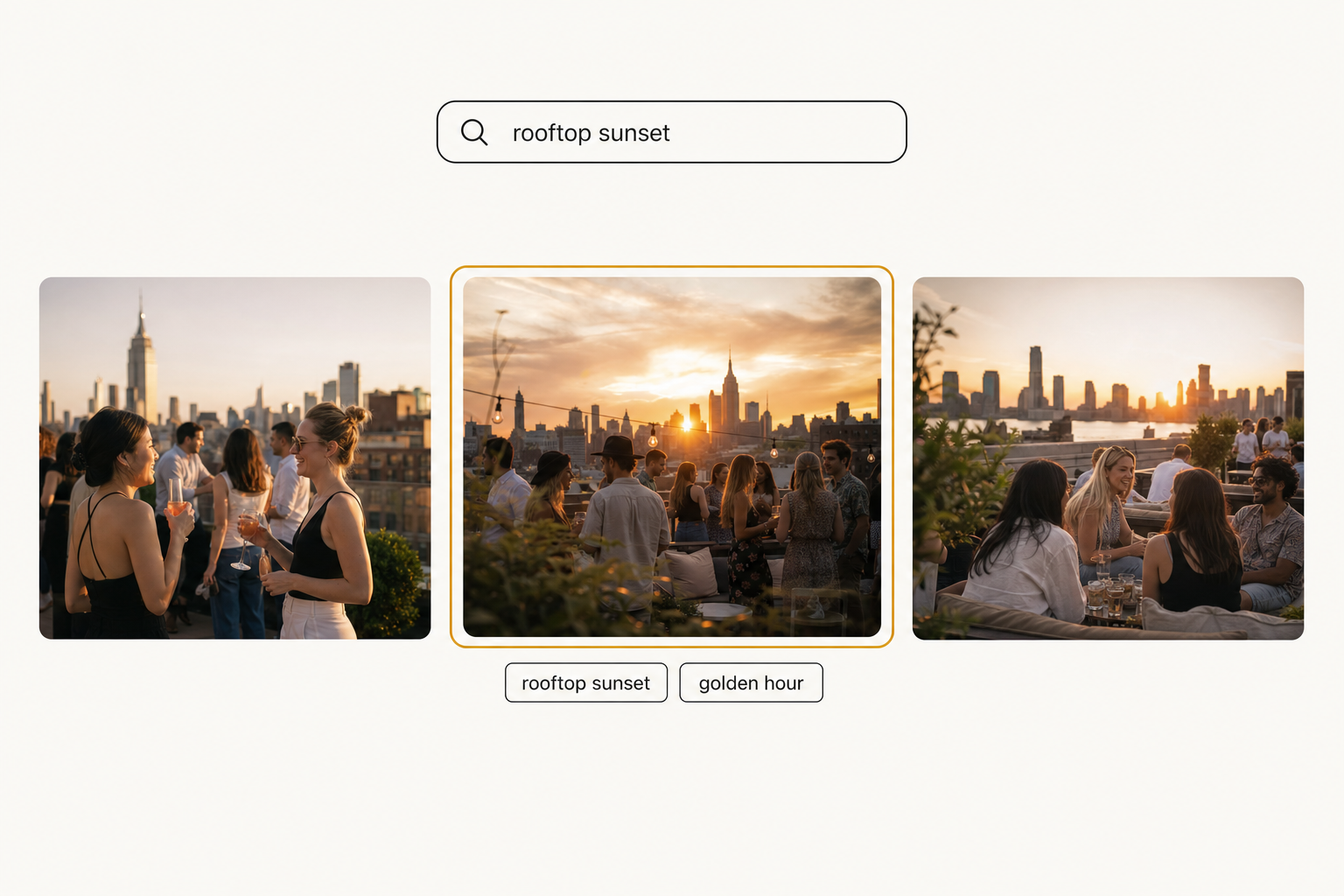
After that pass, search stops depending on what anyone remembered to type: "rooftop sunset" finds the shot even though nobody ever tagged it. Tagrly is one option in this category, and the whole team gets the same search, not just the person at the tagged PC.
Tip. Tagrly's free tier reads the first 500 photos in any Drive or Dropbox folder, no credit card. Run it on a real folder and compare the generated tags against your hand-typed ones before deciding anything.
Which approach fits your library
- Pick File Explorer tags if your library is under about 1,000 photos, mostly JPEGs, on one PC, and you can tag at intake. It is free and the tags travel with the files.
- Pick digiKam or Tag That Photo if you are solo, want faster manual tagging or face recognition, and everything must stay local.
- Pick ExifTool if you need bulk keyword writes across formats, RAW included, and a command line does not scare you.
- Pick a connected AI catalog (Tagrly is one example) if the library runs to thousands, it lives in or can mirror to Drive or Dropbox, and more than one person needs to find things.
Windows photo tags are a real feature worth using, not a toy. The ceiling is the typing: every tag costs seconds of a person's attention, only JPEGs and TIFFs accept them, and only your own PC can search them.
Past the wall, the fix is not typing faster, it is letting software write the description of every photo once. The quickest way to judge whether that is worth it for your library is to test a content search on 100 of your own photos and search for something you never tagged.
Frequently asked questions
How do I add tags to photos in Windows 11?
Right-click the photo in File Explorer, choose Properties, open the Details tab, click the space next to Tags, and type your keywords separated by semicolons, for example rooftop; sunset; launch party. Click Apply, then OK. To tag several photos at once, select them all first, then right-click the selection and follow the same steps; the tags you enter are written to every selected file. You can also turn on the details pane (View, then Show, then Details pane) and add tags there without opening Properties at all. The same steps work in Windows 10.
Why can't I add tags to PNG or HEIC photos in Windows?
Windows writes tags into the photo file's own metadata, and it only supports doing that for a few formats, mainly JPEG and TIFF. PNG, GIF, and BMP files have no writable Tags property, so the Tags row simply never appears for them in Properties or the details pane. The same applies to HEIC photos from an iPhone and RAW files from a camera. It is not a setting you can change; it is the designed shape of the feature. The workarounds are converting files to JPEG, using a third-party tagging tool that keeps its own database, or using a catalog that indexes photos without writing to them.
How do I search photos by tag in Windows?
Type tag: followed by the keyword into the File Explorer search box, for example tag:sunset. You can also add a Tags column in the Details view (right-click any column header) and sort or group the folder by it. Search results depend on the Windows Search index: if the folder is in an indexed location, tag searches come back fast and complete; if it is not, searches are slow or miss files. You can add folders to the index through Windows' indexing options. Folders on external drives are often not indexed by default, which is a common reason tag searches appear broken.
Do Windows photo tags transfer when I copy or move files?
Yes, within the Windows world. Tags are stored inside the photo file itself, not in a separate Windows database, so they survive copies to another folder, another drive, or another Windows PC. Two catches follow from that design. First, writing a tag modifies the file, so backup and sync tools will treat every freshly tagged photo as changed and re-copy it. Second, other systems have to choose to read those embedded fields, and most cloud interfaces do not: uploading tagged photos to Google Drive or Dropbox works fine, but their search boxes will not match your Windows tags.
Can Windows tag my photos automatically?
Not in File Explorer. Every tag there is typed by a person. Some newer Copilot+ PCs add a natural-language photo search that reads image content on the device, which helps if you have that hardware, but as of writing most PCs do not, and it does not write reusable tags into your files. If you want tags generated automatically at scale, the options are desktop tools with AI keywording, such as Excire Foto, or a connected AI catalog that reads a cloud folder and writes a searchable description for every photo. Tagrly is one example of the second kind; its free tier covers the first 500 photos in any folder.
Try Tagrly on your own photo library
Connect your Google Drive or Dropbox folder and Tagrly will tag every photo in bulk. Search by what is actually in the image, share specific shots with clients, and never lose a photo again.
- Free for your first 500 photos
- Read-only access, revoke anytime
- No credit card