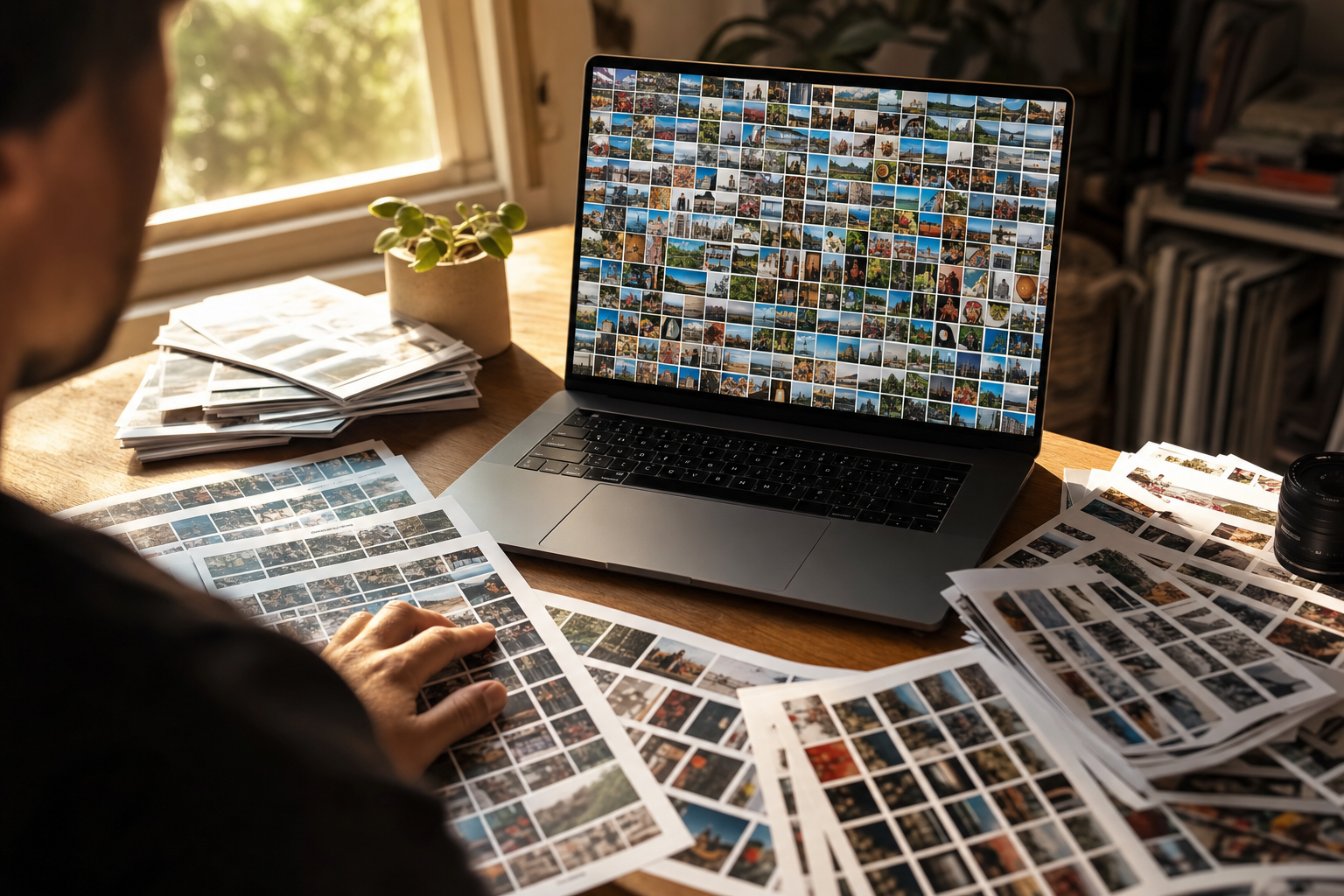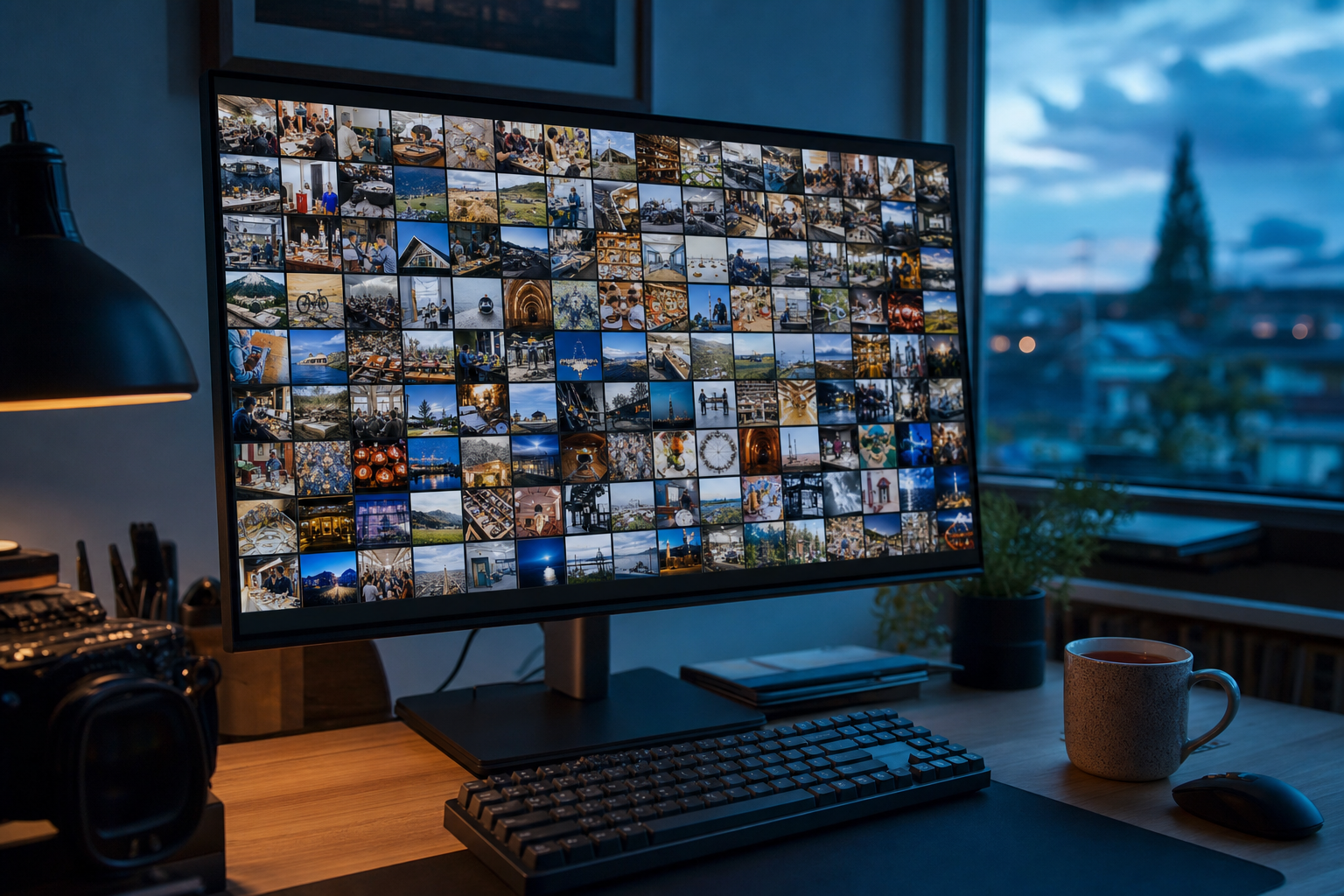
You need the workshop shots from the spring open-studio event. They are on your Linux box, somewhere in 11,000 files named DSC_0491.jpg, and a plain listing gives you nothing to search on but the date. Tagging is the built-in fix, and on Linux the real catch is not which app you pick, it is where the tag ends up living.
The three ways to tag photos on Linux
Linux does not put a Tags field in the file manager the way Windows and a Mac do. The work happens in one of three places.
A full photo manager: digiKam. Free and open source, with hierarchical tags, face recognition, and fine control over where tags are stored. Best for a large or serious archive.
A lighter photo manager: Shotwell. The GNOME default. Simple tagging and a clean library view. Best for a modest personal collection.
The command line: ExifTool. No app at all. One command writes keywords into hundreds of files, RAW included. Best for bulk writes and scripts.
All three end at the same question, worth answering before you type a single tag: is the tag going inside the photo, or only inside the app?
How to tag photos with digiKam
digiKam is the most capable option, and worth learning if the library will grow.
Add tags to one photo or a batch
- Open digiKam and browse to the album.
- Select the photo. For a batch, click the first and Shift-click the last.
- In the Tags panel on the right, type a keyword and press Return, or press T to jump straight to the field.
- The tag applies to every selected file. Nested tags work too, so
Events / Open Studio / 2026builds a tidy tree.
The digiKam tags documentation covers the tag tree and shortcuts in full. The habit that keeps this sustainable is tagging at intake: stamp event-level tags on the whole batch in one pass, then add a subject tag to just the keepers.
Decide where the tags live
This is the step the tutorials skip, and the one that matters. Under Settings, then Metadata, digiKam lets you choose whether tags are written into each photo's embedded metadata or kept only in its database.
By default digiKam keeps a copy in its own database so the app stays fast. Turn on writing to files and it also embeds the tags in the IPTC and XMP keyword fields, where other software can read them. For RAW files it writes an XMP sidecar, a small companion file next to the RAW, rather than touching the RAW itself, as the digiKam metadata settings guide explains.
Warning. Leave file writing off and your tags exist only inside digiKam's database. That is fine until the day you reinstall, move machines, or the database corrupts. Turn on writing to files, or back up the database.
Find tagged photos again
Click a tag in the panel to filter the whole library to it, across every album at once. That cross-album view is the payoff: a tag gathers photos from a dozen shoots without moving a file, as long as somebody typed the word first.
How to tag photos with Shotwell
If you are on GNOME and your collection is modest, Shotwell is already installed and simpler.
Select one or more photos, right-click, choose Add Tags, and type keywords separated by commas. Tags appear in the sidebar; click one to see everything carrying it. Shotwell's tagging help covers renaming and nesting.
The catch is the same storage question, and Shotwell's default lands on the surprising side: it keeps tags in its own database and does not touch the original files. Your keyword is real inside Shotwell and invisible everywhere else. To change that, open Edit, then Preferences, and turn on Write metadata to files.
Note. This default is why a photo you tagged
workshopin Shotwell shows no keyword when you open it elsewhere. The tag is in Shotwell's records, not in the JPEG. It is the Linux version of the same split that Apple Photos keywords have on a Mac, where the tag lives in one app's database, not in the file.
Where Linux photo tags stop working
The through-line under all three tools: a tag helps only where whatever holds it can be searched.
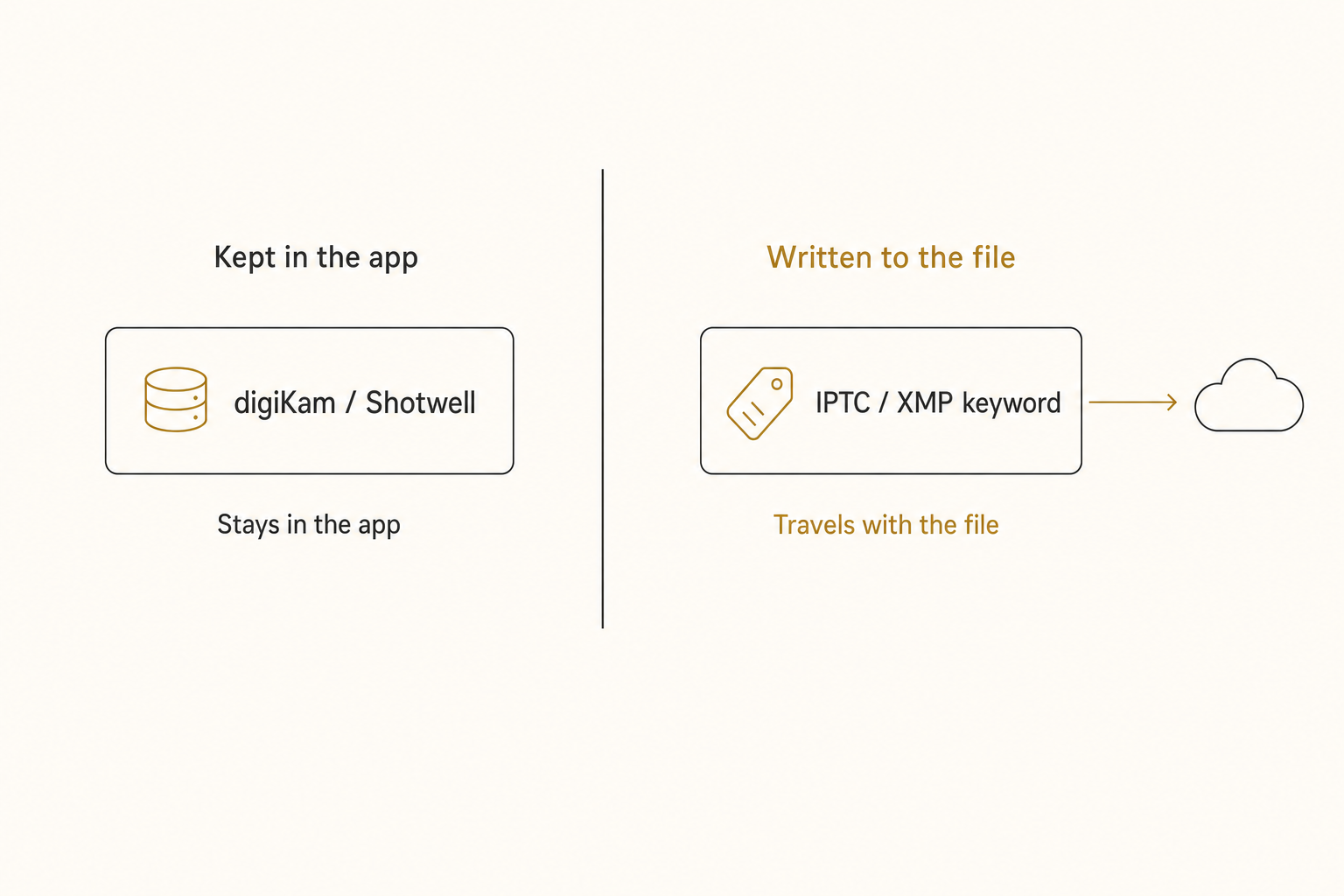
A tag in a digiKam or Shotwell database is searchable in that app and nowhere else. Reinstall, switch machines, or hand the folder to a coworker, and the tags stay behind.
A tag written into a file's IPTC or XMP keyword fields travels with the file, so another metadata-aware app can read it. Those are the same embedded fields we unpack in what photo metadata is.
Even embedded tags hit a wall once they leave a metadata-aware world. Upload tagged photos to Google Drive or Dropbox and their search boxes match none of your keywords. The tags are real; the cloud does not read them.
The quieter limit is arithmetic. Every tag is a word a person typed, at a realistic 100 to 200 photos per hour. That holds below the 1,000-photo wall, the point where a library goes opaque faster than anyone can type, and breaks above it.
You tagged workshop; a year later you search soldering and get nothing, because nobody typed that word.
How to tag photos at scale on Linux
Free and on your machine. digiKam or Shotwell at intake covers a personal library at zero cost. For bulk writes across formats, the free tool ExifTool stamps keywords into hundreds of files in one command, RAW included.
Local AI keywording. Some Linux-friendly tools add AI-generated keywords or on-device face recognition, and you can script a vision model against your own folders if you know Python. Both keep everything on the machine, the point for anyone who wants nothing to leave the box, but nobody else can search the result and you maintain the pipeline. The desktop keyworder path is covered in our guide to automatic photo keywords.
A connected AI catalog. For a library that lives in, or can mirror to, Google Drive or Dropbox, a catalog service reads each photo with read-only access and writes a focal-subject label, tags, and a one-sentence description into a searchable index the whole team shares. Nothing is typed and the originals are never touched. A full pass runs unattended in the background.
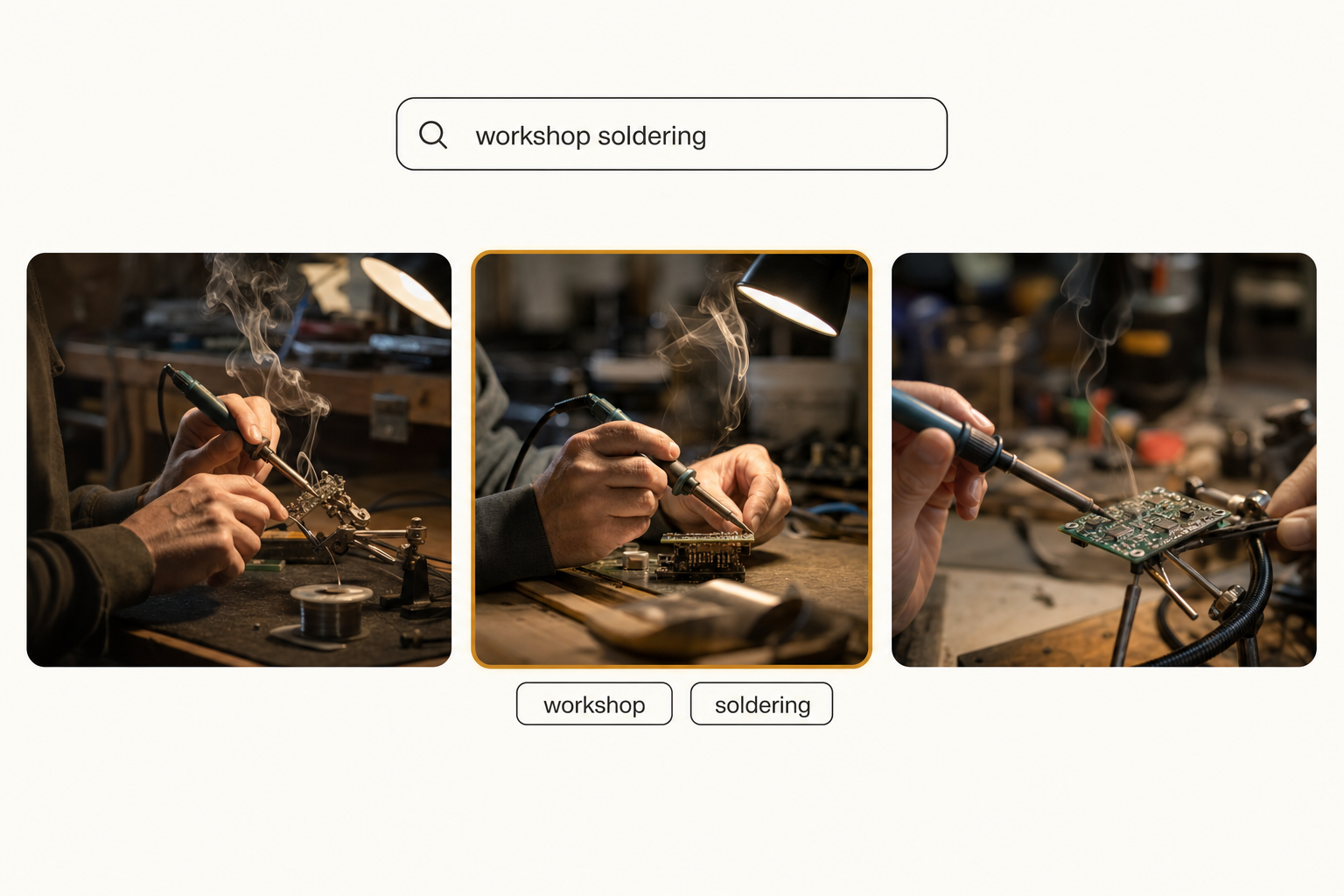
After that pass, search stops depending on what anyone remembered to type. "Workshop soldering" finds the shot nobody ever tagged, and it finds it for everyone, not just the person whose machine holds the database. Tagrly is one option in this category.
Tip. Tagrly's free tier reads the first 500 photos in any Drive or Dropbox folder, no credit card. Try it on a real folder and search for something you never tagged.
Which approach fits your library
- Pick digiKam if the archive is large and you want hierarchical tags and face recognition; set the metadata options so tags get written into the files, or back up the database.
- Pick Shotwell if the collection is modest and you are on GNOME; turn on writing metadata to files if you want the tags to travel.
- Pick ExifTool if you need bulk keyword writes across formats, RAW included, and you live in the terminal.
- Pick a connected AI catalog (Tagrly is one example) if the library runs to thousands, it lives in or can mirror to Drive or Dropbox, and more than one person needs to find things.
Tagging on Linux is more flexible than on Windows or a Mac, because you decide where every tag lives. That flexibility is also the trap: leave the tags in a database and they vanish the day the app does, and either way each one costs typing time.
Past the wall, the fix is not typing faster, it is letting software describe every photo once, where the whole team can search. The quickest way to judge whether that is worth it is to run a content search on 100 of your own photos and look for a shot you never tagged.
Frequently asked questions
How do I tag photos on Linux?
The usual route is a photo manager. In digiKam, select one or more photos, press T or use the Tags panel on the right, type a keyword, and press Return; the tag applies to every selected file. In Shotwell, select the photos, right-click, choose Add Tags, and type your keywords separated by commas. Both let you multi-select a whole shoot and tag it in one pass. On the command line, ExifTool can write keywords into many files at once without any app. All of these are typed by hand at some point, so for a large library budget real time or move to generated tags.
Does digiKam write tags into the photo file or its own database?
Both, and you choose. digiKam always records tags in its own database so the app stays fast, and it can also write them into each photo's embedded metadata. In Settings, then Metadata, you turn on writing tags to files; digiKam stores them in the IPTC and XMP keyword fields, which other photo software can read. For RAW files it writes to an XMP sidecar (a small companion file next to the RAW) instead of touching the RAW itself. If you leave file writing off, the tags live only inside digiKam, so back up its database or you can lose them.
Does Shotwell write tags into photo files?
By default, no. Shotwell keeps tags in its own library database, which means the original files are untouched but the tags exist only inside Shotwell. There is a preference, Write metadata to files, that tells Shotwell to also embed tags into the photos' metadata so other apps can read them. Turn it on if you want the tags to travel. Either way, remember that Shotwell's default behavior surprises people who expect the keyword to be inside the JPEG itself.
Do Linux photo tags survive when I upload or share the files?
Only if the tags were written into the file's embedded metadata, and only if the destination reads that metadata. Tags kept in a digiKam or Shotwell database never leave the app. Tags written to a file's IPTC or XMP keyword fields do travel with the file, so another metadata-aware app can read them, but most cloud interfaces ignore them: upload tagged photos to Google Drive or Dropbox and their search boxes will not match your keywords. If a tag has to survive an upload, an email, or a hand-off to another operating system, it has to be embedded, and even then the receiving tool has to choose to read it.
Can Linux tag my photos automatically?
Partly, and it depends on the tool. digiKam includes on-device face recognition and can suggest people tags, and some builds add basic auto-tagging, but general scene tagging on Linux is still mostly manual. For generated tags at scale, the options are a local tool with AI keywording, running a vision model yourself through a script, or a connected AI catalog that reads a Drive or Dropbox folder and writes a searchable description for every photo. Tagrly is one example of the last kind; its free tier covers the first 500 photos in any folder.
Try Tagrly on your own photo library
Connect your Google Drive or Dropbox folder and Tagrly will tag every photo in bulk. Search by what is actually in the image, share specific shots with clients, and never lose a photo again.
- Free for your first 500 photos
- Read-only access, revoke anytime
- No credit card