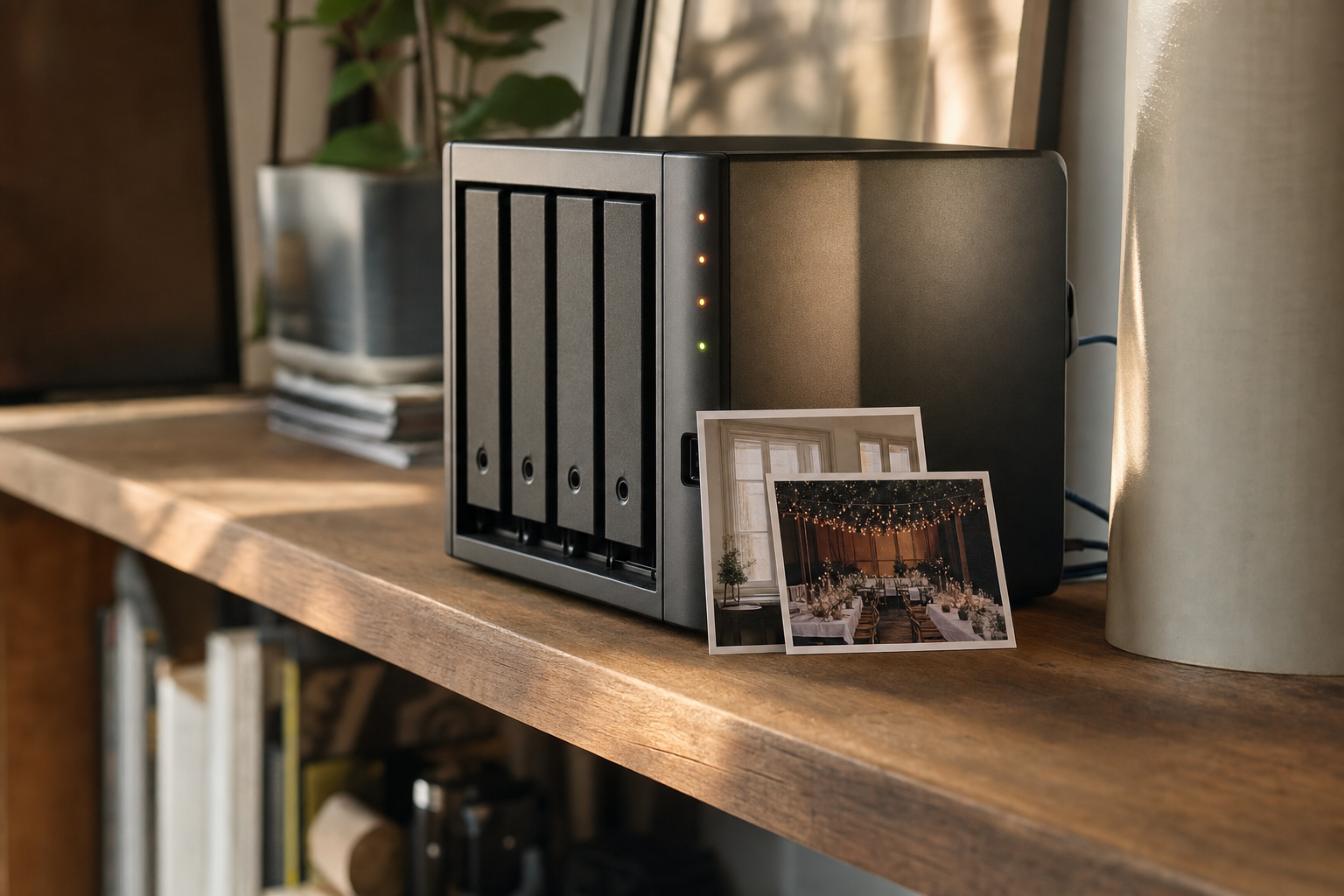
Your studio bought a NAS so everyone could reach the archive from their own desk, and it worked, right up until an editor asked for "the twilight exterior of the Oak Street listing from two winters ago." It is somewhere on the box. Nobody can find it without opening 2024, guessing at a project name, and scrolling.
Build a shared folder structure everyone follows
The most useful habit on a NAS is picking one folder shape and getting everyone who uploads to agree on it. A good default is Photos / 2026 / oak-street-listing / selects: one shared top-level Photos folder, then a folder per year, then a folder per shoot or project, then a selects subfolder for the approved frames.
Three levels is enough. Deeply nested trees feel organized and are miserable to click through, especially over a network share where each folder open is a small wait. The Library of Congress personal archiving guidance makes the same point: pick a simple, consistent structure and apply it everywhere.
The catch a NAS adds is that it is shared. On a single drive one person owns the mess. On a NAS, three people upload, and if the shape is not agreed once and written down, you get 2024, 2024 shoots, and Client Work 2024 as three siblings for the same year.
Tip. Set folder permissions so the agreed year folders are the only place uploads land, and give each person a personal
_inboxfolder for staging. Files move into the shared tree only once they are named and culled.
Name files so the date does the sorting
A folder tells you which project a photo belongs to. The filename is what any search box, on any machine on the network, can actually match. A file called DSC_0481.jpg is invisible; a file called 2024-01-18_oak-street_twilight-exterior_006.jpg is findable the moment someone types "twilight" or "oak street."
A convention that works on a shared box: date first (2024-01-18) so files sort chronologically across the whole archive, then a short project code (oak-street), then two or three words for what the selects show (twilight-exterior), then a padded sequence number (006). Rename in batch as each shoot lands, not months later.
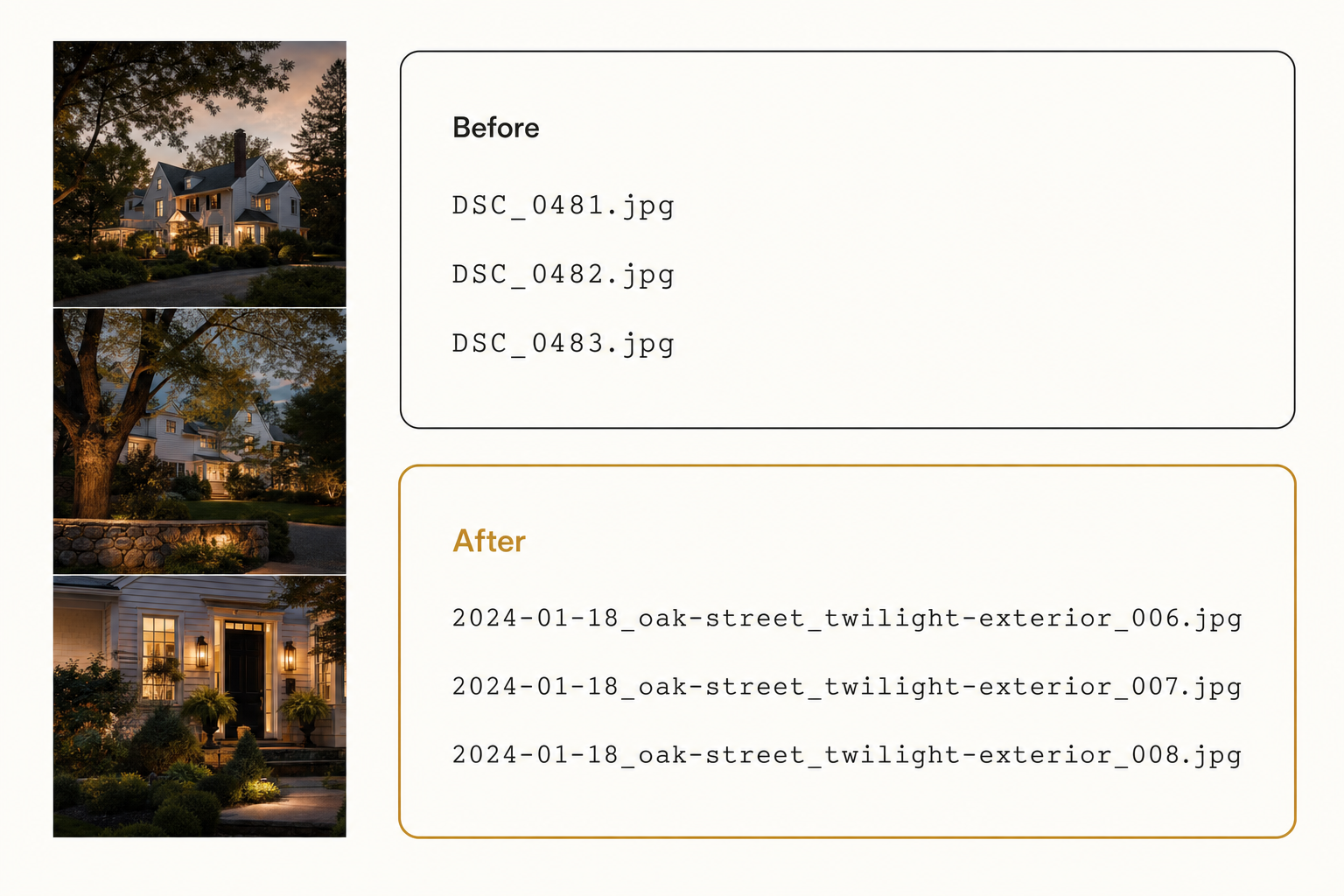
Date-first naming earns its keep on a NAS because several people read the same tree, and a plain listing sorts the whole archive in order for everyone. The full system, including portable character rules and version suffixes instead of final_v2, is in our guide to photo file naming conventions.
Note. If the box already holds years of camera-numbered files, a batch renamer that reads the EXIF date taken can back-fill dated filenames in one pass, so even old shoots gain the chronological sort.
What Synology Photos and QuMagie actually do
Every major NAS ships a photo app: Synology Photos on Synology, QuMagie on QNAP. Turn it on.
Both index the photos on the box and give you a timeline, auto albums grouped by broad category and location, and face grouping, plus a phone app. For casual "show me last summer" browsing, that is a real convenience the folder tree alone cannot match.
Two limits matter the moment the job is work, not browsing.
First, the recognition is category-level. The app can gather everything it thinks is "food" or "beach," which is handy, but it does not find "the plated scallop dish on the slate board from the Rossi menu shoot." It reads the kind of thing in the photo, not the specific scene, so it misses the queries a working archive actually gets asked.
Second, the index is trapped in that vendor's app on that one box. It has no idea your team also keeps deliverables in Google Drive or a shared Dropbox, and it will never search across them. If half your archive is on the NAS and half is in the cloud, the vendor app sees only its half.
Warning. The vendor apps are tied to the hardware. Migrate to a new NAS or a different brand and the auto albums, tags, and face data built inside the old app do not travel with the files. You keep the photos; you rebuild the index.
Follow the 3-2-1 rule, because a NAS is one box
A NAS with two drives in a mirror feels safe, and it does protect you if one drive fails. It does nothing about the risks that take out the whole unit at once: theft, fire, a flood, ransomware that encrypts the share, or the enclosure itself dying. A single NAS holding the only copy of a decade of work is not an archive, it is a countdown with a nicer case.
The standard answer is the 3-2-1 rule, and Backblaze's explanation of the 3-2-1 backup strategy is the clearest version: keep three copies of your photos, on at least two kinds of storage, with one copy off-site. For a NAS that means the box itself, a second copy on another device, and an off-site copy in the cloud.
That off-site cloud copy does double duty. Once a working archive lives in Google Drive or Dropbox as well as on the NAS, it is both backed up and reachable by the one thing a NAS can never offer on its own: search by what the photo shows.
Where the NAS stops being findable
The free setup above keeps a shared box tidy, browsable, and backed up. It has one hard ceiling that most guides skip.
A NAS can be searched by what its file system and vendor app know: the filename, the file type, the date, and a handful of broad on-device categories. It cannot find "the twilight exterior of the Oak Street listing" because nothing on the box records that a given frame shows twilight, an exterior, or that specific property. The photo is fully visible to your eye and effectively invisible to search.
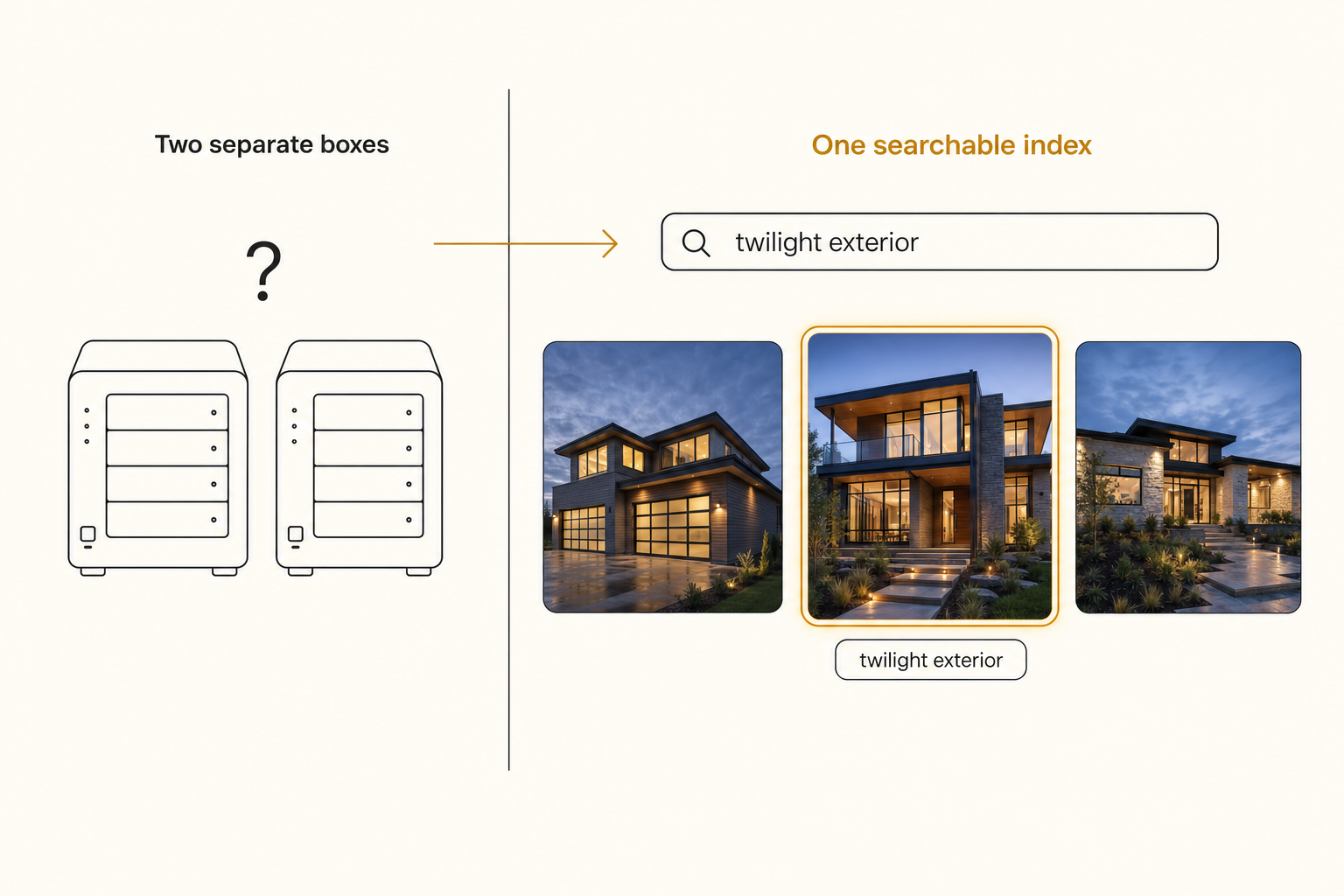
Two things make this worse on a NAS specifically. The team grows, so more people hunt the same shared tree by hand at once. And storage grows, so last year's box gets retired to a shelf and this year's bigger box has no index spanning both.
This is the 1,000-photo wall in its networked form, split across boxes that each only see themselves.
The fix is a search layer that has read every photo once and written down what each one shows, so anyone on the team searches by content instead of by which box a file lives on. Because that layer needs the photos reachable, mirror the working archive to a cloud folder first, which is the off-site backup you were going to make anyway.
A connected AI photo catalog then reads that Google Drive or Dropbox folder with read-only access, looks at every image, and writes tags plus a sentence of description into a searchable index, with your files on the NAS untouched.
That first pass ran unattended in the background. After it, any frame comes back from a description search in seconds, for anyone on the team, regardless of which box holds the original. This is a category, not one product, and the full setup is in our guide to how to catalog photos.
Tip. You can test the search layer on one folder before mirroring your whole box. Tagrly's free tier catalogs the first 500 photos in any Drive or Dropbox folder, no credit card, so you can point it at one real shoot and judge the tags against your own shots.
Which approach fits your NAS
There is no single right way to organize photos on a NAS, only the right one for your size and how the team works.
- Pick the folder tree, filenames, and the vendor app and nothing else if the archive is under a few thousand photos and one or two people use it. The free setup holds, and the pillar guide to finding any photo in your library covers how far it stretches.
- Pick Lightroom or a desktop keyworder (Excire, Mylio) pointed at the NAS share if you are a solo editor who keywords during culling. That gives you content search on your own machine, though not shared cleanly across a team.
- Pick a connected AI catalog if the archive is past the wall, spans more than one box, and several people need to find things in it. Mirror the working set to Drive or Dropbox and index it in place. Tagrly is one option here.
- Pick a self-hosted app on the NAS (Immich, PhotoPrism) if you want on-device search and are comfortable maintaining server software. It keeps everything local, at the cost of your admin time and, still, an index tied to that one box.
Consolidating an old box into a new one always surfaces duplicates, and clearing them before you index saves wasted tagging effort. The method is in deduplicating a messy photo library, and the single-drive version of this guide is in organizing photos on an external hard drive.
Organizing photos on a NAS is three free habits plus one honest limit: a shallow shared folder tree, date-first filenames, the vendor app for browsing, and the 3-2-1 rule. When the thing standing between a teammate and a photo is "which box is it on," mirror the archive to a cloud folder and let a catalog read the photos for you so everyone searches by what the shot shows instead of by hardware.
Frequently asked questions
What is the best folder structure for photos on a NAS?
Keep it shallow and time-based on one shared Photos folder: a folder per year, then a folder per shoot or project, then a selects subfolder for the approved frames. Three levels is plenty. Because a NAS is shared, agree on that shape once with everyone who uploads to it, so two people do not build two different trees for the same year. Avoid organizing by topic at the top level, because one photo can belong to two topics and someone will guess wrong later. Time then project is unambiguous: a shoot happened on one date for one job, which keeps the whole share predictable no matter who added the files.
Can Synology Photos or QNAP QuMagie search my photos by content?
Partly, and only within limits worth knowing. Synology Photos and QNAP QuMagie both run on-device recognition that groups photos by broad categories, faces, and location, so you can browse an auto album of, say, food or beaches. That is genuinely useful for casual browsing. Two catches matter for work. The recognition is category-level, so it finds food but not the specific plated dish you shot for one client, and the index lives inside that vendor's app on that one box, so it cannot reach a team archive that also lives in Google Drive or Dropbox. For scene-level search across a whole working library, you need a layer that has read every photo and recorded what it shows.
How do I find one specific photo across an old NAS and a new one?
This is where a NAS quietly breaks down. Each box indexes only its own drives, so a retired NAS on a shelf, or last year's unit you swapped for a bigger one, is invisible to the new one's search. Finding a shot from three years ago means remembering which box it lived on and browsing it by folder and date. The durable fix is to mirror the working archive to a cloud folder and add a search layer that has read every photo and written down its contents, so one description search spans everything regardless of which box holds the original.
Is a NAS a backup for my photos?
No. A NAS is one box, and even a two-drive mirror inside it protects against a single drive failing, not against theft, fire, flood, ransomware, or the unit itself dying. Follow the 3-2-1 rule: three copies of your photos, on at least two kinds of storage, with one copy kept off-site. In practice that means the NAS, a second copy on another device or drive, and an off-site copy in the cloud. That off-site cloud copy does double duty, because once the working archive lives in Google Drive or Dropbox it is both backed up and reachable by a search layer that can read the photos.
Should I organize photos on the NAS or in software?
Do both, in that order. Organize the files first, because a clean folder tree and real filenames are portable and survive whatever app you later add or drop. Then put software on top for the jobs files cannot do: content search, ratings, and team access. Solo editors get some of that from the NAS vendor app or from Lightroom pointed at the share. Teams whose archive is past a few thousand photos get scene-level search from a connected catalog that reads a mirrored cloud copy in place. The files on the NAS stay the source of truth; the software is the index that makes them findable.
Try Tagrly on your own photo library
Connect your Google Drive or Dropbox folder and Tagrly will tag every photo in bulk. Search by what is actually in the image, share specific shots with clients, and never lose a photo again.
- Free for your first 500 photos
- Read-only access, revoke anytime
- No credit card