
Your marketing team has six people, a product launch on Thursday, and 40,000 photos in a shared Google Drive where every file is named IMG_3382.JPG. The social lead needs the three rooftop launch shots from last quarter by 3pm, the designer thinks they are in a folder called final_v2_USE_THIS, and nobody is sure they were ever moved off the photographer's hard drive. A photo workflow is the system that stops this from happening every week.
What a marketing team photo workflow includes
Five stages cover a marketing team photo workflow: intake, organize, search, share, and archive. A workflow is not a folder structure; it is the set of steps a photo goes through from the moment it lands to the moment someone reuses it a year later.
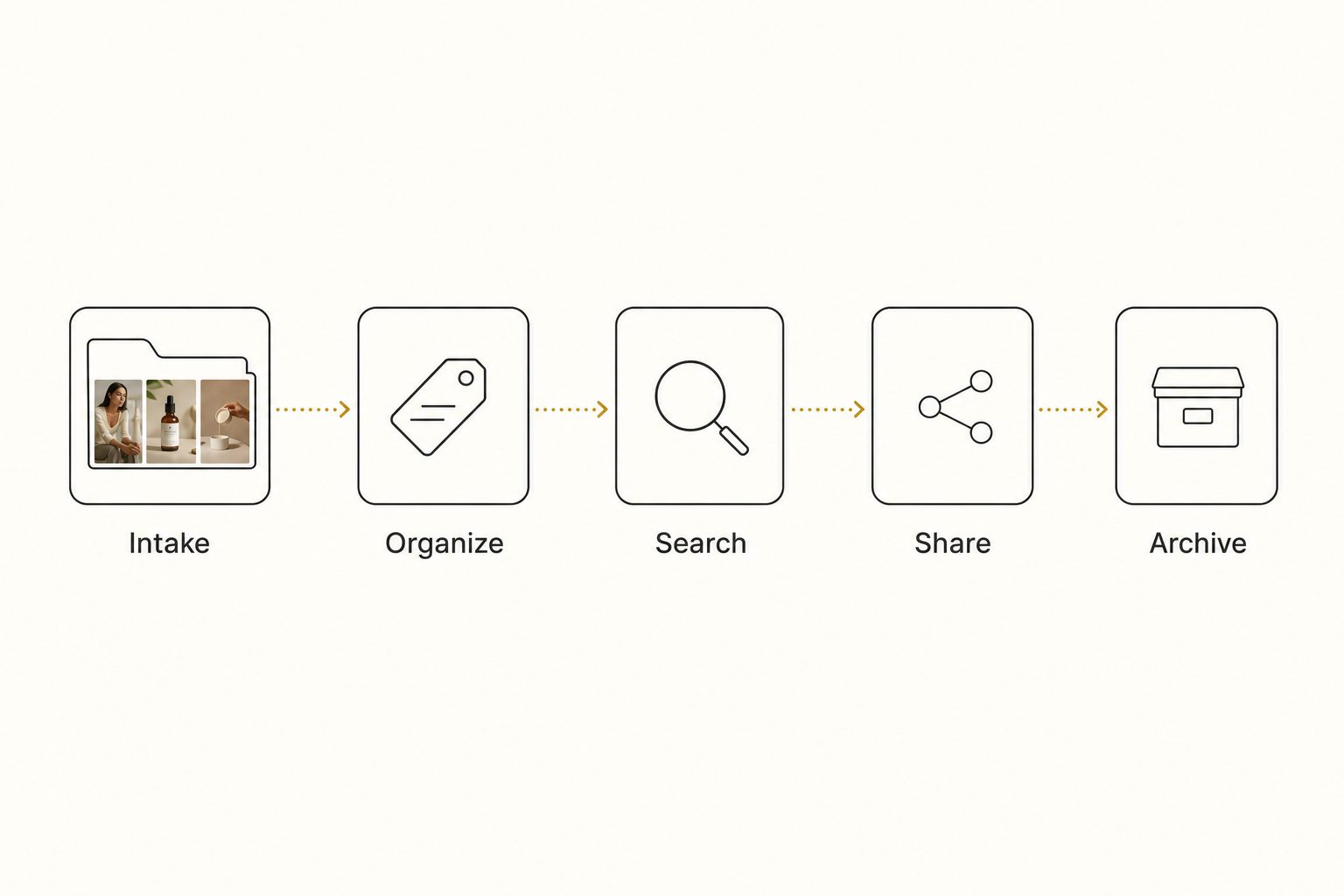
- Intake. Photos arrive from a shoot, a freelancer, a phone, or a stock purchase. They land in one known place, not five inboxes.
- Organize. Each photo gets named and tagged so it can be found later by something other than the date it was uploaded.
- Search. Anyone on the team can find a specific shot by describing it, without scrolling.
- Share. The right people get the right photos, and only those photos.
- Archive. Old campaigns stay searchable instead of being deleted or lost on a departed employee's drive.
The single most important rule across all five stages is one source of truth. If your photos live in three Drives, two Dropboxes, and one designer's desktop, no workflow will save you. Pick one home and move everything into it before you do anything else.
The free workflow: folders, naming, and shared drives
You can run a real workflow with nothing but Google Drive or Dropbox and some discipline. For a team under about 1,000 photos, this is genuinely enough.
Start with a shared drive, not a personal one. In Google Workspace, a shared drive belongs to the team, so photos do not disappear when the person who uploaded them leaves. Dropbox team folders work the same way.
Then adopt a naming convention and never break it. A name like 2026-03_rooftop-launch_hero_01.jpg tells you the date, campaign, role, and sequence at a glance, and makes Drive's plain filename search useful. Compare that to IMG_3382.JPG, which tells you nothing.
A simple folder structure helps too. Top level by year, then by campaign or shoot, with a selects subfolder for the approved shots so people are not digging through 400 frames to find the 8 that matter.
Note. Naming and folders work well under about 1,000 photos. Past that you hit what we call the 1,000-photo wall, described in the complete guide to bulk image tagging: the library gets too big to remember and too big to rename by hand. That is the point where most teams start looking at a tool.
The AI-assisted workflow for thousands of photos
Past a few thousand photos, the workflow that holds up is an AI photo catalog running over your existing Drive or Dropbox, because the organize and search stages are where the hours go. A 2021 Canto survey of 500 marketing professionals found that about a third spend roughly three weeks a year just looking for files, and 15 percent spend up to six weeks. That is the cost the free workflow stops covering.
An AI photo catalog closes the gap by reading every photo and writing a description you can search. It connects to your Google Drive or Dropbox with read-only access, streams each image to a vision model, and stores a sentence and a set of tags describing what is in the shot. Your originals never move, the same read-only setup we walk through in the Google Drive bulk-tagging guide.
From then on you search by what a photo shows, "product on marble, top down" or "candid team laughing at the launch," and the matches come back in milliseconds, ranked by the focal-subject tagging method, so a photo of your subject outranks a photo that merely contains it. In Tagrly's own testing on a 5,000-photo set, focal-subject tagging surfaced the correct top match in roughly 9 of 10 searches; that hit rate is what AI photo search buys the search stage. We cover the search side in detail in how to search photos by description in Google Drive.
Tagrly is one tool here, and not the only one that connects directly to Drive. Foto Owl and Pics.io do too. What separates them is output quality, so judge them on the tags they produce, not the connect screen.
A full scan runs unattended in the background, and what is already read is searchable while the rest is still going. Day to day, finding a photo is faster than remembering which campaign folder it was filed under.
Tip. Want to see this on your team's own photos? Tagrly's free tier tags the first 500 photos in any Drive or Dropbox folder at no cost, no credit card. Connect a real folder and search the results before you commit to anything.
Sharing photos without handing over the whole drive
Share a collection, not a folder. That one rule fixes the stage most folder-based workflows get wrong: when a client or a freelancer needs four photos, the lazy move is to share the entire campaign folder and trust them to grab the right ones, which leaks unapproved shots, raw frames, and other clients' work.

A collection flips that. You select the specific approved photos, group them, and send a single link. The recipient sees only those photos, can download them, and never touches the rest of your library. We compare the ways to do it, from free shared links to proofing galleries, in how to share specific photos with clients.
Most image catalogs build this in. Confirm a tool supports per-collection sharing before you commit, because a marketing team reaches for it every week.
Warning. Audit your shared folders twice a year. Permission sprawl is real: the freelancer you added in 2024 probably still has access to your entire photo library. Collection links with an expiry date avoid the problem entirely.
A repeatable per-shoot workflow you can copy
Six steps cover a shoot from intake to archive, and a small marketing team can adopt them as written. The workflow assumes photos in a shared Drive with an AI catalog over the top, but steps 1 through 4 work with folders alone.
- Land everything in one intake folder named
YYYY-MM_campaign_RAW. No exceptions, no side copies on personal drives. - Cull to selects the same day. Move the approved frames into a
selectssubfolder so the team never searches raw dumps. - Rename the selects with the convention
date_campaign_role_seq. Future you will find them by filename even without a tool. - Tag or scan. If the library is large, run the catalog scan so every photo gets a searchable description and tags.
- Build the share collection of approved shots for stakeholders, sent as a link instead of folder access.
- Archive the campaign by year. Keep it in the searchable library. Do not delete it and do not move it to a personal drive.
Six steps, run every shoot, and the "where is that photo" fire drill stops happening.
Which workflow fits your team
Team size and photo count pick the workflow for you.
- Solo marketer or a team under 1,000 photos. Folders, a strict naming convention, and a shared drive. Free and enough. Do not pay for a tool yet.
- A 2 to 10 person team with a few thousand photos. Keep the folder structure for intake, add an AI photo catalog (Tagrly is one example) so search and sharing stop eating your week.
- An agency juggling many clients' libraries. You need per-client separation and collection sharing more than anything else. Prioritize access control and shareable links over raw tagging speed.
- A large team with a procurement budget. An enterprise photo platform with approval flows and brand governance may justify its price and migration. For teams under 25 people it is usually overkill.
A marketing team photo workflow comes down to one rule: keep everything in one searchable home. Folder discipline carries a small team well past its first campaigns, and there is no reason to pay for a tool before the 1,000-photo wall. Past it, an AI photo catalog that reads each image and shares clean collections turns a 40,000-photo Drive back into something the whole team can use.
The fastest way to know if that is your team is to run it on a real folder of your photos and search the results. And if you are staring at the pile and just want a route to pick, how to tag thousands of photos walks the three routes by situation.
Frequently asked questions
What is a photo workflow for a marketing team?
A photo workflow is the repeatable set of steps a photo goes through from the moment it arrives to the moment someone reuses it. For a marketing team it covers five stages: intake (photos land in one known place), organize (each gets named and tagged), search (anyone can find a shot by describing it), share (the right people get the right photos), and archive (old campaigns stay searchable). No single person has to remember where anything is; the workflow does the remembering, so a launch never stalls because the one designer who knows the folder structure is on vacation.
How should a marketing team organize photos in Google Drive?
Start with a shared drive, not a personal one, so photos do not vanish when someone leaves. Use a naming convention every file follows, such as date_campaign_role_sequence, which makes Drive's plain filename search actually work. Structure folders top level by year, then by campaign or shoot, with a selects subfolder for approved shots so people are not digging through hundreds of raw frames. This holds up well under about 1,000 photos. Past that, naming by hand stops being realistic and most teams add a tool that tags and searches the library for them.
What is the fastest way for a marketing team to find a specific photo?
Search by what the photo shows, not by its filename. Folder and filename search only works if every file was named well, which rarely survives a busy quarter. An AI photo catalog reads each image, writes a sentence and tags describing the scene, and stores them in a searchable index. You then type a plain description like 'product on marble, top down' and the matching shots come back in milliseconds, ranked so the closest match is first. For a few thousand shared photos this is far faster than scrolling or relying on someone's memory of the folder tree.
How do you share brand photos with a client without giving them the whole drive?
Share a collection, not a folder. Select the specific approved photos, group them, and send a single link. The recipient sees only those photos, can download them, and never touches the rest of your library. Sharing a whole campaign folder instead leaks raw frames, unapproved edits, and sometimes other clients' work. Most image catalogs build per-collection sharing in, often with an expiry date on the link, which also solves the slow leak of freelancers keeping access to everything long after a project ends.
When should a marketing team switch from folders to an AI photo catalog?
Around the 1,000-photo mark. Below that, a shared drive, a strict naming convention, and Drive's Photos and Images filter chips are genuinely enough, and you should not pay for a tool yet. Above it you hit the 1,000-photo wall: the library gets too big to remember and too big to rename by hand. That is the point where the time your team spends hunting for shots, and re-shooting ones it cannot find, costs more than a tool would. The real test is to run a catalog over a real folder and see whether search saves you the hours you think it will.
How much time do marketing teams waste looking for photos?
More than most teams realize. A 2021 Canto survey of 500 marketing professionals found that about a third spend roughly three weeks a year searching for files, and 15 percent spend up to six weeks. Beyond the lost hours, disorganized libraries cause duplicate work: teams re-shoot or re-buy photos they already own because they cannot find them. A workflow that keeps everything in one searchable home is what turns those lost weeks back into usable time, which is why the organize and search stages are worth getting right early.
Try Tagrly on your own photo library
Connect your Google Drive or Dropbox folder and Tagrly will tag every photo in bulk. Search by what is actually in the image, share specific shots with clients, and never lose a photo again.
- Free for your first 500 photos
- Read-only access, revoke anytime
- No credit card