
The export is done, the zip is 2.4 GB, and the upload has stalled at 80 percent for the second time. When it finally lands, the first reply is the one you knew was coming: "how do I open this on my phone?"
Why zip files became the default for sharing photos
Zip files solve an email problem, not a photo problem. Gmail caps attachments at 25 MB, per Google's attachment documentation, which is roughly three to five full-resolution JPEGs, and older mail systems were stricter still. Bundling a shoot into one compressed file was the only way to push photos through that pipe, so "zip it and send it" became muscle memory.
The zip does not even make photos meaningfully smaller. JPEG and HEIC are already compressed formats, so zipping a folder of photos typically saves a few percent. The zip is packaging, not compression.
What it costs the receiver is real.
- No preview. A zip has no preview, so nobody can see a single photo before downloading all of them.
- All-or-nothing. It is all-or-nothing, so the client who wants four shots downloads 300.
- A chore on phones. On a phone it becomes a chore of download, extract, and hunt through a files app, which is exactly where "can you just text me the good ones" comes from.
Note. If your goal is smaller files rather than fewer headaches, zipping is the wrong lever. Export review copies at a 2048-pixel long edge and the folder shrinks by 80 percent or more; a zip shrinks it by almost nothing.
How to share photos without a zip file for free
The free answer is a link to where the photos already live. Three flavors, each with a catch.
Cloud storage links (Google Drive, Dropbox)
Upload the photos loose, in a folder, and share the folder link. The receiver browses thumbnails in the browser, opens any photo full screen, and downloads only what they need, at full resolution. You can also revoke the link later, which no attachment can offer. We walked through the clean setup, link roles and all, in sharing photos with clients from Google Drive; Dropbox works the same way.
Shared albums (Google Photos, iCloud)
A Google Photos shared album is the friendlier version of the same idea: a clean scrolling gallery page instead of a file listing, with comments built in. Apple's equivalent has a catch worth knowing: iCloud Shared Albums store web-sized copies rather than your originals, so they are fine for vacation photos and wrong for delivering full-resolution work.
Messaging apps are the other trap in this tier. WhatsApp and most texting apps recompress images hard on send, so professional photos should never travel that way.
Transfer services (WeTransfer and similar)
Upload loose files, send the generated link, done. No account is needed on either end, which is why these services are everywhere. Free tiers cap the transfer size and expire the link after a few days (limits change often; check the service's current page), so they fit one-time handoffs, not standing access.
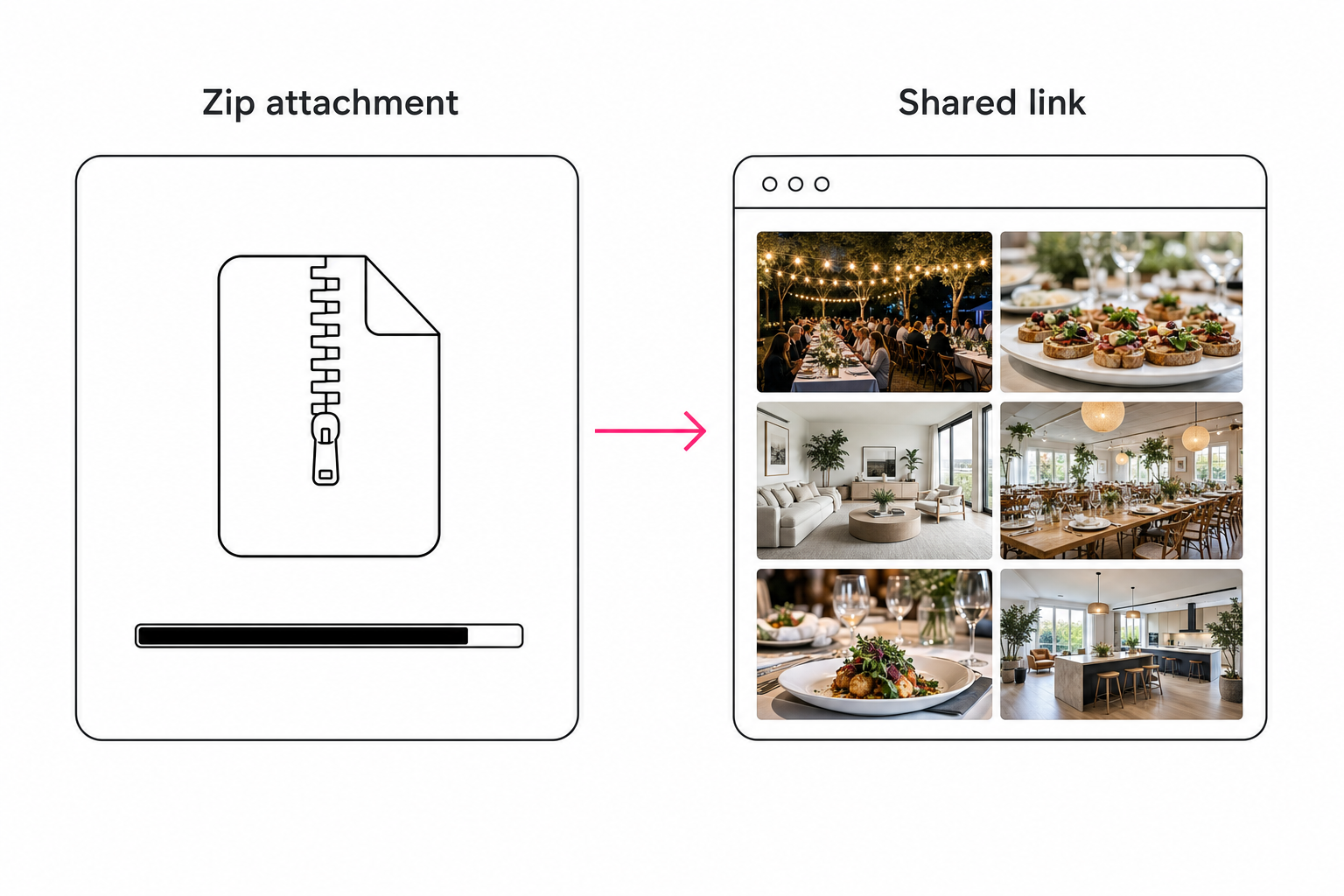
The hidden zip: why downloads still arrive zipped
Sharing without a zip and receiving without a zip are two different problems, and most guides cover only the first. Google Drive zips any folder or multi-file download automatically. Google Photos does the same when someone downloads a whole album, and Dropbox and most transfer services behave the same way. You avoided making a zip; your client got one anyway.
For most deliveries that is fine, because the browsing happened before the download. The client previewed everything in the browser, picked their shots, and saved a handful of photos individually. The zip only reappears when someone hits download-all, and at that point it is doing its one legitimate job: moving a lot of files at once.
If the receiver should never touch a zip at all, you need the next option.
Gallery links: share photos as photos
A gallery link presents photos as a browsable grid with per-photo viewing and downloads, no packaging step anywhere. Photographers' proofing tools (Pixieset, Pic-Time, ShootProof) do this per shoot, with favorites and watermarks included. Catalog tools do it over a whole library: the gallery is a curated collection or a saved search over photos that stay in your Drive or Dropbox, shared as its own link.
The library version has a property the free options cannot match: search. When the photos behind the gallery carry AI-generated tags, the client types "rooftop at dusk" and finds the shot without emailing you. How that tagging layer works is covered in our complete guide to AI photo tagging, and the client-facing side lives in searchable photo galleries for clients.
The math behind it: the tagging pass runs unattended in the background. Typing tags by hand at the same depth runs 5 to 8 hours per 1,000 photos. Vision models such as Claude's read each photo and record what it shows, which is what made search at gallery scale practical.
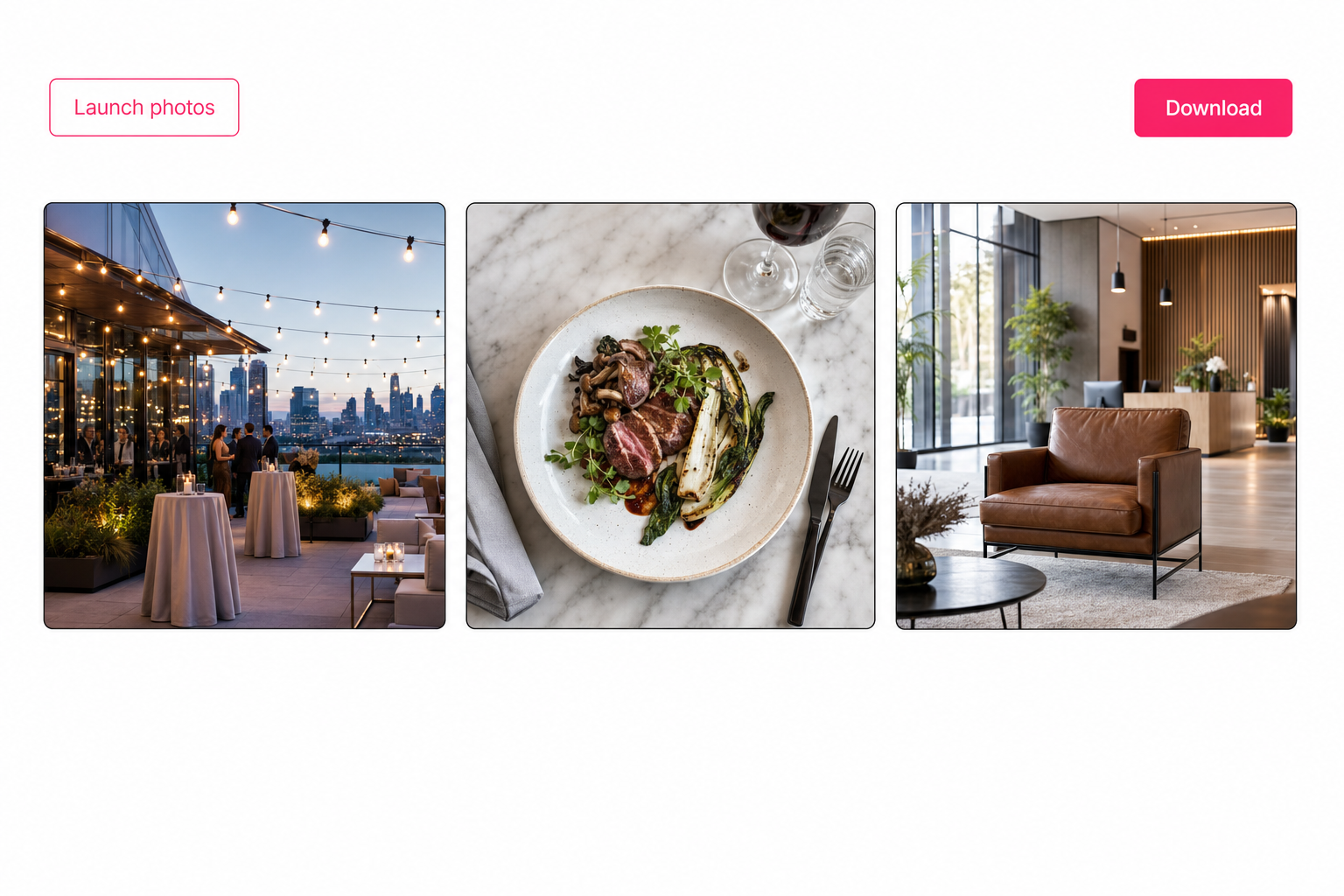
Tip. Tagrly's free tier tags the first 500 photos in any Drive or Dropbox folder, no credit card, so you can try a searchable gallery on your own photos before pointing a client at one.
When a zip file is still the right call
A zip earns its keep when the job is moving files, not viewing them. Three cases where it remains the honest answer:
- A full handoff of originals. At contract end, the client wants every file in their own storage. That is a transfer, not a share; the mechanics (and when to ship a physical drive instead) are in how to send a photo library to a client.
- An archival copy. One file is easier to store, verify, and restore than 40,000 loose ones.
- A machine on the receiving end. Printers, publishers, and upload portals often want a single package, and a zip is the format they expect.
Which way to share photos without a zip file fits you
Honest guidance, since the right channel depends on the size of the share and how often the questions come back:
- A handful of shots to one person. Loose email attachments under the 25 MB cap, or a Drive or Dropbox link. Zero setup.
- One shoot, one client, presentation matters. A Google Photos shared album for casual work; a proofing gallery like Pixieset or Pic-Time when favorites, watermarks, and print sales matter.
- A one-time transfer with no account friction. A transfer service, accepting the expiring link and the zip at the receiving end.
- A big library with recurring "can you find me" requests. A searchable gallery link over a tagged catalog. Tagrly is one option; Pics.io connects to Drive and covers similar ground.
- A full delivery of originals. Keep the zip, or skip the internet entirely and ship a drive.
Sharing photos without a zip file comes down to sending a place instead of a package: the receiver looks first, then takes only what they need. The prerequisite is that you can find the right shots to put behind the link, and that discipline is the subject of our pillar guide to finding any photo in your library. If the search layer is the part you want to test, run it on 100 of your own photos and judge the results on shots you know.
Frequently asked questions
What is the best way to share photos without a zip file?
Share a link to where the photos live instead of attaching a package. For a small set, a Google Drive or Dropbox folder link lets the receiver preview every photo in the browser and download only what they need, at full resolution. For a friendlier presentation, a Google Photos shared album opens as a scrolling gallery page. For large libraries, or for clients who keep coming back with requests, a gallery link over a tagged catalog adds a search box, so the client finds shots themselves. Email attachments only make sense below roughly 25 MB, which is a handful of full-resolution JPEGs.
Why do my photos still arrive as a zip file?
Because most sharing tools package multi-file downloads as a zip at download time. Google Drive zips any folder download, Google Photos zips a whole-album download, and Dropbox and most transfer services behave the same way. The zip you avoided making gets created on the way out. In practice this is usually fine: the receiver previews photos in the browser first and downloads only a few, individually. If the receiver should never see a zip at all, use a gallery tool with per-photo viewing and downloads, where downloading everything at once is the exception rather than the only path.
Can I email photos without zipping them?
Yes, for a handful. Gmail caps attachments at 25 MB, which is roughly three to five full-resolution JPEGs, and other providers sit in the same range. Attach the photos loose and the receiver sees inline previews, which already beats a zip. Past the cap, Gmail converts the attachment into a Google Drive link anyway, so for anything bigger than a few shots you may as well start with a Drive or Dropbox link yourself. Avoid sending professional photos through texting apps as a workaround; most of them recompress images heavily on send.
Does zipping photos make the files smaller?
Barely. JPEG and HEIC photos are already compressed formats, so zipping a folder of photos typically shaves off only a few percent. The zip's real function is packaging many files into one, not saving space. If you need genuinely smaller files for review or web use, resize the exports instead: a 2048-pixel long edge cuts a typical full-resolution JPEG by 80 percent or more while staying sharp on any screen. Keep the full-resolution originals for the final delivery, and send those through a link rather than a mailbox.
How do I share hundreds of photos without a zip file?
Use a gallery link rather than a transfer. At that scale the receiver's problem is not getting the files, it is finding anything inside them, and a zip or a bare folder link makes them scroll. A proofing gallery organizes one shoot into sets. A catalog-backed gallery goes further: an AI tagging pass records what each photo shows, so the gallery carries a working search box and the client pulls the terrace shots at sunset themselves. That tagging pass runs unattended in the background.
Try Tagrly on your own photo library
Connect your Google Drive or Dropbox folder and Tagrly will tag every photo in bulk. Search by what is actually in the image, share specific shots with clients, and never lose a photo again.
- Free for your first 500 photos
- Read-only access, revoke anytime
- No credit card