
The retainer ended in June, and the client's new agency wants everything: three years of campaign shoots, roughly 38,000 photos in your team's Google Drive. Sharing the parent folder would hand them your working files, every reject, and another client's shoot one level up.
Copy or access: the first decision when you send a photo library
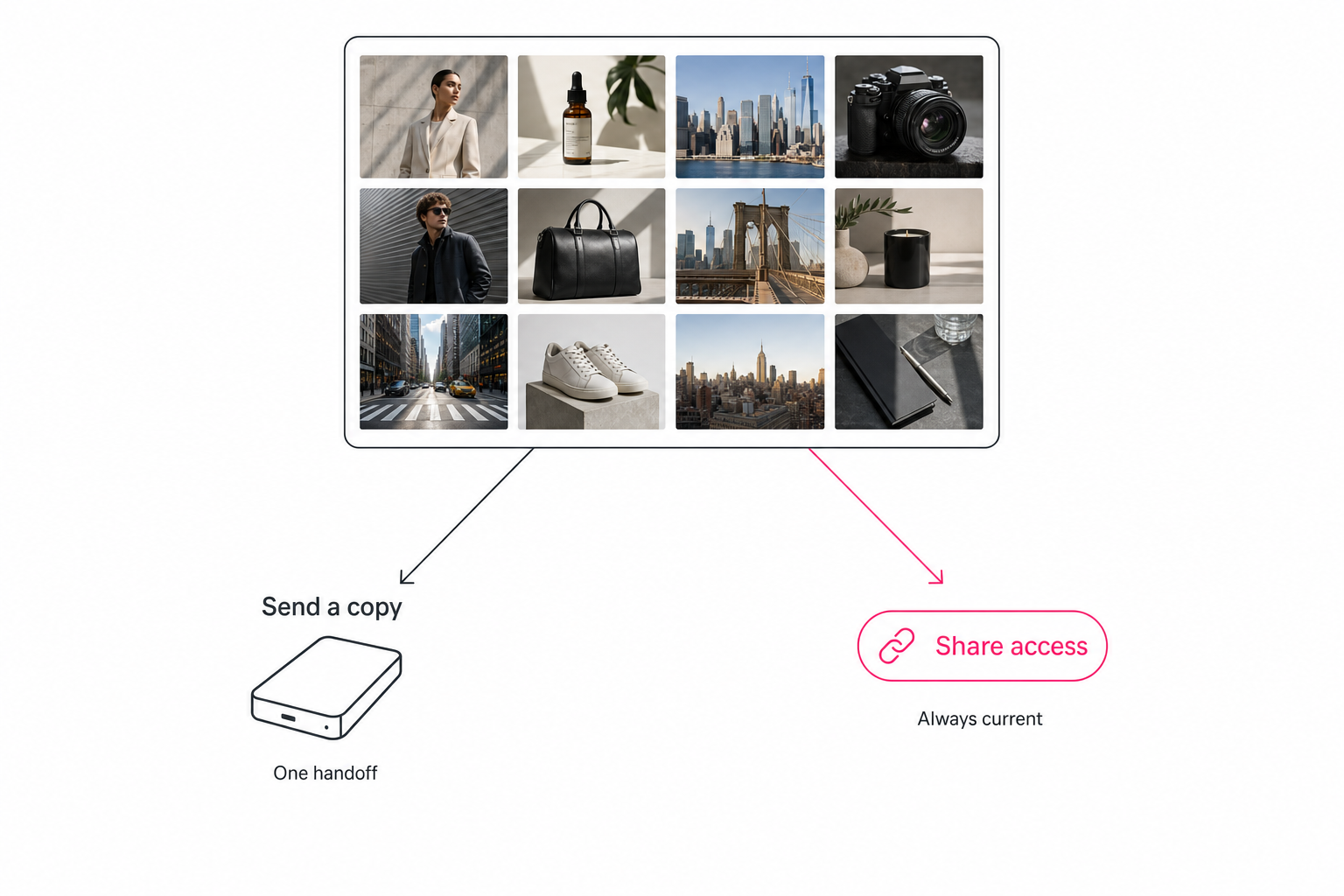
Decide copy or access before you touch a share setting, because "send the library" hides two different jobs.
- A copy is a one-time handoff. The client gets the files on their own storage, and you archive your side. It fits a closing contract; the cost is a fork, since later edits exist in only one library.
- Access is a standing arrangement. The photos stay in your storage, and the client pulls from one current version. It fits a retainer or a partner who pulls photos monthly; the cost is that hosting and organizing stay your job.
Many teams do both: a handoff for the contracted finals, plus view access to the active library.
How to send a photo library to a client for free
The tools you already pay for cover most handoffs, if you move a clean container holding only what the client should receive.
Google Drive: transfer the files, not the folder
In Google Drive, a real handoff means transferring ownership of the photo files, not the folder. Google's ownership help page says that when you make someone else the owner of a folder, you still own the files inside.
Share the clean folder with the client's Google account, select the files, and make them the owner. The catches:
- Share first. You can only transfer to someone you shared the file with.
- Work accounts stay in-house. A work or school account can only transfer within its organization, so an agency on Google Workspace can't make an outside client the owner.
- Personal to work is blocked. A personal account can't transfer to a work or school account.
- The client must accept. On personal accounts you stay the owner until they accept. Then you become an Editor they can remove, and the files count against their storage.
When ownership can't move, share view access and let the client download or copy the photos. Regular deliveries of selects are a different job: sharing photos with clients from Google Drive.
Dropbox: Make owner, or send a Dropbox Transfer
Dropbox has two clean routes: hand over the shared folder, or send a download link.
Make owner (under Manage permissions) gives the client control of a shared folder, if they are already a member with an active Dropbox account. Only a parent folder can change owners (subfolders go with it), team folders have no owner, and shared links don't change owner.
Dropbox Transfer sends a download link, and the client doesn't need a Dropbox account. Limits depend on your plan:
| Dropbox plan | Transfer size limit | Link expiry |
|---|---|---|
| Basic | 2 GB | 7 days |
| Plus, Family | 50 GB | 7 days |
| Standard, Professional, Essentials, Business, Advanced | 100 GB | Custom, 30 days default |
| Business Plus, Enterprise | 250 GB | Custom, 30 days default |
A library past 250 GB won't fit in one transfer, so split it or ship a drive.
Past a few hundred gigabytes: ship a drive
Past a few hundred gigabytes, a shipped portable SSD usually beats any link. A 38,000-photo library at a typical 8 MB per file is roughly 300 GB, about a day and a half of uploading at 20 Mbps, and a browser download that size is a long, fragile job for the client.
Ship the SSD with tracking, and share the hero selects by link the same day. If the zip is the problem on smaller sends, see what to send instead of a zip.
Warning. Build the handoff container deliberately. Everything inside a shared folder goes out with the share, including stray rejects and other clients' work.
How the client finds photos after the handoff
A handoff moves the files, not the findability, so build findability into the copy. The client inherits tens of thousands of DSC_1042.jpg files sorted by your logic and hits the 1,000-photo wall on day one. Hand keywording won't rescue it: a skilled keyworder tags 100 to 200 photos an hour.
Three things travel with the copy:
- An index document. One page saying what lives where.
- File names. Consistent file naming, at least on the finals.
- Embedded keywords. Tags written into each file's metadata by a keyworder such as ON1 Photo Keyword AI (XMP) or PhotoTag.ai.
Tagrly's tags don't travel with a copy. They live in its catalog, not inside the files, and there is no spreadsheet export, so a client taking a copy home runs their own catalog or keeps access to yours.
Sending access instead: a searchable photo library link
When the relationship continues, send a way to search instead of a folder: an image catalog that tags every photo by content, with a share link on top. Tagrly is one example. It connects to Google Drive and Dropbox read-only, so the files there never change, keeps a hosted copy of each photo with its tags and alt text, and takes direct uploads too.
Tagrly's AI photo search runs on focal-subject tagging, which ranks the main subject first, so "rooftop at dusk" returns rooftops, not every frame with sky. In Tagrly's own testing on a 5,000-photo set, focal-subject tagging surfaced the correct top match in roughly 9 of 10 searches, against roughly 4 of 10 for the same library under a generic object detector.
Tagrly has two kinds of share link, and the first fits this job:
- A whole-library link. The client gets a search box over the library, optionally narrowed to chosen collections, a pinned search, or a minimum quality, and hidden photos stay hidden. It's a gallery the client can search themselves.
- A collection link. You search, select, choose "Add selected to collection", and share it as a gallery with your workspace logo that opens without an account. It has no search box.
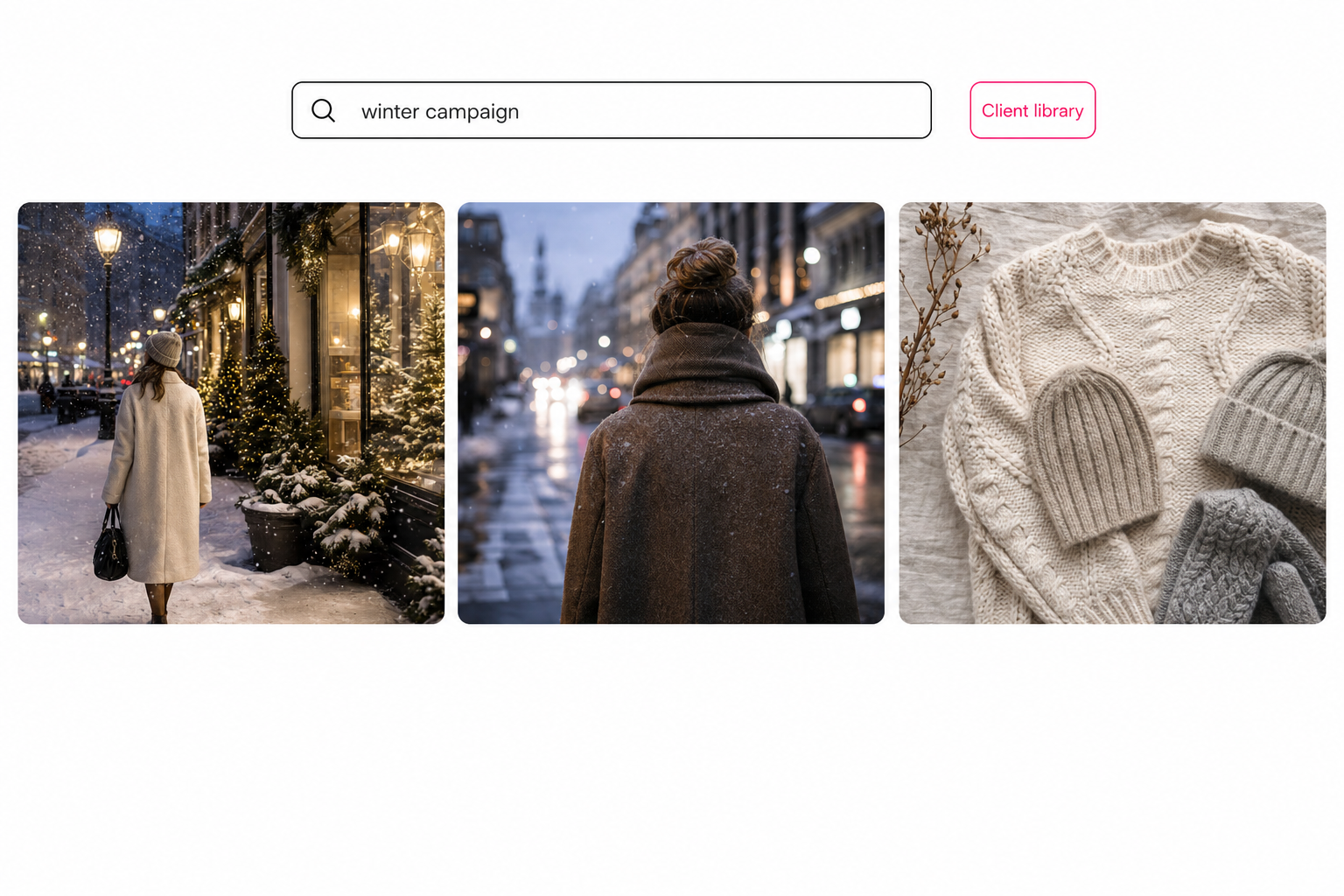
Either link is access, not a bulk copy. Downloads go one photo at a time, and "Download all" zips only favorites or a collection of up to 200 photos, so a full handoff still needs a copy route.
- On every plan. An expiry date, downloads on or off, and an off switch for when the retainer ends.
- On Pro and Business. A password, an email gate, and client favorites. Business also drops the "Made with Tagrly" mark.
Tip. Test a searchable link on your own photos before you pick a route. Tagrly is free for your first 500 photos, no credit card, enough to see whether access beats a transfer.
Which way to send a photo library to a client fits you
The right route turns on whether the relationship is ending and how big the library is.
| Route | Best for | Main limit | Client gets | Cost |
|---|---|---|---|---|
| Drive file ownership transfer | Contract end | Same organization only on work accounts | Ownership of the files | Free |
| View-only folder (Drive or Dropbox) | Small library, ongoing client | Anything you add later is shared too | Access to your folder | Free |
| Dropbox Make owner | Contract end, client on Dropbox | Parent folders only | Control of the folder | Free |
| Dropbox Transfer | Finished deliverables | 2 GB to 250 GB by plan | An expiring download link | Your Dropbox plan |
| Shipped SSD | Past a few hundred gigabytes | SSD capacity | Their own physical copy | SSD plus shipping |
| Tagrly share link | A client who keeps coming back | No full-library download | Search access, not a copy | First 500 photos free, then credits |
- The contract ended and the client owns the work. Transfer the Drive files, use Dropbox Make owner, or let them download a clean folder.
- The library is past a few hundred gigabytes. Ship an SSD, plus a link to the hero selects.
- The client keeps coming back. A view-only folder for a small library; a searchable share link (Tagrly is one) for a big one.
- You deliver shoot by shoot. That's proofing-gallery territory; see sharing specific photos with clients.
Sending a photo library to a client comes down to one decision, copy or access, and one discipline: build the handoff container deliberately. No transfer moves findability, so add an index, real names, and embedded keywords, or keep giving search access. To tame the library before it is ever sent, see our guide to finding any photo in your library.
Frequently asked questions
How do I send an entire photo library to a client?
Build a clean handoff folder first, then pick the transfer that matches the relationship. Copy everything the client is owed into a brand-new folder in Google Drive or Dropbox, so your working folders and other clients' work never enter the share. For a one-time handoff in Drive, transfer ownership of the photo files themselves, because handing over a folder leaves you owning the files inside it. In Dropbox, use Make owner on the shared folder, or let the client download the photos into their own storage. For an ongoing relationship, share the folder view-only or give the client a searchable link instead. Libraries past a few hundred gigabytes usually travel better on a shipped external drive. Whatever the route, never send a link to the folder you actually work in.
Should I give the client a copy of the photo library or shared access?
It depends on whether the relationship is ending. A copy is right when the contract closes and the client owns the work: they get the files on their own storage, they carry the responsibility, and you can archive your side. The cost is a fork, because any edit made after the handoff exists in only one of the two libraries. Shared access is right when the client keeps coming back for photos: there is one current version, you can switch the link off later, and additions show up without another delivery. The cost is that you host the library and its organization stays your job. Many teams do both, one handoff for the contracted deliverables plus standing view access to the active library.
How do I transfer ownership of a Google Drive folder of photos?
Transfer the photo files, not just the folder. Google's help says that when you make someone else the owner of a folder, you still own the files inside. Share the files with the client's Google account first, since you can only transfer to someone you shared with, then select the photos (many at once works) and make them the owner. Three catches apply. A work or school account can only transfer to someone in the same organization, so an agency usually cannot make an outside client the owner. A personal account can't transfer to a work or school account. On personal accounts the client must accept by email before ownership moves, and then the files count against their storage. When ownership can't move, share view access and let the client copy or download the photos.
What if the photo library is too big to upload or download?
Ship it. A 38,000-photo library at a typical 8 MB per file is roughly 300 GB, which is around a day and a half of continuous uploading on a 20 Mbps connection, and a browser download that size is a long, fragile job for the client. It is also over the largest Dropbox Transfer limit, 250 GB on Business Plus and Enterprise, so one transfer link can't carry it. Somewhere past a few hundred gigabytes, copying the library to a portable SSD and shipping it with tracking is usually calmer and produces fewer support emails than any link. Keep the cloud for the small stuff: send the couple hundred hero selects as a normal shared folder so the client has something usable the same day, and let the drive carry the full archive.
How will the client find anything in the library after the handoff?
Not with the files alone. A handoff transfers files, and findability lives in names, structure, and tags, which most libraries never had. The receiving team inherits tens of thousands of camera-counter filenames organized by your logic, and keywording by hand is slow, since a skilled keyworder tags 100 to 200 photos an hour. Three fixes travel with the copy: a one-page index of what lives where, consistent file naming, and keywords embedded in each file by a tool that writes metadata, such as ON1 Photo Keyword AI (XMP) or PhotoTag.ai. Tagrly's tags are different: they live in its catalog, not inside the files, so a client who takes a copy home either keeps access to your searchable library or runs a catalog of their own over the copy.
Try Tagrly on your own photo library
Connect your Google Drive or Dropbox folder and Tagrly will tag every photo in bulk. Search by what is actually in the image, share specific shots with clients, and never lose a photo again.
- Free for your first 500 photos
- Read-only access, revoke anytime
- No credit card