
A client wants the golden retriever shots from the beach session two summers ago. They live on your iPhone, somewhere in 12,000 photos named IMG_8842.HEIC, and not one of them carries a word you can search on. The iPhone does have tagging tools, they just don't look like tags, and each one has a catch.
The three ways to tag photos on an iPhone
iOS gives you three tools that each do part of what a tag does, and none of them is actually called a tag.
Captions are the only free-text label on the phone. One caption per photo, searchable in the Photos app, synced to your other Apple devices through iCloud Photos.
Albums and Favorites group photos without describing them. An album answers "which shoot is this from," never "what is in this picture."
Built-in search recognizes scenes, text, and faces on its own, no typing required. It is genuinely useful and it stops exactly where every automatic category system stops, which we'll get to below.
Notably absent: keywords. Apple Photos has a real keyword system, but it only surfaces in the Mac version of the app. The iPhone never shows it.
How to add captions in the Photos app
A caption is the only free-text label iOS gives you, and adding one takes about four taps per photo.
Caption one photo
- Open the photo in the Photos app.
- Swipe up on it, or tap the info button (the circled "i").
- Tap Add a Caption and type your words, for example
golden retriever, beach session. - Tap Done. The caption is saved and searchable immediately.
Apple documents the field in its photo information guide, and the steps are unchanged through iOS 26. With iCloud Photos turned on, the caption appears on your iPad and Mac too, and on the Mac it lands in the same field the keyword tools live next to.
The limitation that matters: there is no batch captioning. Every caption is typed into one photo at a time, on a phone keyboard. That is workable for the ten keepers from a shoot and hopeless for the whole camera roll.
Group a batch into an album
Albums are the only bulk move iOS offers. Tap Select, drag across a batch of photos, open the three-dot menu, and choose Add to Album, dropping them into an album named for the event, for example beach-session-2024. Thirty seconds of work covers a whole shoot, which is why the sustainable iPhone habit is albums at intake, captions for keepers only.
What iPhone search finds without typing anything
iPhone search already recognizes scenes, visible text, and named people and pets, so try searching your library before you type a single caption. The Photos app runs on-device recognition, which means "dog," "beach," or "concert" returns matches out of the box, and the People and Pets album can learn individual faces, your own dog included.
For a personal library this covers a surprising amount of ground. For working photos it runs out fast, in three specific places.
- It stops at categories. Search finds dogs on beaches; it cannot tell the shot the client approved from the near-identical outtake, or find "the one where the leash is red."
- It stays in your account. The recognition lives on your devices. A teammate searching a shared folder gets none of it.
- It exports nothing. There is no way to turn what Photos knows into tags that travel with the files.
Note. Search also only sees photos in your Photos library. Anything living in a cloud app's folder on the phone stays invisible to it.
Where iPhone photo tags stop working
Here is the catch the how-to guides skip: nothing you type on an iPhone is written into the photo file itself.
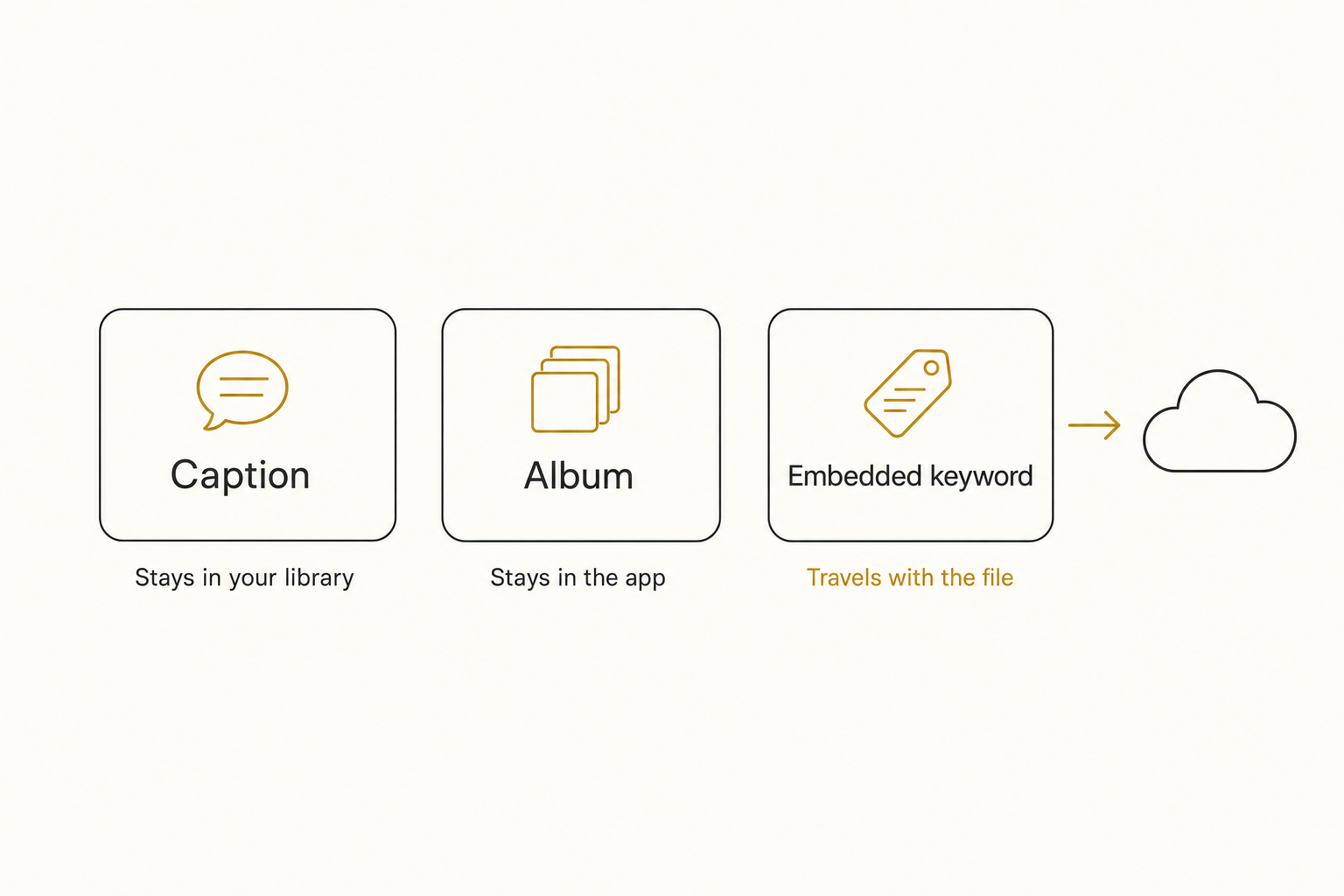
A caption lives in your Photos library database. iCloud Photos carries it to your own devices, and that is the whole journey.
Text the photo to the client, attach it to an email, or let any app upload it, and the caption stays behind. Google Drive and Dropbox search will never read it.
Album membership is even more local: it exists only inside the Photos app. And the keywords that could travel are locked on the Mac.
This fence is not an Apple quirk. On Android the same job splits across Samsung Gallery and Google Photos, and those labels stay app-side the same way, so switching platforms rescues nothing.
The words that do travel live in the photo's embedded EXIF and IPTC fields, the layers we unpack in what photo metadata actually is. On iOS, only third-party metadata editors like Metapho write to them, still one photo at a time.
The quieter limit is arithmetic. Hand-captioning runs 100 to 200 photos per hour on a good day, slower on a phone keyboard. That works below the 1,000-photo wall, the point where a library goes opaque faster than any human types, and fails above it.
You captioned golden retriever; two years later you search dog on beach and trust the built-in recognition to save you, because your captions never will.
How to tag iPhone photos at scale
Past the point where thumbs keep up, the choice comes down to three tiers: built-in tools, a metadata editor app, or a connected AI catalog.
Free and built-in. Albums at intake, captions on keepers, and named People and Pets cover a personal library at zero cost. This is the right answer for most camera rolls under about 1,000 photos.
Cheap apps. App Store metadata editors (Metapho is one; pricing varies, check its App Store page) write keywords into the files' embedded metadata, so the words survive export. Still manual, still one photo at a time.
A connected AI catalog. The scale path starts with getting the photos off the phone automatically: Dropbox camera uploads or the Google Drive app can mirror every new shot to a cloud folder. From there, a catalog service reads each photo with read-only access and writes a focal-subject label, a set of tags, and a one-sentence description into a searchable index the whole team shares. iPhones shoot HEIC by default, so it's worth confirming a tool handles HEIC at scale before connecting anything. A full indexing pass runs unattended in the background.
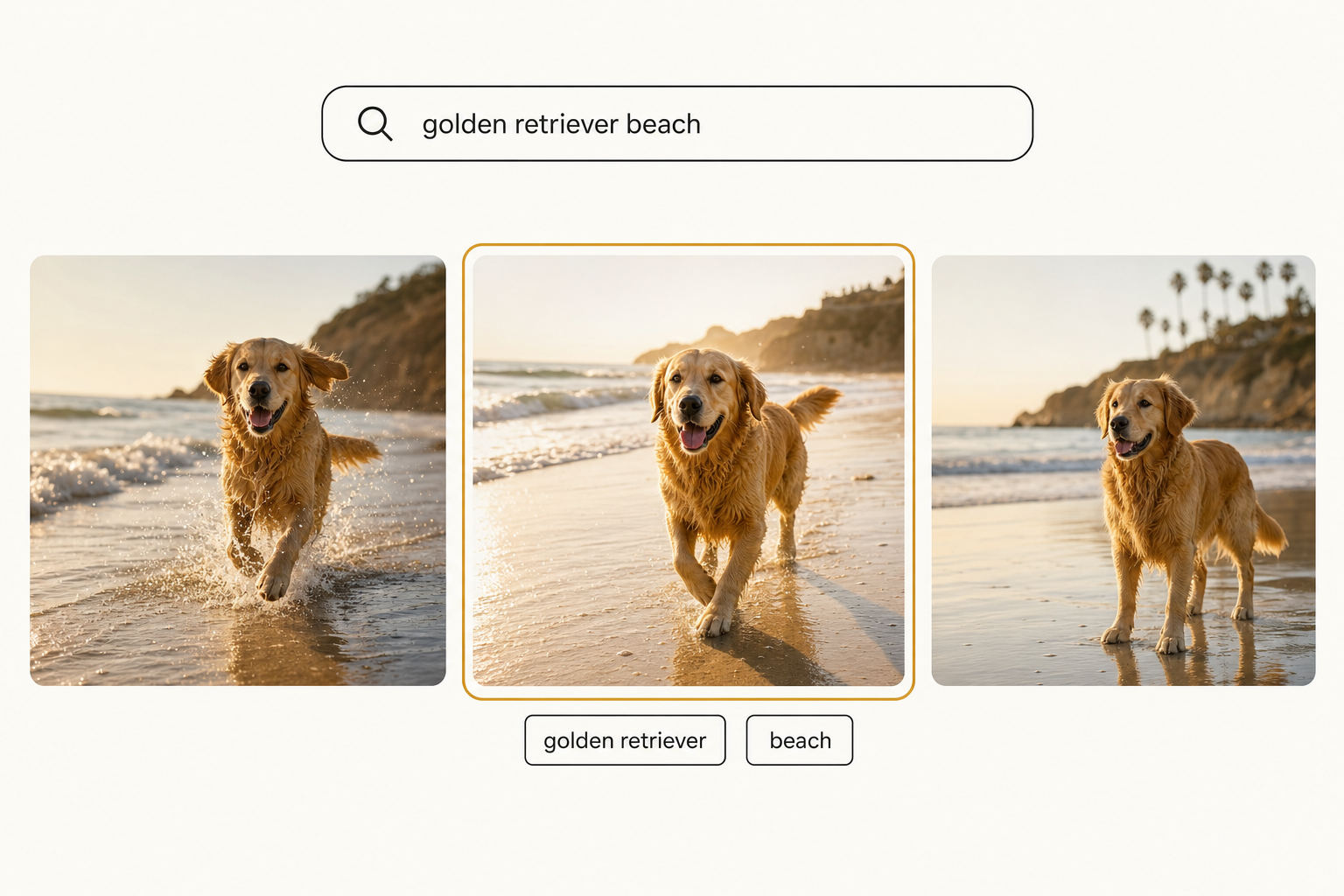
After that pass, AI photo search stops depending on what anyone remembered to caption. "Golden retriever beach" finds the shot even though nobody ever typed a word on the phone, and it finds it for everyone with access, not just the person holding the iPhone. Tagrly is one option in this category.
Tip. Tagrly's free tier reads the first 500 photos in any Drive or Dropbox folder, no credit card. Try it on your camera uploads folder and search for something you know you never captioned.
Which approach fits your library
- Pick captions and albums if the library is personal, under about 1,000 photos, and you caption keepers at intake. Free, instant, searchable in Photos.
- Pick a metadata editor app (Metapho or similar) if a small number of photos need keywords written into the files themselves before they leave the phone.
- Pick Apple Photos plus a Mac if you want real keywords and Smart Albums and your whole workflow stays inside Apple's apps.
- Pick a connected AI catalog (Tagrly is one example) if the library runs to thousands, camera uploads already mirror it to Drive or Dropbox, and more than one person needs to find things.
Tagging photos on an iPhone comes down to captions, albums, and the search Apple gives you for free, and all three stop at the same two fences: nothing you type travels with the file, and everything you type costs typing. Past the wall, the fix is not faster thumbs, it is letting software describe every photo once, in a place anyone can search. The quickest test is to point a content search at 100 of your own photos and look for a shot you never captioned.
Frequently asked questions
How do I tag photos on an iPhone?
The iPhone has no keyword field, so the closest thing to a tag is a caption. Open a photo in the Photos app, swipe up on it (or tap the info button), tap Add a Caption, and type your words, for example golden retriever, beach session. Captions are searchable in the Photos app and sync to your other Apple devices through iCloud Photos. For grouping rather than describing, select multiple photos and add them to an album, or tap the heart to mark Favorites. Captions are typed one photo at a time, so budget real time for anything beyond a few hundred photos.
Can I add keywords to photos on an iPhone?
Not with anything built in. Apple Photos does have a real keyword system, but the keyword field and the Keyword Manager exist only in the Mac version of the app; the iPhone app never shows them. If you add keywords on a Mac, they sync silently to the same iCloud library, but you cannot see or edit them from the phone. The workaround on iOS is a third-party metadata editor from the App Store (Metapho is a well-known one) that writes keywords into the photo file's embedded IPTC fields. Those embedded keywords travel with the file when you export it, which is more than a caption can say, but you still type them one photo at a time.
Do iPhone captions stay with my photos when I share them?
Usually not. A caption lives in your Photos library database, not inside the photo file, so it follows the photo only where your library follows: to your own iPhone, iPad, and Mac through iCloud Photos. Send the photo by text or email, post it, or let a cloud app upload it, and the caption typically stays behind. Google Drive and Dropbox search will not find your captions on uploaded photos either. If you need words that travel inside the file itself, they have to be written into the photo's embedded metadata, which is what dedicated metadata editor apps and desktop tools do.
How do I search photos by caption on an iPhone?
Open the Photos app and type any word from the caption into the search field; matching photos come back alongside the app's other matches. The same search field also reads text visible inside photos, recognized scenes like beach or birthday cake, and named people and pets. The catch is the same as every hand-typed system: caption search only matches words somebody typed. If you captioned a shot lighthouse and later search beacon, you get nothing, and any photo nobody captioned is invisible to caption search entirely.
Can my iPhone tag photos automatically?
Partly. The Photos app runs on-device image recognition, so searching for broad categories like dog, beach, or concert finds matches without any typing, and the People and Pets album can learn individual faces, including your own pet's. It stops at categories, though: it cannot tell the approved shot from the outtake, its smarts never leave your Apple account, and there is no way to hand its knowledge to a teammate or export it as tags. For generated tags at scale, the usual path is letting camera uploads mirror the phone's photos to Google Drive or Dropbox, then pointing a connected AI catalog at that folder. Tagrly is one example of that kind of tool.
Try Tagrly on your own photo library
Connect your Google Drive or Dropbox folder and Tagrly will tag every photo in bulk. Search by what is actually in the image, share specific shots with clients, and never lose a photo again.
- Free for your first 500 photos
- Read-only access, revoke anytime
- No credit card