
You paid for a Lightroom subscription to fix a mess of 30,000 photos, and three months in you have never touched a develop slider. You just wanted the four rooftop shots from last spring, and Lightroom made you import the whole library onto one laptop first. If that is your trap, you are not looking for a better editor. You are looking for a Lightroom alternative for organizing photos.
Why people want a Lightroom alternative for organizing, not editing
Most people who go looking for Lightroom alternatives do not actually want another editor. They want to stop scrolling for a photo they know exists. Lightroom is a RAW editor first, and its organizing tools are bolted to a develop workflow you may never use.
The confusion is baked into the search. "Lightroom alternatives" returns lists of other editors, Capture One, ON1 Photo RAW, Darktable, on the assumption you want to swap one develop app for another. If your real job is finding and sharing finished photos, those are lateral moves that leave the actual problem untouched.
So separate the two jobs before you pick a tool:
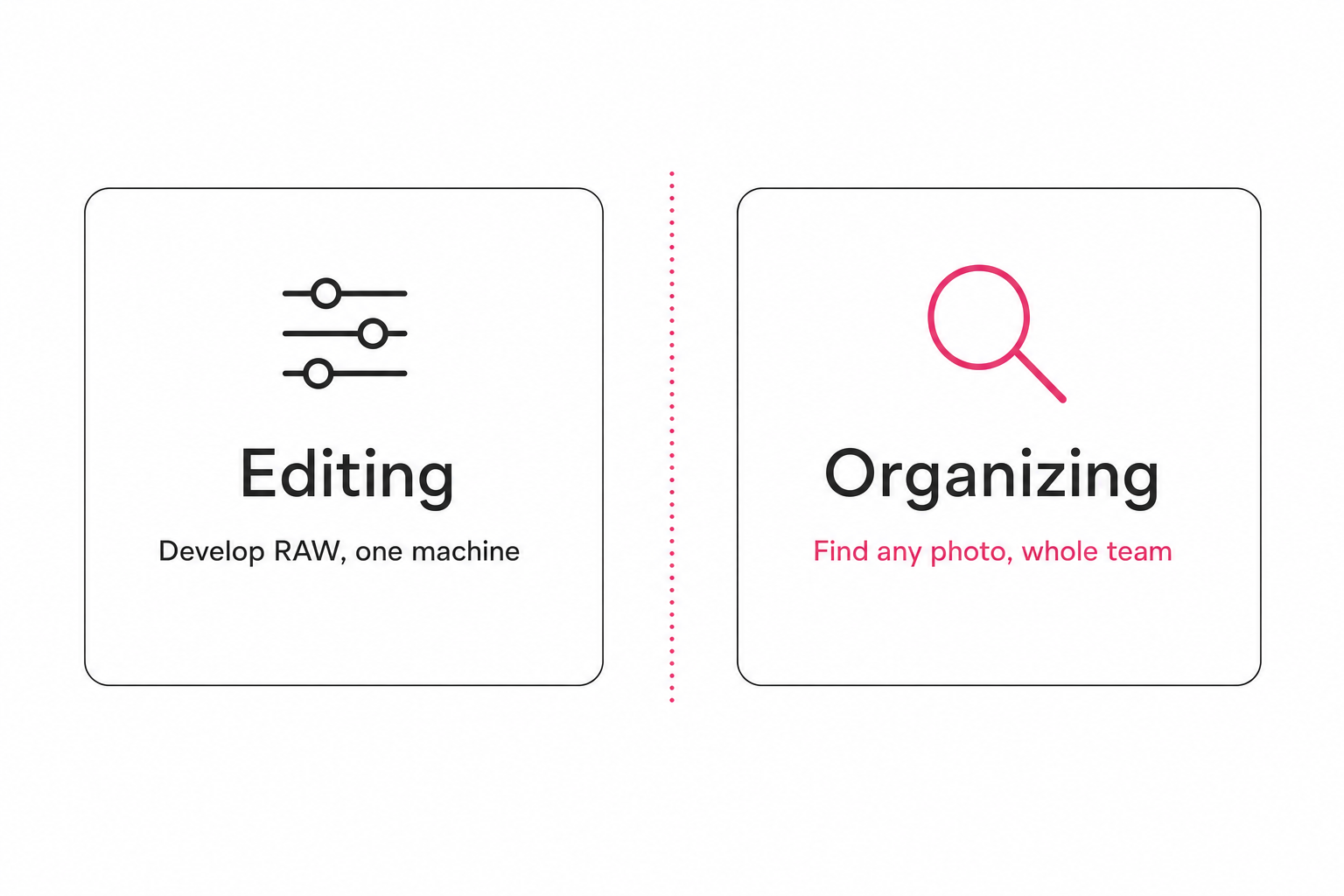
- Editing. Developing RAW files: exposure, color, masking, retouching. This is what Lightroom is genuinely great at, and only an editor replaces it.
- Organizing. Keywording, cataloging, and searching so you can pull a specific shot later. This is a different category, and several tools do it better than Lightroom with far less overhead.
If you still need to edit RAW, keep an editor. This guide is about the other job, and for the deep one-on-one version see Tagrly vs. Lightroom Classic.
What Lightroom does for organizing photos, and where it stops
Lightroom can organize photos well, but only for one person, on one machine, inside a local catalog. That single-machine shape is exactly where it stops being the right tool for a growing or shared library.
Lightroom Classic's Library module imports your photos into a local catalog database, then lets you rate, keyword, and search them. For a solo photographer culling one shoot, that is clean and fast. The Adobe Lightroom Classic product page calls it the desktop app for photographers who organize and edit on their own machine.
The catalog is where teams hit the wall. It is a local database only one computer can open at a time, and Adobe warns against storing it on a network volume because that risks corrupting the file. Teams end up with separate catalogs per person and no single source of truth, while the finished photos sit in a shared Drive or Dropbox that Lightroom is not even watching.
Note. "Editor," "organizer," and "catalog" name different jobs. An editor changes the pixels. An organizer keeps one person's photos searchable on their machine. A team catalog is the shared index a whole group queries from a browser. If you keep asking "how does the team find the photo of X," an editor comes up short no matter how good its develop module is.
The best Lightroom alternatives for organizing photos
The right Lightroom alternative for organizing depends on how many people need to find the photos and where those photos already live. The options sort into four groups, from free to enterprise.
| Category | Best for | Where it stops |
|---|---|---|
| Free and built-in | Solo users on a budget | Filename search only, or consumer-only |
| Desktop organizers | One person cataloging a local library | Lives on one machine, no team layer |
| Connected catalogs | Teams whose photos live in Drive or Dropbox | Not an editor, no RAW develop |
| Enterprise platforms | 100+ person orgs with procurement | Expensive, slow to migrate onto |
Free and built-in options
Start here if you are solo and on a budget. A well-structured Google Drive or Dropbox folder gets you far for free, though its search matches filenames and folders, not what is in each shot. Apple Photos and Google Photos search personal libraries by content, but they are built for consumer use, not a shared work archive.
Desktop photo organizers
These add real keyword and AI search on one computer, without Lightroom's subscription or develop overhead.
- digiKam. A free, open-source photo manager that catalogs, tags, and searches libraries well past 100,000 images, the closest free stand-in for Lightroom's organizing side.
- Excire Foto. A buy-once organizer with AI keywording and local search; our Tagrly vs. Excire Foto comparison covers where it fits.
- Mylio Photos+. Organizes and syncs a personal library across your own devices, strong for one person, thin as a team layer.
- ACDSee. A long-running organizer with fast browsing and keywording on one machine.
All four are solid for a single person. None gives coworkers one shared search over a library nobody copied onto one computer.
Connected and team catalogs
Pick this group when the photos already live in Google Drive or Dropbox and more than one person needs to find them. A connected catalog reads your cloud folder in place and builds one searchable surface the whole team queries from a browser.
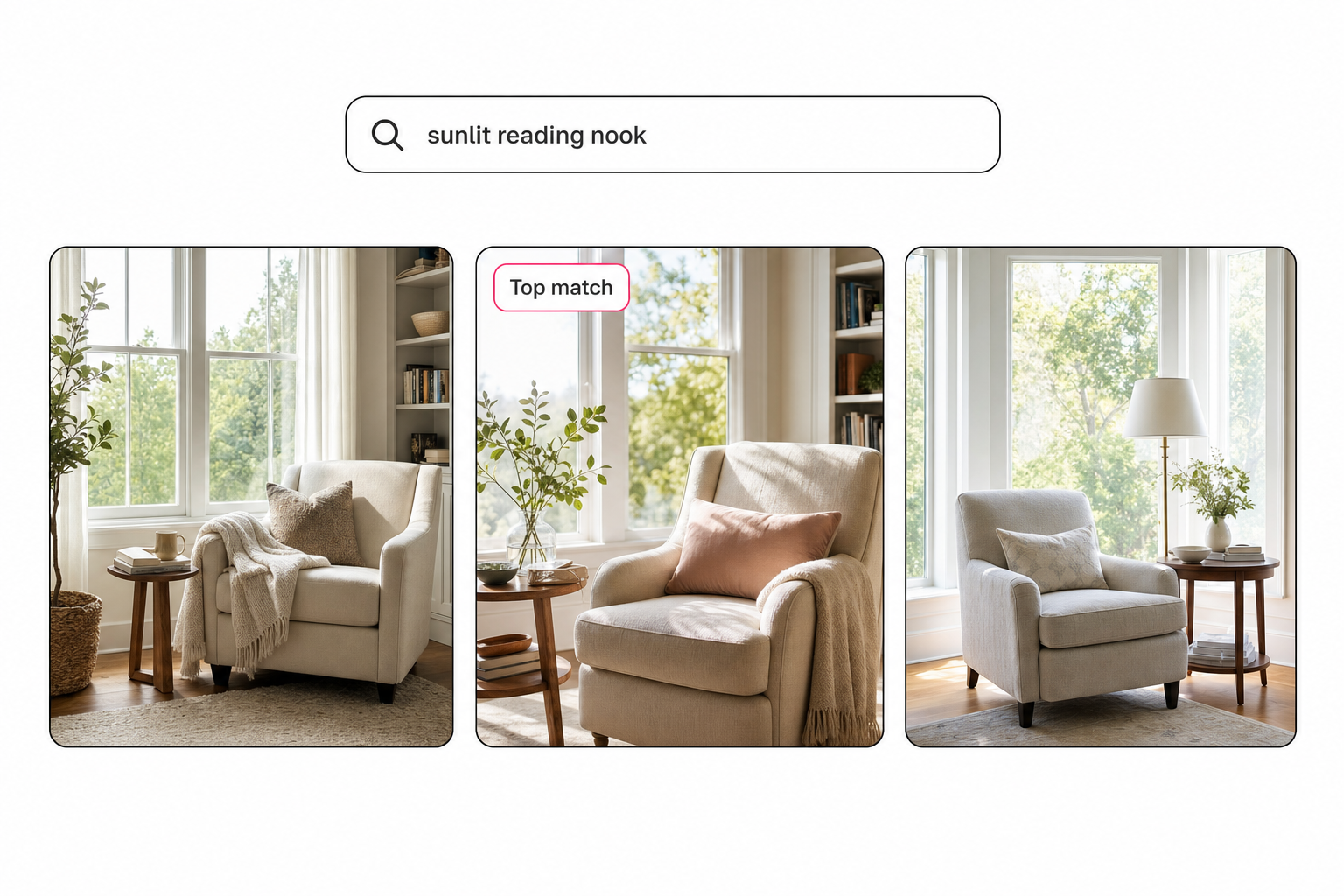
Tagrly is one example. It connects read-only to your Drive or Dropbox using the drive.readonly scope, so it can read your photos but never move, change, or delete them. It reads each photo once and writes two things: focal-subject tagging, a single dominant-subject label ranked above background context, and editorial-grade alt text, a full publishable sentence per photo. Both named methods are defined in the complete guide to AI photo tagging. In our own testing on a 5,000-photo set, a plain-language description of a specific shot returned the correct photo in the top three results 9 times out of 10.
Pics.io is another catalog in this group. The shared point is the same: your originals stay put, and the team searches one place. Tagrly's AI photo search reads across Drive and Dropbox the same way, so the whole team searches one library from a browser.
Enterprise platforms
Brandfolder and Bynder sit at the top end, with permissions and governance built for hundred-person organizations with a procurement process. They add real search, but they expect you to migrate photos into their own storage, and they are priced for a scale most teams do not have.
How to choose a Lightroom alternative for organizing
Choose by matching the tool to your actual job, not by feature-count. Four questions settle it quickly.
- How many people search the library? One person can stay on the desktop. Two or more pushes you toward a shared catalog.
- Where do the photos live now? If they are already in Drive or Dropbox, a connected catalog reads them in place; a desktop organizer means importing everything onto one machine first.
- Do you search by content or by filename? Finding "the rooftop sunset with the crowd" needs AI search over what is in each shot, which filenames and folders cannot do. This is the 1,000-photo wall most libraries hit.
- What is your budget? Free covers solo basics. A cheap photo management tool covers one-person keyword search. Team and enterprise cost more because they add shared access.
Tip. Before you commit, run a real test: take ten photos you can never find and ask the tool to surface each one by description. If it cannot, no tagging chrome will save it. Tagrly's free first 500 photos let you try that on your own folder, no credit card.
Pick the right Lightroom alternative: a decision guide
Skip the checklist and answer one question: do you need to edit RAW, or do you need to find and share finished photos? Your answer points to a clear pick.
- Pick a tidy Drive or Dropbox folder if you are solo, on a budget, and filename search is enough.
- Pick digiKam or Excire Foto if you are solo and want real keyword or AI search on one machine without a subscription.
- Pick Capture One, ON1 Photo RAW, or Darktable if you actually still need to edit RAW. That is an editor swap, not an organizing fix, and it will not solve shared search.
- Pick a connected catalog like Tagrly if your photos live in Drive or Dropbox and a team needs to find and share them by what is in each shot. Compare it against the field in best photo organization software for teams.
- Pick Brandfolder or Bynder if you are a large organization with a procurement budget and need enterprise permissions.
The honest summary: if you keep reaching for Lightroom to find a photo rather than edit one, you have outgrown it for that job, not failed at it. Keep the editor if you still develop RAW, and add an organizer or a searchable catalog for the finding. To see where a catalog sits in the wider market, read the image catalog software buyer's guide. Tagrly's free tier reads the first 500 photos in any folder so you can judge the tags before you pay anyone, and every plan runs the same full reading at one credit per photo, with pricing on one page.
Frequently asked questions
What is the best Lightroom alternative for organizing photos?
It depends on who needs to find the photos. For a solo user on one computer, a desktop organizer like digiKam (free) or Excire Foto handles keywording and search without Lightroom's editing overhead. For a team whose photos already live in Google Drive or Dropbox, a connected catalog fits better, because it reads the folder in place and gives everyone one searchable surface in a browser. Tagrly is one example of the connected-catalog approach, with a free first-100-photo tier to test the output. Match the tool to the job: solo organizing stays on the desktop, while shared find-and-share moves to a catalog that sits on top of the cloud storage you already use.
Can I organize photos without Lightroom?
Yes, and for many people it is the better call. Lightroom is a RAW editor first, so using it purely to sort and find photos means paying for and learning a develop workflow you never touch. A tidy Google Drive or Dropbox folder covers the basics for free. A desktop organizer adds keyword search on one machine. A connected catalog adds AI search across a shared library that several people can query. None of these edit your photos, and that is the point: organizing and editing are different jobs, and you only need an editor for the editing one.
Is there a free Lightroom alternative for organizing photos?
Yes. digiKam is a free, open-source photo manager that catalogs, tags, and searches large libraries on your own computer, and it is the closest free stand-in for Lightroom's organizing side. A well-structured Google Drive or Dropbox folder is also free, though its search only matches filenames and folders, not what is in each shot. Apple Photos and Google Photos are free and organize consumer libraries well, but they are built for personal use, not a shared team archive. Free tools handle solo organizing; the paid step usually buys shared search or AI descriptions across a bigger library.
What is the difference between a photo editor and a photo organizer?
An editor changes the pixels; an organizer helps you find the photo. Lightroom Classic, Capture One, and ON1 Photo RAW are editors: they develop RAW files with exposure, color, and masking controls. A photo organizer, or catalog, keeps your library keyworded and searchable so you can pull a specific shot months later without scrolling. Some tools do both, but each is optimized for one. If your real problem is finding photos, not grading them, an organizer or a searchable catalog solves it with far less overhead than a full editor.
Can a team share a Lightroom catalog to organize photos?
Not safely at the same time. A Lightroom Classic catalog is a local database that only one machine can open at once, and Adobe warns against storing it on a network volume because it can corrupt the file. Teams end up with separate catalogs per person and no single source of truth, which is the wall that sends people looking for alternatives. If several people need to find and share photos from the same library, a connected catalog that reads your shared Drive or Dropbox folder fits the job better than any Lightroom workaround. We cover the head-to-head in Tagrly vs. Lightroom Classic.
Do I lose my Lightroom edits if I switch to an organizer for finding photos?
No, because most people keep both. A photo organizer or catalog does not touch your RAW files or your Lightroom edits; it reads your finished, exported photos where they already live and makes them searchable. A common setup is to keep Lightroom Classic for culling and developing, then add an organizer or a connected catalog so the rest of the team can find the exported shots later without opening the editor. Switching for organizing is additive, not a migration, so nothing about your editing workflow has to change.
Try Tagrly on your own photo library
Connect your Google Drive or Dropbox folder and Tagrly will tag every photo in bulk. Search by what is actually in the image, share specific shots with clients, and never lose a photo again.
- Free for your first 500 photos
- Read-only access, revoke anytime
- No credit card