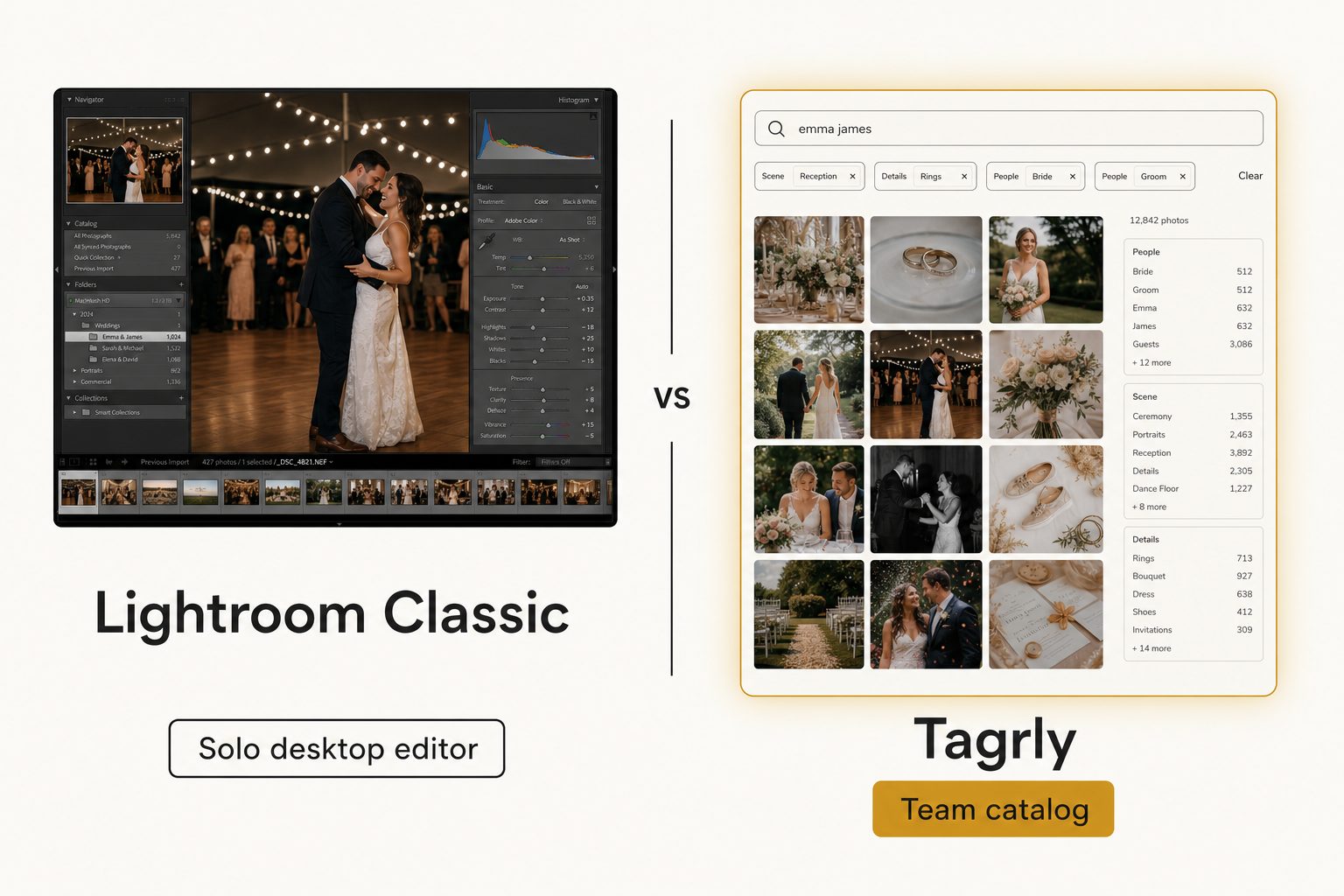
Your finished photos export out of Lightroom Classic and land in a shared Google Drive the team actually shoots into. That part works.
Then on a Tuesday the marketing director needs "the four rooftop sunset shots with the blue step-and-repeat from the launch," and the only catalog that can search them lives in Lightroom Classic on one editor's laptop, which is closed, asleep, or out of the office. This post is for that moment, when you are weighing Lightroom alternatives for teams and trying to work out whether you need a different editor or a different kind of tool.
What Lightroom Classic is and what it costs
Lightroom Classic is a desktop RAW editor and personal photo organizer, and for one photographer editing a shoot, very little touches it. You import photos into a local catalog, cull and rate them, and develop them with controls the rest of the industry measures itself against.
The organizing side is built for one person at one machine:
- A local catalog. Ratings, keywords, collections, and edit history live in a database file on one computer.
- Keyword and metadata search. The Library filter finds photos by the keywords, ratings, and camera data you or your plugins have added.
- Face detection. The People view groups faces so you can name the people in your own catalog.
- 2026 additions. The June 2026 release added AI duplicate detection, keyword syncing with the cloud-based Lightroom, and assisted culling out of beta.
One thing did not land in Classic. Adobe's natural-language AI search, where you type "bird with a person" and get matches without any keywords, arrived in the April 2026 update for the cloud-based Lightroom only, as PhotoshopCAFE's rundown of the April 2026 release spells out. In Classic, search still runs on the keywords somebody typed.
What Lightroom Classic costs
Lightroom Classic is sold by subscription, one seat per editor. As of September 2026, Adobe's Lightroom plans page lists these US prices, billed monthly on an annual commitment:
- Lightroom plan. US$11.99 per month, includes Lightroom Classic, the cloud-based Lightroom, and 1TB of cloud storage.
- Photography plan. US$19.99 per month, adds Photoshop to the same 1TB bundle.
- Lightroom for teams. US$37.99 per month per license, which handles billing and admin for separate seats.
The old US$9.99 Photography plan with 20GB closed to new customers in January 2025, so that figure no longer applies to anyone starting today. Every price here scales with people, because every editor needs a seat, and a team license still does not turn one Classic catalog into a multi-user one.
Note. "Editor," "organizer," and "catalog" sound similar but name different jobs. An editor changes the pixels. An organizer keeps one person's photos rated and keyworded on their machine. A team catalog is the searchable index a whole group queries from a browser, over files nobody copied onto one computer. Lightroom Classic is an editor and a personal organizer.
Why people look for Lightroom alternatives for teams
Teams go looking past Lightroom Classic because of who can search the photos, not because of the develop module. The reasons cluster into three:
- More than one person needs to find photos. The editor finished the shoot, the photos are in a shared Drive, and now an account manager, a social person, and a second editor all need specific shots without opening the editor's catalog or installing Lightroom.
- The library lives in the cloud, not in the catalog. The finished, exported photos sit in Google Drive or Dropbox where the whole company can reach them, but the only rich search lives in a local catalog nobody else can open.
- The output needs to go on a website. Marketing needs descriptive alt text for photos that end up on a blog or press page. Keywords inside an editor's catalog are not a publishable sentence, and they do not travel with the file into the shared folder.
If none of those describe you, Lightroom Classic is probably still the right tool. If one or more do, the real question is not "which editor beats Lightroom Classic," it is "do I need a different editor at all, or a team catalog on top of the cloud folder we already have."
The single-machine catalog wall
A Lightroom Classic catalog opens on one machine at a time, and every workaround has a catch. Adobe's Lightroom Classic catalog FAQ is direct that catalogs cannot live on a network volume, even though the photos can. The catalog is a single-writer database, so two machines writing to it at once is how it corrupts.
The workarounds people reach for:
- Separate catalogs per person. Now there is no single source of truth. Two editors keyword the same photo two different ways, and neither catalog knows what the other did.
- An external drive you swap between computers. Only one person works at a time, and the drive is a single point of failure you carry around.
- Syncing the catalog file through Dropbox. This one bites hardest, because a catalog open on one machine while it syncs to another is exactly how the database corrupts.

For a solo photographer, none of this is a problem. One catalog on one machine is clean and fast. The wall only appears when a second and third person need the same library at the same time.
Three kinds of Lightroom alternatives for teams
The alternatives split into three groups, and the right pick depends on which reason above sent you looking.
Other desktop RAW editors and plugins
If your job has not changed and you want a different single-editor tool, you stay in Lightroom Classic's tier:
- Capture One. The most common rival, prized for color and tethering.
- ON1 Photo RAW. A buy-once option with a strong culling browser.
- Darktable. A free, open-source editor for the cost-conscious.
- Excire Search. Not an editor but a Lightroom Classic plugin that adds local AI search, face search, and duplicate finding to the catalog you already have.
All of these are built around one editor at one machine. They are the right move when the job is still solo RAW editing, and they do not fix the single-machine wall. Our Tagrly vs. Excire Foto comparison covers the desktop AI search route in depth.
Shared storage and asset platforms
If the appeal is mostly "get the finished photos somewhere everyone can reach," shared cloud storage is the floor. A well-organized Google Drive or Dropbox gets a small team a long way for free or close to it, but it finds photos by filename and folder, not by what is in the shot.
Larger organizations reach for full asset platforms like Brandfolder or Bynder, which add real search and permissions but are priced and shaped for hundred-person teams with a procurement process.
Team catalogs
If the photos live in Drive or Dropbox and a team searches them by what is in each shot, the better-shaped alternative is a catalog that reads your storage and builds one shared, searchable surface. Tagrly sits here. It connects read-only to the folders the team already has, tags everything in bulk, and lets anyone search from a browser.
This is not a lateral move from Lightroom Classic, it is a change of category. Our image catalog software buyer's guide maps every tier, from free folders to enterprise platforms.
Where Tagrly fits as a Lightroom alternative for teams
Tagrly fits on the other side of the export: when finished photos sit in Google Drive or Dropbox and a team needs to find them without opening anyone's editor. It walks the folders you pick, reads each photo with a vision model, and writes the results to a searchable catalog. The Drive connection uses the drive.readonly scope, so it can read your photos but never change, move, or delete them.
Two things it does that a single-user editor does not:
- Focal-subject tagging. Every photo gets one dominant-subject label ranked above its background context, so "rooftop sunset" surfaces photos that are about a rooftop sunset, not every photo with a sky in it. In Tagrly's own testing on a 5,000-photo set, focal-subject tagging returned the right photo as the top search result in roughly 9 of 10 queries, and that is what AI photo search runs on.
- Editorial-grade alt text. A full, publishable sentence per photo instead of a keyword list trapped in a catalog, which matters when the photos end up on a website.
We define both methods in the complete guide to AI photo tagging. The scan runs unattended in the background, and what is already read is searchable while the rest is still going.
Tip. Want to judge the tagging on your own photos instead of a marketing screenshot? Tagrly's free tier tags the first 500 photos in any Drive or Dropbox folder, no credit card. Connect a sample folder and read the tags it writes back.
The limits matter too. Tagrly is not a photo editor. It does not develop RAW files, has no masking or color grading, and will never replace the work an editor does in Lightroom Classic or Capture One.
If your problem is "my whole team needs to edit RAW," a catalog does not solve it and an editor is still the answer. Tagrly earns its keep when the finished photos are shared, growing, mixed across many projects, and searched by a team rather than browsed by one editor.
Tagrly vs. Lightroom Classic, side by side
Lightroom Classic wins on editing and solo organizing, and Tagrly wins on shared search and publishing. Many studios end up running both.
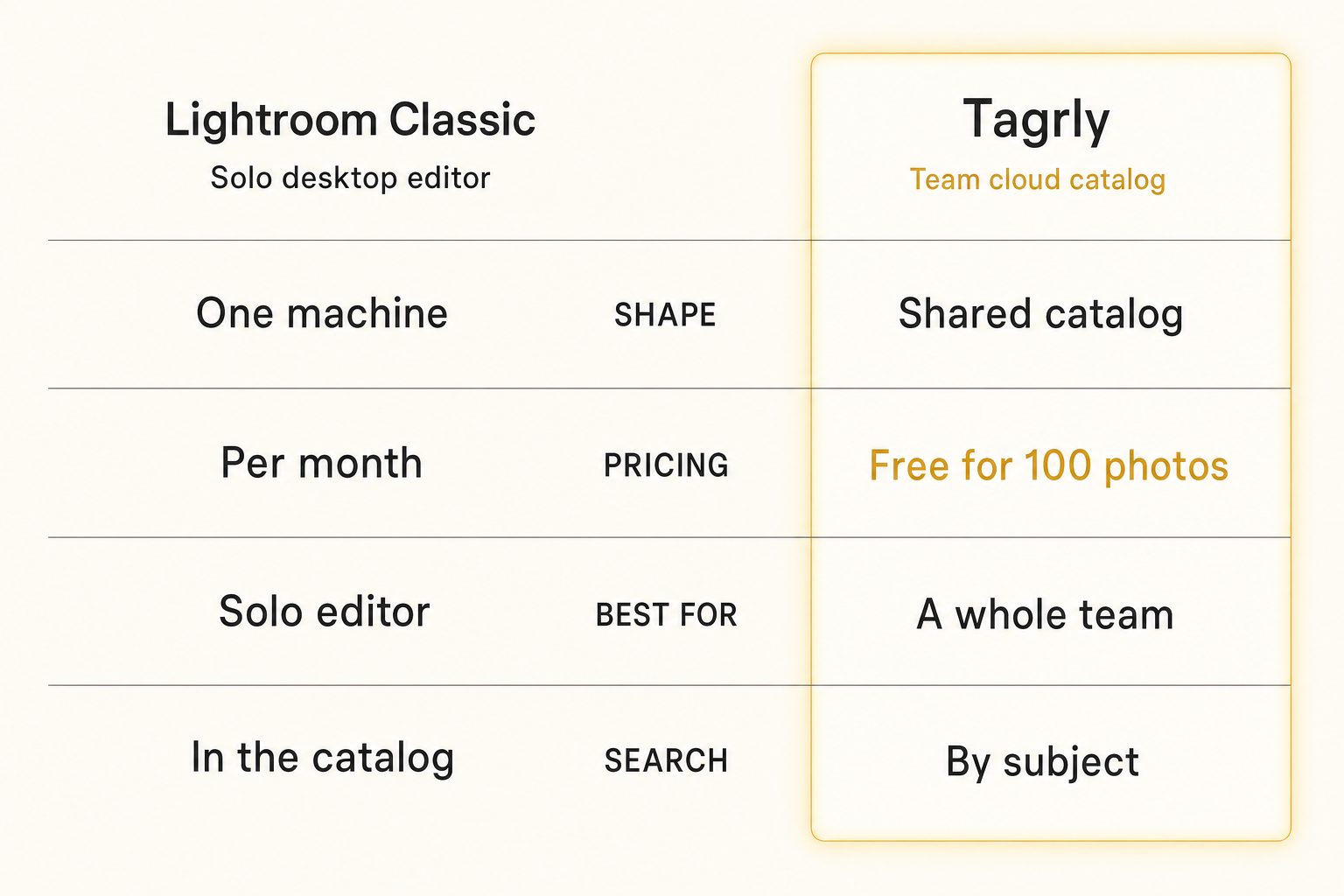
| Lightroom Classic | Tagrly | |
|---|---|---|
| Shape | Solo desktop RAW editor and organizer | Team searchable catalog |
| Where the library lives | Imported into a local catalog on one machine | In your existing Drive or Dropbox (in place) |
| RAW editing and develop controls | Yes, best in class | No (not an editor) |
| Simultaneous multi-user access | No (single-user catalog) | Yes (whole team, in a browser) |
| Connects to Drive / Dropbox | Not as a shared, searchable team layer | Yes (read-only, in place) |
| Search by scene or subject | By keywords you add, or with a plugin | Yes, in a shared library (focal-subject tagging) |
| Editorial alt text for publishing | No | Yes (every photo) |
| Pricing model | Per-editor seat, from US$11.99 a month | Monthly subscription, first 500 photos free |
| Best audience | Solo photographers and editors working in RAW | Teams finding and sharing finished photos |
Neither is "better," they are shaped for different jobs. For the deeper version of the shared-library problem an editor leaves on the table, see our guide to setting up a shared photo library for a small team.
Warning. Watch the word "catalog." In Lightroom Classic it means a local database on one machine, organized for one editor. In a team tool it means the team's library, in shared cloud storage, searchable by everyone from a browser. A Lightroom catalog synced through Dropbox so two people can "share" it is the most common way photographers corrupt their database.
How to choose: pick X if Y
The deciding question is whether the unsolved problem is editing RAW files or a team finding finished photos in a shared cloud library.
- Pick Lightroom Classic if you are a solo photographer or a small studio where one person does the culling and developing, you work in RAW, and you want best-in-class develop controls and color.
- Pick Excire Search if you stay in Lightroom Classic alone and want AI search inside your own catalog, without leaving the editor.
- Pick Capture One, ON1 Photo RAW, or Darktable if you want a different RAW editor for cost, color, or a buy-once license. That is a lateral move, and it does not fix team access.
- Pick a full asset platform like Brandfolder or Bynder if you are a large organization with a procurement budget and need enterprise permissions. See our Tagrly vs. Brandfolder comparison for where that line sits.
- Pick Tagrly if your finished photos live in Google Drive or Dropbox, three or more people need to find them by what is in each shot, and you want editorial-grade alt text for public pages. The first 500 photos are free, so you can check the output before committing; see how the plans compare once you know your library size.
For most growing studios the answer is both. Lightroom Classic stays the editor, and a catalog like Tagrly sits behind it so the rest of the team can find anything later without ever opening the editor.
For more options, see our Tagrly vs. ON1 Photo Keyword AI comparison if a desktop keyworder is on your list, and our playbook for photo workflows on marketing teams if the people who need the photos sit outside the photography department. The best Lightroom alternative for teams depends on whether you are replacing the editing or the finding, and for a team searching a shared cloud library, that is a catalog.
Frequently asked questions
What is the best Lightroom alternative for teams?
It depends on what a team needs to do with the photos. If everyone needs to edit RAW files, there is no true drop-in: Lightroom Classic is single-user by design, and the closest editing rivals (Capture One, ON1 Photo RAW, Darktable) are also built around one editor at one machine. If the real job is that finished photos live in a shared Google Drive or Dropbox and several people need to find and share them, that is a search problem, and a team catalog solves it. Tagrly is one example of the catalog approach, priced as a monthly subscription with the first 500 photos free. Match the alternative to the task: shared RAW editing keeps you in editor territory, and team-wide find-and-share moves you to a catalog on top of the cloud folder you already use.
Can a team share one Lightroom Classic catalog?
Not at the same time, and Adobe does not support it. A Lightroom Classic catalog is a local database that only one machine can open at once, and Adobe's catalog FAQ says catalogs cannot be stored on a network volume, even though the photos can. The common workarounds, separate catalogs per person, swapping a catalog on an external drive, or syncing the catalog file through Dropbox with careful timing, all stop short of real simultaneous multi-user access. A Lightroom for teams license handles billing for separate seats; it does not make one catalog multi-user. For a solo photographer this model is fine, because there is one source of truth on one machine. For a team that needs several people searching the same library at once, it is the wall they keep hitting.
What is the main difference between Tagrly and Lightroom Classic?
What they are built to do and how many people can use them at once. Lightroom Classic is a desktop RAW editor and organizer. It imports your photos into a local catalog on one computer, gives you industry-leading develop controls, and is excellent for one photographer culling and editing a shoot. Tagrly is a searchable catalog for a team. It connects read-only to the Google Drive or Dropbox you already use, tags every photo in bulk with AI descriptions and editorial alt text, and gives a whole team one shared surface to find any shot from a browser. Lightroom Classic answers 'edit and organize my photos on my machine.' Tagrly answers 'let our team find any photo in a shared archive.' Many studios run both.
Does Lightroom Classic have AI search?
Not the natural-language kind, as of September 2026. Adobe's AI search, where you type a phrase like 'bird with a person' and get matches without any keywords, shipped in the April 2026 update for the cloud-based Lightroom, not Lightroom Classic. Classic searches by the keywords, ratings, faces, and camera data in its catalog, and its 2026 releases added AI duplicate detection, keyword syncing with the cloud-based Lightroom, and assisted culling. Solo Classic users who want AI search inside the catalog often add a plugin such as Excire Search. None of these give a team one searchable index over a shared Google Drive or Dropbox folder. A team catalog reads that cloud folder in place, so five coworkers can search the same photos from their own browsers.
How much does Lightroom Classic cost?
Lightroom Classic is sold by subscription, one seat per editor. As of September 2026, Adobe's US plans page lists the Lightroom plan, which includes Lightroom Classic, the cloud-based Lightroom, and 1TB of storage, at US$11.99 a month on an annual commitment, and the Photography plan, which adds Photoshop, at US$19.99 a month. Lightroom for teams is US$37.99 a month per license. The old US$9.99 Photography plan with 20GB closed to new customers in January 2025. Adobe's prices move, so check the plans page before you budget. The shape matters more than the figure: cost scales with people because every editor needs a seat. A team catalog prices as one shared workspace, with the first 500 photos free to try it.
When is Lightroom Classic the right choice over a catalog like Tagrly?
When the job is editing RAW files and the library lives with one editor. Pick Lightroom Classic if you are a solo photographer or a small studio where one person does the culling and developing, you work in RAW, and you want best-in-class develop controls, masking, and color. A team catalog does not edit photos, convert RAW, or replace your develop workflow, and it is not trying to. You outgrow Lightroom Classic when the problem stops being 'edit my photos' and becomes 'a team needs to find and share finished photos from a shared cloud archive,' which is a different category. Some studios keep Lightroom Classic for editing and add a catalog so the rest of the team can find anything later without touching the editor.
Try Tagrly on your own photo library
Connect your Google Drive or Dropbox folder and Tagrly will tag every photo in bulk. Search by what is actually in the image, share specific shots with clients, and never lose a photo again.
- Free for your first 500 photos
- Read-only access, revoke anytime
- No credit card