
Your team's photos live in a shared drive, and the only person who can actually find anything is the designer who built the folder tree, and she is on vacation. Every list of the best photo organization software for teams answers a different question, usually the solo photographer's, so here is the honest team-shaped version.
How we judged photo organization software for teams
Every tool below cleared at least three of five bars. The bars, in the order teams usually feel them:
- Everyone can search. The catalog lives somewhere shared, not on one editor's machine. This is the bar that eliminates the most tools.
- Works where the photos live. Drive, Dropbox, or a local archive. A tool that demands a migration loses before it starts.
- Invites and roles. A new teammate joins with an invite, and viewers cannot delete what admins curated.
- Client sharing built in. The team can hand a client a specific set of photos as a link, without exposing the whole library.
- A price shape you can predict. Free, buy-once, or a subscription. Each is fine; surprises are not.
No tool clears all five, which is why this list is sorted by situation instead of ranked one to ten.
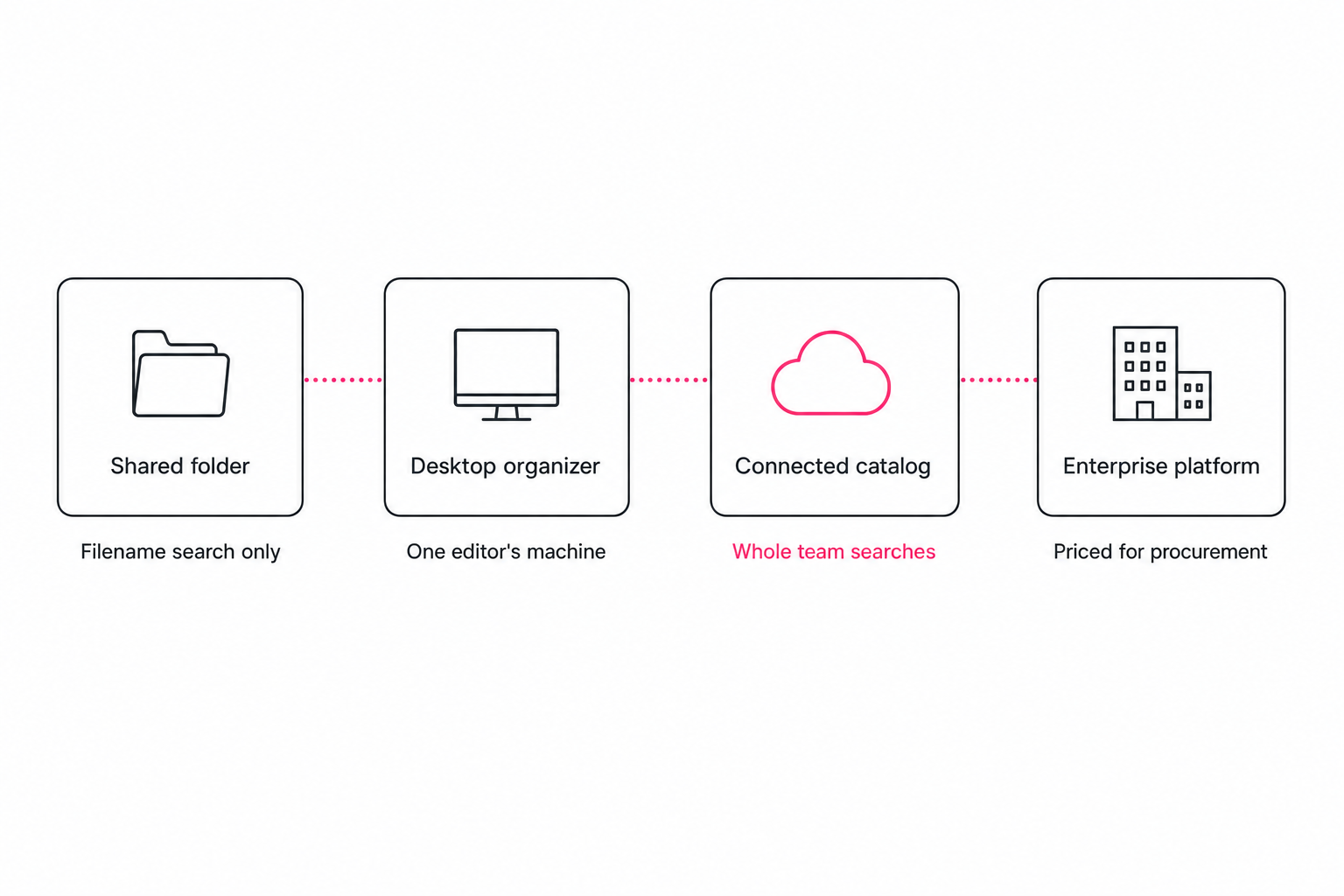
Best free option: a disciplined shared folder
For a team library under a thousand or two photos, the best photo organization software is not software at all. A Google Drive shared drive or a Dropbox shared folder gives everyone one home for the photos, agreed folder names give it structure, and the whole thing costs nothing beyond storage you already pay for.
The ceiling is search. Drive and Dropbox match filenames and folder names, not what is in the picture, so the system works exactly as long as someone renames files on the way in. Past the 1,000-photo wall, scrolling quietly replaces finding, and the library starts depending on the one person who remembers where things are.
If you go this route, do it properly: our shared photo library setup guide walks through the home, naming, and access decisions step by step.
Best for editor-led teams: Lightroom and Mylio Photos+
When one or two editors do all the organizing and everyone else just receives finals, a desktop organizer is a fair fit. Lightroom Classic remains the deepest cataloging tool in photography, with keywords, collections, and ratings refined over two decades. Mylio Photos+ organizes across your own devices and syncs a library between them, which stretches to a household or a two-person studio.
The shared ceiling is the catalog itself. Lightroom Classic's catalog is a single-machine file, so a teammate on another computer cannot run the same search, and Mylio's sharing is built around a small trusted circle of devices rather than a staff.
Both are excellent for the editor and invisible to the rest of the team. We cover the team tradeoff in detail in Tagrly vs. Lightroom Classic and Tagrly vs. Mylio Photos+.
Best for teams on Drive or Dropbox: connected catalogs
If the photos already live in Google Drive or Dropbox and more than one person needs to search them, a connected catalog is the category built for the job. These tools connect to your storage over a read-only link, tag every photo with an AI vision model (the kind described in Anthropic's vision documentation), and store the results in one searchable index the whole team shares. Nothing is moved, nothing is migrated.
Tagrly is the example we know best, so here is what the team experience actually looks like. You connect a Drive or Dropbox folder, the first scan runs unattended in the background and photos become searchable while the scan is still going. Teammates join by invite and search the same catalog, admins control who can edit, and Share links hand a client a searchable, optionally password-protected slice of the library instead of a folder of everything.

Pics.io is the other connected catalog worth shortlisting: it builds its library on top of the Google Drive you already have and is genuinely team-oriented, with per-seat pricing on its current plans page. The honest head-to-head is in our Tagrly vs. Pics.io comparison.
Tip. Connected catalogs are cheap to audition. Tagrly's free tier tags the first 500 photos in any Drive or Dropbox folder, no credit card. Run it on a real team folder and have two teammates search for the same photo before you commit to anything on this list.
Best for large organizations: Brandfolder and Bynder
At 100+ users, photo organization stops being a search problem and becomes a governance problem: who may use which asset, in which market, until which date. Brandfolder and Bynder are built for exactly that. They store the assets themselves, enforce brand rules, track usage, and handle video and design files alongside photos.
The tradeoffs are the mirror image of their strengths. Migration into their storage is part of the project, pricing is quote-based and sized for procurement departments, and most of the governance machinery is dead weight for a team of five. If budget is your first filter, start instead with our cheap photo management software guide, which covers what $0 to $30 a month actually buys.
Which photo organization software should your team pick?
Pick by your situation, not by a ranking:
- Pick a shared Drive or Dropbox folder if the library is under a couple thousand photos and someone will enforce naming.
- Pick Lightroom Classic if one editor organizes everything and the team only receives finals.
- Pick Mylio Photos+ if the "team" is a household or a two-person studio syncing devices.
- Pick Tagrly if the photos live in Drive or Dropbox and several people need to search, share, and send client links from the same library.
- Pick Pics.io if you want a connected catalog and prefer its Drive-native model after a head-to-head test.
- Pick Brandfolder or Bynder if you have 100+ users and a procurement department.
The best photo organization software for teams is the one every teammate can search without asking anyone for help. For the full category map, including tiers this shortlist skips, see our image catalog software buyer's guide. And whatever you shortlist, test it on your own photos with two people searching; the free tiers make that cost an afternoon, not a budget line.
Frequently asked questions
What is the best photo organization software for teams in 2026?
There is no single best tool, because team libraries come in four shapes. A disciplined shared Google Drive or Dropbox folder is the best free option for a small library. Lightroom and Mylio Photos+ are the best fits when one or two editors do all the organizing. A connected catalog like Tagrly or Pics.io is the best fit when the photos already live in Drive or Dropbox and several people need to search them. Brandfolder and Bynder are the right tier for organizations with 100+ users and a procurement process. Pick by where your photos live and how many people need to find them, not by a numbered ranking.
Can a team organize photos in Google Drive for free?
Yes, up to a point. A shared drive with agreed folder names and file naming gives a small team one home for its photos at no cost, and it genuinely works for the first thousand or two photos. The ceiling is search: Drive matches filenames and folder names, not what is in the picture, so a library of files named DSC_0481.jpg becomes unfindable as it grows. Teams usually keep the shared folder as storage and add a search layer on top once scrolling replaces finding.
Does my team have to move photos into new software?
Only for some categories. Enterprise platforms and most desktop organizers expect photos to live inside their own storage or catalog, which means an upload or import project before anyone can search. Connected catalogs work the other way around: they read the Google Drive or Dropbox folders you already use over a read-only connection, tag every photo with AI, and build the searchable index without moving or copying an original. If your team already keeps everything in shared cloud storage, skipping the migration is often the deciding difference.
What team features matter beyond search?
Three come up constantly. Invites and roles, so a new teammate can join the library without someone forwarding a login, and so an intern cannot delete what a manager curated. Share links, so the team can hand a client or a partner a specific set of photos, ideally behind a password, without exposing the whole library. And shared results, meaning everyone who searches sees the same tagged catalog rather than each person maintaining private keywords on their own machine. Desktop tools usually fail the third one first.
How much does photo organization software for teams cost?
The price shape matters more than the sticker. A shared Drive or Dropbox folder costs nothing beyond the storage you already pay for. Desktop organizers are buy-once licenses or yearly fees, but each seat usually needs its own copy and the catalogs do not merge. Connected catalogs are monthly subscriptions sized by library or team, and most, Tagrly included, have a free tier so you can test on real photos first. Enterprise platforms are quote-based and, as of writing in August 2026, generally land in the thousands per year. Check each vendor's current pricing page before deciding; numbers in this category move.
Try Tagrly on your own photo library
Connect your Google Drive or Dropbox folder and Tagrly will tag every photo in bulk. Search by what is actually in the image, share specific shots with clients, and never lose a photo again.
- Free for your first 500 photos
- Read-only access, revoke anytime
- No credit card