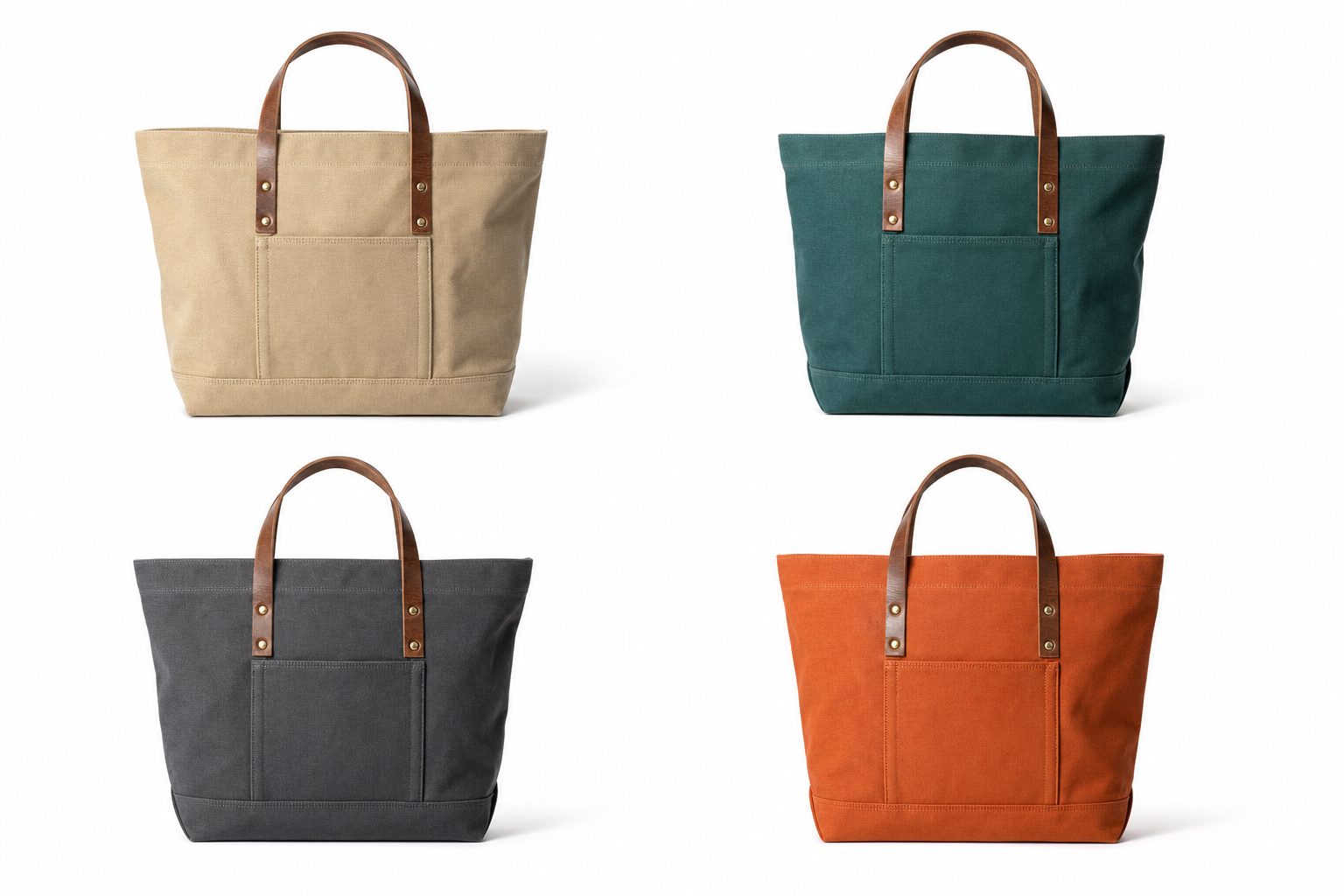
A buyer pings you Tuesday morning. The teal colorway of the canvas tote goes live on the Shopify store Thursday, and the product page needs the clean white-background hero plus one lifestyle frame.
That shoot was two hundred SKUs ago. You know both frames exist somewhere in the Drive folder, but Shopify only shows you the images you already uploaded, and the archive is a wall of IMG_4821.jpg.
What Shopify does, and doesn't do, with your product photos
Shopify is good at displaying the photos you give it, and only those. Here is what it handles well, per Shopify's own help center:
- A media gallery per product. Each product holds up to 250 images, videos, and 3D models combined, a cap Shopify says cannot be raised.
- One image per variant. You can assign an image to each variant, but each variant supports only one. Shopify's workaround is to group a color's extra shots together in the gallery; many stores add a variant-image app instead.
- Broad file support. Shopify recommends PNG, then JPEG, also accepts WebP, HEIC, GIF, TIFF, BMP, and SVG, and says square images around 2048 by 2048 pixels usually display best.
- An alt text field on every image. Banners and lookbook shots not tied to a product go in the Files area.
What Shopify does not do is hold the rest of the shoot. It only knows the frames you already chose and uploaded.
The outtakes, the other angles, the camera raws, last season's frames you might re-use: none of that lives in Shopify, and none of it is searchable there. So the slow part of product photo work, finding the right frame in the first place, happens before Shopify ever sees it.
Organize the archive Shopify pulls from, not just the store
The library that feeds your store should belong to the business, not to whichever freelancer edited the last batch. One company-owned shared photo library in Google Workspace or a Dropbox team folder survives the staff and contractor turnover online stores have plenty of.
Inside that home, e-commerce has a filing key built in, the SKU. A tree that maps cleanly onto Shopify has three levels:
- Product at the top. One folder per SKU, the key your store and warehouse already share.
- Colorway inside it. One subfolder per variant, so the teal shots never mix with the rust ones.
Raw,Hero, andWebat the bottom. Camera originals, retouched exports, and the store-sized files you upload.
Name each file so the SKU, color, and angle read at a glance, like tote-canvas_teal_white-bg_front.jpg. A plain filename search then returns something instead of a screen of IMG_4821.jpg, and our photo file naming conventions guide has more patterns that hold up.
Note. Folders and naming hold up to about 1,000 photos. Past that you hit what we call the 1,000-photo wall, described in the complete guide to bulk image tagging: the archive gets too big to remember and too big to rename by hand. The general version of this setup, for any online store, is in our e-commerce product photo organization guide; this post is the Shopify-specific slice.
Match the right frame to every Shopify variant
Because Shopify shows one image per variant, the real job is picking the single best frame per colorway, then the supporting shots for the shared gallery. With a years-deep archive of camera-named files, that pick is the bottleneck, not the uploading.
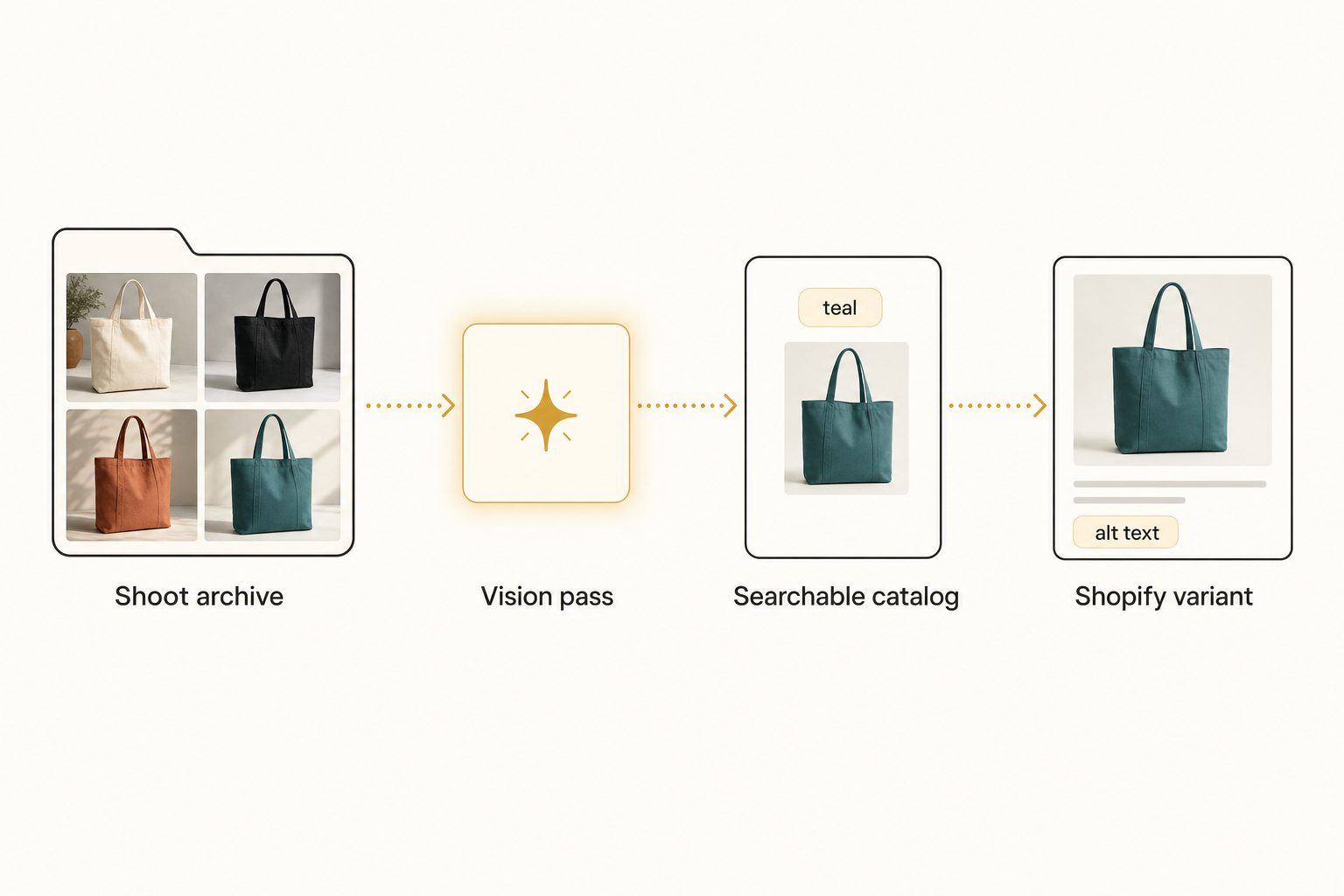
A photo catalog closes the gap in three moves:
- Connect. It links to your shared Drive or Dropbox with read-only access, and your originals never move.
- Read. It sends each photo to a vision model and writes a sentence and tags for every shot: the product, the color, the background, the angle.
- Search. You type "teal canvas tote, white background," and the matching frames come back ranked, strongest frame first. You pull it, drop it on the variant, and move on.
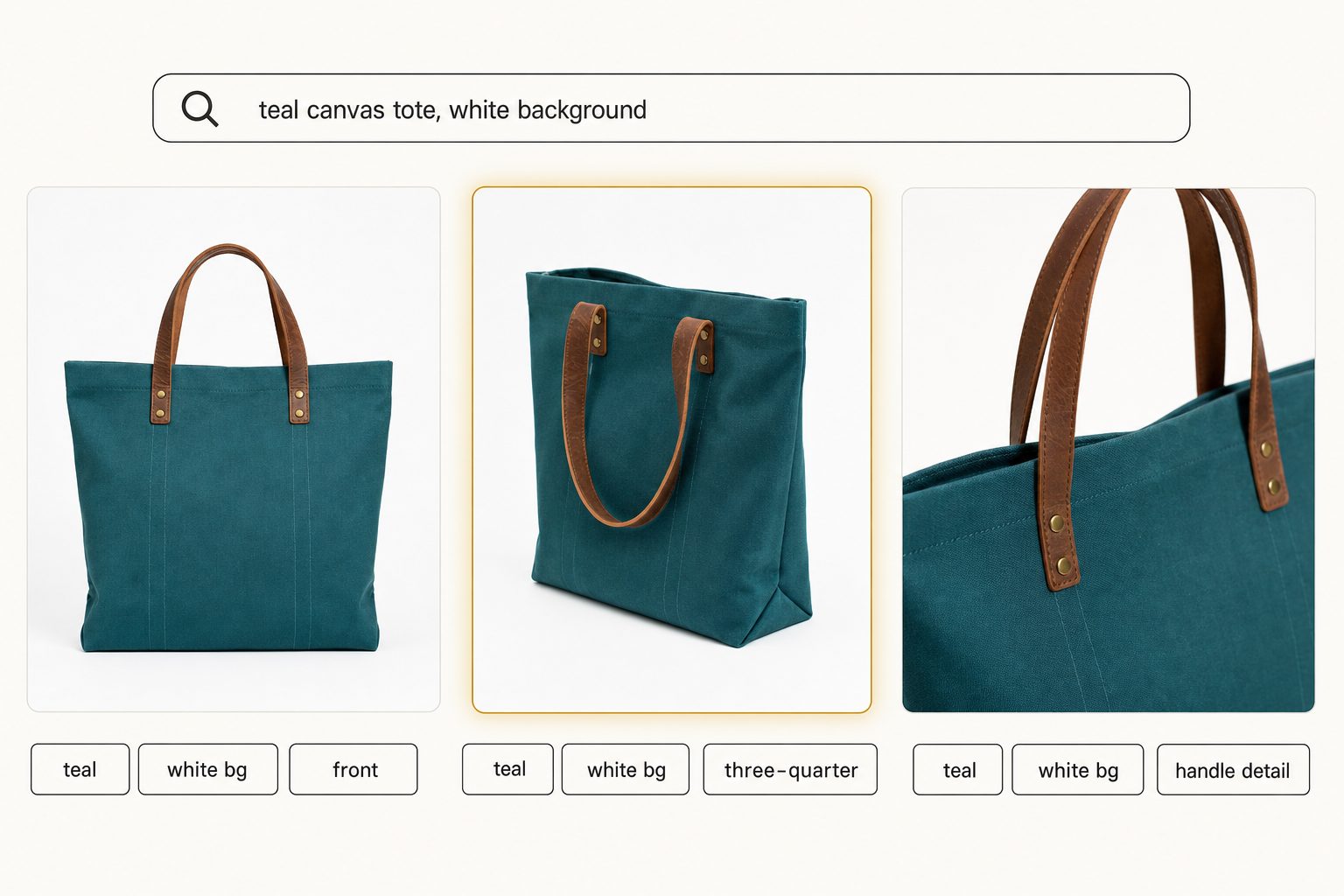
Tag quality decides whether that search works at all. A weak tagger writes "bag, object, blue," and your search returns nothing useful. A strong one names the product first, then records color, background, and angle as context, the discipline laid out in the 3-tier focal-subject tagging method.
In Tagrly's own testing on a 5,000-photo set, focal-subject tagging surfaced the correct top match in roughly 9 of 10 searches with AI photo search. The first full scan runs unattended in the background, and photos are searchable while it is still running.
Tagrly is one tool that connects to a shared drive and does this, not the only one, so judge any of them on the words they produce for your own products before paying for a plan. Tagrly's page for e-commerce brands shows the same search on product shots.
Tip. Want to test it on your own catalog before deciding? Tagrly's free tier tags the first 500 photos in any Drive or Dropbox folder, no credit card. Run it on one product line and search the results before you point it at the whole archive.
Write the alt text every Shopify image needs
Every Shopify product image needs its own alt text, and a catalog that reads the photos can write it for you. It matters twice over: shoppers using screen readers depend on it, and search engines read it as part of how they understand your product pages.
Shopify's product CSV guide caps alt text at 512 characters and calls 125 or fewer the optimal length. Short and descriptive is also what the W3C's guidance on image text asks for.
Writing that by hand for thousands of product shots is the kind of backlog that never clears. A catalog with editorial-grade output writes a full sentence per image, like "A teal canvas tote bag with leather handles, photographed front-on against a white background," which you can export and paste into the field.
The same CSV has an image alt text column, so you can apply them in bulk rather than one product at a time. Our guide to alt text for product images covers what each one should say, and how to auto-generate alt text for thousands of images covers the bulk method. Read a sample before trusting it across the store.
Which setup fits your Shopify store
How many products you carry, and how many colorways each one has, decides the setup.
- A new or small store under 1,000 product photos. Shopify's media gallery, the Files area, a strict SKU-and-color naming convention, and your editor of choice. That is enough, so do not pay for a catalog yet.
- A growing store with many colorways and angles. Keep Shopify and your editor, and add a photo catalog over your shoot archive so you can find any past frame by description and export alt text in the same pass. A variant-image app handles the storefront display side.
- A fashion or apparel brand. Seasons, lookbooks, and campaign shoots pile up on top of product frames, the case our fashion brand photo catalog guide walks through.
- A multi-brand seller or marketplace operation. Prioritize one central searchable archive so anyone can find a frame and nothing from one brand lands on another's listing.
- A large retailer with a procurement budget. An enterprise photo platform with approval flows and brand governance can justify its price. For a small marketing team it is usually overkill, and a connected catalog covers the find-and-share job for far less.
Shopify product photo organization is really two jobs that get blurred into one. Shopify handles the published layer well: the gallery, the variant image, the alt field. The harder job is the archive those images come from, and that is a search problem, not a storefront one.
Keep the archive in one business-owned home and name it by SKU. Once you pass the 1,000-photo wall, add a catalog that reads every color, background, and angle, so the Thursday-deadline frame is a search away instead of a scroll away.
The surest way to know if it fits is to run it on a real folder of your product photos. For the bigger picture, read our guide to finding any photo in your library.
Frequently asked questions
How do you organize product photos for a Shopify store?
Treat it as two jobs. Inside Shopify, arrange each product's media gallery, assign one image to each variant, and fill in the alt text field on every image. Outside Shopify, keep the full shoot archive in a business-owned Google Drive or Dropbox folder, not on a freelancer's laptop, and name files so the SKU, color, and angle read at a glance, like tote-canvas_teal_white-bg_front.jpg. That folder-and-naming setup carries a store to roughly 1,000 photos. Past that, add a photo catalog that reads each image so you can search by what the shot shows, the color, the background, the angle, and pull the right frame to the right variant without scrolling.
How many images can a Shopify product have, and how many per variant?
Each Shopify product holds up to 250 media items, with images, video, and 3D models counted together, and Shopify's help center says that cap cannot be raised. Variants are the catch: each variant supports only one assigned image, so the teal version of a product points at a single teal photo. Shopify's own workaround is to group a color's extra shots together in the product's media gallery, and many stores add a variant-image app instead. Either way you are choosing one hero frame per variant plus supporting shots, so finding the single best frame for each color matters more than uploading everything.
How do I find the right photo to upload to a Shopify variant?
By searching what the photo shows instead of scrolling folders. Camera filenames like IMG_4821.jpg say nothing about the teal tote or the white background, so a filename search only finds shots you renamed by hand. A photo catalog reads each image, writes a sentence and tags describing the product, color, background, and angle, and stores them in a searchable index. You then type a plain description like 'teal canvas tote, white background, front' and the matching frames come back ranked, closest match first. You pull that frame and assign it to the variant. In Tagrly's own testing on a 5,000-photo set, focal-subject tagging surfaced the correct top match in roughly 9 of 10 searches.
Does Shopify automatically write alt text for product images?
No. Shopify gives every product image an alt text field, but you fill it in, and for thousands of product shots that backlog rarely gets cleared by hand. A photo catalog with editorial-grade output writes a full descriptive sentence per image, like 'A teal canvas tote bag with leather handles, photographed front-on against a white background,' which you can export and paste into the field. Shopify's product CSV import has an image alt text column, so you can apply them in bulk. Shopify caps alt text at 512 characters and calls 125 or fewer the optimal length, so keep each one short. Always review a sample before trusting it across the store.
When does a Shopify store need a photo catalog instead of folders?
Around the 1,000-photo mark, or sooner if every product has several colorways and angles. Below that, a business-owned shared drive, a SKU-based folder tree, and a strict naming convention are enough, and you should not pay for a tool yet. A growing store passes 1,000 photos fast: a few hundred products, each shot in several colors from several angles, plus lifestyle frames and seasonal re-shoots. Once finding a past frame for a new variant means a slow scroll or a guess about which folder it landed in, the time you lose, and the re-shoots you book because you cannot find the original, cost more than a catalog would.
Try Tagrly on your own photo library
Connect your Google Drive or Dropbox folder and Tagrly will tag every photo in bulk. Search by what is actually in the image, share specific shots with clients, and never lose a photo again.
- Free for your first 500 photos
- Read-only access, revoke anytime
- No credit card