
Between your phone, your laptop, and a shared Drive folder, you have maybe 40,000 photos. Almost none are tagged, half have names like IMG_4821.jpg, and finding the one shot of a mug on a white background just cost you twenty minutes of scrolling. An AI photo organizer is the category built to end that scroll.
What an AI photo organizer does
An AI photo organizer looks at the pixels of each photo, identifies the subject and the scene, and writes that down somewhere you can search. The phrase covers two generations of tool, and only one reads the photo.
- Sorters. The older kind groups photos into albums by date or by a recognized face. Useful, but it never says what is in a photo, so a search for "red dress" or "handshake on stage" finds nothing.
- Readers. The newer kind runs each image through a vision model that returns structured tags plus a sentence describing the shot. Anthropic's vision documentation shows what a model like Claude can read in an image, and where it falls short, such as tiny or low-quality images.
Only readers make search by content possible. A chatbot does half the job: the one you already pay for can describe photos but cannot reach your folders or keep an index, as our answer to whether ChatGPT can organize your photos explains.
The three kinds of AI photo organizer
There is no single best AI photo organizer, because each of the three kinds is built for a different library: a personal camera roll, a photographer's own computer, or a team's shared cloud folders.
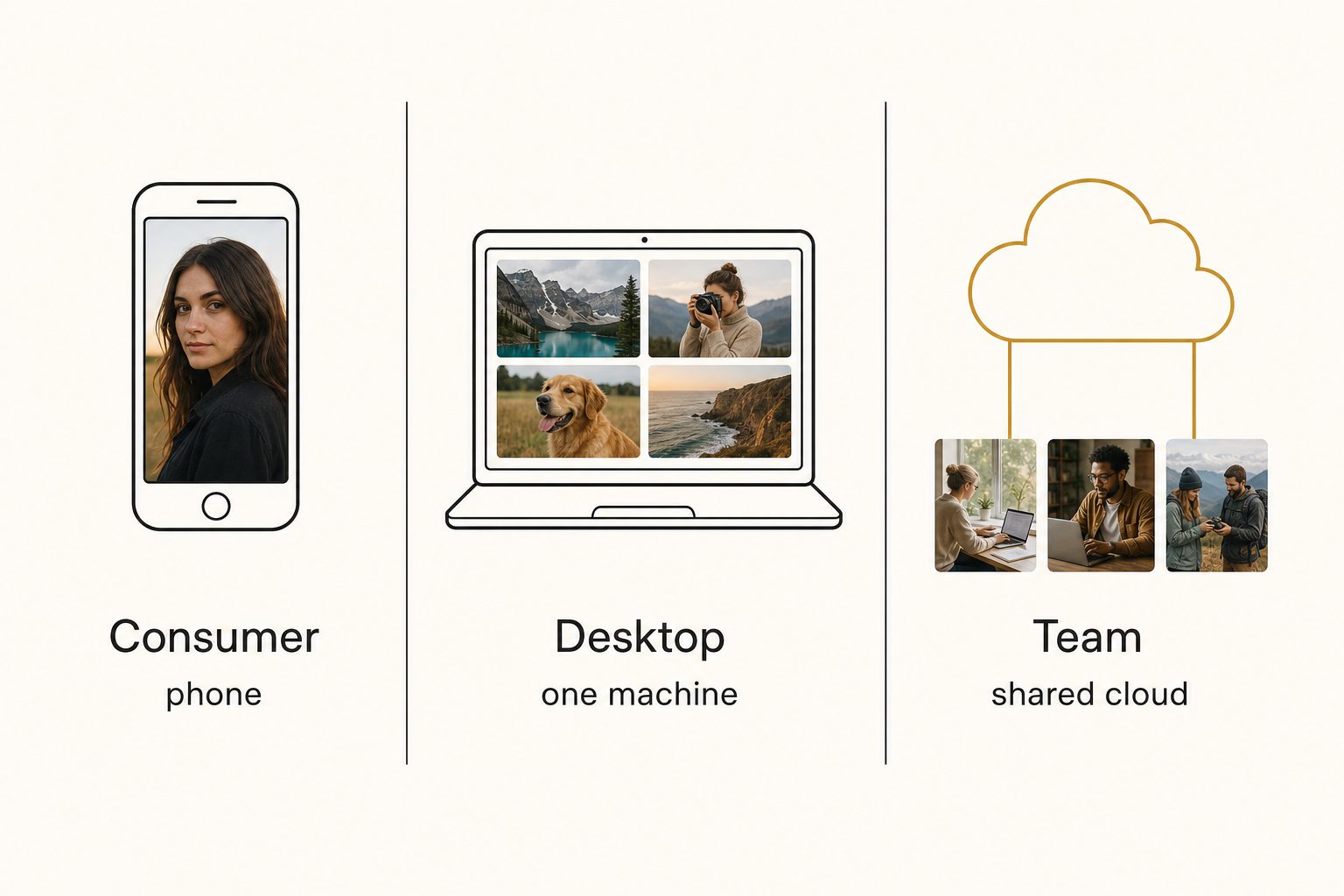
Consumer apps for a personal library
Google Photos and Apple Photos are the best free choice for a personal library, and most people already have one. Both group photos by people, places, and things, and Google Photos search takes plain phrases like "colorful sunsets in Mexico" and finds a person by name once you label their face group.
Their limit is reach, not intelligence. They search the library inside their own app, not the Drive or Dropbox folders a business already works from, and they are not built for a team to search one catalog together.
Desktop organizers for your own computer
Desktop organizers like Mylio Photos+ and Excire Foto are the strong pick when the library lives on your own hardware. They tag and search photos by content on your machine, even offline.
For teams, the model is device sync or taking turns, not one search over a shared Drive or Dropbox folder:
- Mylio Business. One library syncs onto each teammate's devices, and everyone works in the Mylio app.
- Excire Foto Office Edition. One database sits on a network drive, and colleagues take turns opening it, since simultaneous access is not possible.
- Lightroom Classic. Its catalog opens on one machine at a time and searches by keywords, ratings, and faces; Adobe's natural-language AI search is in the cloud-based Lightroom, not Classic.
Our Tagrly vs. Mylio, Tagrly vs. Excire Foto, and Tagrly vs. Lightroom Classic comparisons go deeper.
Connected catalogs for a team
Connected catalogs fit a team whose photos already live in Google Drive or Dropbox. They connect to that storage, read every photo where it sits, and build one searchable catalog the whole team can open from a browser at once.
Tagrly is the example we know best, though not the only one: Pics.io also runs on top of Google Drive, as a broader asset platform.
Does an AI photo organizer move or rename your files?
The safer kind never does, because it organizes in place. Check which kind before you install anything.
- Sort-into-folders. Some tools physically move or copy photos into new AI-named folders or albums. That feels tidy until the tool guesses wrong, or you cancel, and your original structure is gone.
- Organize-in-place. Better tools leave every original file untouched and build a separate index that points at them. You get search without giving up your folders, and nothing breaks if you stop using the tool.
Tools that read your storage through a read-only connection cannot move, rename, or delete your files at all. On Drive that is Google's drive.readonly scope, which only lets an app view and download files; Tagrly uses it, plus read-only access on Dropbox.
Warning. Before you point any organizer at your main library, confirm whether it writes back to your files. If it moves originals or edits their metadata in place, run it on a copy of one folder first. A tool that only reads is safe to try on anything.
What "organized" looks like when the AI is done
Organized means searchable: every photo carries tags and usually a sentence of description, so you find a shot by typing what is in it, not by remembering where you filed it.
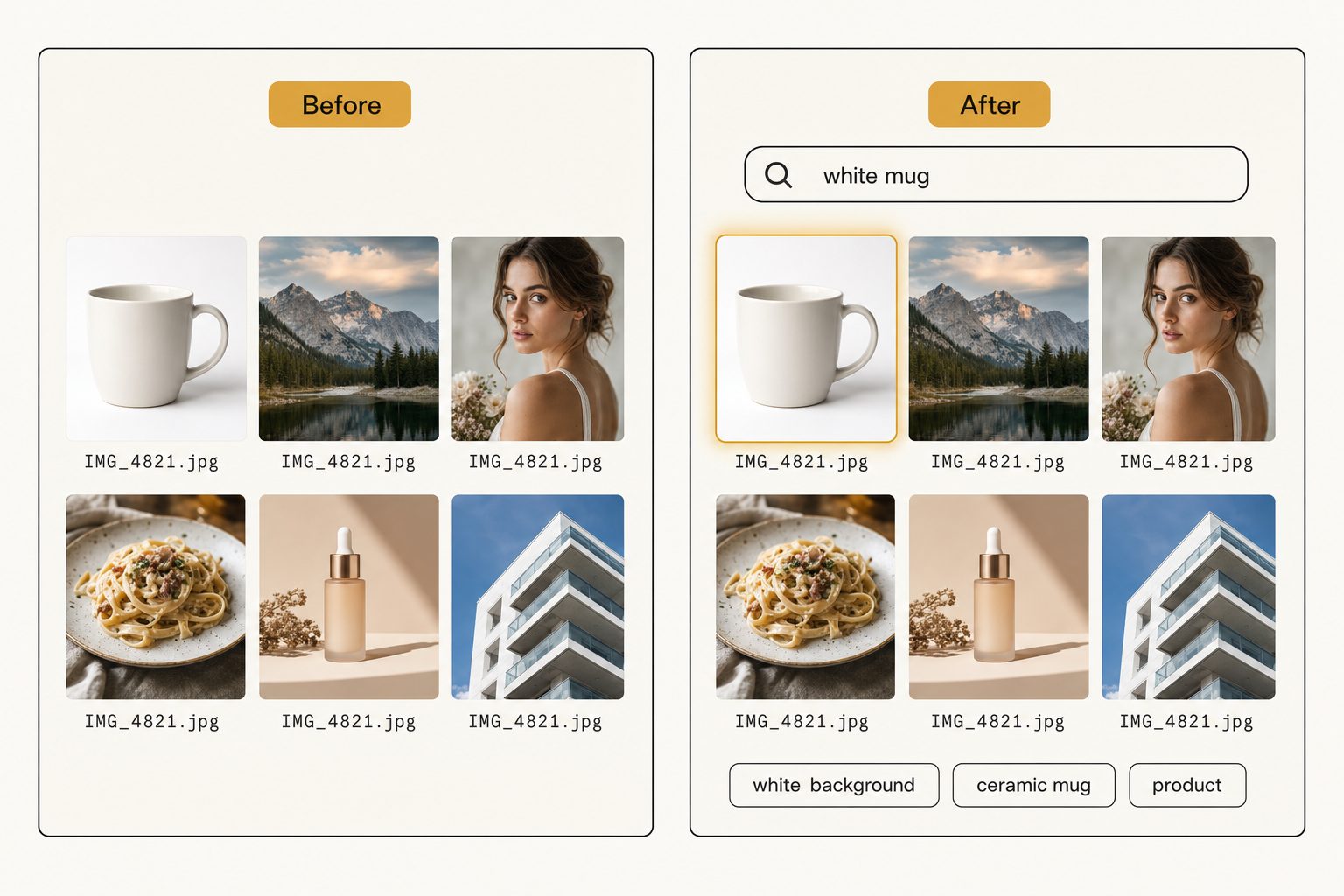
Tag quality is what separates the tools. The strongest use focal-subject tagging: they name the single dominant thing in the frame and rank it above background context, so a search for "magnolia tree" returns photos of a tree rather than every photo with one in the distance.
In Tagrly's own testing on a 5,000-photo set, focal-subject tagging surfaced the correct top match in roughly 9 of 10 searches, and that ranking is what its AI photo search runs on. Our complete guide to AI photo tagging explains why generic tags stop helping past the 1,000-photo wall.
Scale is the other test: a tool you must feed a batch at a time will not survive a real library. A bulk organizer reads the whole archive unattended in the background, and what is already read is searchable while the rest is still going.
To check tag quality on one photo first, Tagrly's free image description and keyword generator reads an upload with no signup, five a day.
How to choose an AI photo organizer
Match the tool to the library, not the reverse. Four questions settle it, in order:
- Whose photos are these? Your own phone roll points to Google Photos or Apple Photos. A team's shared archive points to a connected catalog.
- Where do the photos live? If they are in Drive or Dropbox, pick a tool that reads them there, not one that makes you migrate. Built-in search in both matches filenames, text inside images, and broad categories, not the scene a photo shows (see our guides to Google Drive photo search and Dropbox photo search).
- Does it read the photo or just sort files? Only content readers let you search by what is in the image.
- Can several people search it at the same time? Desktop team editions sync devices or take turns. A team searching one shared cloud library at once needs a connected catalog.
For a team whose photos live in Drive or Dropbox, the answers point to a connected catalog, and the table covers the other common cases:
| Your situation | Best fit |
|---|---|
| Personal phone and laptop photos | Google Photos or Apple Photos (free, already there) |
| Solo photographer, library on your own computer | A desktop organizer like Excire Foto or Mylio Photos+ |
| Small office sharing an archive on its own network or devices | Excire Foto Office Edition (take turns) or Mylio Business (device sync) |
| Team searching photos in Drive or Dropbox at the same time | A connected catalog like Tagrly |
| Enterprise with brand governance and approvals | A full enterprise photo platform (Brandfolder, Bynder) |
For the full field sorted by situation, including pay-per-photo taggers, see our best AI photo tagging software shortlist. If your library is full of duplicates, deduplicate it first so the AI is not tagging six copies of the same frame.
Tip. Want to see what an AI photo organizer does to your own photos before committing? Tagrly's free tier reads the first 500 photos in any Drive or Dropbox folder, no credit card. Try it on a sample folder and search for a shot nobody ever tagged.
What to do next
An AI photo organizer earns its keep once your library is too big to remember. The choice turns less on brand than on whose photos they are: a personal collection, one photographer's computer, or a team's shared cloud folders.
Run the matching option on one real folder before you commit the whole library, and judge it by whether you find the shots you know are in there.
Frequently asked questions
What is an AI photo organizer?
An AI photo organizer is software that looks at each photo, works out what is in it, and makes your whole library searchable without you tagging anything by hand. The older kind just sorted files into albums by date or by a recognized face. The newer, more useful kind uses a vision model to read the image and return descriptive tags, so you can search 'red dress on stage' or 'white background mug' and get the right shot back. It turns a folder of image files into a library you can query by what the photos show.
Does an AI photo organizer move or delete my photos?
It depends on the tool, and this is the most important thing to check before you install one. Some organizers physically move or copy photos into new AI-named folders, which is hard to undo if the tool guesses wrong. Better ones organize in place: they leave every original file untouched and build a separate searchable index that points at your photos. Tools that connect to Google Drive or Dropbox with read-only access physically cannot move, rename, or delete anything. If a tool writes back to your files, test it on a copy of one folder first.
What is the best free AI photo organizer?
For a personal collection, Google Photos and Apple Photos are the best free options, and most people already have them. Both group your library by people, places, and things automatically and search one person's photos well. For a solo photographer who wants to own the metadata, digiKam is free, open source, and writes keywords into standard fields on your own computer. None of them is built for a team searching a shared Drive or Dropbox folder in place. For a team library, most connected catalogs are paid with a free starting tier. Tagrly, for example, reads the first 500 photos in any Drive or Dropbox folder free, with no credit card.
Can an AI photo organizer work on Google Drive or Dropbox?
Yes, but only some read those folders in place. Google Photos and Apple Photos search the library inside their own apps. Desktop organizers like Mylio and Excire Foto build their library on your devices or a network drive, and neither is built to sit read-only on top of a shared Drive or Dropbox folder and give the whole team one browser search over it. Connected catalogs are the category built for this: they authorize with your cloud storage, read every photo where it sits, and build one searchable index across the whole library. Nothing is downloaded to your machine and your originals stay where they are, which fits a team whose photos already live in a shared cloud folder.
How is an AI photo organizer different from Google Photos?
Google Photos is one kind of AI photo organizer, aimed at a single person's phone and cloud roll. It organizes the library you upload to it and searches it well, plain-language phrases included, but it does not read a shared work archive in Drive or Dropbox, and it is not built for a team to search together. Organizers for professionals fall into two other groups: desktop tools that run on your own computer, whose team editions sync one library across devices or share a network database in turns, and connected catalogs that read a team's shared cloud folders and give everyone one searchable index. The right one depends on whether the photos are personal, a solo pro's, or a team's.
Try Tagrly on your own photo library
Connect your Google Drive or Dropbox folder and Tagrly will tag every photo in bulk. Search by what is actually in the image, share specific shots with clients, and never lose a photo again.
- Free for your first 500 photos
- Read-only access, revoke anytime
- No credit card